
Video editing gets faster when your most-used tools are mapped to physical controls instead of buried in menus.
These 10 picks cover compact macro decks, jog-wheel panels, and pro-level editing controllers for different workflows, budgets, and software setups.
Best 10 Video Editing Control Surfaces Picks for 2026
Wired Desktop Controller
TourBox NEO Editing Controller

- Wired operation with stable zero-latency control
- Dial, knobs, and scroll wheel for editing and grading
- Works with Premiere Pro, Final Cut Pro, and Resolve
Best For: Desktop creators who want a compact wired controller
Portable Resolve Color Panel

- Three trackballs for lift, gamma, and gain adjustments
- 12 knobs for direct primary correction control
- USB-powered for laptop and on-set grading
Best For: Resolve colorists who need a portable grading surface
Video Wall Controller
OREI 3x3 Video Wall Controller

- Splits one source across up to nine displays
- HDMI and USB-C input with multiple layout modes
- IR, front-panel, and RS-232 control options
Best For: Commercial AV setups needing a multi-display controller
LCD Macro Shortcut Pad

- 15 LCD keys for visible, programmable shortcuts
- One-touch macros for multi-action workflows
- Works with OBS and other PC-based apps
Best For: Streamers and creators who want shortcut automation
Compact Multi-Mode Knob
USB-C RGB Control Knob for Creative Work

- Bluetooth, 2.4G, and USB-C wired modes
- Maps keyboard shortcuts and scrolling actions
- Portable knob with RGB lights and battery
Best For: Portable shortcut control for editors and multitaskers
Premium Creative Duo
MX Creative Console with MX Master 3S

- Console plus precision mouse in one bundle
- Supports Premiere Pro, Final Cut Pro, DaVinci Resolve, and more
- Up to 15 keypad pages with profile-based customization
Best For: A full workflow upgrade for editors and designers
Ergonomic Control Deck
TourBox Lite for Editing Workflows
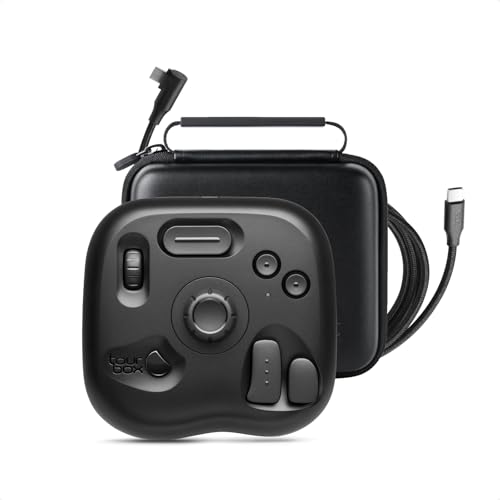
- Wired controller with wheel, knob, and 8 buttons
- Auto-switching presets for supported software
- Ergonomic design aimed at long sessions
Best For: Hands-on editing control with reduced strain
Precision Encoder Control
Grid EN16 Modular MIDI Controller

- 16 infinite-rotation metal encoders with push switches
- Custom curves, MIDI ranges, LEDs, and bi-directional mapping
- MIDI and HID support for shortcuts, mouse, and macros
Best For: Editors who want compact, precise encoder control
Screen-and-Wheel Workflow
Grid VSN1 Left Screen Modular MIDI Controller

- 320 x 240 customizable LCD screen for feedback
- Endless jog wheel plus eight Hall effect buttons
- Programmable as MIDI or HID for editing workflows
Best For: Editors and VJ users who want visual feedback with controls
Dual Jog Editing Control
Grid TEK2 Modular MIDI Controller

- Two endless jog wheels with push functionality
- LED rings and a central display for feedback
- Programmable MIDI, HID, mouse, and game control support
Best For: Editors who need dual jog wheels for scrubbing and adjustments
Wired Desktop Controller – TourBox NEO Editing Controller
If you want video editing control surfaces that make timeline work feel more fluid, the TourBox NEO is built as a wired desktop controller for macOS and Windows. It focuses on low-latency, stable control with a dial, knobs, and scroll wheel that can simplify editing, color grading, and other creative tasks on supported software like Premiere Pro, Final Cut Pro, and DaVinci Resolve.
Best For: Desktop editors and colorists who want a wired, one-handed control surface for faster creative workflows.
Pros:
- Wired design means no charging and no wireless dropouts.
- Dial, knobs, and scroll wheel support precise video editing and color grading.
- Compatible with major creative apps including Premiere Pro, Final Cut Pro, and DaVinci Resolve.
- Also useful for photography, drawing, and general creative control.
Cons:
- Not compatible with Linux.
- Not compatible with mobile devices like iPad or Android tablets.
The TourBox NEO is a practical entry-level control surface if you want more tactile control without moving to a full pro panel. Its strength is versatility across creative software, with the most obvious appeal for editors who value speed and precision on a wired desktop setup.
Portable Resolve Color Panel – DaVinci Resolve Micro Panel
Blackmagic Design DaVinci Resolve Micro Panel | Portable Low Profile Control Panel
Check Price On AmazonAmong video editing control surfaces, the DaVinci Resolve Micro Panel is aimed squarely at color work. It combines three high-resolution trackballs with 12 precision-machined knobs and dedicated keys so you can access primary correction tools directly in DaVinci Resolve, whether you are grading in the studio or on set.
Best For: DaVinci Resolve users who want a portable, USB-powered color grading panel.
Pros:
- Three trackballs support RGB balance adjustments for lift, gamma, and gain.
- 12 dedicated knobs give direct access to primary color correction controls.
- USB power makes it easy to use with a laptop and battery-powered setups.
- Dedicated keys help save and recall stills for reference management.
Cons:
- Designed specifically for DaVinci Resolve.
- Bulkier and heavier than compact desktop controllers.
This panel makes the most sense if your workflow centers on color grading rather than general editing. The trackballs, knobs, and still management keys offer a more hands-on approach than mouse-only grading, and the USB-powered design adds welcome flexibility for portable sessions.
Video Wall Controller – OREI 3×3 Video Wall Controller
The OREI 3×3 Video Wall Controller is not a traditional video editing control surface, but it is a useful AV controller if your setup involves large-format displays or monitoring walls. It splits one HDMI or USB-C source across up to nine screens, adds bezel correction and rotation support, and offers several layout modes for flexible commercial installations.
Best For: AV installers and studios needing a plug-and-play 3×3 video wall controller.
Pros:
- Supports up to a 3×3 video wall across nine displays.
- Multiple layout modes, including 2×2, 3×2, 1×4, and more.
- HDMI and USB-C input support with 4K@60Hz input capability.
- Offers IR, front-panel, and RS-232 control options for installations.
Cons:
- Not intended for timeline editing or creative software control.
- RS-232 cable is not included for rotation control.
If you need display distribution rather than hands-on editing control, this OREI unit fills that role well. It is best viewed as a video wall management tool for monitoring, presentation, or commercial AV use, not as a creative editing controller.
LCD Macro Shortcut Pad – LICAEVEY Stream Controller
If you are comparing video editing control surfaces and want something focused on shortcuts rather than knobs or trackballs, the LICAEVEY Stream Controller is a macro deck with 15 LCD keys. It is built for OBS, PC streaming workflows, and content creation, and its programmable hotkeys can also speed up film editing, music production, and other app-driven tasks.
Best For: Creators who want a customizable LCD-key macro deck for shortcuts and workflow automation.
Pros:
- 15 LCD keys make it easy to see and trigger custom actions.
- One-touch macro execution can handle multiple actions instantly.
- Plugin support works with OBS and other PC-based workflows.
- Durable ABS and metal construction supports extended studio use.
Cons:
- Less tactile for editing than knob- or dial-based control surfaces.
- Focused on PC workflows rather than broad hardware control.
This is a strong fit if your priority is speed through programmable shortcuts instead of traditional editing controls. The LCD keys and plugin support make it especially handy for streamers and creators who want to automate repetitive actions across creative tasks.
Compact Multi-Mode Knob – USB-C RGB Control Knob for Creative Work
If you want a simple control surface for video editing, this USB-C RGB knob is built around quick, customizable actions rather than a traditional mouse-and-keyboard workflow. It can map keyboard shortcuts, handle scrolling, and trigger editing functions across mobile and desktop setups, which makes it a flexible option for basic timeline navigation and media control.
Best For: Creators who want a portable, low-cost knob controller for shortcut-driven editing, page turning, and media control.
Pros:
- Three connection modes: Bluetooth 5.0, 2.4G receiver mode, and USB-C wired
- Customizable functions can replicate complex keyboard shortcut combinations
- 360-degree rotating knob supports press and press-rotate actions
- Built-in battery and RGB lighting make it easy to carry and use on the go
Cons:
- 2.4G mode requires a receiver, which is not included
- More of a shortcut knob than a full editing control surface
- Best for mapped actions rather than deep software-specific controls
This is a practical pick if you want a compact, programmable controller that can cover common editing tasks without taking up much desk space. Its strength is versatility, especially for users who also want page turning, brightness control, and general multimedia shortcuts in one device.
Premium Creative Duo – MX Creative Console with MX Master 3S
This Logitech bundle is the most complete of the group if you’re shopping for video editing control surfaces with both a dial-based console and a precision mouse. The MX Creative Console gives you app-specific shortcuts, dial and roller control, and profile-based customization, while the MX Master 3S adds fast, accurate scrolling for day-to-day editing and navigation.
Best For: Editors and designers who want a polished workflow kit with both shortcut control and a high-precision mouse.
Pros:
- Works with major creative apps including Premiere Pro, Final Cut Pro, and DaVinci Resolve
- MX Creative Console supports up to 15 keypad pages by profile, dial, and roller
- MX Master 3S adds MagSpeed scrolling and an 8K DPI sensor that tracks on glass
- Includes Bluetooth support and the needed USB-C or Logi Bolt accessories
Cons:
- More expensive than a single-purpose control knob
- The bundle may be more than casual users need
- Some features depend on app profiles and customization setup
If you want a serious desktop workflow upgrade, this bundle stands out for breadth and polish. It is less specialized than a dedicated editing console, but the combination of programmable controls and an elite mouse makes it a strong all-in-one option for creative work.
Ergonomic Control Deck – TourBox Lite for Editing Workflows
The TourBox Lite is a wired creative controller that fits well into a video editing control surfaces search because it focuses on fast, tactile shortcut access. Its wheel, knob, and eight buttons are designed for eye-free control, so you can handle common editing actions like trimming timelines, previewing clips, and switching windows without constantly reaching for keyboard shortcuts.
Best For: Editors and creators who want an ergonomic, shortcut-heavy wired controller for long creative sessions.
Pros:
- 8 buttons plus wheel and knob support 50+ actions and 200+ functions
- Ready-to-use presets auto-detect supported software and switch on the fly
- Ergonomic shape is designed to reduce hand strain during long sessions
- Works with major creative apps, including Premiere Pro, Final Cut Pro, and Filmora
Cons:
- Wired-only connection limits desk placement flexibility
- Not compatible with iPadOS, iOS, Linux, or AndroidOS
- Learning its custom controls may still take some setup time
Among these options, the TourBox Lite is the most purpose-built for tactile editing control. It is especially appealing if you value ergonomic handling and want a controller that can stay useful across multiple creative apps rather than just one editing program.
Precision Encoder Control – Grid EN16 Modular MIDI Controller
If you want one of the more hands-on video editing control surfaces for parameter work, the Grid EN16 focuses on precise encoder control rather than faders or transport extras. Its 16 infinite-rotation metal encoders, 20-detent click feel, and push switches make it a strong fit for fine adjustments, shortcut-style workflows, and customizable macro control.
Best For: Editors and creators who want a compact, highly programmable encoder bank for precise timeline and parameter control.
Pros:
- 16 metal encoders offer tactile, precise stepping for detailed adjustments.
- Push switches add secondary functions without expanding the footprint.
- Grid Editor supports custom curves, MIDI ranges, LED behavior, and bi-directional mapping.
- Works as both MIDI and HID, so it can emulate mouse movement and keyboard shortcuts.
Cons:
- Focuses on encoders rather than dedicated jog wheels or a screen.
- Advanced scripting and mapping may take time to set up.
For users who value precision over simplicity, the EN16 is a flexible modular option that can be adapted to editing, streaming, and other creative workflows. Its strength is depth of control, especially if you want one controller to behave differently across apps and pages.
Screen-and-Wheel Workflow – Grid VSN1 Left Screen Modular MIDI Controller
Among video editing control surfaces, the Grid VSN1 Left stands out for adding a customizable LCD screen to a jog wheel and button layout. The 320 x 240 display, endless jog wheel, and Hall effect buttons create a setup that can show useful feedback while still keeping core controls close at hand.
Best For: Creators who want visual feedback alongside jog-wheel control for editing, VJ, or macro-heavy workflows.
Pros:
- Customizable 320 x 240 LCD screen can display text, sliders, and parameters.
- Endless jog wheel is useful for scrolling and adjustments.
- Eight Hall effect buttons and four assignable tactile buttons provide responsive control.
- Supports MIDI plus HID keyboard and mouse control through Grid Editor and LUA scripting.
Cons:
- Single-module layout may be limiting if you want lots of dedicated controls.
- Deep customization is powerful, but it adds setup complexity.
This is a practical choice if you want your controller to show information instead of forcing you to rely on software alone. The mix of screen, wheel, and programmable inputs makes it especially appealing for workflows that benefit from quick visual confirmation.
Dual Jog Editing Control – Grid TEK2 Modular MIDI Controller
If your priority is scrub-and-adjust control, the Grid TEK2 is the most directly relevant of these video editing control surfaces. It pairs two endless jog wheels with eight Hall effect buttons, plus LED rings and a central display so you can keep track of parameter position while moving through timelines or other creative tasks.
Best For: Editors who want dual jog wheels for scrubbing, timeline work, and fast multi-parameter control.
Pros:
- Two high-precision jog wheels with push functionality are well suited to timeline scrubbing.
- 5-point LED rings and a central 5-bit display provide immediate visual feedback.
- Hall effect buttons are velocity and pressure-sensitive for flexible triggering.
- Grid Editor with LUA scripting supports MIDI, HID keyboard, mouse, and game control protocols.
Cons:
- More specialized in jog-wheel workflows than simple button-pushing.
- Customization depth may be overkill for users who want a plug-and-play device.
The TEK2 is a strong fit if your editing process depends on precise scrubbing and frequent adjustment. Its combination of dual jog wheels, responsive buttons, and rich feedback makes it feel purpose-built for hands-on control.
How We Picked These Video Editing Control Surfaces
We focused on controls that can meaningfully reduce mouse travel and speed up common editing tasks like scrubbing, trimming, marking clips, changing brush sizes, and triggering shortcuts. Priority went to devices with good software support, flexible customization, and a control layout that makes sense for real editing work.
Quick Comparison: Which Type Fits Your Workflow?
Not every editor needs a large panel. Some creators will be best served by a compact macro controller for shortcuts and timeline navigation, while others may want jog wheels, LCD keys, or deeper tactile control for grading and precision work. If you edit in multiple apps, choose a device with strong profile switching and reliable app detection.
Key Buying Factors for Video Editing Control Surfaces
Controls and Layout
Look for the input style that matches your editing habits. Jog wheels are useful for shuttle control and fine timeline movement. Knobs can speed up parameter adjustments. LCD keys and macro buttons are ideal for tool switching, markers, and export commands. If you prefer an all-purpose setup, a controller with mixed inputs usually offers the most flexibility.
Software Compatibility
Make sure the device supports your primary editor, whether that is DaVinci Resolve, Premiere Pro, Final Cut Pro, or another NLE. Good software should let you remap functions, build profiles, and save custom layouts without constant setup.
Ergonomics and Desk Space
Smaller Video Editing Control Surfaces suit cramped desks and portable rigs, while larger panels can be more comfortable for long sessions. Consider hand position, button spacing, build quality, and whether the device feels natural during repetitive tasks.
Workflow Features
Extra features can matter more than raw button count. Look for tactile feedback, endless encoders, display feedback, dual jog wheels, shortcut layering, and strong macro support if you want to streamline repetitive edits. Power users should also check for USB-C connectivity, firmware updates, and device-specific editor profiles.
Who Should Buy Which Video Editing Control Surfaces?
Choose a simple macro-style controller if you want quick shortcut access and a lower learning curve. Pick a dedicated editing panel if you spend long hours trimming, scrubbing, and grading. If you also create content for streaming, music, or general desktop workflows, a flexible controller with programmable keys may offer the best overall value. The best Video Editing Control Surfaces are the ones that fit your software, your hands, and the way you actually work.
