
A capture card can bring a camera or game console into your Mac for streaming, calls, or recording. The tricky part is separating a device’s HDMI input rating from the resolution and frame rate it can actually send to your software.
These 10 options cover compact camera adapters, everyday 1080p capture devices, and cards with HDMI pass-through. Use the buying guide below to match the connections and features to your setup.
Best 10 Video Capture Cards for Mac Picks for 2026
High-Frame-Rate Camera Pick
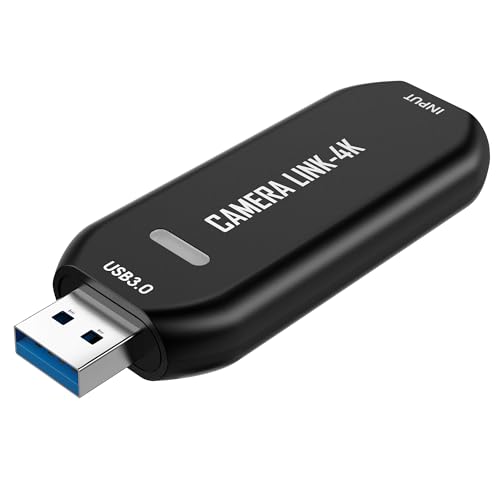
- 4K60 capture specified in MJPEG
- 1080p120 capture option
- Driver-free macOS setup
Best For: Using an HDMI camera as a Mac webcam
USB-C Adapter Pick

- 2K30 or 1080p60 capture
- USB-C adapter included
- Capture software required
Best For: Recording HDMI sources on Macs with USB-C ports
Portable Streaming Pick

- 1080p60 or 2K30 capture
- Compact, driver-free design
- USB-C adapter included
Best For: Portable Mac streaming and recording setups
Multi-Source Recording Pick

- 4K30 HDMI input
- 2K30 or 1080p60 recording
- USB-C adapter included
Best For: Capturing consoles and cameras on a Mac
Premium Console Pick

- Up to 4K60 capture
- 1440p120 or 1080p240 options
- 3.5mm analog audio input
Best For: Mac console creators prioritizing high-resolution capture
Portable Adapter Pick
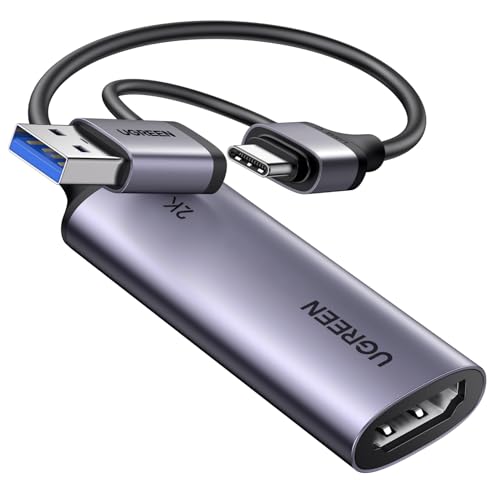
- Up to 2K30 or 1080p60 capture
- USB-A and USB-C connections
- Driver-free Mac support
Best For: Simple HDMI recording on Macs with varied USB ports
Passthrough and Audio Pick
XIIXMASK USB 3.0 HDMI Capture Card

- Stated 4K60 capture with passthrough
- Up to 1080p120 recording
- 3.5mm audio connections
Best For: Mac streaming setups needing monitoring and audio ports
Best for 2K Recording
UGREEN USB 3.0 HDMI Capture Card

- Records up to 2K/30 fps or 1080p/60 fps
- 4K/30 Hz HDMI input and loop-out
- USB-A and USB-C connectivity; no 4K capture
Best For: Mac users wanting 2K gameplay recording with HDMI loop-out
Best Portable Setup
Dcyfol 1080p/60 HDMI Capture Card
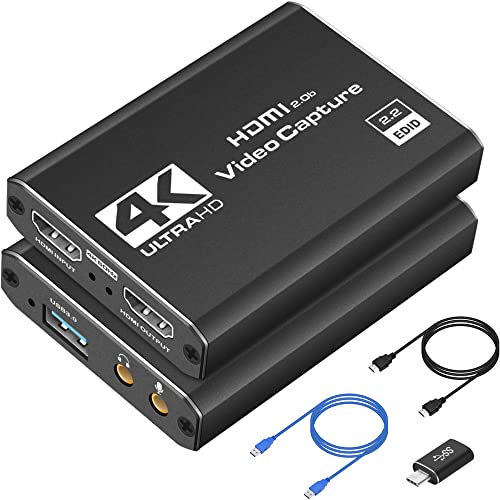
- Records 1080p at 60 fps with HDMI loop-out
- Plug-and-play; supports OBS Studio
- Includes USB-to-Type-C adapter; needs USB 3.0
Best For: Portable Mac setups capturing consoles or cameras at 1080p/60 fps
Best for Mic Commentary

- 1080p capture with HDMI loop-out
- 3.5 mm TRS microphone input
- Mac support listed in bullets; details focus on Windows
Best For: Commentary-focused Mac users willing to verify compatibility
High-Frame-Rate Camera Pick – VIXLW Cam Link 4K
Among video capture cards for Mac, the VIXLW Cam Link 4K suits anyone turning an HDMI camera into a webcam. It lists capture up to 4K60 in MJPEG or 1080p120, with OBS and Zoom support.
Best For: Mac users capturing a DSLR, camcorder, or action cam for calls, streaming, or detailed close-up work.
Pros:
- Supports 4K60 in MJPEG and 1080p120 capture.
- Works with macOS and a range of HDMI sources, including cameras and microscopes.
- Plug-and-play setup needs no driver or external power.
Cons:
- 4K60 is specified for MJPEG; NV12 and YUY2 are limited to 4K30.
- No HDMI passthrough is listed for viewing a source on a separate display.
Choose this one when camera capture and higher frame-rate options matter more than a documented passthrough connection. Check that your preferred capture format supports the resolution and frame rate you need.
For shoppers comparing video capture cards for Mac, this GUERMOK model offers 2K30 or 1080p60 capture from an HDMI source. Its USB 3.0 connection and included USB-C adapter give you options for different Mac ports.
Best For: Recording a camera or game console on a Mac through capture software such as OBS.
Pros:
- Accepts up to 4K30 HDMI input and captures up to 2K30 or 1080p60.
- Includes a USB 3.0-to-USB-C adapter.
- Requires no additional driver or separate power supply.
Cons:
- Does not output a direct HDMI picture to a monitor or TV.
- The adapter must be connected on its USB 3.0 side to avoid a USB 2.0 connection.
This is a practical choice for software-based recording, not a substitute for a direct display connection. If OBS has no audio after setup, the supplied instructions say to restart it.
This compact Guermok device is one of the video capture cards for Mac suited to a portable OBS setup. It accepts up to 4K30 HDMI input and captures at up to 2K30 or 1080p60, with a USB-C adapter included.
Best For: Carrying a simple HDMI capture setup between gaming, teaching, and video-call workspaces.
Pros:
- Captures 1080p60 or 2K30 from a compatible HDMI source.
- Small, lightweight design needs no driver or external power.
- Supports macOS and software including OBS and Zoom.
Cons:
- Capture software is required; it is not for direct casting to a monitor or TV.
- The included adapter can connect at USB 2.0 if used on the wrong side.
Its portability is the main draw if you move between setups. For OBS audio issues, the supplied guidance recommends restarting the software after configuring audio.
The VIXLW U168-1 covers the basics expected of video capture cards for Mac: HDMI input, USB 3.0 connectivity, and recording at 2K30 or 1080p60. Its listed sources include game consoles, DSLR cameras, and TV boxes.
Best For: Mac users switching between HDMI gameplay, camera video, and online-meeting capture.
Pros:
- Accepts up to 4K30 HDMI input for 2K30 or 1080p60 recording.
- Includes a USB 3.0-to-USB-C adapter for different computer ports.
- Works with macOS and software including OBS and Zoom without an added driver.
Cons:
- 4K refers to HDMI input; listed recording tops out at 2K30.
- No HDMI passthrough output is specified.
Consider it when you want one portable capture device for several HDMI sources. If you need to play on a separate display while recording, confirm your display-routing setup before buying.
Premium Console Pick – Elgato 4K S
Among video capture cards for Mac, the Elgato 4K S is a strong choice for console creators who want 4K60 recording, high-frame-rate options, and a compact USB-C setup. It supports macOS 13 or later and requires an Apple M1 or better on Mac.
Best For: Mac users recording PS5, Xbox Series X/S, or Switch 2 gameplay at up to 4K60.
Pros:
- Captures up to 4K60, with 1440p120 and 1080p240 options.
- Includes a 3.5mm analog audio input for chat or commentary.
- Supports macOS 13 or later and connects through USB 3.0 Type-C.
Cons:
- HDR tone-mapped capture is specified for Windows, not Mac.
- Requires a Mac with an Apple M1 or better and a USB 3.0 Type-C port.
Choose this if capture quality and faster gameplay footage matter most; Mac buyers should not assume the Windows-specific HDR capture feature carries over.
Portable Adapter Pick – UGREEN HDMI to USB 3.0
If you want a compact entry among video capture cards for Mac, this UGREEN adapter takes HDMI input and offers up to 2K30 or 1080p60 capture. Its USB-A and USB-C connections make it convenient for different Mac ports, and it supports QuickTime Player and OBS Studio.
Best For: Mac users capturing console or camera HDMI video without a separate passthrough setup.
Pros:
- Supports 2K30 and 1080p60 capture from HDMI sources.
- Provides both USB-A and USB-C connection options.
- Driver-free Mac compatibility and support for OBS Studio and QuickTime Player.
Cons:
- Capture is limited to 2K30 or 1080p60 despite support for 4K30 input.
- Signal flows only from HDMI input to USB output; no HDMI passthrough is listed.
It is a practical pick for straightforward recording, provided you do not mistake its 4K input specification for 4K capture output.
Passthrough and Audio Pick – XIIXMASK USB 3.0 HDMI Capture Card
For shoppers comparing video capture cards for Mac, the XIIXMASK stands out for its stated 4K60 capture, HDMI passthrough, and 3.5mm audio connections. It connects over USB 3.0 with USB-A or USB-C and is listed as compatible with macOS without additional drivers.
Best For: Mac streamers who want HDMI monitoring and external audio connections in one capture setup.
Pros:
- Claims up to 4K60 capture and provides 4K HDMI passthrough.
- Supports recording up to 1080p120.
- Includes 3.5mm audio input and microphone output, plus USB-A/USB-C connectivity.
Cons:
- The supplied specifications do not state Mac hardware requirements.
- Requires an available USB 3.0 port.
Its passthrough and audio ports make it more flexible than a capture-only adapter, but check your Mac’s USB 3.0 availability before buying.
Best for 2K Recording – UGREEN USB 3.0 HDMI Capture Card
Among video capture cards for Mac, this UGREEN model stands out if you want 2K recording at 30 fps alongside a separate HDMI display feed. It also captures 1080p at 60 fps and accepts 4K at 30 Hz input, but it does not record in 4K.
Best For: Mac users recording console gameplay at up to 2K/30 fps while viewing a 4K/30 Hz HDMI loop-out.
Pros:
- Captures up to 2K/30 fps or 1080p/60 fps.
- Supports 4K/30 Hz HDMI input and loop-out for local monitoring.
- Plug-and-play on macOS, with USB-A and USB-C connectivity and no external power required.
Cons:
- Cannot capture 4K video.
- PS4 and PS5 users must turn off HDCP.
Choose it for the higher-than-1080p recording option, not for 4K files. Its dual USB connection options make it a flexible fit for different Mac setups.
Best Portable Setup – Dcyfol 1080p/60 HDMI Capture Card
If you need video capture cards for Mac that are easy to move between setups, this compact Dcyfol device is worth considering. It records at 1080p/60 fps, offers HDMI loop-out, and is listed as compatible with macOS and software including OBS Studio.
Best For: MacBook or iMac users who want a portable, plug-and-play option for recording consoles or cameras at 1080p/60 fps.
Pros:
- Records 1080p video at 60 fps and provides HDMI loop-out.
- Requires no driver installation and supports OBS Studio, Streamlabs, and XSplit.
- Includes a USB-to-Type-C converter adapter and extension cables.
Cons:
- Records at 1080p/60 fps rather than 4K, despite its 4K HDMI branding.
- Requires an available USB 3.0 port.
This is a practical pick when straightforward setup and portability matter more than recording above 1080p. Check that your Mac has a suitable USB 3.0 connection before buying.
Best for Mic Commentary – VIXLW HDMI Capture Card
For shoppers comparing video capture cards for Mac, this VIXLW model adds a feature the others here do not list: a 3.5 mm microphone input for commentary. Its product bullets state Mac OS support, 1080p capture, USB 3.0 connectivity, and HDMI loop-out, though its detailed system-requirements listing focuses on Windows.
Best For: Mac users who want to add live microphone commentary to HDMI gameplay capture and can verify their Mac setup before purchase.
Pros:
- Provides HDMI loop-out and plug-and-play operation without external power.
- Has a microphone input for adding commentary.
- Product bullets list Mac OS support and compatibility with OBS, Potplayer, and VLC.
Cons:
- The mic input accepts only a 3.5 mm TRS-standard microphone headset.
- Mac support appears in the bullets, but the detailed operating-system and minimum-requirements fields list Windows instead.
The commentary input is its clearest advantage. Because the supplied compatibility details conflict, confirm macOS support for your setup before choosing it.
How We Picked These Video Capture Cards for Mac
We focused on practical differences across the 10 selected devices: advertised capture resolution and frame rate, USB connection, HDMI pass-through, and whether the design suits a camera or a gaming setup. Product names and specifications are a starting point, not proof of macOS compatibility or real-world performance. Before ordering, check the manufacturer’s current Mac support details and recent buyer feedback for your specific Mac and software.
Quick Comparison: Which Type Fits Your Setup?
- Camera-to-Mac adapters: A compact HDMI-to-USB device is the simplest choice when you want a DSLR, camcorder, or action camera as a video source.
- 1080p60 capture devices: Several options in this list advertise 1080p at 60 fps, a useful target for gameplay and smooth recordings. Confirm that 60 fps applies to USB capture, not just HDMI input.
- Pass-through cards: Models with HDMI loop-out let you connect a separate TV or monitor while capturing on your Mac. Compare the pass-through specification separately from the recorded-video specification.
- Higher-resolution options: Some devices advertise 2K or 4K capabilities, but those labels can refer to input, pass-through, or capture. Read the full specification before paying extra.
Key Buying Factors for Video Capture Cards for Mac
Mac Connection and Software Support
Check whether the card uses USB-A, USB-C, or includes an adapter that fits your Mac. A USB-C plug does not, by itself, guarantee a faster connection. Look for explicit macOS support and confirm compatibility with your intended app, such as OBS or your video-call software. A device described as UVC-compatible may be easier to use without a dedicated driver, but verify that claim for the exact model.
Capture Specs Versus HDMI Specs
Separate three numbers: the HDMI signal a card accepts, the video it sends to your Mac, and any signal it passes to a display. For example, accepting 4K input does not necessarily mean recording in 4K. Match the actual capture output to your project; 1080p60 is often more relevant for motion than an impressive input label.
Source and Workflow
Make sure your camera offers a suitable HDMI output, ideally without on-screen menus if you need a clean image. For consoles, decide whether you need pass-through for playing on a separate display. Check audio capture support, cable requirements, and any stated limitations involving copy-protected HDMI signals.
Who Should Buy Which Video Capture Cards for Mac?
For video calls or a camera webcam: Start with a small HDMI-to-USB adapter that supports your camera’s output and your preferred Mac app. For console streaming: Prioritize confirmed 1080p60 capture and HDMI pass-through if you play on a TV or monitor. For occasional recording on a budget: A basic USB 3.0 capture device may cover your needs; verify its true output specification first. For higher-resolution projects: Choose only after confirming the advertised resolution is available as capture output on macOS, not merely as HDMI input or loop-out.
