
If you need a cleaner, faster desk setup, a good dock can turn a single USB-C or USB4 port into a full creative workstation. The best options make it easier to run multiple displays, connect storage and peripherals, and keep laptops charged during long editing sessions.
This roundup focuses on creator-friendly docks with practical video output, reliable power delivery, and the ports that matter most for real workflows.
Best 10 Usb4 Docking Station for Creators Picks for 2026
Best for Mixed Mac/Windows Teams

- Driverless on macOS and Windows
- Dual 4K 144Hz or single 8K 60Hz output
- 100W charging with 2.5GbE networking
Best For: Creative teams and IT-managed workstations that need a reliable, cross-platform dock.
Best for Triple-Display Workstations
TobenONE 18-in-1 Docking Station
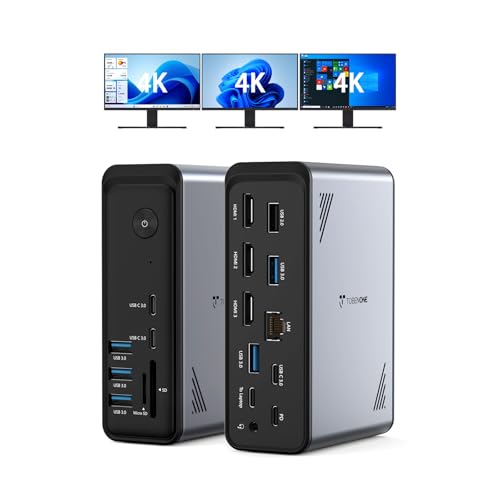
- Triple 4K@60Hz display support
- 18 ports with 9 USB connections
- 100W PD charging for compatible laptops
Best For: Windows and Chrome OS users who want a powerful multi-monitor dock with lots of peripherals.
Best for Dual 4K Windows Setups
Plugable 2×HDMI USB-C Docking Station

- Dual HDMI with up to 4K 60Hz output
- Driverless setup on supported Windows/ChromeOS systems
- 65W charging plus Ethernet and USB expansion
Best For: Windows or Chromebook users who want a simple dual-monitor dock with creator-friendly desk connectivity.
Best for Multi-Display USB-C Setups
8-in-1 USB-C Dual Monitor Dock

- Dual HDMI, DisplayPort, and VGA for flexible screen layouts.
- 100W PD passthrough keeps a compatible laptop charged.
- Three USB 2.0 ports cover basic peripherals and accessories.
Best For: Creators and office users who want a simple multi-monitor USB-C dock with charging.
Best for Triple-Monitor Workflows
Plugable USB C Triple Display Dock

- Supports up to 3 HDMI monitors for expanded multitasking
- Delivers 100W Power Delivery for laptop charging
- Adds 6 USB ports plus Gigabit Ethernet for a full desk setup
Best For: Creators and hybrid workers who want three external displays and dependable wired connectivity.
Best Multi-Display Pick
USB C Dual HDMI Docking Station 14-in-1

- Dual HDMI and DisplayPort for flexible monitor setups
- 100W PD plus Ethernet and card readers for a full desk
- Loads of USB-A and USB-C ports for peripherals
Best For: Creators and office users who want a multi-monitor dock with broad port coverage.
Best for Triple-Monitor Setups
Plugable 13-in-1 USB C Docking Station

- Up to three 4K 60Hz displays
- 100W laptop charging plus accessory power
- 3x HDMI and 3x DisplayPort for flexible setups
Best For: Creators and power users who want a triple-monitor dock with one-cable charging and broad connectivity.
Best for Triple Monitors
Plugable Triple Monitor Dock with 100W Charging

- Triple HDMI setup for up to three extended displays
- 100W laptop charging plus 20W USB-C device charging
- Works with Windows, macOS, and ChromeOS via DisplayLink
Best For: Creators and professionals who want a triple-monitor dock with broad compatibility.
Best for Mixed Mac/Windows Teams – StarTech USB4 Docking Station
If you need a usb4 docking station for creators who move between Mac and Windows, this StarTech model is built to standardize a mixed-device setup without drivers or OS-specific workarounds. It delivers dual 4K display support, 100W charging, and 2.5GbE networking in a single dock, making it a practical fit for busy studios and shared desks.
Best For: Creative teams, IT-managed workstations, and Mac/Windows users who want a reliable, driverless dock with strong display output.
Pros:
- Driverless plug-and-play operation on macOS and Windows
- Dual 4K 144Hz or single 8K 60Hz display support
- 100W laptop charging plus 2.5GbE for faster wired networking
- Useful IT features like PXE Boot, Wake-on-LAN, and locking support
Cons:
- Premium pricing is more likely than basic USB-C docks
- Mounting accessories are sold separately
- Best features depend on a USB4 or Thunderbolt 4/5 host connection
For teams that need consistent performance across different laptops, this is a strong usb4 docking station for creators because it simplifies deployment while still covering high-refresh displays, networking, and charging. It is especially compelling if you value reliability and fleet-friendly management more than lowest cost.
Best for Triple-Display Workstations – TobenONE 18-in-1 Docking Station
If you want a usb4 docking station for creators-style setup on Windows, this TobenONE dock is built for heavy multitasking: three HDMI outputs, 9 USB ports, Ethernet, SD/microSD, and 100W PD charging help turn a laptop into a full desktop command center.
Best For: Windows and Chrome OS users who need triple-monitor support, lots of USB connectivity, and a tidy all-in-one desk setup for editing, office work, or remote collaboration.
Pros:
- Triple 4K@60Hz display support for expansive multitasking
- 18 total ports, including 9 USB, Ethernet, SD, and microSD
- 100W Power Delivery keeps compatible laptops charged during work
- Good fit for Dell, Lenovo, HP, and ThinkPad USB-C laptops
Cons:
- No power adapter included, so you need your own sufficiently strong charger
- Not recommended for Mac users
- Requires a full-featured USB-C port to unlock the display features
For creators who care more about ports, stable charging, and a true multi-monitor desk than USB4 branding alone, this is a practical expansion dock that can simplify a busy workflow. It’s especially appealing if your usb4 docking station for creators search is really about maximum connectivity and a clean, productive workspace.
Best for Dual 4K Windows Setups – Plugable 2×HDMI USB-C Docking Station
If you want a practical usb4 docking station for creators, this Plugable dock is built around dual-monitor productivity, simple plug-and-play setup, and enough ports to keep a busy desk uncluttered. It’s a strong fit for Windows and ChromeOS users who need reliable display expansion without installing drivers.
Best For: Creators, remote workers, and multitaskers who use Windows or ChromeOS laptops and want dual 4K external displays from one cable.
Pros:
- Dual HDMI outputs support up to 4K 60Hz on compatible systems.
- Driverless setup makes it easy to connect and start working fast.
- Includes Ethernet, USB-C, three USB-A ports, and audio for a tidy workstation.
- 65W charging helps reduce the number of cables on your desk.
Cons:
- Dual extended displays are not a good fit for macOS users.
- Full dual 4K 60Hz performance depends on host hardware support.
- Requires a USB-C port with DisplayPort Alt Mode for video output.
For creators who work in Windows or Chromebook environments, this is a straightforward usb4 docking station for creators that prioritizes display flexibility and no-fuss setup over flashy extras. It’s especially appealing if your workflow centers on two monitors, calls, and wired peripherals.
Best for Multi-Display USB-C Setups – 8-in-1 USB-C Dual Monitor Dock
If you need a practical usb4 docking station for creators-style workstation upgrade without paying for a high-end Thunderbolt dock, this 8-in-1 USB-C hub is built for extra screens and everyday peripherals. It offers dual HDMI, DisplayPort, and VGA outputs, plus 100W PD passthrough and three USB 2.0 ports for a simple desk setup.
Best For: Creators, remote workers, and students who want a compact multi-monitor dock for a USB-C laptop with basic accessory support.
Pros:
- Supports up to four display outputs, including dual HDMI, DP, and VGA.
- 100W USB-C charging passthrough helps keep a laptop powered while connected.
- Three USB 2.0 ports are handy for keyboards, mice, and flash drives.
- Broad compatibility with many Dell, HP, Lenovo, and Surface laptops that support DP Alt Mode.
Cons:
- Not a true USB4 dock, so it may not match the bandwidth of higher-end creator stations.
- USB 2.0 ports are fine for accessories, but not ideal for fast external storage.
- Mac users get mirrored displays rather than independent extended screens.
For buyers who mainly want more monitor outputs and power delivery, this is a budget-friendly way to approximate a usb4 docking station for creators workflow on supported USB-C laptops. Just confirm DP Alt Mode and display support before ordering.
Best for Triple-Monitor Workflows – Plugable USB C Triple Display Dock
If you need a practical usb4 docking station for creators who juggle timelines, reference windows, and peripherals, this Plugable dock is built for multi-monitor productivity. It supports up to three HDMI displays, 100W laptop charging, and a broad mix of USB and Ethernet connections for a cleaner desk setup.
Best For: Creators and hybrid professionals who want three external displays, dependable wired networking, and a simple all-in-one dock for Windows, macOS, or ChromeOS workstations.
Pros:
- Triple-display support helps expand editing, design, or research workflows.
- Includes 100W USB-C Power Delivery to keep your laptop charged while working.
- Six USB 5Gbps ports plus Gigabit Ethernet cover most desk peripherals.
- Compatible with USB-C, USB4, and Thunderbolt systems across major OS platforms.
Cons:
- One display tops out at 4K 30Hz, which is not ideal for high-refresh needs.
- DisplayLink requires driver installation on macOS.
- Not compatible with Linux, and HDCP is not supported.
For creators who prioritize screen real estate over gaming features, this is a capable usb4 docking station for creators that focuses on workstation efficiency rather than flashy extras. It makes the most sense for mixed-device offices and desk setups where reliable charging, connectivity, and multi-display support matter most.
Best Multi-Display Pick – USB C Dual HDMI Docking Station 14-in-1
If you need a usb4 docking station for creators-style workflow on a Dell, Lenovo, or HP laptop, this 14-in-1 hub is built around display expansion and everyday connectivity. It combines dual HDMI, DisplayPort, Ethernet, USB-A, USB-C, SD/TF, audio, and 100W power delivery in one desktop-friendly dock.
Best For: Creators and multitaskers who want multiple external displays, wired networking, and a single-cable desk setup.
Pros:
- Dual HDMI plus DisplayPort support gives you flexible multi-monitor options.
- 100W PD charging helps keep a compatible laptop powered while docked.
- Includes Ethernet, SD/TF, audio, and extra USB ports for a fuller workstation.
- Works well as an all-in-one expansion hub for busy creator desks.
Cons:
- It is feature-rich, so it is not as compact as simpler travel docks.
- Display performance depends on your laptop’s USB-C/DisplayPort capabilities.
For creators who prioritize port variety and dual-monitor flexibility, this is a practical docking station rather than a minimalist adapter. If your workflow needs a usb4 docking station for creators with plenty of legacy and modern connections, it is a strong value-focused choice.
Best for Multi-Display Creators – TobenONE 4-Monitor DisplayLink Dock
If you need a usb4 docking station for creators that can handle a busy edit bay, this TobenONE model stands out with 4 HDMI outputs, DisplayLink support, and a broad 18-in-1 port set. It is built for desk setups that juggle multiple monitors, fast peripherals, wired networking, and laptop charging from one hub.
Best For: Creators who want a high-port-count dock for triple or quad external displays, especially on Windows laptops and Mac setups that can benefit from DisplayLink.
Pros:
- Supports up to 4 external displays on Windows and 3 on Mac with up to 4K@60Hz output
- 18-in-1 layout includes HDMI, USB-A, USB-C, SD/microSD, Ethernet, and audio
- 120W power supply can deliver up to 100W laptop charging while running the dock
- Works with Thunderbolt 5/4/3, USB4, and full-featured USB-C laptops
Cons:
- Requires DisplayLink driver installation for full functionality
- macOS display modes are more limited than Windows
- Not compatible with Linux/Unix systems
For creators who value screen real estate and lots of wired connections, this is a strong usb4 docking station for creators, though the DisplayLink setup makes it better for users comfortable installing drivers and managing multi-monitor compatibility.
Best for Dual-Display Thunderbolt Setups – Plugable TBT4-UD5 Thunderbolt 4 Dock
If you want a reliable usb4 docking station for creators, the Plugable TBT4-UD5 is built around fast 40Gbps connectivity, strong 100W laptop charging, and flexible dual-display output. It’s a practical fit for desktop editing, streaming, and mixed Windows or Mac workstations where port count and monitor support matter.
Best For: Creators who need a Thunderbolt 4 dock for dual 4K monitors, fast peripherals, and one-cable laptop charging on Windows or supported Mac systems.
Pros:
- Dual 4K 60Hz HDMI or single 8K support on compatible Thunderbolt 4, Thunderbolt 5, and USB4 laptops
- 100W Power Delivery plus 15W downstream Thunderbolt charging keeps a laptop and accessories powered
- 13 total ports give you HDMI, USB, SD/microSD, Ethernet, audio, and Thunderbolt expansion
- Thunderbolt certified and designed for high-speed storage, displays, and creator peripherals
Cons:
- Dual-display support is limited on some Macs and non-Thunderbolt USB-C systems
- No native DisplayPort outputs, so it’s HDMI-first by design
- More expensive than basic USB-C hubs for simple single-monitor setups
This is a strong usb4 docking station for creators who care more about stable display output, charging, and throughput than about bargain pricing. If your workflow includes multiple monitors and fast external drives, it’s one of the more capable all-around docks in this category.
Best for Triple-Monitor Setups – Plugable 13-in-1 USB C Docking Station
If you need a usb4 docking station for creators that can handle serious screen space, the Plugable UD-ULTC4K is built for exactly that kind of workflow. It combines 13-in-1 expansion, 100W laptop charging, and triple-display support in a single dock, making it a strong fit for editing, development, and multitasking setups.
Best For: Creators, developers, and office users who want up to three 4K displays, wired connectivity, and one-cable charging from a USB4, Thunderbolt, or USB-C laptop.
Pros:
- Supports up to three 4K 60Hz monitors for expansive multitasking
- Includes 3x HDMI and 3x DisplayPort outputs for flexible monitor hookups
- Delivers up to 100W charging for compatible laptops plus accessory power
- Works with Windows, macOS, and ChromeOS systems that support DisplayLink
Cons:
- DisplayLink drivers are required, especially on macOS
- HDCP is not supported, so some protected streaming content may not play
- Not a true plug-and-play choice for users who want the simplest setup
For creators who value multi-monitor productivity over portability, this is one of the more capable expansion docks in its class. It stands out as a usb4 docking station for creators who want lots of display outputs, solid charging, and broad workstation connectivity in one unit.
Best for Triple Monitors – Plugable Triple Monitor Dock with 100W Charging
If you need a usb4 docking station for creators that prioritizes a true multi-display workflow, this Plugable dock is built around productivity first. It’s a 13-in-1 USB-C dock with DisplayLink support, triple HDMI output, 100W laptop charging, and a practical mix of USB, Ethernet, and SD card ports for a busy desk.
Best For: Creators, office power users, and mixed Mac/Windows setups that need three external monitors and one-cable docking.
Pros:
- Supports up to three extended HDMI displays, including Macs that normally limit external monitors.
- Delivers up to 100W charging for the laptop plus 20W front USB-C charging for accessories.
- Includes 4 USB-A ports, Gigabit Ethernet, SD card reader, and audio in/out for a complete workstation.
- Works across Windows, macOS, and ChromeOS with USB-C, USB4, or Thunderbolt systems.
Cons:
- Mac users must install the DisplayLink driver to use multiple displays.
- Not ideal if you need native high-refresh gaming or HDCP-protected streaming support.
For creators who care more about screen real estate and desk efficiency than raw USB4 speed, this is a strong practical choice. It’s especially compelling as a usb4 docking station for creators who want triple-monitor support on a simple, business-ready dock.
How We Picked the Best Usb4 Docking Station for Creators
For a Usb4 Docking Station for Creators, we prioritized display flexibility, charging output, port variety, and broad compatibility. We also looked for docks that make sense for common creative tasks like photo editing, video timelines, live streaming, audio work, and external storage transfers.
Driverless operation is ideal when possible, but some creator docks rely on DisplayLink for expanded monitor support. That is not a flaw by itself; it is simply a tradeoff to consider if you want more screens from a laptop that would otherwise be limited.
Quick Comparison
If you want the simplest setup, choose a dock with strong USB4 or Thunderbolt support, at least one high-resolution display output, and 90W to 100W power delivery. If you need more screens than your laptop natively supports, look for DisplayLink-based models. If your workflow is centered on a single high-refresh monitor, external SSDs, and a few accessories, a more streamlined USB4 or Thunderbolt dock is usually the better fit.
Key Buying Factors for Usb4 Docking Station for Creators
Display Support
Check both the number of displays and the resolutions/refresh rates available. Creators often care more about stable dual-monitor or triple-monitor support than about raw port count. Make sure the dock matches your laptop’s video output limits and your monitor layout.
Power Delivery
Most creator laptops need substantial charging while under load. Look for 90W to 100W power delivery for thin-and-light laptops, and verify whether your machine needs more if it is a high-performance content creation model.
Data and Peripheral Ports
Fast USB ports help with SSDs, card readers, audio interfaces, webcams, tablets, and control surfaces. A balanced dock should include a mix of USB-A and USB-C, plus Ethernet for stable uploads and livestreams.
Compatibility
macOS, Windows, and ChromeOS support can differ depending on the dock’s architecture. If you use a Mac, confirm whether your preferred multi-monitor layout is supported natively or requires DisplayLink. Windows users generally have the widest range of display configurations.
Who Should Buy Which Usb4 Docking Station for Creators?
Choose a USB4 or Thunderbolt dock if you want the cleanest experience, strong charging, and dependable performance with fewer compatibility surprises. Choose a DisplayLink dock if you need more external monitors from a laptop that cannot natively drive them all. Choose a simpler USB-C dock if your setup is mostly one or two monitors and a handful of accessories.
For most creators, the best option is the one that matches your monitor count, laptop charging needs, and file-transfer habits without forcing workarounds. If you keep those three factors in balance, your dock will feel like a real productivity upgrade instead of just another accessory.
