
Choosing among USB video adapters can be confusing because display adapters and video capture cards solve different problems. Some add an HDMI monitor to a computer, while others record footage from cameras, game systems, or older analog players.
This roundup compares 10 accessible options, including USB-to-HDMI display adapters, HDMI capture devices, and RCA-to-USB converters. Use the guide below to match the adapter type, resolution, ports, and operating-system support to your setup.
Best 10 USB Video Adapters for Beginners Picks for 2026
Best Windows Workstation Pick
StarTech USB-A to HDMI Converter

- 1080p at 60Hz with HDMI audio
- Supports Windows Intel, AMD, and Snapdragon X PCs
- Compact, bus-powered design
Best For: Windows users adding one HDMI monitor
Best for Streaming Beginners
Papeaso HDMI Video Capture Card

- Accepts up to 4K HDMI input
- Captures 1080p at up to 60fps
- Includes USB-A and USB-C connections
Best For: Streaming gameplay and camera footage
Best for Digitizing Old Media
Oassuose VHS to Digital Converter
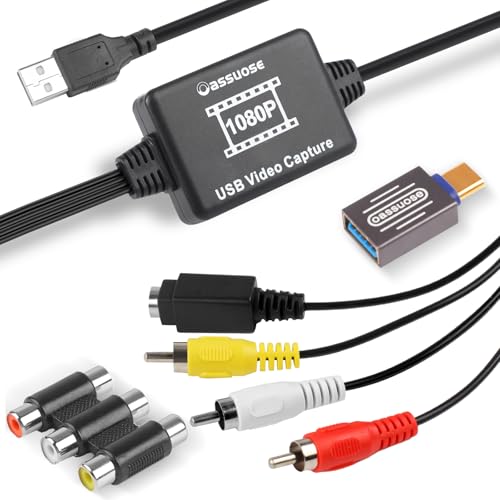
- Converts RCA and S-Video sources
- Supports USB-A and USB-C computers
- Works with Windows and macOS
Best For: Saving VHS and camcorder recordings digitally
Easy Full-HD Setup

- 1080p at 60Hz through USB 3.0
- Supports Windows and macOS
- Requires driver installation
Best For: Beginners adding an HDMI display to a computer
Simple Tape Digitizing
VIXLW RCA to USB Video Capture Card

- Captures VHS and other analog sources
- Up to 720p video with audio capture
- Automatic driver installation
Best For: Digitizing home videos from VHS, VCRs, and camcorders
VHS Memory Saver

- Converts VHS and other analog media to digital
- Supports RCA and S-Video inputs
- Includes automatic driver installation and audio capture
Best For: Digitizing tapes and camcorder footage
Dual-Screen Starter

- Provides HDMI and VGA display outputs
- Supports 1080p at 60Hz via USB 3.0
- Portable design works with monitors and projectors
Best For: Adding a display or projector to a compatible laptop
Analog Archive Tool

- Converts VHS, VCR, Hi8, and DV footage
- Accepts RCA and S-Video inputs
- Supports audio capture without a sound card
Best For: Transferring analog recordings to a computer
Best Windows Workstation Pick – StarTech USB-A to HDMI Converter
For beginners looking for USB video adapters for beginners, the StarTech USB-A to HDMI Converter is a straightforward way to add one HDMI display to a Windows laptop or desktop. It supports up to 1920×1200 or 1080p at 60Hz and uses USB bus power, but driver installation requires administrator rights.
Best For: Windows users adding an HDMI monitor to a home or office workstation.
Pros:
- Supports 1080p video at 60Hz with two-channel HDMI audio.
- Works with Windows Intel, AMD, and Snapdragon X platforms.
- Compact, lightweight, and powered directly through USB.
Cons:
- Does not support macOS, ChromeOS, or Linux.
- Requires driver installation and administrator access.
- Provides one HDMI output rather than multiple display connections.
This is a practical beginner option if you use Windows and want a compact adapter for a second screen. Confirm your operating system and access to administrator permissions before buying.
Best for Streaming Beginners – Papeaso HDMI Video Capture Card
The Papeaso Video Capture Card is a useful choice among USB video adapters for beginners who want to record or stream HDMI sources. It accepts up to 4K input, outputs up to 1080p at 60Hz, and includes both USB-A and USB-C connections for use with compatible computers and mobile devices.
Best For: Beginners capturing gameplay, camera footage, or other HDMI video for streaming and recording.
Pros:
- Supports HDMI input up to 3840×2160 at 30Hz.
- Captures 1080p video at up to 60 frames per second.
- USB-A and USB-C interfaces support Windows, macOS, Android, and Linux devices.
- Works with software such as OBS, VLC, and Amcap.
Cons:
- It is unidirectional and cannot send USB video back to an HDMI display.
- Capture software is required for streaming or recording.
- OBS may need to be restarted after audio setup.
For a beginner, the dual-interface design makes setup more flexible, while the software requirement adds a small learning step. It is best suited to capturing HDMI sources rather than extending a computer desktop to another monitor.
Best Budget Display Adapter – USB 3.0 to HDMI Adapter
This USB to HDMI adapter is a simple entry point for USB video adapters for beginners who want to connect a computer to an HDMI monitor, HDTV, or projector. It supports up to 1080p at 60Hz through USB 3.0 and offers mirror and extend display modes.
Best For: Beginners connecting a Windows or Mac laptop to one HDMI display for work, presentations, or home entertainment.
Pros:
- Supports 1080p at 60Hz through a USB 3.0 connection.
- Offers both extended and mirrored display modes.
- Compatible with Windows 7 through Windows 11 and macOS.
- Portable design fits easily in a laptop bag.
Cons:
- USB 2.0 use is recommended at 720p to reduce latency and display shake.
- Does not support Linux, Windows Vista, ChromeOS, or Firestick.
- Requires installing the included driver and restarting the computer.
This adapter offers useful display flexibility at a beginner-friendly level, especially when connected to USB 3.0. Check your computer’s operating system and port type, since performance and compatibility vary with USB 2.0 connections.
Best for Digitizing Old Media – Oassuose VHS to Digital Converter
The Oassuose VHS to Digital Converter is designed for beginners who want USB video adapters for beginners that can preserve older recordings. It converts RCA or S-Video video and audio from VHS players, VCRs, camcorders, DVD devices, and similar sources into up to 1080p/30fps digital output through USB-A or USB-C.
Best For: Digitizing VHS, DVD, Hi8, DV, and camcorder recordings on a Windows or Mac computer.
Pros:
- Supports RCA and S-Video analog inputs.
- Provides USB-A and USB-C computer connections.
- Works with Windows and macOS and supports NTSC and PAL formats.
- Offers controls for brightness, contrast, hue, and saturation.
Cons:
- Capture software is required; it is not fully standalone plug and play.
- Designed for 1080p at 30fps rather than higher frame rates.
- It does not directly convert VHS to a finished file without computer software.
This converter is a practical choice for home archiving, provided you are comfortable using software such as OBS Studio, PotPlayer, or QuickTime Player. Its USB-A/USB-C compatibility makes it easier to use with newer and older computers.
Easy Full-HD Setup – Reborn USB to HDMI Adapter
If you are comparing USB video adapters for beginners, the Reborn USB to HDMI Adapter is a straightforward option for connecting a Windows or macOS computer to an HDMI monitor, TV, or projector. It supports up to 1080p at 60Hz through USB 3.0, but requires a one-time driver installation before use.
Best For: Beginners who need a compact adapter for mirroring or extending a laptop or desktop display.
Pros:
- Supports 1920×1080 output at 60Hz with USB 3.0.
- Works with Windows 7/8/10/11 and macOS.
- Supports both mirror and extended-display modes.
- Compact, lightweight design with a stated two-year warranty.
Cons:
- Requires driver installation and a computer restart.
- It cannot be used in BIOS mode.
- USB 2.0 or unsupported receiving devices may limit output to 800×600.
This is a practical beginner adapter if you are comfortable installing a driver and want Full HD output from a USB-equipped computer. Check your port type and operating system before buying, and remove conflicting USB display drivers if needed.
Simple Tape Digitizing – VIXLW RCA to USB Video Capture Card
For beginners seeking USB video adapters for beginners that can preserve old recordings, this RCA-to-USB capture card connects VHS, VCR, Hi8, Mini DV, DVD, and other analog video sources to a PC or Mac. It captures video at up to 720p and includes audio capture without requiring a separate sound card.
Best For: Beginners transferring home videos from analog players or camcorders to a computer.
Pros:
- Supports RCA and S-Video inputs from several legacy video sources.
- Captures video at up to 720p and includes audio capture.
- Automatic driver installation and no external power required.
- Supports NTSC/PAL and works with recommended free capture software.
Cons:
- Requires separate capture software, such as OBS Studio, PotPlayer, or QuickTime Player.
- Video capture resolution is limited to 720p.
- The supplied notes specify Windows Vista and Mac OS compatibility, so newer systems should be checked before purchase.
This is a beginner-friendly choice for converting older media, especially if you want automatic driver setup and simple USB connectivity. You will still need a compatible playback device, the appropriate cables, and capture software to complete the process.
Flexible Monitor Expansion – KUPOISHE USB to HDMI Adapter
If you want USB video adapters for beginners that can add an HDMI screen, the KUPOISHE USB to HDMI Adapter connects a computer to a TV, monitor, or projector. It supports 1920×1080 through either USB 3.0 or USB 2.0 after its driver is installed, and it can mirror or expand the desktop.
Best For: Beginners creating a second display for work, presentations, or basic home entertainment.
Pros:
- Supports up to 1920×1080 over USB 3.0 or USB 2.0.
- Can mirror a screen or extend the desktop.
- Compatible with Windows 8, 10, and 11 according to the supplied title.
- Supports hot-plugging and includes stated return and warranty coverage.
Cons:
- Requires driver installation before use.
- The supplied details list desktop compatibility, so laptop and Mac compatibility should be verified.
- Only one HDMI port is provided.
This adapter offers a simple way to add an HDMI display when your computer has an available USB port. It is most suitable for users who need basic 1080p mirroring or extended desktop functionality and do not mind installing a driver first.
VHS Memory Saver – RCA to USB Video Capture Card
For beginners comparing USB video adapters for beginners, this RCA-to-USB capture card is a straightforward option for transferring footage from older media. It connects VHS, VCR, Hi8, Mini DV, DVD, and other composite or S-Video devices to a computer, with up to 720p USB output.
Best For: Beginners digitizing VHS tapes, camcorder footage, and other analog video on a Windows PC or Mac.
Pros:
- Supports RCA and S-Video devices, including VHS, VCR, Hi8, Mini DV, DVD players, and camcorders.
- Captures audio without requiring a separate sound card.
- No external power is needed, and the driver installs automatically when connected.
- Works with free software such as OBS Studio, PotPlayer, or QuickTime Player.
Cons:
- Maximum listed output is 720p rather than higher-definition capture.
- Requires separate video acquisition software to record or save footage.
- Compatibility is specifically listed for Windows Vista and Mac OS.
This is a practical starter adapter for preserving old tapes without adding a complicated setup. Its broad legacy-device support and included installation guide make it approachable, while the need for recording software adds one extra step.
Dual-Screen Starter – USB 3.0 HDMI/VGA Adapter
For beginners looking for USB video adapters for beginners, the AKWOR USB 3.0 adapter provides HDMI and VGA outputs for adding external displays to a compatible computer. It supports up to 1920×1080 at 60Hz through USB 3.0 and can extend or mirror a screen, depending on the operating system.
Best For: Laptop users who need a portable connection for an HDMI or VGA monitor, projector, or HDTV.
Pros:
- Offers both HDMI and VGA display outputs.
- Supports up to 1920×1080 at 60Hz through a USB 3.0 port.
- Can connect two external monitors, with simultaneous outputs showing the same content.
- Compact design suits presentations, meetings, and travel.
Cons:
- Requires driver installation and a computer restart before use.
- USB 2.0 limits output to 800×600 according to the supplied specifications.
- Compatibility is limited to the listed Windows and Mac OS versions.
This adapter is useful when a laptop lacks the display ports needed for a projector or monitor. Beginners should plan for the included driver-installation process and confirm both the computer’s operating system and USB 3.0 availability before buying.
Analog Archive Tool – USB Video Capture Device
Among USB video adapters for beginners, this capture device is designed for converting analog recordings into digital files. It accepts RCA or S-Video connections from VHS, VCR, Hi8, DV tapes, and camcorders, producing up to 720p USB output for a connected computer.
Best For: Home users who want to transfer older video and audio recordings from compatible analog equipment.
Pros:
- Supports VHS, VCR, Hi8, DV, and camcorder sources through RCA or S-Video.
- Captures audio without a separate sound card.
- Does not require external power and automatically installs its driver when connected.
- Supports NTSC and PAL formats plus basic image adjustments such as brightness and contrast.
Cons:
- Listed output is limited to 720p.
- Requires separate acquisition software, such as OBS Studio, PotPlayer, or QuickTime Player.
- Its listed compatibility is for Windows and Mac OS systems, including Windows Vista.
This is a beginner-friendly choice for basic tape preservation, especially if the source device uses RCA or S-Video. It offers useful format support and simple power requirements, but buyers will still need compatible recording software and the appropriate cables for their source equipment.
How We Picked These USB Video Adapters for Beginners
We selected products based on how clearly they serve common beginner needs: adding an external display, capturing HDMI video, or digitizing analog footage. We also considered connection type, stated resolution, frame-rate support, operating-system compatibility, port flexibility, and the likelihood that a first-time buyer can set up the device without specialized hardware.
These categories should not be treated as interchangeable. A USB-to-HDMI adapter sends your computer’s desktop to a monitor; a capture card brings video from another source into recording or streaming software. Analog converters are designed for RCA, VHS, MiniDV, Hi8, or similar legacy connections.
Quick Comparison
- For an extra monitor: Choose a USB 3.0-to-HDMI or USB-to-HDMI display adapter. Confirm that your computer supports the required driver and operating system.
- For recording HDMI video: Select a USB 3.0 capture card with HDMI input. Check whether the advertised resolution refers to input passthrough or actual recording output.
- For VHS and camcorder tapes: Use an RCA-to-USB capture device with composite video and left/right audio inputs.
- For two displays: Look for an adapter specifically rated for multiple monitors and verify whether your computer’s graphics hardware and operating system support the arrangement.
Key Buying Factors for USB Video Adapters for Beginners
Adapter Type and Input
Start with the source and destination. If the source is your laptop and the destination is an HDMI monitor, you need a display adapter. If the source is a camera, console, or VCR and the destination is recording software, you need a capture card. HDMI and RCA are different standards, so an HDMI adapter will not replace an analog converter.
Resolution, Frame Rate, and USB Speed
Look beyond phrases such as “4K input” or “1080p.” Capture devices may accept a high-resolution signal but record at a lower resolution or frame rate. USB 3.0 is generally preferable for uncompressed or high-quality video, while USB 2.0 models are usually more appropriate for basic analog transfers. A 1080p/60Hz display adapter is useful for smooth desktop work, but only when the computer and monitor support it.
Drivers and Compatibility
Check Windows and macOS support before ordering. Some display adapters require a driver, and compatibility can vary by Windows version, Mac model, USB port, and available system resources. USB-C users may need a suitable adapter or hub if the product has only a USB-A plug.
Ports, Audio, and Setup
For analog conversion, confirm that the device includes composite video and stereo audio inputs, not just an HDMI port. For capture, check how audio enters the computer and whether your preferred software recognizes the device. A short USB cable or limited connector placement can also matter when ports are crowded.
Who Should Buy Which USB Video Adapters for Beginners?
Students and office users who need a second screen should focus on a USB-to-HDMI display adapter with clear driver support and the right USB connector. Streamers and content creators should choose an HDMI capture card, paying close attention to recording resolution, frame rate, audio handling, and latency. Families preserving tapes should select an RCA-to-USB converter and confirm that the included cables match their VCR or camcorder.
If you are unsure, identify the cable coming from your source device first, then decide whether you want to display that signal or record it. That simple distinction will narrow the list more effectively than choosing by resolution alone.
