
Connecting a MacBook to an HDMI monitor should be simple, but the right adapter depends on more than the plug. Resolution, refresh rate, charging passthrough, and extra ports can all affect your setup.
These 10 options range from compact video-only adapters to multiport hubs. Use the guide below to narrow the field before choosing one for your display and daily workflow.
Best 10 USB C to Hdmi Adapters for Macbook Picks for 2026
Best for 4K Multitasking
Acer 5-in-1 USB-C Hub with 4K 60Hz HDMI
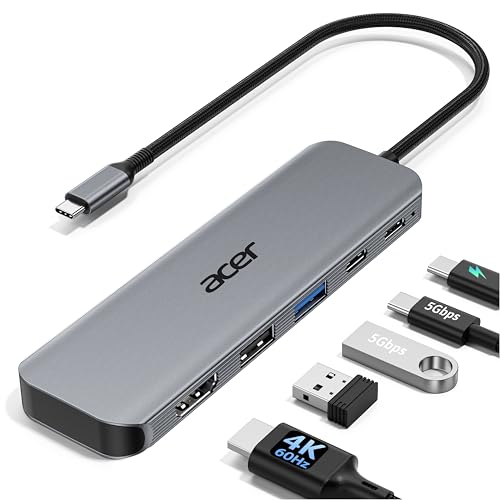
- 4K at 60Hz HDMI output
- Up to 90W laptop charging from 100W input
- USB-C and USB-A 3.0 data ports
Best For: A MacBook display setup that also needs charging and data ports
Best for USB-A Accessories
Acer 5-in-1 Hub with Three USB-A Ports

- Three USB-A data ports
- 4K at 30Hz HDMI output
- Up to 100W PD charging for the host
Best For: Connecting USB-A peripherals while charging a MacBook
Best Compact Display Adapter
BENFEI USB-C to HDMI 4K 60Hz Adapter

- Up to 4K at 60Hz
- Small, single-purpose design
- Molded strain relief on the cable
Best For: A portable HDMI connection without additional hub ports
Best Braided-Cable Pick
Anker 310 USB-C to HDMI Adapter

- Up to 4K at 60Hz HDMI
- Reinforced braided-nylon cable
- No charging or data ports
Best For: A simple MacBook HDMI connection with a reinforced cable
USB-A Access Pick

- 4K HDMI and 100W USB-C PD port
- Three USB-A ports; one supports 5 Gbps
- Portable aluminum, plug-and-play design
Best For: MacBook users needing HDMI, charging, and several USB-A ports
Simple Display Pick
Highwings USB-C to HDMI Adapter

- Up to 4K at 60Hz with compatible devices
- USB-C male to HDMI female; no drivers
- No charging or additional data ports
Best For: A straightforward HDMI connection using an existing cable
Fast Data Hub Pick

- HDMI supports up to 4K at 30Hz
- Three data ports rated up to 5 Gbps
- Up to 85W pass-through with separate charger
Best For: MacBook users prioritizing fast data ports and pass-through charging
Best with Extra Features
Mindorlen USB-C to HDMI Adapter

- Up to 4K at 30Hz
- Audio and video over HDMI
- Mirror or extend your display
Best For: Basic MacBook-to-monitor connections
Multiport Workstation Pick

- 4K at 60Hz HDMI output
- USB-A, USB-C, and card readers
- Up to 87W laptop charging output
Best For: Display, charging, and peripherals through one hub
Charging Companion Pick
Microwoo USB-C HDMI and PD Adapter
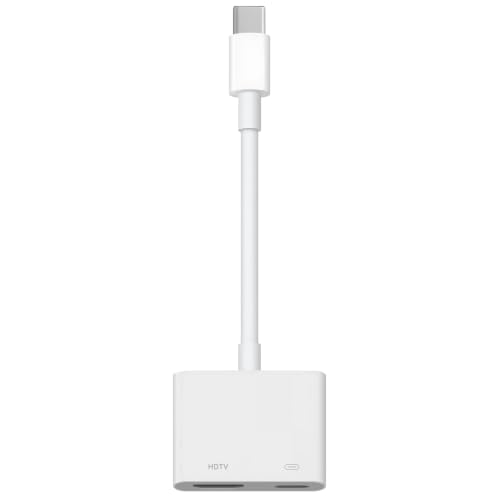
- 4K HDMI plus USB-C charging
- Listed 100W charging support
- Requires USB-C DisplayPort Alt Mode
Best For: HDMI output with a charging connection
Best for 4K Multitasking – Acer 5-in-1 USB-C Hub with 4K 60Hz HDMI
Among USB C to HDMI adapters for MacBook, this Acer hub is a practical choice when you also need charging and data ports. It combines 4K at 60Hz HDMI, up to 100W power input, USB-C and USB-A 3.0 data ports, and a USB-A 2.0 port.
Best For: MacBook users who want a smoother 4K external display and several connections from one hub.
Pros:
- Supports HDMI output up to 4K at 60Hz.
- Accepts up to 100W PD input and supplies up to 90W to the laptop.
- USB-C and USB-A 3.0 ports support up to 5Gbps data transfer.
Cons:
- HDMI requires a USB-C port with DisplayPort Alt Mode.
- A 100W power adapter and cable for optimal charging are not included.
This is the more flexible Acer option here if 60Hz 4K output matters. Check your MacBook’s video-output support, and budget for the charger if you plan to use pass-through power.
Best for USB-A Accessories – Acer 5-in-1 Hub with Three USB-A Ports
If you’re comparing USB C to HDMI adapters for MacBook and regularly connect USB-A peripherals, this Acer hub gives you three USB-A data ports alongside HDMI and charging. Its HDMI output tops out at 4K at 30Hz.
Best For: MacBook users who prioritize USB-A connections and pass-through charging over 4K at 60Hz.
Pros:
- Includes one USB 3.0 port and two USB 2.0 ports for accessories.
- Supports up to 100W PD charging of the host device.
- Compact aluminum design is suited to carrying between workspaces.
Cons:
- HDMI is limited to 4K at 30Hz and requires DP Alt Mode or Thunderbolt support.
- The USB-C PD port handles charging only, not data or video.
Pick this model for its USB-A port mix rather than maximum display refresh rate. Confirm that your MacBook’s USB-C connection supports video output before buying.
Best Compact Display Adapter – BENFEI USB-C to HDMI 4K 60Hz Adapter
For shoppers who want USB C to HDMI adapters for MacBook without extra hub ports, this compact BENFEI adapter focuses on one job: connecting a USB-C device to an HDMI display. It supports output up to 4K at 60Hz when the USB-C device supports DisplayPort Alt Mode.
Best For: MacBook users who need a small, display-only adapter for a monitor, TV, or projector.
Pros:
- Supports resolutions up to 3840 × 2160 at 60Hz.
- Compact design is easy to pack for presentations or travel.
- Plated USB-C connector and molded strain relief are designed for durability.
Cons:
- Requires USB-C DisplayPort Alt Mode for video output.
- Offers one HDMI connection, with no charging or data ports listed.
BENFEI makes sense when your MacBook already has the other ports you need. Its single-purpose design keeps the setup simple, but it cannot replace a multiport hub.
Best Braided-Cable Pick – Anker 310 USB-C to HDMI Adapter
Among USB C to HDMI adapters for MacBook, the Anker 310 is a straightforward display-only option with an aluminum casing and reinforced braided-nylon cable. It offers plug-and-play HDMI output up to 4K at 60Hz on a compatible USB-C connection.
Best For: MacBook users who want a simple HDMI adapter with a reinforced cable for everyday handling.
Pros:
- Supports HDMI video up to 4K at 60Hz.
- Works with USB-C DP Alt Mode, USB4, and Thunderbolt connections.
- Aluminum casing and braided-nylon cable are designed for daily use.
Cons:
- Does not support charging or Power Delivery.
- Provides only an HDMI connection, not additional data ports.
Choose this Anker if HDMI is all you need and cable construction is a priority. If you also need to charge your MacBook through the adapter, consider a hub instead.
USB-A Access Pick – UGREEN 5-in-1 USB-C Hub
Among USB C to HDMI adapters for MacBook, this UGREEN hub is a practical choice when you also need three USB-A ports. It pairs a 4K HDMI connection with a 100W USB-C PD port and comes in a portable aluminum enclosure.
Best For: MacBook users who want HDMI, charging, and multiple USB-A connections from one hub.
Pros:
- Includes a 4K HDMI port and a 100W USB-C PD port.
- Three USB-A data ports: one rated for 5 Gbps and two for 480 Mbps.
- Plug-and-play design with stated compatibility across MacBook M1 through M5 models.
Cons:
- Two of the three USB-A ports are limited to 480 Mbps.
- The supplied specifications do not state a 4K HDMI refresh rate.
Choose this hub if extra USB-A sockets matter more than having every data port run at 5 Gbps. Check your display’s refresh-rate needs before relying on its 4K HDMI output.
Simple Display Pick – Highwings USB-C to HDMI Adapter
If you’re comparing USB C to HDMI adapters for MacBook and only need a display connection, this Highwings adapter keeps things simple. Its USB-C male-to-HDMI female design supports up to 4K at 60Hz when the source device and display support it.
Best For: Connecting a compatible USB-C MacBook to an HDMI display using an existing HDMI cable.
Pros:
- Supports up to 4K at 60Hz with compatible equipment.
- Plug-and-play setup requires no drivers.
- Braided nylon jacket and flexible strain relief are designed for frequent use.
Cons:
- Requires a USB-C port that supports DisplayPort Alt Mode.
- Does not charge your MacBook or work in the HDMI-to-USB-C direction.
This is the focused option when you don’t need hub ports. Verify video output support on your MacBook, and use a suitable HDMI cable; Highwings recommends a High Speed cable no longer than 15 feet for stable 4K output.
Fast Data Hub Pick – Anker 332 5-in-1 USB-C Hub
For shoppers comparing USB C to HDMI adapters for MacBook, the Anker 332 adds useful data ports alongside its HDMI output. It has one 5 Gbps USB-C data port, two 5 Gbps USB-A ports, and a separate USB-C PD input for charging.
Best For: MacBook users who want HDMI plus several 5 Gbps data connections while charging their laptop.
Pros:
- HDMI output supports up to 4K at 30Hz.
- All three data ports are rated for up to 5 Gbps.
- Supports up to 85W pass-through laptop charging with a separate charger.
Cons:
- HDMI is limited to 4K at 30Hz rather than 60Hz.
- The USB-C PD input is charging-only, and the USB-C data port does not output video.
- Pass-through charging requires a charger that is not included.
Pick this hub when faster peripheral connections are a priority. Its separate charging and data ports are useful, but the 4K@30Hz HDMI limit is worth weighing if you prefer a smoother external display.
Best with Extra Features – Mindorlen USB-C to HDMI Adapter
Among usb c to hdmi adapters for macbook, this Mindorlen model keeps things straightforward: connect a compatible laptop to an HDMI monitor, TV, or projector without installing drivers. It supports mirrored or extended displays and carries audio alongside video.
Best For: MacBook users who need a basic external-screen connection without extra hub features.
Pros:
- Supports up to 4K at 30Hz, plus listed lower-resolution modes.
- Transmits video and audio together over HDMI.
- Plug-and-play setup supports mirrored and extended displays.
Cons:
- 4K output is limited to 30Hz.
- The HDMI connection works from USB-C device to display, not in reverse.
Choose this for a simple presentation or second-screen setup; if you need 4K at 60Hz or charging through the adapter, consider another option.
Multiport Workstation Pick – Selore 7-in-1 USB-C Hub
If you are comparing usb c to hdmi adapters for macbook and also need everyday ports, the Selore 7-in-1 hub is the more versatile choice. Alongside 4K at 60Hz HDMI output, it provides USB-A and USB-C data connections, SD and microSD readers, and USB-C power delivery.
Best For: MacBook users connecting an external display while charging and transferring files from peripherals or memory cards.
Pros:
- HDMI supports mirrored or extended video at up to 4K at 60Hz.
- Two USB-A ports and one USB-C data port support up to 5Gbps transfers.
- Includes SD/microSD readers and a 100W power-input port.
Cons:
- Laptop charging output is limited to 87W despite the 100W power input.
- The supplied notes allow only one HDD/SSD at a time and exclude Apple USB SuperDrive support.
This is the strongest fit of the three when HDMI is only one part of your desk setup. Check its stated macOS requirement before buying for an older MacBook.
Charging Companion Pick – Microwoo USB-C HDMI and PD Adapter
For shoppers seeking usb c to hdmi adapters for macbook without a full hub, this Microwoo adapter pairs 4K HDMI output with a USB-C charging connection. It is a practical two-function option for displaying content while supplying power.
Best For: MacBook users who want HDMI output and a charging connection, without extra data or card-reader ports.
Pros:
- Combines 4K HDMI output with a USB-C port listed for 100W charging.
- Plug-and-play operation requires no driver, Wi-Fi, or hotspot.
- Also supports compatible USB-C phones and tablets with DisplayPort Alternate Mode.
Cons:
- The supplied notes do not specify the 4K refresh rate.
- Video output requires a USB-C device that supports DisplayPort Alternate Mode.
Pick this when charging access matters more than extra connectivity. Confirm your device’s USB-C video capability, and look elsewhere if a stated 4K refresh rate is essential.
How We Picked the Best USB C to Hdmi Adapters for Macbook
We included straightforward USB-C-to-HDMI adapters alongside hubs that add charging and USB data ports. That mix helps cover travel, presentations, and desk setups without treating extra ports as an automatic advantage. We prioritized clearly stated display specifications and useful port combinations, while keeping an important distinction in mind: a product’s advertised capability is not a guarantee that every MacBook and monitor pairing will deliver the same result.
Quick Comparison: Which Type Fits Your Setup?
For an occasional external screen, a video-only adapter such as the BENFEI, Anker, or Highwings model keeps the connection simple. If you also need wired peripherals or charging through the same MacBook port, compare the Acer, UGREEN, Anker, and Selore hubs and multiport adapters. Check each listing’s exact HDMI refresh rate and port specifications rather than assuming that all products labeled “4K” perform alike.
Key Buying Factors for USB-C to HDMI Adapters for MacBook
Display Resolution and Refresh Rate
If you use a 4K monitor, look for an explicitly stated 4K at 60Hz HDMI output if smoother scrolling matters to you. Some hubs advertise 4K without making the refresh rate clear. The MacBook, adapter, HDMI cable, and display must all support your intended setting; check their specifications as a set.
MacBook Compatibility
Confirm that your MacBook supports video output through its USB-C or Thunderbolt port, then check the adapter listing for compatibility notes. An adapter does not add external-display support beyond your MacBook model’s own display limits. If you want multiple independent external screens, verify those limits before buying a hub; an HDMI port does not bypass them.
Charging and Other Ports
A hub with USB-C Power Delivery passthrough can let you charge while using HDMI, but it generally requires a separate compatible charger. A stated 100W PD rating describes the hub’s supported input or passthrough capability, not necessarily the power your MacBook will receive; some power may be used by the hub. For keyboards, mice, and storage, check the number and speed of USB-A or USB-C data ports. Do not assume an extra USB-C port carries video or data unless the specifications say so.
Fit and Cable Practicalities
Consider where the adapter will sit relative to your MacBook and monitor. A short connector can reduce clutter, but a crowded desk or closely spaced MacBook ports may make a different shape more convenient. For portable use, prioritize a setup that is easy to connect without putting strain on the MacBook port.
Who Should Buy Which USB C to Hdmi Adapters for Macbook?
Choose a video-only adapter if you need one HDMI display and already have enough ports for charging and accessories. Choose a multiport hub if you regularly plug in a monitor, power, and USB devices at once. If a 4K 60Hz workspace is your priority, start with models that state that output explicitly, then confirm the rest of your display chain supports it. If charging is essential, check both the hub’s PD specification and your MacBook’s power needs before deciding.
