
A USB-C port does not guarantee a DisplayPort connection—and an adapter rated for 8K may still be the wrong choice for your monitor. The right pick depends on your device’s video output, your display’s resolution and refresh rate, and the cable between them.
These 10 options range from straightforward 4K work adapters to higher-bandwidth models for gaming and demanding displays. Here’s what to check before you choose.
Best 10 USB C to Displayport Adapters Picks for 2026
Dell Laptop Pick
Dell USB-C to DisplayPort Adapter

- One DisplayPort output
- Lightweight 22.68 g design
- Resolution not specified
Best For: Basic laptop-to-DisplayPort connections
DisplayPort 1.4 Pick
Cable Matters 32.4Gbps Adapter

- Up to 8K at 60Hz
- MST daisy-chaining support
- Requires DP Alt Mode
Best For: High-resolution DisplayPort 1.4 setups
Everyday 4K Pick
Anker USB-C to DisplayPort Adapter
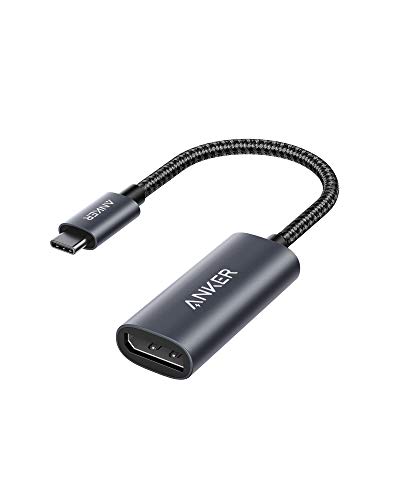
- Up to 4K at 60Hz
- Mirror or extend displays
- 18-month warranty
Best For: Straightforward 4K monitor connections
DisplayPort 2.1 Pick

- Up to 80Gbps bandwidth
- Advertised up to 16K at 60Hz
- Metal, driver-free design
Best For: Compatible high-end gaming or professional displays
High-Refresh Pick
UGREEN DisplayPort 2.1 Adapter

- Up to 16K at 60Hz advertised
- Up to 4K at 240Hz advertised
- FreeSync and G-Sync support
Best For: High-resolution and high-refresh DisplayPort setups
Travel-Friendly Pick
Cable Matters Foldable DP 1.4 Adapter

- Up to 8K at 60Hz
- Up to 4K at 240Hz
- Wraparound cable for storage
Best For: Portable high-resolution monitor connections
Best for Comfort
Amazon Basics USB-C to DisplayPort Adapter

- Up to 4K at 60Hz
- No driver installation needed
- DisplayPort cable sold separately
Best For: Straightforward 4K monitor connections
Best Heavy-Duty Pick
UVOOI USB-C to DisplayPort 1.4 Adapter
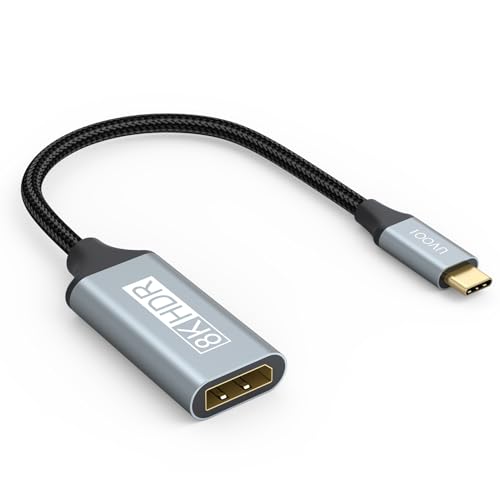
- Lists up to 8K at 60Hz or 4K at 240Hz
- Supports DSC, Dynamic HDR, and MST
- Two-year stated warranty
Best For: Compatible high-refresh DisplayPort monitors
Bidirectional Pick
8K USB-C to DisplayPort 1.4 Adapter

- Bidirectional, video-only design
- Lists up to 8K at 60Hz or 4K at 240Hz
- Requires a suitable separate USB-C cable
Best For: Verified bidirectional USB-C/DisplayPort video connections
Dell Laptop Pick – Dell USB-C to DisplayPort Adapter
Among usb c to displayport adapters, this Dell model is a straightforward option for connecting a compatible laptop to a DisplayPort display. Its single-port design keeps the setup simple, but the supplied specifications do not state a maximum resolution or refresh rate.
Best For: Dell laptop users who want a basic, single-port DisplayPort adapter.
Pros:
- USB-C connection with one DisplayPort output.
- Lightweight at 22.68 g.
- Compact matte-black design.
Cons:
- No resolution or refresh-rate capability is specified.
- Only one display output.
Choose this for a simple Dell-branded connection; check your laptop’s video-output support and display requirements before buying.
DisplayPort 1.4 Pick – Cable Matters 32.4Gbps Adapter
For buyers comparing usb c to displayport adapters for high-resolution displays, this unidirectional Cable Matters model supports DisplayPort 1.4 and up to 8K at 60Hz or 4K at 240Hz with compatible equipment. Your USB-C source must support DisplayPort Alt Mode.
Best For: Compatible USB-C laptops or phones driving a high-resolution DisplayPort monitor.
Pros:
- Supports up to 8K at 60Hz or 4K at 240Hz with compatible equipment.
- Supports MST for daisy-chaining multiple monitors.
- Metal housing, cable-tail strain relief, and gold-plated connectors.
Cons:
- Works only from a DisplayPort Alt Mode USB-C source to a DisplayPort display.
- Not compatible with HDMI displays, USB-A ports, or reverse DisplayPort-to-USB-C connections.
This is a feature-rich DP 1.4 choice if your source and monitor support the modes you need; verify the complete setup before counting on the headline resolution.
Everyday 4K Pick – Anker USB-C to DisplayPort Adapter
If you need usb c to displayport adapters for an everyday external monitor, this Anker model offers up to 4K at 60Hz from a USB-C phone or laptop to a DisplayPort display. It supports both mirrored and extended display modes without software installation.
Best For: A simple 4K DisplayPort connection for a compatible laptop or phone.
Pros:
- Supports resolutions up to 4K at 60Hz.
- Offers mirror and extend display modes.
- Plug-and-play setup and an 18-month warranty.
Cons:
- Requires a DisplayPort cable; it does not work with an HDMI cable.
- No support above 4K at 60Hz is stated.
The Anker keeps the decision easy for a standard 4K monitor, provided your connection uses DisplayPort rather than HDMI.
DisplayPort 2.1 Pick – Cable Matters 80Gbps Adapter
Among usb c to displayport adapters aimed at demanding displays, this Cable Matters DisplayPort 2.1 model advertises up to 80Gbps bandwidth and up to 16K at 60Hz. It also lists up to 8K at 240Hz and 4K at 960Hz, making it most relevant to buyers planning a compatible high-end setup.
Best For: High-resolution or high-refresh DisplayPort 2.1 setups with compatible hardware.
Pros:
- Advertised support for up to 16K at 60Hz, 8K at 240Hz, or 4K at 960Hz.
- Listed for Thunderbolt 5, Thunderbolt 4, USB4, and USB-C devices.
- Metal housing and plug-and-play setup without driver installation.
Cons:
- Extreme resolutions and refresh rates require a suitably capable source and display.
- Unidirectional design limits it to the intended USB-C-to-DisplayPort connection.
Consider this for a cutting-edge display rather than a basic 4K connection, and confirm that your entire video chain can support the mode you want.
High-Refresh Pick – UGREEN DisplayPort 2.1 Adapter
Among usb c to displayport adapters, this UGREEN model is the option to consider for a high-refresh gaming display. Its DisplayPort 2.1 connection is rated for up to 80Gbps, with advertised support for up to 16K at 60Hz, 8K at 120Hz, or 4K at 240Hz.
Best For: Gamers and display enthusiasts pairing a video-capable USB-C device with a high-resolution or high-refresh DisplayPort monitor.
Pros:
- Advertised DisplayPort 2.1 support for demanding resolution and refresh-rate combinations.
- Supports AMD FreeSync, NVIDIA G-Sync, HDR, and audio output.
- Braided nylon cable, aluminum housing, and included Velcro tie.
Cons:
- Requires a USB-C port with DisplayPort Alt Mode or a compatible Thunderbolt connection.
- Its headline resolution and refresh-rate capabilities depend on the rest of the display setup.
Choose this for its ambitious display specifications, but check your source device and monitor before expecting the advertised maximum modes.
Travel-Friendly Pick – Cable Matters Foldable DP 1.4 Adapter
For shoppers comparing usb c to displayport adapters for travel, this Cable Matters model pairs a compact body with a tethered cable that folds around it for storage. With compatible equipment, it supports up to 8K at 60Hz or 4K at 240Hz.
Best For: Laptop users who want a portable adapter for a high-resolution or high-refresh DisplayPort monitor.
Pros:
- Supports up to 8K at 60Hz or 4K at 240Hz with compatible devices, displays, and cables.
- Foldable tethered cable helps protect the connector during storage.
- Supports HDR, RGB 4:4:4 video, and DisplayPort audio.
Cons:
- Works only from a USB-C video source to a DisplayPort display, not the reverse.
- Requires a USB-C port capable of video output.
This is a useful balance of portability and display capability; confirm that your computer’s USB-C port supports DisplayPort Alt Mode, USB4, or Thunderbolt video output.
Best for Comfort – Amazon Basics USB-C to DisplayPort Adapter
If you need one of the more straightforward usb c to displayport adapters for an everyday monitor, this Amazon Basics option supports up to 4K at 60Hz. It connects a USB-C source to a DisplayPort display and uses an aluminum housing.
Best For: Connecting a compatible laptop or tablet to a 4K DisplayPort monitor at 60Hz.
Pros:
- Supports up to 4K at 60Hz with video and audio transfer.
- Plug-and-play design needs no extra driver or software.
- Aluminum housing and Thunderbolt 3 compatibility.
Cons:
- Requires a host USB-C port with DP 1.2 Alt Mode for video.
- A separate DisplayPort cable is required.
- Limited to 4K at 60Hz rather than the higher refresh rates advertised by the other picks.
It covers the essentials for a standard 4K display connection. Check your USB-C port’s video support and have a DisplayPort cable ready before ordering.
Gaming Pick – Nersligek USB-C to DisplayPort 1.4 Adapter
Among usb c to displayport adapters, this compact Nersligek model is aimed at connecting a video-capable USB-C device to a DisplayPort monitor. It lists support for up to 8K at 60Hz and 4K at 144Hz, making it worth considering for a high-resolution or high-refresh setup.
Best For: Gamers with a DP Alt Mode or Thunderbolt laptop and a DisplayPort monitor.
Pros:
- DisplayPort 1.4 support, with listed VRR and ALLM features.
- Supports MST for compatible daisy-chain setups.
- Braided cable, aluminum casing, and a compact, non-slip design.
Cons:
- Unidirectional: USB-C input to DisplayPort output only.
- Requires USB-C video output; not intended for HDMI, VGA, or DVI displays.
The refresh-rate features are appealing, but check your device’s video output and monitor connection before buying. This is a direct DisplayPort adapter, not a general-purpose display converter.
Best Heavy-Duty Pick – UVOOI USB-C to DisplayPort 1.4 Adapter
For shoppers comparing usb c to displayport adapters by listed resolution support, the UVOOI adapter stands out with up to 8K at 60Hz or 4K at 240Hz. It connects a USB-C device with DP Alt Mode to a DisplayPort monitor and also lists Thunderbolt 3, 4, and 5 compatibility.
Best For: A compatible laptop or desktop setup targeting a high-refresh DisplayPort monitor.
Pros:
- Lists DisplayPort 1.4 features including DSC, Dynamic HDR, and MST.
- Braided, compact design with gold-plated connectors.
- Includes a stated two-year warranty.
Cons:
- Works only from USB-C source to DisplayPort display.
- Requires a USB-C port that supports video output.
Its headline refresh rates make it a strong specification-led option, provided the source, monitor, and rest of the setup can support the desired mode. Confirm DP Alt Mode before ordering.
Bidirectional Pick – 8K USB-C to DisplayPort 1.4 Adapter
This bidirectional option differs from many usb c to displayport adapters because its listing specifies operation in both directions. It is a video-only adapter with listed support for up to 8K at 60Hz or 4K at 240Hz, but cable choice and port compatibility matter here.
Best For: Buyers who need a bidirectional USB-C/DisplayPort video connection and can verify their devices and cable first.
Pros:
- Bidirectional design with listed DisplayPort 1.4 support.
- Supports mirror and extended display modes.
- Lists HDR, G-Sync, and FreeSync support.
Cons:
- No charging or data functions; a separate USB-C cable is needed.
- Not intended for docking stations or multiple conversion steps.
- The listing notes that Thunderbolt displays are not supported.
Choose this model for its bidirectional capability rather than as a simple travel dongle. The seller recommends a suitably specified cable, particularly for higher resolutions, so check the full connection path before purchasing.
How We Picked the Best USB C to Displayport Adapters
We organized these options around the specifications buyers can verify: stated DisplayPort version, advertised resolution and refresh-rate support, connection direction, and host-device compatibility. The selection covers everyday 4K adapters, DisplayPort 1.4 options for higher refresh rates, and DisplayPort 2.1 models aimed at newer displays. Advertised maximums are not a guarantee that every laptop-and-monitor pairing will reach them; the entire connection must support the mode you want.
Quick Comparison: Which Type Fits Your Setup?
- Everyday 4K displays: A 4K at 60Hz adapter, such as the Anker or Amazon Basics option, is a practical starting point for office work and streaming.
- High-refresh or 8K displays: Look at adapters advertised for DisplayPort 1.4 and check the exact resolution-and-refresh combination you need. Some higher modes can depend on Display Stream Compression (DSC).
- Newer, higher-bandwidth setups: The listed DisplayPort 2.1 adapters are worth considering if your source and display can use their capabilities. A higher version label alone will not upgrade an older port.
- Two-way connections: Most options here are labeled unidirectional. Consider the listed bidirectional model only after confirming it supports the specific source-to-display direction you need.
Key Buying Factors for USB-C to DisplayPort Adapters
Confirm Your USB-C Port Outputs Video
Your laptop, tablet, or phone needs a USB-C port that supports DisplayPort Alt Mode, or a compatible Thunderbolt or USB4 video output. USB-C describes the connector, not the port’s features. Check your device specifications before buying, particularly for phones and lower-cost laptops.
Match Resolution, Refresh Rate, and the Full Signal Path
Start with the monitor mode you actually plan to use—for example, 4K at 60Hz or 4K at 144Hz—then check the source device, adapter, DisplayPort cable, and monitor input. All four must accommodate that mode. Marketing claims such as 8K or 16K may rely on particular hardware, compression, or settings; verify the seller’s detailed compatibility information rather than relying on the headline figure.
Check Direction, Cable, and Port Clearance
USB-C-to-DisplayPort adapters usually send video from a USB-C source to a DisplayPort display, not the reverse. If your source is DisplayPort and your display is USB-C, confirm explicit support for that direction. You will also need a suitable DisplayPort cable for female-port adapters. Finally, consider whether the adapter’s housing will block an adjacent laptop port.
Who Should Buy Which USB C to Displayport Adapters?
For a standard 4K office monitor, prioritize a clearly specified 4K at 60Hz model over an unused headline resolution. For a gaming monitor, shop by its exact refresh-rate target and verify your computer’s output capabilities first. Choose a DisplayPort 2.1 option when both ends of your setup justify it, not simply because the number is higher. If you need to connect devices in either direction, make explicit bidirectional compatibility your first filter. The best USB C to Displayport Adapters are the ones whose supported mode and direction match your equipment—not necessarily the ones with the largest advertised bandwidth.
