
A USB-C KVM switch can make a shared desk simpler: connect multiple computers to one set of monitors, keyboard, and mouse, then switch between them without moving cables. DisplayPort support matters when your setup depends on a particular monitor input, refresh rate, or multi-display layout.
These six options cover different combinations of computer inputs, monitor outputs, and laptop charging. The best fit depends less on the biggest resolution claim than on how your computers and displays actually connect.
Best 6 USB C Kvm Switches with Displayport Picks for 2026
Best for Three Computers

- Two USB-C laptops plus one DisplayPort system
- One display: up to 8K 60Hz or 4K 144Hz
- Up to 60W PD on each USB-C input
Best For: A mixed three-computer, single-monitor desk
Best for Dual-Monitor Docking
USB-C & DisplayPort 14-in-1 KVM

- Shares two monitors between laptop and desktop
- 10Gbps data ports and SD/microSD slots
- 100W charging needs a separate adapter
Best For: A dual-monitor desk needing shared dock ports
Simple Two-Computer Pick
USB-C Dual-Monitor HDMI/DisplayPort KVM
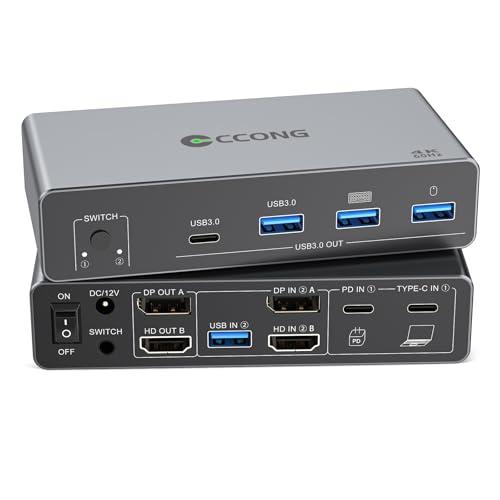
- Shares two monitors between a laptop and PC
- Supports up to 4K/60Hz
- Button or wired-keypad switching
Best For: Straightforward dual-monitor, two-computer desks
Triple-Monitor Dock Pick
USB-C KVM With DisplayPort and HDMI

- Shares up to three 4K/60Hz displays
- Includes Ethernet and card slots
- Offers up to 100W laptop power delivery
Best For: Laptop-and-PC setups needing a full docking station
Four-Computer Pick
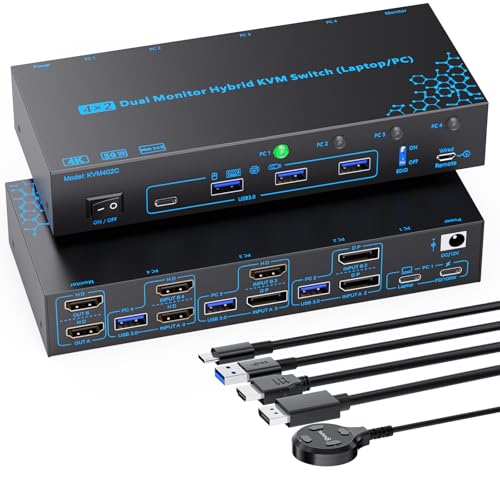
- Connects one laptop and three desktops
- Supports dual displays up to 4K/60Hz
- Offers optional EDID and laptop charging
Best For: Four-computer desks with mixed display connections
Best for Three Computers – SABRENT USB-C DisplayPort KVM
Among usb c kvm switches with displayport, this SABRENT model stands out for connecting two USB-C laptops and one DisplayPort desktop to a single monitor, keyboard, and mouse. It is a practical fit for a mixed-computer desk rather than a dual-monitor workstation.
Best For: Switching between two compatible USB-C laptops and a DisplayPort desktop on one high-resolution monitor.
Pros:
- DisplayPort 1.4 output supports up to 8K 60Hz or 4K 144Hz.
- Both USB-C laptop inputs support up to 60W Power Delivery.
- Includes a remote button, active-system LEDs, and shared 3.5mm audio jacks.
Cons:
- Supports only one external display.
- Laptops need USB-C DisplayPort Alt Mode for video; shared USB ports run at USB 2.0 speed.
Choose this for three-system flexibility and a fast single-display output. Check your laptops’ video-capable USB-C ports and power needs before buying.
Best for Dual-Monitor Docking – USB-C & DisplayPort 14-in-1 KVM
If you want usb c kvm switches with displayport that also act as a docking station, this 14-in-1 option lets a USB-C laptop and desktop share two monitors and peripherals. Its SD and microSD slots and faster data ports make it useful for a desk with more than a keyboard and mouse.
Best For: A Windows-focused dual-monitor setup that switches between a laptop and desktop while sharing dock accessories.
Pros:
- Supports two displays with advertised resolutions up to 4K 120Hz.
- Provides 10Gbps USB 3.2 and USB-C data ports, plus SD and microSD slots.
- Switches using an onboard button or a separate desktop button.
Cons:
- macOS supports mirroring rather than an extended dual-screen desktop.
- Reaching the advertised 100W laptop charging requires a separately purchased 20V 6A adapter; the included adapter supports up to 72W charging.
- Does not support hotkey switching.
This is the more versatile choice when shared ports and two screens matter. Factor the adapter requirement and macOS display limitation into your setup plan.
Best for Mixed Video Connections – USB-C + HDMI/DP 13-in-1 KVM
For shoppers comparing usb c kvm switches with displayport, this 13-in-1 dock accommodates a USB-C laptop and a computer using HDMI/DisplayPort input. Its HDMI and DisplayPort outputs let the two systems share a pair of monitors alongside USB peripherals and card readers.
Best For: A laptop-and-desktop setup that needs both HDMI and DisplayPort monitor outputs plus shared docking ports.
Pros:
- HDMI output supports up to 4K 60Hz, while DisplayPort output supports up to 4K 120Hz with compatible equipment.
- Includes 10Gbps USB 3.2 ports, a USB-C data port, and SD and microSD slots.
- Offers an onboard select button and a separate wired controller.
Cons:
- The supplied notes specify a Thunderbolt 3/4/5 port for the laptop connection.
- MacBook/macOS devices support copy mode only.
- The included adapter is rated at 72W despite the product’s 100W PD pass-through claim; hotkey switching is not supported.
Consider this model when your monitor pair uses HDMI and DisplayPort. Verify your laptop port and the power arrangement before counting on its advertised charging capability.
Simple Two-Computer Pick – USB-C Dual-Monitor HDMI/DisplayPort KVM
For shoppers comparing usb c kvm switches with displayport, this model offers a straightforward way to share two monitors, a keyboard, a mouse, and other USB devices between one laptop and one PC. It supports up to 4K at 60Hz and uses either a button on the unit or an included wired desktop keypad for switching.
Best For: A two-computer desk that needs dual displays without a more elaborate docking station.
Pros:
- Supports two monitors at up to 4K/60Hz with suitable cables.
- Provides three USB-A 3.0 ports and one USB-C port for shared devices.
- Includes a wired switching keypad and requires no driver installation.
Cons:
- Does not support keyboard-hotkey switching.
- Limited to two computers.
This is the practical choice if you want button-based switching and shared peripherals; check your display cables before expecting the maximum resolution and refresh rate.
Triple-Monitor Dock Pick – USB-C KVM With DisplayPort and HDMI
Among usb c kvm switches with displayport, this docking-station model stands out for sharing up to three monitors between a laptop and PC. Its 15-in-1 port selection includes DisplayPort, HDMI, USB data ports, gigabit Ethernet, and SD and microSD card slots.
Best For: A laptop-and-PC workstation that needs three displays, shared peripherals, and docking connections.
Pros:
- Supports triple 4K/60Hz displays or dual DisplayPort displays at up to 4K/120Hz under the stated conditions.
- Offers up to 100W laptop power delivery and a dedicated 65W USB-C charging port.
- Includes a wired switch and needs no software.
Cons:
- The laptop USB-C port must support DisplayPort Alt Mode and data, or use a compatible Thunderbolt connection.
- Dual 4K/120Hz requires two DisplayPort monitors and a Thunderbolt 4 laptop.
Choose this one for its broader docking features, but verify your specific laptop and display setup before buying, especially if high-refresh dual displays are the goal.
Four-Computer Pick – Hybrid USB-C Dual-Monitor KVM
If your search for usb c kvm switches with displayport involves more than two computers, this hybrid model connects one USB-C laptop and three desktops to two shared monitors. Its desktop inputs accommodate dual DisplayPort, DisplayPort plus HDMI, and dual HDMI connections, with support for up to dual 4K/60Hz output.
Best For: A mixed laptop-and-desktop workspace with four computers and two shared displays.
Pros:
- Switches among four computers using a panel button or wired remote.
- Provides an optional EDID setting to help preserve window arrangement when switching.
- Includes four shared USB 3.0 ports and a 100W PD input for laptop charging.
Cons:
- Each desktop needs two video connections plus a USB connection for dual displays and shared peripherals.
- The laptop and USB-C cable must support DP Alt Mode; the stated laptop charging output is approximately 73–85W rather than the full 100W.
This is a flexible choice for mixed video ports and four machines, provided you are comfortable with the extra cabling its desktop inputs require.
How We Picked the Best USB C Kvm Switches with Displayport
We focused on the specifications that determine whether a switch will work at a real desk: the number of computers and displays supported, the mix of USB-C, DisplayPort, and HDMI connections, advertised resolution and refresh-rate limits, and USB-C Power Delivery (PD) ratings. The selected products span two-, three-, and four-computer setups as well as single-, dual-, and triple-monitor layouts. Treat advertised display modes as a starting point, not a guarantee: the computer, cable, monitor, and KVM must all support the mode you want.
Quick Comparison
Start by counting what you need to share. The SABRENT USB-C3KM is the three-computer option in this group with an advertised 8K capability and 60W PD. Several hybrid docking-style choices target two computers and two monitors, mixing USB-C with DisplayPort and HDMI connections; one lists 100W PD and modes up to 4K at 120Hz. A separate option targets two computers and three monitors, with advertised triple 4K at 60Hz or dual 4K at 144Hz operation. If four computers must share a dual-monitor desk, look to the four-port hybrid model. Check each product’s exact input-to-output mapping before buying—similar-looking port counts do not mean identical capabilities.
Key Buying Factors for USB-C KVM Switches with DisplayPort
Match Every Computer’s Video Output
A USB-C plug alone does not ensure video output. Your laptop’s port must support a compatible video mode, commonly DisplayPort Alt Mode or a supported Thunderbolt/USB4 implementation. Desktop connections may require separate video and USB cables. Check whether the KVM expects DisplayPort, HDMI, or USB-C from each computer, and whether your chosen monitor outputs remain available for every input.
Verify Display Modes and Cables
Count the monitors you intend to use simultaneously, then confirm the supported resolution and refresh rate for that exact configuration. A headline 8K or 4K/120Hz specification may apply only to a particular port or single-display mode. High-bandwidth operation also depends on compatible graphics hardware, monitors, and properly rated cables.
Check Charging and Peripheral Needs
Compare the stated 60W or 100W PD rating with your laptop’s charging requirements, and confirm whether the necessary power adapter is included. If you share a webcam, headset, storage drive, or gaming peripherals, check the number and speed of USB ports rather than assuming every KVM offers the same peripheral support.
Who Should Buy Which USB C Kvm Switches with Displayport?
Choose the SABRENT model if three computers and a simpler display setup match your desk. For two-computer, two-monitor workstations, prioritize the hybrid model whose input and output ports match your existing cables; consider the 100W PD option if laptop charging is important. Pick the triple-monitor model only if you need its third display and your computers can drive it. The four-computer hybrid switch makes the most sense when input count is the constraint. Before ordering any of them, sketch your complete cable path for each computer and monitor—that check is more valuable than choosing by the largest resolution number.
