
If you’re looking to boost your productivity and streamline your workspace, investing in a quality USB-C docking station can make a significant difference. These devices enhance your setup by enabling multi-display configurations, providing high-resolution outputs, and offering various connectivity options. With so many choices available, finding the right one for your needs can be overwhelming. Let’s explore some of the best options that can transform your workstation into a hub of efficiency.
Acer 11-in-1 USB C Laptop Docking Station
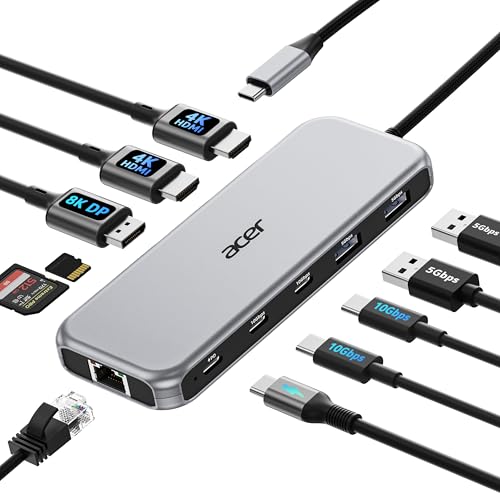
If you’re a creative professional or a multitasker who relies on multiple displays, the Acer 11-in-1 USB C Laptop Docking Station is your ideal companion. It supports up to three monitors, including dual 4K displays at 60Hz and an 8K display via DisplayPort. With multiple USB ports, Ethernet, and SD/MicroSD slots, you’ll enjoy fast data transfers and a stable network connection. Plus, its 100W power delivery means your laptop charges while you work. Compatible with various brands, this docking station enhances your productivity and workspace effortlessly. With a solid warranty and positive reviews, it’s a smart investment for any setup.
Best For: Creative professionals and multitaskers who need to connect multiple high-resolution displays and devices for enhanced productivity.
Pros:
- Supports up to three monitors, including dual 4K displays and one 8K display for stunning visuals.
- Multiple USB ports and SD/MicroSD slots facilitate fast data transfers and easy connectivity.
- 100W power delivery ensures your laptop stays charged while you work.
Cons:
- Requires a laptop with a USB-C port that supports DisplayPort Alt Mode, which may limit compatibility with some devices.
- The performance may vary if HDMI version is below 2.0, impacting display quality.
- Some users may find the price point higher compared to simpler docking stations with fewer features.
Anker 13-in-1 USB-C Laptop Docking Station

The Anker 13-in-1 USB-C Laptop Docking Station is an ideal choice for professionals who rely on multiple displays for enhanced productivity. With support for triple display via two HDMI and one DisplayPort, you can easily connect up to three monitors at 1080p@60Hz. Its 13 ports include an 85W USB-C charging port, three USB-A ports, and an Ethernet connection, catering to all your connectivity needs. Compatible with Dell, HP, Lenovo, and macOS devices, it’s versatile for various setups. Plus, the 18-month warranty and friendly customer support offer peace of mind in your tech investments.
Best For: Professionals who need to connect multiple displays and require a variety of ports for enhanced productivity.
Pros:
- Supports triple display with up to 1080p@60Hz via dual HDMI and DisplayPort for improved multitasking.
- Offers a total of 13 ports, including 85W USB-C charging and multiple USB-A ports, catering to diverse connectivity needs.
- Backed by an 18-month warranty and friendly customer support for added peace of mind.
Cons:
- Limited to Single-Stream Transport (SST) on macOS/iPadOS, resulting in identical content on external monitors.
- May require additional setup for certain devices or configurations to achieve optimal performance.
- Heavier than some other portable docking stations, which may affect portability.
Acer USB C Docking Station with Dual Monitor Support

For professionals who need to maximize their workspace, the Acer USB-C Docking Station stands out with its dual HDMI ports that support 4K@60Hz resolution. This 9-in-1 device features three USB-A ports, one USB-C port, and SD/MicroSD slots for quick data transfer. You’ll appreciate the 100W Power Delivery, which provides up to 90W to your laptop, ensuring efficient charging. The aluminum alloy body adds durability, while the built-in cable simplifies connections. Just remember, macOS supports only one external monitor in Extended mode, so check compatibility before setup. With easy plug-and-play functionality, you’ll be ready to enhance your workspace in no time.
Best For: Professionals and multitaskers looking to expand their workspace with dual monitor support and efficient data transfer capabilities.
Pros:
- Supports dual monitors at 4K@60Hz via HDMI, enhancing productivity.
- Fast data transfer with multiple USB-A and USB-C ports, as well as SD/MicroSD slots.
- 100W Power Delivery ensures efficient charging for laptops while in use.
Cons:
- macOS supports only one external monitor in Extended mode, limiting functionality for Mac users.
- Requires a 65W+ power adapter (not included) for optimal Power Delivery performance.
- Compatibility is limited to laptops with full-featured USB-C ports; may not work with all devices.
Plugable USB C Triple Display Docking Station

Designed for professionals needing to enhance productivity, the Plugable USB C Triple Display Docking Station stands out with its 100W Power Delivery feature. You’ll appreciate its ability to support up to three HDMI monitors, enabling you to bypass single-display limitations on Apple M1/M2/M3/M4/M5 devices. With six USB 5Gbps ports, it connects all your essential peripherals seamlessly. Its compact design and universal compatibility with Windows, macOS, and ChromeOS make it an ideal choice for hybrid teams. Plus, the integrated DisplayLink technology guarantees high-performance multi-display support for data analysis, presentations, and conferencing, making your workspace more efficient.
Best For: Professionals seeking to enhance productivity with multi-monitor support and seamless connectivity.
Pros:
- Supports up to three HDMI monitors, allowing for an expansive workspace and improved multitasking.
- 100W Power Delivery ensures your devices stay charged while connected.
- Universal compatibility with various operating systems and devices, making it suitable for hybrid work environments.
Cons:
- Limited to HDMI outputs, which may require adapters for other display types.
- Some users may find the 332 grams weight slightly cumbersome for portability.
- Integrated DisplayLink technology may require additional driver installation on certain systems.
Anker Nano Laptop Docking Station with Detachable Hub (13-in-1 USB-C Triple Display)

Elevate your workspace with the Anker Nano Laptop Docking Station, perfect for professionals who thrive on multitasking. This 13-in-1 USB-C triple display dock lets you connect multiple devices effortlessly. With a detachable 6-in-1 hub, you can take your setup on the go. Enjoy up to 4K resolution on external displays and fast data transfer speeds of 10 Gbps. The dock features various ports, including USB-C, HDMI, and Ethernet, ensuring compatibility with Dell, Lenovo, HP, and more. Rated 4.2 out of 5 stars, it’s a reliable choice for enhancing productivity while maintaining a tidy workspace.
Best For: Professionals who require a versatile and efficient docking station for multitasking with multiple devices.
Pros:
- Versatile Connectivity: Offers a wide range of ports including USB-C, HDMI, and Ethernet, catering to various devices.
- Detachable Hub: The 6-in-1 detachable hub allows for easy mobility and flexibility in different work environments.
- High Performance: Supports up to 4K resolution on external displays and provides fast data transfer speeds of 10 Gbps.
Cons:
- Limited Compatibility with macOS: External display support may only mirror content instead of extending it.
- Size and Portability: The dock’s dimensions may be bulkier compared to other compact docking options.
- Price Point: It may be on the higher end of the budget for some users looking for basic docking solutions.
Anker Laptop Docking Station Dual Monitor (8-in-1 USB C Hub)

The Anker Laptop Docking Station Dual Monitor (8-in-1 USB C Hub) is the ideal solution for professionals seeking seamless multitasking with multiple displays. With two HDMI ports, you can effortlessly connect dual monitors, supporting 4K@30Hz for enhanced productivity. This hub also features USB-A data ports, a Gbps Ethernet port, and an SD/microSD card reader, providing extensive functionality from a single USB-C port. Plus, it offers 85W Power Delivery for fast charging, ensuring your devices stay powered. Compatible with Windows 10/11 and ChromeOS, this docking station elevates your workspace efficiently, making it a must-have for tech-savvy users.
Best For: Professionals and tech-savvy users looking for an efficient solution to connect multiple displays and peripherals seamlessly.
Pros:
- Supports dual monitors with 4K resolution, enhancing productivity through multitasking.
- Includes multiple ports (USB-A, HDMI, Ethernet, SD/microSD) allowing extensive connectivity from a single USB-C port.
- Fast charging capability with 85W Power Delivery ensures devices remain powered during use.
Cons:
- Limited to Windows 10/11 and ChromeOS, making it incompatible with Linux systems.
- Requires a 100W PD wall charger for optimal performance, which is not included.
- macOS users may experience identical displays on external monitors, limiting display versatility.
Anker Prime Docking Station (14-Port with 160W Max Output)

If you’re a professional who needs to connect multiple devices and displays seamlessly, the Anker Prime Docking Station stands out with its impressive 14-port design and robust 160W max output. This versatile docking station supports USB-C, USB4, and Thunderbolt connections, making it compatible with Windows 10 and 11, as well as ChromeOS. You can enjoy dual 4K display capabilities and fast data transfer speeds up to 10Gbps across 11 ports. With the ability to charge four devices simultaneously, it’s perfect for enhancing your workspace. Plus, you’ll receive a USB-C cable and friendly customer support for any questions.
Best For: Professionals who need to connect multiple devices and displays efficiently.
Pros:
- Supports dual 4K displays for enhanced productivity.
- Fast data transfer speeds of up to 10Gbps across multiple ports.
- Capable of charging four devices simultaneously with a total output of 160W.
Cons:
- Not compatible with Linux operating systems.
- External monitors display identical images when used with macOS.
- Does not support 5120*1440 monitor resolution.
Acer 13-in-1 Docking Station with Triple Monitor Support

For professionals and creatives who rely on multiple displays, the Acer Premium 13-in-1 Docking Station is an ideal choice. With triple monitor support, you can connect two 4K HDMI displays and one DisplayPort, ensuring an expansive workspace. It features 13 ports, including 4 USB (1 USB-C, 3 USB-A) and a gigabit Ethernet connection for fast internet. The sleek aluminum design not only looks great but also helps with heat dissipation. Plus, the 110W power delivery keeps your laptop charged. With integrated security options and a 1-year warranty, it’s a reliable addition to any setup.
Best For: Professionals and creatives who need an efficient multi-display setup for enhanced productivity.
Pros:
- Triple monitor support allows for an expansive workspace with dual 4K HDMI and one DisplayPort.
- Sleek aluminum design enhances aesthetics while providing efficient heat dissipation.
- 110W power delivery keeps your laptop charged while using multiple peripherals.
Cons:
- MacOS compatibility is limited to mirroring displays, lacking extended desktop mode.
- Requires compatible laptop/GPU for triple 4K output, which may limit usability for some users.
- Security lock feature may require additional accessories to fully utilize.
Anker Prime Docking Station (DL7400) – 14-Port Triple Display
Designed for professionals who rely on multiple displays for enhanced productivity, the Anker Prime Docking Station (DL7400) offers a remarkable 14-port setup that supports triple external monitors, including one in stunning 8K resolution. With a powerful 140W upstream port, you can easily charge your laptop while enjoying data transfer speeds up to 10Gbps. The docking station includes various connectivity options, such as HDMI, DisplayPort, and USB-A ports. Plus, the built-in fan and ActiveShield 3.0 guarantee peak cooling. Just remember to install the latest DisplayLink driver for seamless performance and multitasking efficiency.
Best For: Professionals who require multiple displays for enhanced productivity and seamless multitasking.
Pros:
- Supports triple external monitors, including one in 8K resolution, enabling ultra-efficient multitasking.
- Offers a powerful 140W upstream port for charging laptops while providing high-speed data transfer.
- Equipped with a built-in fan and ActiveShield 3.0 to ensure optimal cooling and stability during use.
Cons:
- Requires the latest DisplayLink driver for optimal performance, which may involve additional setup for users.
- DRM-protected streaming may result in a black screen, necessitating changes in browser settings for resolution.
- Front USB-C ports do not support media display, limiting their functionality in certain use cases.
Anker Laptop Docking Station 14 in 1 USB C Hub

The Anker Laptop Docking Station 14 in 1 USB C Hub is an ideal solution for professionals who require seamless connectivity across multiple displays. With dual 4K HDMI and a 1080p VGA port, you can easily set up a triple display arrangement. It features 14 ports, including five USB-A, a 5 Gbps USB-C, an Ethernet port, and SD/micro SD slots, ensuring you’ve got all your connection needs covered. Plus, the 80W power delivery keeps your devices charged without interruptions. Compatible with various systems, this lightweight hub enhances your workspace effortlessly, backed by Anker’s friendly customer support and an 18-month warranty.
Best For: Professionals and creatives who need extensive connectivity options and seamless multi-display setups for their laptops.
Pros:
- Versatile Connectivity: Offers 14 ports, including dual 4K HDMI and a VGA port, to accommodate a wide range of devices and displays.
- High-Speed Data Transfer: Supports up to 5 Gbps data transfer speeds for efficient multimedia and file transfers.
- Power Delivery: Provides 80W pass-through charging, ensuring devices stay powered during use.
Cons:
- Wall Charger Not Included: Requires a separate purchase of a wall charger to utilize the full power delivery capability.
- Limited Compatibility: Not compatible with Linux operating systems, which may limit use for some users.
- Weight: At 134 grams, it may be slightly heavier compared to some other hubs, which could impact portability.
Factors to Consider When Choosing Usb C Docking Stations for Multi Displays
When you’re choosing a USB-C docking station for multi-displays, consider the display resolution support and the number of monitors you plan to connect. You’ll also want to think about data transfer speeds and power delivery capability, as these can greatly impact your setup. Finally, evaluating the variety and types of ports available will guarantee you have everything you need for your devices.
Display Resolution Support
Choosing a USB-C docking station for multi-display setups hinges on display resolution support, which can greatly impact your productivity. It’s essential to check the maximum resolution each dock can handle; some support up to 8K, while others max out at 1080p or 4K. Look for docks with multiple HDMI and DisplayPort outputs that can manage dual displays at 4K (60Hz) or even triple displays with varied resolutions. Remember, your monitors and cables need to support the required HDMI or DisplayPort version for ideal performance. If you’re using macOS, be aware that some docks may only mirror displays, limiting your desktop extension and productivity. Utilizing MST (Multi-Stream Transport) technology can also enhance your multi-display experience.
Number of Monitors
Determining how many external monitors you need is vital when selecting a USB-C docking station for multi-display setups. Some docking stations support dual or triple displays, while others are limited to just one. Check the specifications to guarantee each monitor’s maximum resolution and refresh rate, like 4K@60Hz or 8K@30Hz, so you get the best display quality. It’s also important to look for docking stations that utilize DisplayPort Multi-Stream Transport (MST) technology, allowing multiple monitors to connect through a single DisplayPort output. If you’re using macOS, be aware of its limitations, as it may only support mirrored displays. Finally, verify that your laptop’s USB-C port supports DisplayPort Alternate Mode for video output to external displays.
Data Transfer Speeds
As you explore USB-C docking stations for multi-display setups, you’ll notice that data transfer speeds can vary widely, which is vital for maintaining an efficient workflow. Many docking stations offer speeds up to 10Gbps for USB-C ports and 5Gbps for USB-A ports, essential for quick file transfers. Confirm the docking station supports the latest USB standards, as this affects both transfer rates and compatibility with newer devices. While multiple USB ports allow for simultaneous connections, be aware that the total bandwidth may be shared, impacting individual speeds. Additionally, using multiple high-resolution displays can limit overall data bandwidth, so selecting a docking station with dedicated high-speed data ports can greatly enhance performance when transferring large files.
Power Delivery Capability
When setting up your multi-display workstation, considering the power delivery (PD) capability of your USB-C docking station is just as important as data transfer speeds. The PD capability allows your docking station to charge devices while handling data and display functions. Look for docking stations with PD outputs of 85W or 100W, which can effectively power demanding laptops. Be certain the PD capability matches or exceeds your laptop’s power requirements to avoid undercharging or performance issues. Additionally, some docking stations can provide power to multiple devices at once, streamlining your workspace and reducing the number of adapters needed. Prioritizing PD capability guarantees your setup runs smoothly and efficiently.
Port Variety and Types
Choosing the right USB-C docking station can greatly enhance your multi-display setup, and port variety plays an essential role in that decision. Look for a docking station with a mix of USB-A, USB-C, HDMI, and DisplayPort options to maximize connectivity. If you’re planning to use multiple monitors, verify the station supports dual or triple display outputs for seamless integration. Pay attention to data transfer rates as well; high-speed USB ports, like 10Gbps for USB-C and 5Gbps for USB-A, will help you transfer files quickly. Finally, opt for a docking station that provides sufficient Power Delivery, ideally 85W or higher, to keep your devices charged while you work. This combination of features will enhance your efficiency and overall experience.
Compatibility With Devices
To confirm your USB-C docking station enhances your multi-display setup, it’s important to take into account compatibility with your devices. First, check if your operating system is supported; while many docks work with Windows, macOS, and ChromeOS, some may exclude Linux users. Next, verify your laptop features a USB-C port with DisplayPort Alt Mode, as this is vital for video output. Look for docks that specify compatibility with your laptop brand, as they’re often optimized for manufacturers like Dell, HP, Lenovo, and Apple. Additionally, consider stations with power delivery (PD) to charge your laptop efficiently, ideally between 85W and 110W, and verify the maximum number of external displays supported to meet your multitasking needs.
Size and Design
Size and design play an essential role in selecting the right USB-C docking station for your multi-display setup. A compact docking station is easier to transport, perfect for on-the-go professionals. However, larger models often pack more features and connectivity options. Consider the materials, too; aluminum offers durability and better heat dissipation compared to plastic. The dimensions of the docking station matter, especially if you’re working in a tight space—make sure it fits your desk setup comfortably. Built-in cables can simplify connections but may impact the overall footprint. Finally, don’t overlook aesthetics; choose a color and finish that complements your laptop and workspace decor for a cohesive look.
