
The best ultrawide editing monitors give creative professionals more room for timelines, canvases, previews, and reference windows without requiring a dual-monitor setup. This roundup compares 34-inch and super-ultrawide 49-inch displays across resolution, refresh rate, panel type, HDR support, connectivity, and ergonomics.
Some models prioritize sharp 5K2K or Dual QHD detail, while others offer strong value for everyday photo editing, video production, office work, and multitasking. Use the buying guide below to narrow the options based on your workflow, desk space, and color-management needs.
Best 10 Ultrawide Editing Monitors Picks for 2026
Best All-Around Connectivity

- 34-inch curved WQHD display
- USB-C with up to 65W power delivery
- PbP and 99% sRGB coverage
Best For: Editors and professionals needing flexible laptop connectivity
Best for Color-Focused Editing

- 99% sRGB and 95% DCI-P3 coverage
- 3440 x 1440 curved VA display
- USB-C with up to 65W power delivery
Best For: Photo and video editors prioritizing color coverage
Best IPS Value
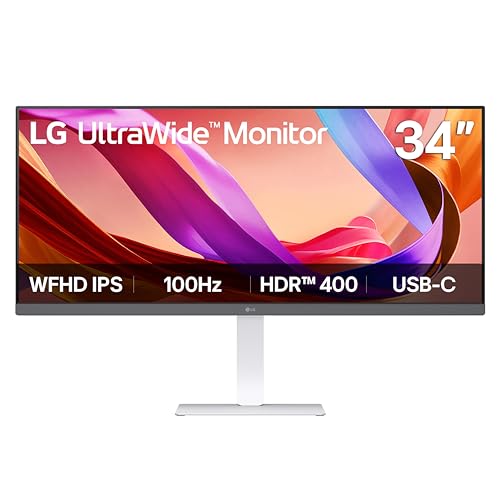
- 34-inch 21:9 IPS display
- DisplayHDR 400 and 99% sRGB
- USB-C and adjustable stand
Best For: Everyday creators wanting IPS viewing angles and convenience
Best for Multi-Source Workflows

- Ultra-WQHD 3440 x 1440 resolution
- PbP and PiP for multiple sources
- Two HDMI inputs plus DisplayPort
Best For: Editors comparing projects or using multiple source devices
Best for Wide Multitasking
INNOCN 49C1R 5K2K Curved Monitor

- 49-inch 32:9 display with 5120 x 1440 resolution
- USB-C 65W power delivery and extensive ports
- PIP/PBP supports two input sources
Best For: Editors and multitaskers wanting a curved dual-QHD workspace
Best for Smooth Editing and Gaming
Alienware AW3425DWM 34-Inch Monitor

- 34-inch WQHD ultrawide with 180Hz refresh rate
- DCI-P3 95% and DisplayHDR 400 support
- Matte finish with ergonomic adjustments
Best For: Creators who also want fluid gaming performance
Best for Color-Critical Work
INNOCN E49M1R Flat Mini LED Monitor

- Flat 49-inch 5120 x 1440 workspace
- 96% Adobe RGB and factory-tested ΔE below 2
- 1000-nit HDR with 1760 local dimming zones
Best For: Designers and editors needing precise geometry and color
Best for Connected Multitasking

- 5120x1440 32:9 workspace
- 65W USB-C, KVM, and PIP/PBP
- 100% sRGB and 91% DCI-P3
Best For: Editors and multitaskers needing broad workspace and device flexibility
Best for High-Refresh Creative Work

- 5120x1440 resolution with up to 165Hz
- 120% sRGB and 3000:1 contrast
- Height-adjustable and wall-mountable
Best For: Creators who also want smooth gaming and media performance
Best for Docked Business Editing

- 5120x1440 Dual QHD workspace
- USB-C docking with 90W charging
- Built-in speakers and 3-year warranty
Best For: Professionals seeking a connected laptop-centered editing setup
Best All-Around Connectivity – LG 34WR55QK-B
The LG 34WR55QK-B is one of the more flexible ultrawide editing monitors for multitasking, with a 34-inch curved WQHD panel, 21:9 workspace, and 3440 x 1440 resolution. Its USB-C connection, 65W power delivery, and Picture-by-Picture support make it practical for laptop-based workflows and multi-source setups.
Best For: Editors and professionals who want high resolution, USB-C laptop connectivity, and flexible multitasking features.
Pros:
- WQHD 3440 x 1440 resolution provides ample horizontal workspace.
- USB-C supports display connectivity and up to 65W power delivery.
- 99% sRGB coverage, HDR10, and a 3000:1 contrast ratio support colorful, detailed images.
- Height and tilt adjustments, Reader Mode, and a virtually borderless design improve everyday usability.
Cons:
- The 5ms response time and 100Hz refresh rate are aimed more at general productivity than high-speed gaming.
- The VA panel may be less suitable than an IPS panel for viewers prioritizing wide-angle color consistency.
With its strong resolution, useful USB-C hub functionality, and configurable workspace tools, this LG is a well-rounded choice for editing, office work, and media use on one screen.
Best for Color-Focused Editing – Dell S3425DW
The Dell S3425DW combines a 34-inch 3440 x 1440 curved display with broad stated color coverage, making it a compelling option among ultrawide editing monitors. Its 99% sRGB and 95% DCI-P3 coverage, USB-C connection with 65W power delivery, and built-in speakers suit a streamlined editing desk.
Best For: Photo and video editors who want wide color coverage, high contrast, and a one-cable USB-C setup.
Pros:
- 99% sRGB and 95% DCI-P3 coverage support vibrant, wide-gamut visuals.
- 3440 x 1440 resolution and a 21:9 aspect ratio provide generous workspace.
- USB-C supports up to 65W power delivery for a cleaner laptop setup.
- ComfortView Plus, height and tilt adjustment, and built-in speakers add convenience.
Cons:
- The VA panel has a 300 cd/m² brightness rating, which may be limiting for especially bright editing environments.
- Connectivity is centered on HDMI and USB-C rather than including DisplayPort in the listed hardware connections.
This Dell stands out for editors who value color coverage and contrast while also wanting smooth 120Hz performance, eye-comfort features, and simplified USB-C connectivity.
Best IPS Value – LG 34U530A-W
The LG 34U530A-W offers an IPS panel, 34-inch 21:9 workspace, and 100Hz refresh rate at a lower 2560 x 1080 resolution. For ultrawide editing monitors, it is a practical fit for general creative work and multitasking, especially when wide viewing angles, built-in speakers, and easy USB-C access matter more than maximum pixel density.
Best For: Everyday creators and multitaskers who prefer an IPS panel, HDR brightness, and an adjustable stand.
Pros:
- IPS technology and 178-degree viewing angles support consistent viewing from different positions.
- 21:9 widescreen layout makes room for multiple windows and editing panels.
- DisplayHDR 400, 99% sRGB coverage, and 400 cd/m² brightness enhance visual presentation.
- USB-C, built-in Waves MaxxAudio speakers, and height, tilt, and swivel adjustments add convenience.
Cons:
- 2560 x 1080 resolution provides less vertical and overall detail than WQHD alternatives.
- The listed connectivity includes one HDMI port and one USB port, limiting expansion compared with some competitors.
This LG is a sensible choice when an IPS viewing experience and practical desk features are more important than the sharper workspace offered by 3440 x 1440 displays.
Best for Multi-Source Workflows – Samsung ViewFinity S50GC
The Samsung ViewFinity S50GC is a strong candidate among ultrawide editing monitors for users who need to see more than one source at once. Its 34-inch Ultra-WQHD resolution, Picture-by-Picture and Picture-in-Picture modes, two HDMI inputs, and DisplayPort connection support flexible editing and review workflows.
Best For: Editors who compare projects or manage multiple computers and sources on one display.
Pros:
- 3440 x 1440 resolution and a 21:9 aspect ratio provide expansive workspace.
- PbP supports two simultaneous sources at native resolution, while PiP keeps a secondary source visible.
- HDR10, a 3000:1 contrast ratio, and 100Hz refresh rate support detailed, smooth visuals.
- Ambient light sensing, Eye Saver Mode, Flicker Free technology, and a virtually bezel-free design support comfortable use.
Cons:
- The listed 72% color gamut is less extensive than the wider coverage specified for some competing models.
- The supplied connectivity details do not list USB-C or laptop power delivery.
Choose this Samsung when source management is central to your workflow. Its high-resolution canvas and built-in multi-source modes are particularly useful for comparing footage, projects, or applications without a second monitor.
Best for Wide Multitasking – INNOCN 49C1R 5K2K Curved Monitor
The INNOCN 49C1R is a strong choice among ultrawide editing monitors when you want a large, single-screen workspace without combining two displays. Its 5120 x 1440 resolution, 32:9 layout, and PIP/PBP support suit timeline editing and side-by-side applications, while the USB-C connection adds convenience for compatible laptops and devices.
Best For: Editors and multitaskers who prefer a curved, dual-QHD workspace with broad connectivity.
Pros:
- 49-inch 32:9 screen provides extensive room for multiple windows and editing timelines.
- 5120 x 1440 resolution, 99% sRGB coverage, and HDR400 support deliver detailed, vibrant images.
- USB-C with 65W power delivery, DisplayPort, HDMI, USB-A, and RJ45 provide flexible connectivity.
- PIP/PBP lets you view content from two input sources at once.
Cons:
- The curved design may be less suitable for work requiring perfectly straight visual lines.
- VA technology and 3000:1 contrast are specified, but professional color-critical workflows may require additional calibration.
Choose this model if immersive width and a convenient all-in-one workspace matter more than a flat, precision-oriented display. Its 120Hz refresh rate and Adaptive-Sync also make it versatile for occasional gaming.
Best for Smooth Editing and Gaming – Alienware AW3425DWM 34-Inch Monitor
The Alienware AW3425DWM combines a manageable 34-inch ultrawide format with WQHD resolution and a fast 180Hz refresh rate. For shoppers comparing ultrawide editing monitors, its DCI-P3 95% coverage, DisplayHDR 400 certification, matte finish, and ergonomic adjustments make it a practical option for photo or video editing alongside entertainment.
Best For: Creators who want an editing-capable ultrawide that also prioritizes fluid gaming performance.
Pros:
- 34-inch 21:9 WQHD panel offers expanded workspace without the footprint of a 49-inch display.
- DCI-P3 95% coverage and DisplayHDR 400 support enhance color and highlight detail.
- 180Hz refresh rate, 1ms response time, FreeSync Premium, and VESA AdaptiveSync support smooth motion.
- Matte screen, hardware-based low-blue-light solution, height adjustment, and tilt adjustment support longer sessions.
Cons:
- Its 3440 x 1440 maximum resolution provides less horizontal workspace than the 49-inch models here.
- The supplied specifications identify HDMI, DisplayPort, and USB connectivity but do not list USB-C.
This is the balanced pick for users who edit photos or video but do not want to give up high-refresh-rate entertainment. It offers useful color coverage and comfort features in a more moderate ultrawide size.
Best for Color-Critical Work – INNOCN E49M1R Flat Mini LED Monitor
The INNOCN E49M1R is designed for precision-focused workflows that benefit from a flat, bezel-free 49-inch canvas. As ultrawide editing monitors go, it stands out with 5120 x 1440 resolution, Mini LED backlighting, 1000-nit HDR brightness, broad color coverage, and a factory-tested Delta E below 2.
Best For: Graphic designers, video editors, photographers, architects, and multitaskers who need a flat professional workspace.
Pros:
- Flat 49-inch 32:9 display keeps lines straight for design, editing, and architectural work.
- 100% sRGB, 95% DCI-P3, 96% Adobe RGB, and factory-tested ΔE < 2 support color-sensitive tasks.
- Mini LED backlighting with 1760 local dimming zones and HDR1000 reaches 1000 nits peak brightness.
- 5120 x 1440 resolution and 165Hz refresh rate combine detailed workspace with smooth motion.
Cons:
- Its 49-inch size requires substantial desk space.
- The listed one-year manufacturer warranty is shorter than the Alienware model’s three-year warranty.
- As a VA display, it may not match every professional workflow’s preferred panel characteristics.
If accurate geometry and wide color coverage are higher priorities than an immersive curve, this is the strongest fit in the group. It also accommodates extensive multitasking by replacing two 27-inch QHD monitors with one continuous panel.
Best for Connected Multitasking – Deco Gear 49-inch 5K2K
For ultrawide editing monitors that prioritize workspace flexibility, the Deco Gear combines a 5120×1440 canvas with USB-C connectivity, KVM, and PIP/PBP. Its 49-inch 32:9 layout is suited to keeping timelines, reference windows, charts, and documents visible together.
Best For: Editors, analysts, office users, and creators who need extensive side-by-side workspace and convenient device switching.
Pros:
- 5120×1440 resolution provides a broad, bezel-free editing workspace.
- USB-C supports video, data, and up to 65W laptop charging.
- KVM and PIP/PBP simplify multi-computer and multi-source workflows.
- 100% sRGB and 91% DCI-P3 coverage support varied creative work.
Cons:
- The glossy finish may reflect more ambient light than a matte display.
- Its 49-inch footprint requires substantial desk space.
- The listed HDR enhancement is HDR300 rather than a higher-tier HDR specification.
This is a practical choice when connectivity and multitasking matter as much as screen width. The 120Hz refresh rate, adjustable stand, built-in speakers, and 1-year limited warranty add flexibility for work and entertainment.
Best for High-Refresh Creative Work – CRUA 49-inch DQHD
Among ultrawide editing monitors, the CRUA stands out for pairing a 5120×1440 screen with a 165Hz maximum refresh rate and a 1500R curve. It is designed for users who want a wide editing and multitasking display that can also handle smooth gaming and video playback.
Best For: Content creators and PC users who want a high-refresh ultrawide for editing, gaming, and general desktop use.
Pros:
- DQHD resolution supplies detailed room for timelines and multiple windows.
- 144Hz/165Hz refresh operation and FreeSync support smoother motion.
- 120% sRGB coverage, 330cd/m² brightness, and 3000:1 contrast support vivid images.
- Height adjustment, tilt adjustment, and wall-mount compatibility support flexible setups.
Cons:
- There are no built-in speakers.
- The notes list HDMI 2.1 and DisplayPort 1.4, but no USB-C connectivity.
- Its gaming-focused design may offer fewer productivity hub features than business-oriented alternatives.
The CRUA is a strong fit when refresh rate is a priority alongside editing space. Its matte panel and eye-care features are useful for extended sessions, while the included connections cover common PCs, laptops, and compatible gaming devices.
Best for Docked Business Editing – Samsung 49-inch S95UA
The Samsung S95UA is one of the more office-focused ultrawide editing monitors in this group. Its 49-inch 1000R Dual QHD display combines a wide 32:9 workspace with USB-C docking, 90W charging, built-in speakers, and a height-adjustable stand.
Best For: Professionals who want a large editing workspace and a monitor that can serve as a laptop dock and desktop hub.
Pros:
- 5120×1440 resolution provides expansive room for editing tools and reference material.
- USB-C supports up to 90W charging and helps reduce desk clutter.
- DisplayPort, two HDMI inputs, USB ports, and Ethernet support a connected workstation.
- VESA DisplayHDR 400, built-in speakers, and a 3-year manufacturer warranty add useful extras.
Cons:
- The listed 5ms response time is slower than the 1ms figures of the other options.
- At 32.2 pounds, it is relatively heavy for mounting and setup.
- The 1000R curve may take adjustment for users accustomed to flatter displays.
Choose this Samsung when streamlined connectivity and business usability matter more than maximum gaming speed. The 120Hz refresh rate still supports smooth scrolling and casual gaming, while the docking features make it especially convenient for laptop-based editing workflows.
How We Picked the Best Ultrawide Editing Monitors
We evaluated these Ultrawide Editing Monitors by focusing on the features that affect real creative workflows: usable horizontal workspace, resolution, panel technology, color and HDR support, refresh rate, connectivity, ergonomics, and overall practicality. A wide aspect ratio is useful only when text, timelines, and image details remain comfortable to view, so resolution and pixel density were considered alongside screen size.
We also looked for flexible connections such as USB-C, DisplayPort, HDMI, and built-in hub features. While gaming-oriented specifications can improve responsiveness, they were treated as secondary benefits rather than substitutes for accurate color, consistent brightness, and a suitable resolution.
Quick Comparison
| Monitor type | Best suited for | What to prioritize |
|---|---|---|
| 34-inch WQHD | Photo editing, video timelines, and general creative work | 3440 × 1440 resolution, IPS or quality VA panel, USB-C |
| 34-inch WFHD | Budget-conscious multitasking | Lower cost, comfortable scaling, useful connectivity |
| 49-inch Dual QHD | Replacing two monitors | 5120 × 1440 resolution, split-screen tools, desk depth |
| 49-inch 5K2K or high-refresh display | Large editing timelines and mixed creative use | Pixel density, color coverage, ports, and stand adjustability |
Key Buying Factors for Ultrawide Editing Monitors
Resolution and Pixel Density
For a 34-inch screen, 3440 × 1440 is generally more comfortable for editing than 2560 × 1080 because it provides sharper text and more vertical room. On a 49-inch display, 5120 × 1440 helps preserve workspace across the full width. A 5K2K model can provide additional vertical detail, which is valuable for high-resolution video, photography, and design.
Panel, Color, and HDR Performance
IPS panels often provide consistent viewing angles and predictable image presentation, while VA panels can deliver deeper contrast. Check the manufacturer’s claimed color coverage, factory calibration information, brightness, and HDR certification. HDR support alone does not guarantee professional-grade HDR editing; serious color work may require a calibrated reference display.
Connectivity and Ergonomics
USB-C can simplify laptop workflows by carrying video, data, and sometimes power through one cable. DisplayPort is useful for desktop systems, while HDMI supports additional devices. Look for height, tilt, and swivel adjustment, VESA compatibility, and a screen curve that suits your viewing distance. A 49-inch monitor also needs a wide, deep desk and adequate viewing distance.
Refresh Rate and Workflow Comfort
Refresh rates from 100Hz to 165Hz make scrolling, cursor movement, and timeline navigation feel smoother. They are beneficial for mixed creative and gaming use, but they should not outweigh resolution, color consistency, or connectivity when editing is the primary task.
Who Should Buy Which Ultrawide Editing Monitors?
Choose a 34-inch WQHD monitor if you want a balanced display for editing, productivity, and occasional gaming without dedicating an entire desk to a super-ultrawide. A 34-inch WFHD model makes sense for basic editing and multitasking when budget is the main constraint, though its lower pixel density is less ideal for detailed work.
Choose a 49-inch Dual QHD monitor if you frequently compare footage, keep a long timeline open, or want one continuous workspace instead of two displays. Models with USB-C and picture-by-picture features are particularly useful for laptop-based workflows and side-by-side sources. A high-refresh 49-inch display is best for editors who also game or need exceptionally smooth navigation.
Before buying, confirm your computer can drive the monitor at its native resolution and preferred refresh rate, measure your desk, and check whether the stand provides the adjustment you need. For color-critical projects, plan to use calibration hardware and verify the monitor’s color-management capabilities.
