
A well-chosen ultrawide monitor can replace a dual-screen setup while giving your editing timeline, assets, and reference windows more room to breathe.
We selected 10 options for home offices, covering color-focused 34-inch displays, webcam-equipped productivity monitors, and expansive 49-inch models for demanding multitasking.
Best 10 Ultrawide Editing Monitors for Home Offices Picks for 2026
Best All-Around Workstation

- 34-inch 3440 x 1440 curved display
- USB-C with up to 65W power delivery
- Screen splitting and Picture-by-Picture support
Best For: Multitasking professionals seeking flexible laptop connectivity
Best for Comfort and Smooth Motion

- 120Hz refresh rate with FreeSync Premium
- ComfortView Plus eye-comfort technology
- USB-C connectivity with up to 65W power delivery
Best For: Long work sessions, creative tasks, and everyday entertainment
Best Smart Monitor

- Built-in webOS streaming platform
- AirPlay 2 and HomeKit compatibility
- 34-inch 3440 x 1440 curved display
Best For: Workspaces that double as streaming and entertainment areas
Best for Eye Care and Dual Sources

- Picture-by-Picture and Picture-in-Picture modes
- Eye Saver, Flicker Free, and ambient light sensor
- Ultra-WQHD 3440 x 1440 resolution
Best For: Dual-source workflows and comfort-focused home offices
Best for Video Calls

- 3440x1440 resolution supports editing and multitasking
- Integrated 5MP webcam and noise-canceling mic
- USB-C docking supplies up to 65W power
Best For: Remote workers who also edit photos or video
Best for Flexible Multitasking

- KVM and PIP/PBP support multiple sources
- USB-C offers up to 65W laptop power
- 100% sRGB and 91% DCI-P3 coverage
Best For: Creators and professionals managing multiple computers
Best for Streamlined Multitasking
LG 34U530A-W 34-inch UltraWide
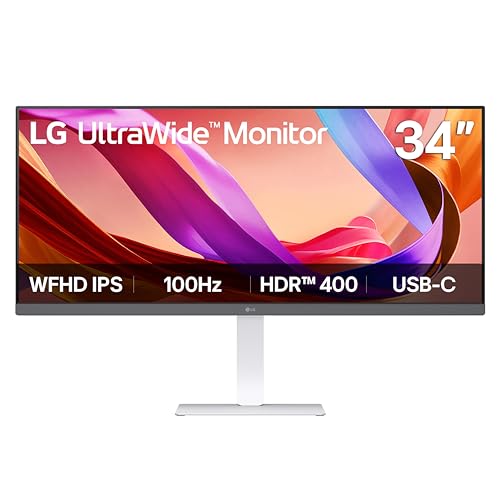
- 34-inch 21:9 IPS display with 2560 x 1080 resolution
- USB-C, DisplayPort, and HDMI connectivity
- 100Hz refresh rate with adjustable stand
Best For: Laptop-based home-office multitasking and everyday editing
Best for High-Resolution Performance
Sceptre C345B-QUT168 34-inch Curved

- 3440 x 1440 WQHD resolution for detailed editing space
- Up to 165Hz refresh rate and 1ms MPRT
- Dual DisplayPort and HDMI connectivity
Best For: High-resolution editing, multitasking, and smooth entertainment
Best for Color-Rich Creative Work

- 3440 x 1440 IPS display with 120% sRGB coverage
- 100Hz refresh rate with AMD FreeSync
- Dual HDMI and dual DisplayPort inputs
Best For: Color-focused editing and polished home-office setups
Best All-Around Workstation – LG 34WR55QK-B
For home offices that need flexible multitasking, the LG 34WR55QK-B is a practical pick among ultrawide editing monitors for home offices. Its 34-inch 3440 x 1440 curved screen, USB-C connectivity, and workspace-splitting tools make it easy to manage multiple windows on one display.
Best For: Multitasking professionals who want USB-C laptop connectivity and adjustable ergonomics.
Pros:
- UltraWide WQHD resolution provides room for multiple windows.
- USB-C supports up to 65W power delivery for compatible laptops.
- OnScreen Control includes screen splitting and Picture-by-Picture support.
- Height-adjustable and tilt-adjustable stand supports a more comfortable setup.
Cons:
- The 100Hz refresh rate is lower than some productivity-oriented alternatives.
- Its 300-nit brightness may be limiting in very bright rooms.
With HDR10, up to 99% sRGB coverage, Reader Mode, and a broad selection of ports, this LG balances office productivity with general multimedia use. It is especially useful when one cable and one wide screen can replace a more complicated desk setup.
Best for Comfort and Smooth Motion – Dell S3425DW
The Dell S3425DW combines a 34-inch WQHD ultrawide panel with eye-comfort features, built-in speakers, and a 120Hz refresh rate. For ultrawide editing monitors for home offices, it suits users who spend long hours switching between creative work, documents, and entertainment.
Best For: Home-office users who prioritize eye comfort, smoother motion, and built-in audio.
Pros:
- 120Hz refresh rate with FreeSync Premium supports smooth motion.
- ComfortView Plus reduces harmful blue light emissions to 35% or less.
- 99% sRGB and 95% DCI-P3 coverage support vibrant color.
- USB-C provides up to 65W power delivery through one cable.
Cons:
- The display is heavier than several comparable models at 20.7 pounds.
- Connectivity is centered on HDMI and USB rather than DisplayPort.
Its 3000:1 contrast ratio, HDR readiness, height and tilt adjustment, and built-in speakers make the S3425DW a well-rounded desk monitor. The single-cable USB-C setup is particularly convenient for compatible laptops.
Best Smart Monitor – LG 34SR60QC-W Smart Monitor
The LG 34SR60QC-W adds streaming and smart-monitor features to a 34-inch curved QHD ultrawide display. It is a distinctive choice among ultrawide editing monitors for home offices when you want to work, watch content, and cast from compatible devices without relying entirely on a connected PC.
Best For: Hybrid home offices that combine computer work, streaming, and wireless device sharing.
Pros:
- webOS provides access to popular streaming apps and LG Channels.
- 3440 x 1440 resolution and a 21:9 format support broad multitasking space.
- AirPlay 2 and HomeKit support wireless control and casting from compatible Apple devices.
- Built-in speakers and two HDMI ports add convenience for multimedia use.
Cons:
- It lacks the USB-C laptop charging feature listed for some competing models.
- The 100Hz refresh rate is not as high as the Dell alternative.
- Its primary connectivity is HDMI and USB Type-A.
This LG stands out less as a traditional office dock and more as an all-in-one entertainment and productivity screen. Its white finish, thin design, HDR10 support, and smart features make it appealing for flexible rooms where the monitor also serves as a streaming display.
Best for Eye Care and Dual Sources – Samsung ViewFinity S50GC
The Samsung ViewFinity S50GC focuses on screen space, eye-care tools, and multi-source workflows. It is a strong option among ultrawide editing monitors for home offices if you want to view two connected sources using Picture-by-Picture or monitor one while working on another with Picture-in-Picture.
Best For: Users managing two computers or video sources on one wide, borderless display.
Pros:
- Ultra-WQHD 3440 x 1440 resolution expands workspace for multitasking.
- Picture-by-Picture and Picture-in-Picture support multiple input sources.
- Ambient light sensing, Eye Saver Mode, and Flicker Free features support comfortable viewing.
- HDR10 and a 3000:1 contrast ratio add depth to compatible content.
Cons:
- The listed 72% color gamut is less extensive than some alternatives.
- There is no USB-C connection listed for laptop charging or single-cable setup.
- The stand features are not described as height adjustable.
With two HDMI inputs, DisplayPort, FreeSync, and a virtually borderless design, the S50GC is built around an uncluttered multi-device workspace. Its 100Hz refresh rate also keeps everyday motion smoother than a standard 60Hz office display.
Best for Maximum Workspace – 49-Inch 5K Curved Ultrawide
For home offices that need room for editing timelines, reference windows, and multiple applications, this 49-inch 32:9 monitor provides the screen space of two QHD displays without a center bezel. Its 5120×1440 resolution, 1500R curve, and USB-C connectivity make it a practical centerpiece for ultrawide editing monitors for home offices.
Best For: Video editors, content creators, and multitaskers who want one expansive display with laptop charging.
Pros:
- 5120×1440 resolution provides a wide, uninterrupted workspace.
- USB-C supports video, data, and up to 65W laptop charging through one connection.
- 100% sRGB coverage, HDR support, and a 3000:1 contrast ratio support detailed creative work.
- 120Hz refresh rate, Adaptive Sync, and a 1ms MPRT response target smooth motion.
Cons:
- Its 49-inch width requires substantial desk space.
- 250-nit brightness may be less suitable for very bright rooms.
- The 1-year limited manufacturer warranty is shorter than some office-focused alternatives.
This is the strongest choice here for replacing a dual-monitor editing setup with one seamless canvas. Confirm your desk depth and laptop USB-C capabilities before buying.
Best for Video Calls – 34-Inch Ultrawide with Webcam
The Philips 34E1C5600HE is a balanced pick for home offices where editing, video meetings, and desk simplicity all matter. Its 3440×1440 workspace, built-in webcam, and USB-C docking make it one of the more convenient ultrawide editing monitors for home offices.
Best For: Remote workers and photo or video editors who want an integrated webcam, microphone, speakers, and laptop dock.
Pros:
- 3440×1440 resolution and a 21:9 format create useful room for editing tools and documents.
- Built-in 5MP Windows Hello webcam, noise-canceling microphone, and speakers simplify meetings.
- USB-C docking delivers video, data, and up to 65W power over one cable.
- 100Hz refresh rate, height adjustment, and a 4-year manufacturer warranty suit daily office use.
Cons:
- Its 34-inch canvas is smaller than the two 49-inch alternatives.
- The listed screen finish is glossy, which may increase reflections in bright rooms.
- The 4ms response time is less performance-focused than the 1ms-rated Deco Gear models.
This Philips model prioritizes a streamlined work-from-home setup rather than maximum horizontal space. It is especially appealing when frequent calls and laptop docking are as important as editing room.
Best for Flexible Multitasking – 49-Inch 5K2K Ultrawide
This Deco Gear super ultrawide combines a 5120×1440 canvas with workflow-focused features such as KVM, PIP/PBP, USB-C charging, and a built-in hub. For creators and professionals comparing sources or controlling multiple computers, it offers a flexible approach to ultrawide editing monitors for home offices.
Best For: Editors, analysts, and home-office users who switch between computers or need side-by-side sources.
Pros:
- 49-inch 32:9 format accommodates timelines, spreadsheets, code, and references side by side.
- KVM, PIP/PBP, and USB-C with up to 65W power support organized multitasking.
- 100% sRGB and 91% DCI-P3 coverage support documents, design, photos, and video.
- Height, swivel, and tilt adjustments plus VESA compatibility help position the large display.
Cons:
- The 49-inch chassis needs a wide, sturdy desk.
- The glossy finish can be more reflective than a matte panel.
- The listed warranty is a 1-year limited manufacturer warranty.
Choose this model when connectivity and source management are central to your workflow. Its KVM and PIP/PBP features distinguish it from a basic large-format monitor, while the wide color coverage supports varied creative tasks.
Best for Streamlined Multitasking – LG 34U530A-W 34-inch UltraWide
For home offices that prioritize simple multitasking, the LG 34U530A-W is one of the more practical ultrawide editing monitors for home offices. Its 21:9 IPS screen provides room for multiple windows, while USB-C, height adjustment, and a 100Hz refresh rate support a tidy, comfortable workflow.
Best For: Home-office users who want convenient multitasking, laptop connectivity, and an adjustable ultrawide display for editing and everyday work.
Pros:
- 34-inch 2560 x 1080 IPS panel provides broad horizontal workspace.
- USB-C supports display output and data transfer for a simpler laptop connection.
- 100Hz refresh rate, DisplayHDR 400, and up to 99% sRGB coverage enhance everyday viewing.
- Height, tilt, and swivel adjustments support a more comfortable desk setup.
Cons:
- 2560 x 1080 resolution is less detailed than the 3440 x 1440 alternatives.
- The supplied details list only one HDMI port and one USB port.
The LG is a strong fit when desk organization and laptop convenience matter more than maximum editing resolution. Its built-in speakers and screen-splitting Switch app add useful home-office flexibility.
Best for High-Resolution Performance – Sceptre C345B-QUT168 34-inch Curved
The Sceptre C345B-QUT168 combines a detailed 3440 x 1440 workspace with a fast refresh rate, making it a compelling option among ultrawide editing monitors for home offices. Its curved VA display is suited to users who want extra room for timelines, windows, and responsive general use.
Best For: Home-office editors and multitaskers who want WQHD detail, a curved screen, and smooth motion for both creative work and gaming.
Pros:
- 3440 x 1440 WQHD resolution offers substantially more detail than 1080p ultrawide screens.
- Up to 165Hz refresh rate and 1ms MPRT support responsive motion.
- 99% sRGB coverage suits general photo and video editing workflows.
- Two DisplayPort inputs, two HDMI ports, and built-in speakers provide flexible connectivity.
Cons:
- 280 cd/m² brightness is lower than some competing models in this roundup.
- The VA panel and curved design may not suit users specifically seeking a flat IPS display.
- The supplied warranty is limited to one year.
Choose the Sceptre when resolution and speed are priorities. It gives a home-office setup a spacious WQHD canvas while retaining features useful for entertainment and light gaming.
Best for Color-Rich Creative Work – CRUA CR340QC 34-inch Curved
The white CRUA CR340QC offers a high-resolution IPS panel, broad color coverage, and a comfortable curved design for home workspaces. It is a well-rounded choice among ultrawide editing monitors for home offices when accurate-looking color, multiple connections, and a clean desk aesthetic are all important.
Best For: Home-office content creators and editors who want a 3440 x 1440 IPS display with wide color coverage and built-in speakers.
Pros:
- 3440 x 1440 UWQHD resolution provides ample room for editing timelines and side-by-side windows.
- IPS panel offers 178-degree viewing angles, 120% sRGB, and 92% DCI-P3 coverage.
- 100Hz refresh rate and AMD FreeSync support smoother scrolling and playback.
- Two HDMI 2.0 ports, two DisplayPort 1.4 ports, speakers, and 100 x 100mm mounting support add flexibility.
Cons:
- The 100Hz refresh rate is lower than the Sceptre’s maximum refresh rate.
- Tilt adjustment is provided, but the supplied details do not list height or swivel adjustment.
- A strongly curved screen may not appeal to users who prefer a flat editing surface.
The CRUA stands out for pairing WQHD sharpness with IPS viewing consistency and extensive color coverage. Its white finish, built-in speakers, and broad input selection make it especially suitable for a polished home-office setup.
How We Picked the Best Ultrawide Editing Monitors for Home Offices
We focused on monitors that make photo, video, design, and content editing more comfortable in a home-office environment. Selection factors included resolution, screen size, panel type, color coverage, refresh rate, connectivity, ergonomic flexibility, and useful office features such as USB-C, built-in speakers, webcams, and picture-by-picture modes.
Because editing needs vary, this list includes both 34-inch 21:9 displays and 49-inch 32:9 screens. We also considered whether each model offers enough workspace for its price, rather than treating high refresh rates or gaming features as automatic advantages.
Quick Comparison
| Monitor type | Best suited for | What to prioritize |
|---|---|---|
| 34-inch WQHD | General editing and multitasking | 3440×1440 resolution, IPS or VA quality, USB-C |
| 34-inch WFHD | Budget home-office setups | Price, text clarity, connectivity, ergonomics |
| 49-inch super ultrawide | Timeline-heavy workflows | 5120×1440 resolution, split-screen support, desk space |
| Smart or webcam monitor | Hybrid work and streaming | Built-in camera, microphone, speakers, and docking |
Key Buying Factors for Ultrawide Editing Monitors for Home Offices
Resolution and Screen Size
For a 34-inch display, 3440×1440 is the practical sweet spot: it provides sharp text and enough horizontal room for editing tools without requiring an unusually powerful computer. A 49-inch 5120×1440 monitor offers the workspace of two 27-inch QHD screens, but it needs a wide desk and a graphics setup capable of driving the extra pixels.
Panel and Color Performance
IPS panels generally offer consistent viewing angles and dependable color behavior, while VA models can provide stronger contrast and deeper blacks. Look for stated sRGB or broader-gamut coverage, HDR support, and a usable factory mode. For professional color-critical work, plan to calibrate the display and verify gamut, uniformity, and software compatibility rather than relying on the product name alone.
Connectivity and Comfort
USB-C is especially valuable in a home office when it supports both video and laptop charging. Check the wattage before buying, since some ports provide modest power only. Also consider height adjustment, VESA compatibility, eye-comfort modes, refresh rate, and whether the stand fits your desk. A curved screen can make a wide display easier to view, but its shape may be less suitable for perspective-sensitive design work.
Who Should Buy Which Ultrawide Editing Monitors for Home Offices?
- Most home editors: Choose a 34-inch WQHD model for the best balance of workspace, sharpness, and desk practicality.
- Laptop-based creators: Prioritize USB-C video and charging, plus a height-adjustable stand or VESA support.
- Video editors and heavy multitaskers: Consider a 49-inch 32:9 display if your desk and computer can support it.
- Remote workers: A monitor with a webcam, microphone, speakers, and docking can reduce desktop clutter.
- Budget buyers: A 34-inch WFHD monitor can work well for documents and timelines, but text and fine details will look less crisp than on WQHD.
