
Finding the right Thunderbolt PCIe expansion for video capture can make a major difference in stability, latency, and upgrade flexibility. If you need to run capture hardware from a laptop or a compact desktop, the right enclosure or capture setup matters.
This roundup focuses on solutions that balance bandwidth, compatibility, and real-world recording performance so you can choose with confidence.
Best 10 Thunderbolt Pcie Expansion for Video Capture Picks for 2026
Best for Dedicated Capture Cards
StarTech Thunderbolt 3 PCIe Expansion Chassis

- External PCIe slot for capture cards and other add-in cards
- Thunderbolt 3/4 support with up to 40Gbps throughput
- Driverless macOS and Windows setup with active cooling
Best For: Streamers and mobile editors who need a Thunderbolt-connected PCIe slot for a capture card.
Best for Simple Plug-and-Play Capture
Acer USB 3.0 Video Capture Card

- 4K input with 1080p60 capture/output
- Mic-in for direct voice commentary
- No-driver, no-external-power setup
Best For: Creators who want an easy USB capture option for consoles, cameras, and streaming.
Best for Capture Cards
PCIe to Thunderbolt 3/4 & USB4 Dock

- PCIe 3.0 x16 slot for capture and expansion cards
- 40Gbps Thunderbolt 3/4 and USB4 connectivity
- Silent aluminum enclosure with 36W power delivery
Best For: Creators who need a quiet external PCIe enclosure for video capture cards.
Best PCIe Capture Upgrade
AVerMedia GC571 4K60 Capture Card
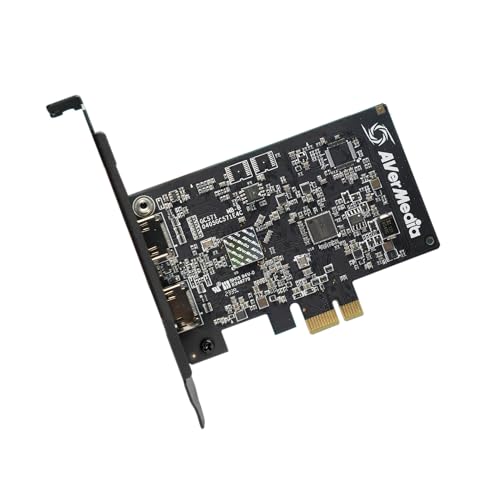
- 4K60 pass-through for responsive gameplay monitoring
- 4K30 capture with 1080p120 high-frame-rate support
- Flexible PCIe slot compatibility and plug-and-play setup
Best For: Streamers who want an internal PCIe capture card for consoles and high-quality gameplay recording.
Best for Thunderbolt 5 Speed
OWC Mercury Helios 5S Thunderbolt 5 PCIe Expansion

- Thunderbolt 5 with three 80Gb/s ports
- Over 6000MB/s bandwidth for demanding cards
- Supports half-length, full-height, double-width cards
Best For: Creators and editors who need a fast external PCIe enclosure for video capture and other pro cards.
Best for HDMI 2.1 Console Capture
AVerMedia Live Gamer 4K 2.1 PCIe Capture Card

- 4K60 capture with HDMI 2.1 passthrough
- Up to 240Hz refresh-rate support
- Internal PCIe Gen 3 x4 for desktop builds
Best For: Desktop streamers who want HDMI 2.1 capture for modern consoles and gaming PCs.
Best Thunderbolt PCIe Dock for Dual Cards
StarTech 2-Slot TB3 PCIe Chassis

- Dual PCIe 3.0 x16 slots for expansion
- Ideal for capture cards and pro I/O hardware
- Driverless support for macOS and Windows
Best For: Creators and pro users needing a dual-slot Thunderbolt enclosure for capture, networking, or storage cards.
Best USB Capture for High-Refresh Consoles
PORTTA DX20R 4K60 Video Capture

- Captures 4K60 with HDR and VRR passthrough.
- Supports 1080p240 and 2K144 monitoring.
- No-driver setup on Windows, macOS, and Linux.
Best For: Streamers and console players who want high-refresh passthrough and easy plug-and-play capture.
Best for Analog & Legacy Sources
DigitPro PCIe Video Capture Card

- No-driver PCIe capture for easy setup
- CVBS and S-video with NTSC/PAL support
- Works with OBS, VLC, Amcap, Windows, and Linux
Best For: Legacy analog video capture on a desktop PC with simple plug-and-play setup.
Best Plug-and-Play Capture Card
Guermok 4K HDMI to USB-C Capture

- 1080p 60fps capture with 4K/30Hz input
- USB-powered, driver-free plug-and-play setup
- Broad compatibility with OBS, Mac, Windows, and consoles
Best For: Users who want a simple, portable HDMI capture card for streaming and recording.
Best for Dedicated Capture Cards – StarTech Thunderbolt 3 PCIe Expansion Chassis
If you need a practical thunderbolt pcie expansion for video capture, this StarTech chassis turns a Thunderbolt 3/4 port into an external PCIe slot for capture cards and other single-width expansion cards. It’s a solid fit for laptop-based editing or streaming setups where you want desktop-style connectivity without opening the machine.
Best For: Streamers, mobile editors, and production teams that need to run a PCIe video capture card from a Thunderbolt-equipped laptop or desktop.
Pros:
- Supports PCIe video capture cards with up to 40Gbps Thunderbolt 3 bandwidth
- Driverless macOS and Windows compatibility keeps setup simple
- Includes active cooling and a 65W power adapter for stable operation
- Built-in DisplayPort and daisy-chain support add workstation flexibility
Cons:
- Does not support GPU graphics cards
- Single-slot, single-width cards only, so expansion is limited
- More expensive than basic docking options
For buyers focused on thunderbolt pcie expansion for video capture, this enclosure stands out because it behaves more like a true external expansion chassis than a simple adapter. It’s a strong choice when reliability, card compatibility, and clean laptop integration matter more than low cost.
Best for Simple Plug-and-Play Capture – Acer USB 3.0 Video Capture Card
If you want a straightforward, affordable alternative to a thunderbolt pcie expansion for video capture, this Acer USB 3.0 capture card keeps the setup simple: plug it in, feed it HDMI, and start recording or streaming in 1080p60. It’s aimed at creators who want low-latency capture, broad device support, and a travel-friendly form factor without dealing with drivers or extra power.
Best For: Streamers, teachers, and gamers who want an easy USB capture solution for consoles, cameras, or PC-based recording.
Pros:
- 4K input with smooth 1080p at 60Hz capture/output
- Mic-in support for direct commentary and live voice sync
- Plug-and-play design with no external power or driver install
- Works with major platforms like OBS, YouTube, XSplit, and VLC
Cons:
- USB-based capture is less expandable than PCIe solutions
- Not a true Thunderbolt dock or internal capture card replacement
- Best suited to 1080p workflows rather than high-end pro capture setups
For buyers comparing thunderbolt pcie expansion for video capture options, this model stands out as the simpler path: less setup, wider compatibility, and solid everyday performance. It won’t replace a full desktop capture rig, but it’s a practical choice when convenience matters more than expansion.
Best for Capture Cards – PCIe to Thunderbolt 3/4 & USB4 Dock
If you need thunderbolt pcie expansion for video capture, this aluminum PCIe enclosure is a straightforward way to run a full-size PCIe 3.0 x16 card from a Thunderbolt 3/4 or USB4 system. It’s aimed at users who want fast external PCIe access without the noise or complexity of a full desktop tower.
Best For: Content creators, streamers, and editors who want to use a PCIe video capture card with a laptop or compact desktop.
Pros:
- PCIe 3.0 x16 slot supports capture cards and other expansion cards.
- 40Gbps Thunderbolt 3/4 and USB4 connectivity keeps bandwidth high.
- 36W slot power with a 12V 3A adapter suits many capture and networking cards.
- Passive aluminum chassis runs silently for studio or streaming setups.
Cons:
- Not compatible with external graphics cards.
- Card size is limited to 205 x 28 x 142 mm.
- Performance depends on your host’s Thunderbolt/USB4 support and drivers.
For thunderbolt pcie expansion for video capture, this dock makes the most sense when you want a quiet, plug-and-play enclosure for a capture card rather than a gaming or GPU-focused setup. It’s a practical pick if you value portability, broad OS support, and simple external PCIe expansion.
Best PCIe Capture Upgrade – AVerMedia GC571 4K60 Capture Card
If you want thunderbolt pcie expansion for video capture-style performance without relying on a built-in Thunderbolt enclosure, the AVerMedia GC571 is a strong PCIe option for dedicated streaming PCs. It delivers 4K60 pass-through, 4K30 capture, and 1080p120 support, making it a practical fit for console streamers who want smooth gameplay and clean output.
Best For: Streamers and gamers building a PCIe-based capture setup for PS5, Xbox Series X/S, Switch, or other HDMI sources.
Pros:
- 4K60 pass-through keeps gameplay responsive while you capture.
- Supports 4K30 capture plus 1080p120 for high-frame-rate footage.
- PCIe x1/x4/x8/x16 compatibility makes installation flexible.
- Driver-free plug-and-play design simplifies setup.
Cons:
- Requires an open PCIe slot, so it is not a portable external solution.
- 4K capture tops out at 30 fps, not 4K60 recording.
For buyers comparing thunderbolt pcie expansion for video capture against internal PCIe cards, this model stands out as the simpler desktop-friendly route when you have room inside the PC. It is a solid match if you care more about dependable console capture and low-latency pass-through than about an external Thunderbolt workflow.
Best for Thunderbolt 5 Speed – OWC Mercury Helios 5S Thunderbolt 5 PCIe Expansion
If you need thunderbolt pcie expansion for video capture, the OWC Mercury Helios 5S is built to turn a MacBook, Mac mini, Mac Studio, or other compact system into a true expansion workstation. Its Thunderbolt 5 connection and PCIe 4.0 x4 slot give you the bandwidth headroom for capture cards, fast storage, networking, and pro I/O without adding an internal slot.
Best For: Creators and editors who want a fast external PCIe enclosure for video capture cards and other pro expansion cards.
Pros:
- Thunderbolt 5 support with three 80Gb/s ports for flexible connectivity
- Over 6000MB/s of available bandwidth for demanding external PCIe workflows
- Fits half-length, full-height, single- or double-width PCIe cards
- Can power and expand multiple devices through integrated 15W port delivery
Cons:
- Requires buying your own PCIe card separately
- More enclosure than casual users need if you only want simple USB expansion
- Premium performance usually means a higher total system cost
For thunderbolt pcie expansion for video capture, this is the kind of enclosure that makes sense when speed, card compatibility, and future expandability matter more than price. It is especially compelling if you want one box to handle capture, storage, or networking as your setup grows.
Best for HDMI 2.1 Console Capture – AVerMedia Live Gamer 4K 2.1 PCIe Capture Card
If you need thunderbolt pcie expansion for video capture, this AVerMedia card is a strong internal option for high-end console and PC streaming setups. It uses PCIe Gen 3 x4 and HDMI 2.1 to handle 4K60 capture while also supporting high-refresh gameplay passthrough, ultra-wide formats, and low-latency recording for modern systems.
Best For: Streamers and creators who want an internal PCIe capture card for 4K60 capture from PS5, Xbox Series X/S, Switch, or a gaming PC with HDMI 2.1 passthrough.
Pros:
- HDMI 2.1 support with 4K60 capture and low-latency passthrough
- Handles up to 240Hz refresh rates for compatible gaming setups
- Supports ultra-wide resolutions for more flexible capture workflows
- Internal PCIe Gen 3 x4 design suits performance-focused desktops
Cons:
- Requires an available PCIe slot, so it is not for laptops
- Overkill if you only need basic 1080p capture
- Best results depend on a compatible HDMI 2.1 source and display chain
This is a compelling pick if your thunderbolt pcie expansion for video capture needs point toward a desktop internal card rather than an external box. It stands out for modern HDMI 2.1 support, high refresh-rate passthrough, and broad compatibility with current consoles and gaming PCs.
Best Thunderbolt PCIe Dock for Dual Cards – StarTech 2-Slot TB3 PCIe Chassis
If you need thunderbolt pcie expansion for video capture, this StarTech enclosure is built for adding capture hardware and other PCIe cards to a Thunderbolt 3 or 4 system without opening the computer. The dual-slot design, active cooling, and included Thunderbolt cable make it a practical external expansion option for laptops, desktops, and all-in-ones.
Best For: Creators and pro users who want a dual-slot Thunderbolt enclosure for capture cards, networking, or storage expansion.
Pros:
- Dual PCIe 3.0 x16 slots support two add-in cards in one enclosure
- Good fit for video capture, NVMe, and high-speed Ethernet or fiber cards
- Driverless macOS and Windows support simplifies setup
- Built-in fan and aluminum chassis help keep cards cool under load
Cons:
- Does not support GPU graphics cards
- Single-width cards only, with an 8-inch length limit
- More expensive than basic single-slot expansion boxes
For buyers focused on thunderbolt pcie expansion for video capture, this model stands out because it combines two slots, solid power delivery, and broad compatibility in a portable external chassis. It is a strong choice when you need reliable expansion rather than GPU support.
Best USB Capture for High-Refresh Consoles – PORTTA DX20R 4K60 Video Capture
If you want a practical, plug-and-play option for thunderbolt pcie expansion for video capture workflows, the PORTTA DX20R is a strong USB 3.0 pick for grabbing 4K gameplay while keeping a high-refresh passthrough on your main display. It’s aimed at creators who need smooth monitoring, broad OS support, and enough flexibility to tune color, audio, and EDID settings without a complicated setup.
Best For: Streamers and console players who want 4K60 capture with 1080p240 or 2K120 passthrough, plus easy compatibility across Windows, macOS, and Linux.
Pros:
- Captures at 4K60 with support for HDR and VRR passthrough.
- Maintains high-refresh monitoring up to 1080p240 and 2K144.
- Works with Windows, macOS, and Linux with no driver install required.
- CapHub utility adds control over audio mixing, firmware, and EDID.
Cons:
- Uses USB 3.0, so it is not a true PCIe expansion card solution.
- Advanced tuning relies on the optional utility software.
For buyers comparing thunderbolt pcie expansion for video capture against simpler external capture options, the DX20R stands out for its strong passthrough specs and software controls rather than raw internal-card performance. That makes it a smart choice if you want console capture first and don’t need a full Thunderbolt-to-PCIe enclosure.
Best for Analog & Legacy Sources – DigitPro PCIe Video Capture Card
If you need thunderbolt pcie expansion for video capture and your workflow still includes older analog sources, this PCIe capture card is a practical, no-drama option. It focuses on CVBS and S-video input, auto-detects NTSC/PAL, and works without driver installs on supported systems, making it easy to add to an existing desktop capture rig.
Best For: Users capturing legacy camera, VCR, or other analog video sources on a Windows or Linux PC who want simple PCIe-based capture.
Pros:
- Plug-and-play setup with no driver installation required
- Supports CVBS and S-video with NTSC/PAL auto-detection
- Works with OBS, VLC, Amcap, and similar software
- Compatible with Windows 8/10/11 and Linux
Cons:
- Maximum capture resolution is limited to 1080p at 30Hz
- Requires an open PCIe slot in a desktop system
- Brackets are not included, so mounting options may depend on your case
For buyers comparing thunderbolt pcie expansion for video capture, this is better suited to native desktop expansion than a portable Thunderbolt setup. It shines when your priority is dependable analog capture, broad software compatibility, and a straightforward install.
Best Plug-and-Play Capture Card – Guermok 4K HDMI to USB-C Capture
If you want a simple, portable way to get into video capture without a full thunderbolt pcie expansion for video capture setup, this Guermok card is a practical low-cost option. It focuses on easy HDMI-to-USB recording for streaming, meetings, game capture, and quick content creation, with 1080p at 60fps support and broad device compatibility.
Best For: Streamers, teachers, and gamers who need an easy USB capture solution for laptops, Macs, tablets, and consoles.
Pros:
- Supports up to 1080p at 60fps capture with 4K/30Hz input.
- Plug-and-play design with no external power or driver setup.
- Works with OBS, Zoom, Windows, Mac, Android, and major consoles.
- Compact aluminum build makes it easy to travel with.
Cons:
- Not a direct monitor passthrough solution.
- USB bandwidth and software settings can affect audio or resolution.
- Best suited for basic capture, not advanced pro workflows.
For buyers comparing capture options against a thunderbolt pcie expansion for video capture, this model stands out for simplicity and portability rather than raw expansion-card performance. It is a sensible choice if you care more about fast setup and wide compatibility than building a full desktop capture rig.
How We Picked the Best Thunderbolt Pcie Expansion for Video Capture
We prioritized products that fit real capture workflows: stable Thunderbolt connectivity, sensible thermal design, clear host compatibility, and enough bandwidth for dependable recording or passthrough. For Thunderbolt Pcie Expansion for Video Capture, the most important question is not just raw speed, but whether the enclosure or capture device matches your source, resolution, and editing setup.
We also favored options that serve different use cases, from external PCIe enclosures for full-size cards to simpler USB capture devices for users who do not need a modular expansion chassis.
Quick Comparison
If you need a true expansion platform, choose a Thunderbolt PCIe enclosure. If you want a faster path to streaming from consoles, cameras, or a second PC, a dedicated HDMI capture card may be the better value. Internal PCIe capture cards still make sense for tower desktops where maximum integration and lower clutter matter most.
Key Buying Factors for Thunderbolt Pcie Expansion for Video Capture
Slot Type and Card Support
Check whether the enclosure supports the exact PCIe card you plan to use. Some models offer one slot, while others provide dual-slot layouts or x16 physical space with different electrical limits. Capture cards are not all equal, and form factor affects compatibility.
Bandwidth and Thunderbolt Version
Thunderbolt 3 is still widely used, but Thunderbolt 5 and USB4-class options may offer more headroom for demanding workflows and future upgrades. For Thunderbolt Pcie Expansion for Video Capture, bandwidth matters most when you want reliable throughput alongside peripherals, storage, and external displays.
Cooling and Sustained Performance
Video capture sessions can run for hours. Look for enclosures with active cooling, good airflow, and a chassis design that can handle continuous load without throttling.
Power Delivery and Portability
Some users need a travel-friendly dock-style enclosure; others need a heavier desktop unit with stronger power support. Make sure the power supply, port layout, and physical size fit your workspace.
Capture Resolution and Passthrough
If you are streaming consoles or gaming PCs, confirm support for your target input and passthrough combination. Common priorities include 1080p60 capture, 4K60 passthrough, and low-latency monitoring.
Who Should Buy Which Thunderbolt Pcie Expansion for Video Capture?
Buy a Thunderbolt PCIe expansion chassis if you want modularity, plan to upgrade capture hardware later, or need a professional desktop-to-laptop workflow. Choose a dedicated HDMI capture card if your main goal is simple streaming or recording with minimal setup. Go with an internal PCIe capture card if you already have a desktop tower and want the cleanest, most direct installation.
For most buyers, the best choice depends on whether you value expandability, portability, or simplicity. Match the device to your workflow first, and the right option becomes much easier to spot.
