
When you’re setting up your video editing rig, choosing the right Thunderbolt 4 dock can make all the difference in your workflow. With the ability to connect multiple displays and achieve high data transfer speeds, these docks are essential for efficiency. You’ll want to reflect on factors like power delivery and port options to find the perfect fit for your setup. Let’s explore the top options available to elevate your editing experience.
Plugable Thunderbolt 4 Dock with 100W Charging (TBT4-UD5)
If you’re a video editor looking for a powerful and versatile docking solution, the Plugable Thunderbolt 4 Dock with 100W Charging (TBT4-UD5) stands out as the ideal choice. With 40Gbps speeds and the ability to support dual 4K 60Hz displays or a single 8K monitor, it elevates your editing experience. The extensive 13-port configuration includes multiple USB ports, HDMI connections, and an SD/microSD card reader, ensuring all your devices connect seamlessly. Plus, its Intel Evo certification guarantees reliability. Whether you’re working on Windows or macOS, this dock maximizes your workflow efficiency and keeps your workspace organized.
Best For: Video editors and professionals seeking a high-performance docking solution for seamless connectivity and enhanced productivity.
Pros:
- Supports dual 4K 60Hz displays or a single 8K monitor for exceptional visual clarity.
- Comprehensive 13-port design allows for multiple device connections and versatile use.
- Intel Evo certified for guaranteed reliability and performance in demanding workflows.
Cons:
- Base M1 and M2 macOS systems are limited to a single external display.
- Higher price point compared to standard docking stations may not fit all budgets.
- Compatibility with non-Thunderbolt USB-C ports is limited to a single external display.
Plugable Thunderbolt 4 Dock for Quad Monitors (TBT-6950PD)
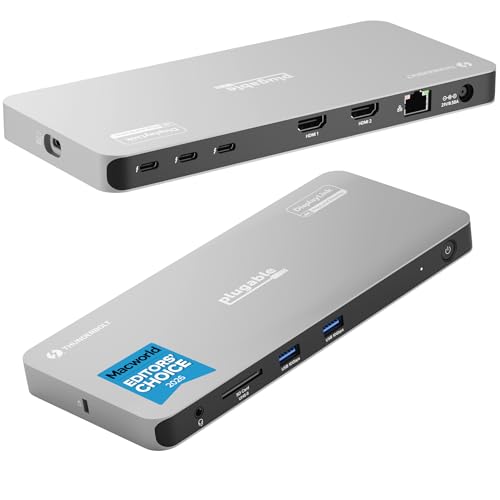
The Plugable Thunderbolt 4 Dock for Quad Monitors (TBT-6950PD) is an excellent choice for video editors seeking robust multi-monitor setups. It connects up to four 4K monitors using 2x HDMI and 2x Thunderbolt ports, providing exceptional clarity for your editing tasks. With 100W host charging and four 40Gbps Thunderbolt ports, it keeps your devices powered and connected. Plus, compatibility with Windows, macOS, and ChromeOS guarantees versatility. Weighing just 2.75 pounds and compact at 8.42 x 3.74 x 0.72 inches, it fits seamlessly into your workspace. Enjoy lifetime support from Plugable’s North American team for added peace of mind.
Best For: Video editors and professionals who require a powerful multi-monitor setup for enhanced productivity and clarity.
Pros:
- Supports up to four 4K monitors, allowing for extensive multitasking and improved workflow.
- Provides 100W host charging, ensuring devices remain powered during intensive tasks.
- Compact and lightweight design makes it easy to integrate into any workspace.
Cons:
- Requires DisplayLink software for HDMI video outputs, which may not be ideal for all users.
- Base model M3 Macs need “clamshell mode” for full functionality with four displays.
- Some users may find the price point higher compared to simpler docking solutions.
RIITOP eGPU Enclosure USB4.0 for Thunderbolt 4
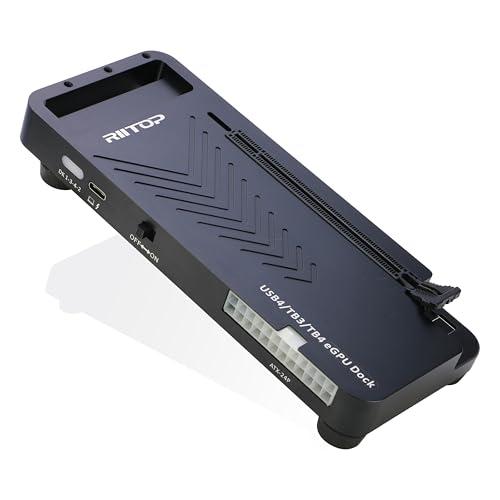
Designed specifically for video editors and creative professionals, the RIITOP eGPU Enclosure USB4.0 for Thunderbolt 4 dramatically enhances graphics performance by accommodating high-end PCIe 4.0 x16 graphics cards. With a 40Gbps connection, it supports NVIDIA RTX 50 Series and AMD RX 7000 Series GPUs, ensuring you have the power for AI computing, large-scale rendering, and immersive video editing. Installation is straightforward; just secure your graphics card, connect the necessary cables, and power it on. Compatible with Windows, Linux, and Mac OS (AMD only), this enclosure removes the performance limits of thin laptops and gaming rigs, elevating your creative workflow.
Best For: Video editors and creative professionals seeking to enhance their graphics performance with high-end GPUs.
Pros:
- Supports high-performance graphics cards like NVIDIA RTX 50 Series and AMD RX 7000 Series for demanding creative tasks.
- Easy installation process allows for quick setup without extensive technical knowledge.
- Compatible with multiple operating systems including Windows, Linux, and Mac OS (AMD only), providing flexibility for users.
Cons:
- Limited compatibility with NVIDIA on Mac OS, which may restrict options for Mac users.
- Requires a Thunderbolt 4 or USB4 port, which may not be available on all laptops or devices.
- Power supply and PCIe graphics card are not included, adding to the overall cost for users.
Plugable 16-in-1 Thunderbolt 4 Dock for MacBook Air/Pro

For creative professionals seeking a seamless dual-monitor experience, the Plugable 16-in-1 Thunderbolt 4 Dock is an exceptional choice. It supports dual 4K 60Hz displays for your M4/M5 MacBook Air/Pro without any drivers needed. Enjoy a hassle-free plug-and-play setup, connecting via HDMI or DisplayPort. With 100W Power Delivery, your laptop stays charged all day. This dock’s universal compatibility means it works with Thunderbolt 4, USB4, and USB-C laptops. Plus, it features 7 USB ports, 2.5Gbps Ethernet, and SD/microSD slots, enhancing your productivity for multitasking and content creation. Transform your workflow with this powerful dock!
Best For: Creative professionals and multitaskers seeking a seamless dual-monitor setup for their MacBook Air/Pro.
Pros:
- Supports dual 4K 60Hz displays for an enhanced visual experience without the need for drivers.
- 100W Power Delivery ensures your laptop remains charged throughout the day.
- Universal compatibility with Thunderbolt 4, USB4, and USB-C laptops, making it versatile for various devices.
Cons:
- Higher price point compared to simpler docking solutions.
- Limited to M4/M5 MacBook Air/Pro for full features, potentially restricting use with older models.
- May require additional adapters for specific display connections, depending on the monitor type.
Plugable 5-in-1 Thunderbolt 4 Hub

If you’re a video editor seeking seamless connectivity and high-resolution display options, the Plugable 5-in-1 Thunderbolt 4 Hub is an excellent choice. This hub supports single 8K or dual 4K display setups, ensuring your visuals look stunning. With three Thunderbolt 4 ports and a 10Gbps USB-A port, you’ve got versatile connectivity for all your devices. It’s compatible with modern Mac and Windows systems, including Apple’s M1 to M5 chips, and operates driverless for hassle-free use. Plus, it’s backed by a two-year warranty and lifetime support, making it a reliable addition to your editing rig.
Best For: Video editors and creative professionals seeking high-resolution display options and versatile connectivity.
Pros:
- Supports single 8K or dual 4K display setups for stunning visuals.
- Compatible with modern Mac and Windows systems, including Apple’s latest chips.
- Driverless operation for hassle-free use with a two-year warranty and lifetime support.
Cons:
- Not recommended for Thunderbolt 3 Windows systems, limiting compatibility for some users.
- Limited to three Thunderbolt 4 ports, which may not be sufficient for users with many devices.
- Higher price point compared to basic hubs, which may not be justifiable for casual users.
Satechi Thunderbolt 4 Dock with 100W Charging and Dual Monitor HDMI

The Satechi Thunderbolt 4 Dock stands out as the perfect choice for video editors who need robust connectivity and high-performance capabilities. It supports up to four 4K displays at 60Hz, although Mac M2/M1 users will find it limited to three. With Thunderbolt 4 ports offering speeds up to 40Gbps, data transfer is lightning-fast. Plus, you can charge devices simultaneously with its 96W USB-C PD port. The dock includes a UHS-II SD card reader and Ethernet support for stable connections. Compatible with various devices, it’s an essential addition for enhancing your video editing workflow.
Best For: Video editors and professionals needing high-performance connectivity and multi-display support.
Pros:
- Supports up to four 4K displays at 60Hz, enhancing multitasking capabilities.
- Thunderbolt 4 ports provide lightning-fast data transfer speeds up to 40Gbps.
- Includes a UHS-II SD card reader and Ethernet support for stable connections.
Cons:
- Mac M2/M1 users are limited to a maximum of three external displays.
- Installation of DisplayLink Drivers is required for multi-display functionality.
- Might be overkill for casual users with simpler connectivity needs.
iVANKY Dual Thunderbolt 4 Docking Station Hub for Mac

Creatives seeking a powerful and versatile docking solution will find the iVANKY Dual Thunderbolt 4 Docking Station Hub for Mac an ideal choice. This 20-in-1 dock is equipped with six Thunderbolt 4 ports, enabling rapid data transfer at 40Gbps. It supports quad 6K@60Hz displays on compatible MacBook models, making it perfect for video editing. With a 180W power adapter, you can efficiently charge your laptop and other devices. It also includes USB 3.2 ports and an SD/TF card slot for added connectivity. Plus, enjoy peace of mind with a 24-month warranty and responsive customer support.
Best For: Creatives and professionals using MacBook models who need a high-performance docking station for extensive connectivity and display capabilities.
Pros:
- Supports quad 6K@60Hz displays for enhanced visual experience.
- Fast data transfer with six Thunderbolt 4 ports at 40Gbps.
- Includes a 180W power adapter for efficient laptop and device charging.
Cons:
- Not compatible with Windows and Chrome laptops.
- Requires unplugging dual USB-C cables for sleep mode functionality on MacOS 14.4.
- Limited display support for base models (supports only single or dual displays).
Plugable Thunderbolt 5 Dock (TBT-UDT3)

For professionals seeking unparalleled video editing capabilities, the Plugable Thunderbolt 5 Dock (TBT-UDT3) stands out with its impressive support for dual 6K displays at 60Hz for Mac users and even higher resolutions for Windows users. This 11-in-1 docking station offers three Thunderbolt 5 ports, delivering up to 120Gbps and 140W power delivery to your laptop. You’ll appreciate the additional USB ports, SD and MicroSD slots, and 2.5Gbps Ethernet for seamless connectivity. It’s designed for reliability, making it perfect for both home offices and IT deployments, while lifetime support guarantees you’ll always have expert assistance when needed.
Best For: Professionals and creatives who require advanced video editing capabilities and multiple connectivity options for their high-performance laptops.
Pros:
- Supports dual 6K displays at 60Hz for Mac and up to dual 8K at 120Hz for Windows, enhancing video editing experience.
- Offers 140W power delivery, ensuring your laptop and devices stay charged during intensive tasks.
- Includes a variety of ports for seamless connectivity, including Thunderbolt 5, USB, SD, and Ethernet.
Cons:
- High price point may not be suitable for casual users or those with basic needs.
- Requires a Thunderbolt 5, Thunderbolt 4, or full-featured USB4 compatible device for full functionality.
- Limited availability of Thunderbolt 5 devices may restrict immediate use of all features.
Cable Matters 14-in-1 Thunderbolt Dock with Dual 4K Display
![[Intel Certified] Cable Matters 14-in-1 Thunderbolt 3 Dock, 96W Charging | 40Gbps, 4K@60Hz, Dual HDMI or DisplayPort, Gigabit Ethernet, USB-C/USB-A Ports, SD/microSD, 3.5mm Audio, for Windows & Mac](https://m.media-amazon.com/images/I/41S-3RQEeyL._SL500_.jpg)
Looking for a powerful solution to enhance your video editing setup? The Cable Matters 14-in-1 Thunderbolt Dock is your go-to option. It’s Intel Certified and transforms a single Thunderbolt 4/3 or USB-C port into multiple connections. Enjoy dual 4K 60Hz displays through HDMI or DisplayPort, while HDR and surround sound elevate your media experience. With five USB-A ports, a USB-C port, and a Gigabit Ethernet connection, you’ll have ample space for all your peripherals. Plus, built-in SD and microSD card slots simplify syncing. This dock maximizes your workflow efficiency, ensuring you stay productive and organized.
Best For: Video editors and creative professionals looking to enhance their setup with dual 4K displays and multiple connectivity options.
Pros:
- Supports dual 4K 60Hz displays for high-resolution video output.
- Ample connectivity with five USB-A ports and a high-speed USB-C port.
- Built-in SD and microSD card slots facilitate easy media syncing.
Cons:
- May require a compatible Thunderbolt 4/3 or USB-C device for optimal performance.
- Higher price point compared to standard docks without dual 4K support.
- Limited to USB-C and Thunderbolt devices, which may exclude some older hardware.
Plugable Thunderbolt 4 Docking Station (TBT4-UDX1)

The Plugable Thunderbolt 4 Docking Station (TBT4-UDX1) stands out as an excellent choice for professionals who demand high-performance connectivity and versatility in their video editing setups. With support for dual 4K monitors and a single 8K display, you can easily expand your workspace. The dock’s 11 ports, including three Thunderbolt 4 ports and an HDMI port, provide ample connectivity for peripherals. You’ll appreciate the 100W charging for your laptop, ensuring it’s always ready to go. Plus, Plugable backs this dock with reliable U.S.-based support, making it a smart investment for your creative needs.
Best For: Professionals who require high-performance connectivity and dual monitor setups for tasks like video editing and multitasking.
Pros:
- Supports dual 4K monitors and single 8K display for expansive workspace.
- Offers 100W charging to keep laptops powered during intensive work sessions.
- Includes 11 versatile ports for extensive peripheral connectivity.
Cons:
- Base M1 and M2 MacBooks are limited to one external display, reducing flexibility.
- May be overkill for casual users who do not require high-end specifications.
- The price point may be higher compared to simpler docking solutions.
Factors to Consider When Choosing Thunderbolt 4 Docks for Video Editing Rigs
When you’re choosing a Thunderbolt 4 dock for your video editing rig, consider key factors that can impact your workflow. Display support options, data transfer speeds, and power delivery capacity are essential for handling high-resolution footage and multiple devices. Additionally, make sure the dock’s port variety and compatibility with your system match your specific needs.
Display Support Options
As you explore Thunderbolt 4 docks for your video editing rig, consider how many external displays you’ll need, since options vary widely in support from a single 4K display to setups capable of handling multiple 4K or even 8K monitors. Many docks can support dual 4K 60Hz displays, perfect for high-resolution editing. If you’re looking to connect more than two monitors, check for docks that utilize DisplayLink technology, which allows for additional HDMI outputs. It’s also essential to guarantee compatibility with your laptop’s specifications, particularly for Mac systems that may have limitations. Finally, docks that support daisy-chaining can enhance your connectivity options, letting you connect multiple monitors through a single Thunderbolt port.
Data Transfer Speeds
Choosing a Thunderbolt 4 dock with ideal data transfer speeds is vital for a seamless video editing experience, especially since you’ll often be working with large files. With speeds up to 40Gbps, these docks allow for quick file transfers, making your workflow more efficient. Look for docks that support multiple external drives simultaneously, as this enables you to handle various projects without lag. The daisy-chaining capability lets you connect several high-speed storage solutions while maintaining performance. Additionally, Thunderbolt 4 docks can transmit high-quality video feeds, essential for real-time editing. If you need to use older peripherals, choose a dock with multiple USB ports to guarantee fast data transfer rates across all your devices, enhancing your overall editing efficiency.
Power Delivery Capacity
While high data transfer speeds are important for video editing, power delivery capacity in Thunderbolt 4 docks plays a key role in maintaining your workflow. Docks typically deliver between 100W and 140W, efficiently charging your laptop while powering connected peripherals. If you’re using a high-performance laptop, opt for a dock with a 140W rating, especially during intensive tasks like video editing. Adequate power guarantees that both your laptop and additional devices, such as external drives or monitors, run smoothly. Many docks automatically adjust power delivery to meet device needs, preventing damage or performance issues. When choosing a Thunderbolt 4 dock, consider wattage output and compatibility with your laptop’s power requirements to maximize your efficiency and productivity.
Port Variety and Configuration
When setting up your video editing rig, an extensive port variety in Thunderbolt 4 docks is vital for an efficient workflow. Look for docks that offer a mix of Thunderbolt 4 ports, USB-A ports, HDMI, and Ethernet to support multiple high-speed peripherals, external displays, and storage devices. This variety guarantees you can connect multiple 4K or even 8K displays, which are essential for achieving the clarity needed during complex projects. Additionally, choose a dock that provides at least 100W of power delivery to charge your high-performance laptops during intensive tasks. Docks with SD/microSD card slots can also streamline media transfer, allowing you to quickly access footage from your cameras directly into your editing software.
Compatibility With Systems
A solid Thunderbolt 4 dock is essential for ensuring your video editing setup operates smoothly across various systems. First, make sure the dock is compatible with your specific laptop model and operating system, as some docks may only support Windows or have limited functionality with macOS. Additionally, verify that it supports the display configurations you need, especially if you’re using M1 or M2 processors. You’ll want a dock that provides at least 100W power delivery to charge your laptop while you work. Look for compatibility with USB4 and Thunderbolt 3 devices for future-proofing. Finally, confirm that the dock has the necessary ports, including high-speed USB, HDMI or DisplayPort outputs, and Ethernet connections for stable network access.
Thermal Management Features
Choosing the right Thunderbolt 4 dock goes beyond compatibility; thermal management features play a significant role in maintaining performance during video editing. Effective thermal management prevents overheating during intensive tasks, which can lead to reduced performance or hardware failure. Look for docks that use aluminum enclosures or built-in heat sinks to efficiently dissipate heat, ensuring stable operation during long editing sessions. Docks with active cooling solutions, like fans, offer superior thermal management compared to passive options. Additionally, monitoring temperature and employing thermal throttling can help maintain ideal performance by adjusting power usage based on heat levels. Proper ventilation design is also essential for facilitating airflow, minimizing the risk of thermal buildup when you’re pushing your rig to its limits.
