
Choosing a premium drawing tablet for PC comes down to more than pressure levels and screen size. The best options balance pen precision, display quality, shortcut control, and comfort for long creative sessions.
Below, we focus on standout models for artists, illustrators, and designers who want a responsive workflow and a tablet that feels built for serious work in 2026.
Best 10 Premium Drawing Tablet for PC Picks for 2026
Pen Display Pick

- 15.6-inch full-laminated display
- 16,384 pen pressure levels
- Smart Touch Bar + 6 Express Keys
Best For: Artists wanting a connected pen display for PC work
Pro Studio Flagship

- 17.3-inch Ultra HD 4K display
- 120Hz refresh with touch support
- Pro Pen 3 and customizable controls
Best For: Professional creators who want a premium 4K pen display
High-Res Value Display

- 2.5K QHD 15.8-inch display
- 16,384 pen pressure with tilt
- Dual dials and 6 silent keys
Best For: Creators who want a sharp, color-accurate pen display
Portable Tablet Choice

- Battery-free pen with 4,096 levels
- Bluetooth and USB-A connectivity
- Lightweight screenless design
Best For: Students and creators who want a portable non-display tablet
Premium Pen Display

- 16-inch 2.5K IPS display
- Pro Pen 3 with 8192 pressure levels
- 99% DCI-P3 and 100% sRGB color
Best For: Illustrators and digital artists who want Wacom pen precision
4K OLED Touch Display

- 15.6-inch 4K OLED screen
- Dual 16K pressure styluses
- Touch gestures plus shortcut remote
Best For: Professionals who want touch control and top-tier color accuracy
Value Pen Display
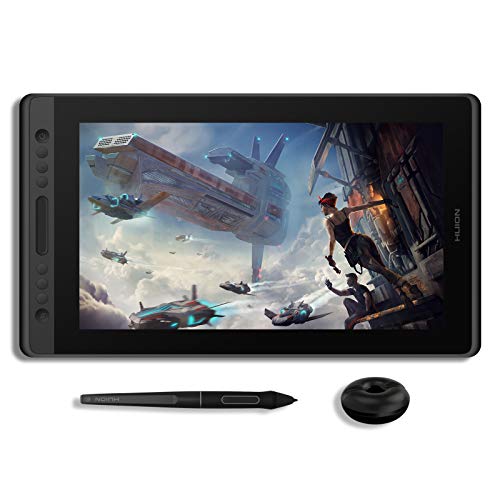
- 15.6-inch full-laminated display
- 8192-pressure battery-free pen
- 6 express keys and touch bar
Best For: Creators who want a capable pen display at a practical value
Budget-Friendly Beginner Pick

- 16,384 pressure levels with tilt support
- Large 10 x 6.25-inch active area
- Battery-free stylus and 8 shortcut keys
Best For: Beginners who want a roomy, easy-to-use pen tablet for PC
Portable Display Upgrade

- 11.9-inch Full HD pen display
- 99% sRGB with factory calibration
- Dual X-Dial wheels and 8 keys
Best For: Portable creators who want a screen tablet with better control
Classic Control Pick

- 10 x 6.25-inch drawing area
- 28 programmable shortcut keys
- Battery-free stylus with tilt support
Best For: Artists who want a large tablet and lots of shortcut controls
Pen Display Pick – HUION Kamvas Pro 16 V2
If you’re looking for a premium drawing tablet for pc with a true pen-display workflow, the HUION Kamvas Pro 16 V2 is built for focused creative work. Its 15.6-inch full-laminated screen, 16,384 pressure levels, and anti-glare canvas glass are aimed at artists who want a responsive, paper-like drawing surface connected to a computer.
Best For: Artists and designers who want a slim, affordable pen display for detailed PC-based illustration and editing.
Pros:
- 16,384 pressure levels with PenTech 4.0 for precise line control
- Full-laminated 15.6-inch display with reduced glare and parallax
- 6 Express Keys plus Smart Touch Bar for faster workflow control
- Compatible with Windows, macOS, and Linux
Cons:
- Not a standalone tablet; it must stay connected to a computer or laptop
- No touch screen support
- Native 1920×1080 resolution is lower than newer 2.5K or 4K models
Overall, this model makes sense if you want a streamlined pen display with strong pressure sensitivity and practical shortcut controls. It focuses on drawing comfort and color-ready visuals rather than standalone convenience.
Pro Studio Flagship – Wacom Cintiq Pro 17
The Wacom Cintiq Pro 17 is a premium drawing tablet for pc users who want a high-end studio display with a polished pen workflow. Its 17.3-inch 4K screen, 120Hz refresh rate, touch support, and Pro Pen 3 make it a strong fit for artists who value speed, detail, and extensive customization.
Best For: Professional illustrators and designers who want a top-tier 4K pen display with touch and customizable controls.
Pros:
- Ultra HD 4K display with 120Hz refresh for smooth visual response
- Pro Pen 3 with 8,192 pressure levels and customizable balance options
- 10-point multi-touch plus 8 ExpressKeys and on-screen menu controls
- Includes an Easy Stand and extra grips, button plates, and nibs
Cons:
- Uses a fixed-angle stand rather than a fully adjustable built-in stand
- Heavier and larger than compact pen displays
- Pressure sensitivity is lower than some newer 16,384-level competitors
This is the most premium option in the group if you want Wacom’s pro-level ecosystem and a sharp, responsive display for daily creative work. It is especially appealing when workflow customization matters as much as image quality.
High-Res Value Display – HUION Kamvas 16 Gen 3
The HUION Kamvas 16 (Gen 3) is a strong premium drawing tablet for pc buyers who want sharper resolution and modern pen features without jumping to a huge screen. Its 2.5K QHD panel, full lamination, anti-sparkle glass, and dual dials make it a practical choice for detailed illustration and design work.
Best For: Artists who want a sharp 2.5K pen display with strong color coverage and convenient dial controls.
Pros:
- 2.5K QHD resolution on a 15.8-inch display for crisp detail
- 16,384 pressure levels, ±60° tilt support, and PenTech 4.0
- Dual dials and 6 silent keys for customizable workflow shortcuts
- 99% sRGB and Rec.709 coverage with full lamination and anti-sparkle glass
Cons:
- Still requires a connected computer or compatible Android device
- Screen size is slightly smaller than some 16-inch class displays
- Not a standalone tablet
For buyers who care about resolution and color accuracy, this model stands out as a balanced upgrade path. It delivers modern display quality and handy controls in a compact, workspace-friendly size.
Portable Tablet Choice – Wacom Intuos Medium Bluetooth
If you want a premium drawing tablet for pc that stays portable and simple, the Wacom Intuos Medium Bluetooth is the most travel-friendly option here. It does not include a screen, but its battery-free pen, Bluetooth support, and compact size make it easy to use for sketching, editing, and note-taking anywhere.
Best For: Students, teachers, and casual creators who want a reliable screenless tablet with wireless convenience.
Pros:
- Battery-free Wacom pen with 4,096 pressure levels
- Bluetooth and USB-A connectivity for flexible setup
- Compact and lightweight for desk, classroom, or travel use
- Software and training included with registration
Cons:
- No built-in display for direct drawing on a screen
- Pressure sensitivity is lower than the pen-display models in this roundup
- Smaller active surface than larger studio tablets
This is the best low-friction choice if you value mobility and familiarity over a display-based workflow. It is especially useful for learners or anyone who wants dependable pen input without a large setup.
Premium Pen Display – Wacom Cintiq 16
If you want a premium drawing tablet for pc with a strong focus on pen feel and color accuracy, the Wacom Cintiq 16 is built for serious creative work. Its 16-inch 2.5K display, Pro Pen 3, and wide-gamut panel make it a practical choice for illustration, comics, animation, and design.
Best For: Artists who want a reliable pen display with Wacom’s pen technology and a sharp, color-accurate screen.
Pros:
- 16-inch IPS display with 2560 x 1600 resolution for crisp detail
- Pro Pen 3 offers 8192 pressure levels plus tilt support
- 99% DCI-P3 and 100% sRGB coverage for accurate color work
- Built-in fold-out legs add a ready-to-use 20-degree working angle
Cons:
- Uses a USB-C connection that may need extra cables on some PCs
- Only includes built-in legs, so a separate stand is optional for more adjustment
- Designed for computers rather than standalone use
The Cintiq 16 is a solid pick if you value screen clarity, dependable pen control, and proven workflow support. It’s especially appealing for artists who want a polished pen display setup on Windows or Mac.
4K OLED Touch Display – XPPen Artist Ultra 16
For buyers shopping for a premium drawing tablet for pc with standout visuals and touch control, the XPPen Artist Ultra 16 is packed with high-end features. Its 4K OLED panel, touch gestures, dual styluses, and shortcut remote are aimed at artists who want more control and a more immersive workflow.
Best For: Professional creators who want 4K OLED image quality, touch interaction, and advanced shortcut tools.
Pros:
- 15.6-inch 4K OLED screen with 3840 x 2160 resolution
- 99% Adobe RGB, 99% sRGB, and 98% Display P3 coverage
- X-Touch multi-point gestures support zooming, rotating, and canvas navigation
- Includes two 16K pressure styluses and an ACK05 shortcut remote
Cons:
- Requires connection to a computer or laptop to work
- Feature-rich setup may be more than casual users need
- Touch and shortcut features may take some setup to customize fully
This is the most feature-packed option in the group and is well suited to users who want a modern, high-resolution drawing display. If you prioritize image quality, touch gestures, and workflow speed, it stands out immediately.
Value Pen Display – HUION Kamvas Pro 16
The HUION Kamvas Pro 16 is a practical premium drawing tablet for pc if you want a full-laminated pen display without moving into the most expensive tier. It combines a 15.6-inch anti-glare screen, 8192-level pen pressure, and useful shortcut controls for drawing, teaching, and remote work.
Best For: Artists and students who want a capable screen tablet with good pen response and handy physical controls.
Pros:
- Full-laminated 15.6-inch screen helps reduce parallax
- Anti-glare glass and 120% sRGB color gamut improve visibility and vibrancy
- Battery-free pen with 8192 pressure levels and 60° tilt support
- 6 express keys plus a touch bar for shortcuts and navigation
Cons:
- Must be connected to a computer to use
- Resolution is HD-class rather than the highest-end 4K option
- Accessory layout is simpler than more advanced premium models
Kamvas Pro 16 makes sense if you want a balanced pen display with strong core specs and a more approachable setup. It covers the essentials well for art, learning, and screen-sharing workflows.
Budget-Friendly Beginner Pick – XPPen Deco 01 V3
If you want a premium drawing tablet for pc without a steep learning curve, the XPPen Deco 01 V3 is a strong entry point. It pairs a large 10 x 6.25-inch active area with 16,384 pressure levels, tilt support, and a battery-free stylus, which makes everyday sketching and line work feel natural. The eight customizable shortcut keys also help speed up common tasks once you get used to the layout.
Best For: Beginners, students, and casual artists who want a roomy pen tablet with simple setup and broad compatibility.
Pros:
- 16,384 pressure levels and 60-degree tilt support for smoother, more natural strokes
- Battery-free stylus removes charging concerns and keeps the workflow simple
- 10 x 6.25-inch drawing area gives you plenty of room to draw comfortably
- Works with Windows, Mac, Chromebook, Android, and Linux
Cons:
- No built-in screen, so you draw on the tablet while looking at your monitor
- Best suited to beginners rather than users who need advanced pro-level features
Overall, this is a practical pick if you want a dependable, easy-to-learn tablet for digital art, note-taking, or teaching. It delivers a lot of core value for the price and keeps the focus on drawing rather than setup hassles.
Portable Display Upgrade – XPPen Artist 12 3rd
The XPPen Artist 12 3rd is a strong premium drawing tablet for pc if you want a compact pen display with extra control. Its 11.9-inch full HD screen, AG etched glass, and fully laminated design are aimed at making long drawing sessions feel cleaner and more precise. The dual X-Dial wheels and eight keys are useful if you want faster brush adjustments and less time reaching for keyboard shortcuts.
Best For: Artists, designers, and students who want a portable pen display with accurate color and hands-on controls.
Pros:
- 11.9-inch Full HD display with 99% sRGB and factory calibration
- AG etched glass and full lamination help reduce glare and parallax
- Dual X-Dial wheels plus 8 customizable keys improve workflow speed
- X4 pen offers 16,384 pressure levels and 60-degree tilt support
Cons:
- Smaller screen size may feel limited for users who prefer a larger workspace
- More feature-rich than a basic tablet, so it may be more than some beginners need
This model stands out if you want a compact display tablet that still feels capable for detailed work. It balances portability, image quality, and shortcut control in a way that suits mobile creative setups well.
Classic Control Pick – HUION Inspiroy H1060P
The HUION Inspiroy H1060P is a straightforward premium drawing tablet for pc if you prefer a large non-screen tablet with plenty of shortcut control. It offers a 10 x 6.25-inch working area, a battery-free stylus with 60-degree tilt support, and a total of 28 programmable keys for faster editing and navigation. That makes it a solid fit for users who like to keep their hand on the tablet while working on a monitor.
Best For: Artists and hobbyists who want a large, no-screen pen tablet with many shortcut keys.
Pros:
- 10 x 6.25-inch active area gives you a comfortable amount of drawing space
- Battery-free stylus with 60-degree tilt support keeps drawing simple and fluid
- 12 programmable press keys plus 16 soft keys provide lots of shortcut options
- Compatible with Windows, Mac, Android, and Linux systems
Cons:
- No built-in display, so it requires working from your connected screen
- Mac users need a USB adapter for connection
If you want a dependable pen tablet with generous shortcut customization, this model covers the essentials well. It is especially appealing for users who value efficiency and a traditional tablet workflow over a screen-based setup.
How We Picked the Best Premium Drawing Tablet for PC
We prioritized the features that matter most in a Premium Drawing Tablet for PC: pen accuracy, display clarity, build quality, shortcut efficiency, and overall value for the intended user. We also considered screen size, portability, and whether the tablet suits beginners, hobbyists, or professionals.
Quick Comparison: What Matters Most
If you want a display tablet, focus on panel quality, lamination, color coverage, and refresh behavior. If you want a non-display tablet, prioritize active area, pressure sensitivity, hotkeys, and driver reliability. Artists who work all day may value larger screens and better ergonomics, while students and travel users often prefer lighter, simpler models.
Key Buying Factors for a Premium Drawing Tablet for PC
Pen Performance
Look for low initial activation force, stable tracking, and high pressure sensitivity. For detailed line work, pen control matters more than marketing numbers alone.
Display Quality
For pen displays, resolution, color accuracy, anti-glare treatment, and full lamination can have a bigger impact on real-world drawing than raw brightness specs.
Size and Workspace
A larger screen offers more room for complex art and multitasking, but it also takes up more desk space. Smaller models can be better for portable workflows or secondary setups.
Shortcut Controls
Express keys, dial controls, and touch features can significantly speed up editing, brush switching, and navigation, especially for professionals who spend hours in creative software.
Compatibility and Setup
Make sure the tablet works smoothly with your PC, drawing apps, and preferred connection setup. Driver support and cable management can affect daily use just as much as the hardware itself.
Who Should Buy Which Premium Drawing Tablet for PC?
Choose a pen display if you want a direct sketching experience and work primarily on illustration, retouching, or animation. Choose a non-display tablet if you want a lighter, more affordable, and often more durable option for everyday digital art.
For professionals, the best Premium Drawing Tablet for PC is usually the one that fits your workflow first: screen size, shortcut layout, and pen feel should align with how you actually create. Beginners and students can often save money by choosing a smaller model with strong pen tracking and enough customization to grow into.
