
Looking for a clean way to connect displays, peripherals, Ethernet, and power with one cable? Plugable Thunderbolt 4 docks are built for users who want serious desktop expansion without giving up speed or simplicity.
Below, we focus on the most useful options for Mac, Windows, and USB-C workstations, from compact hubs to full-featured multi-monitor docks.
Best 10 Plugable Thunderbolt 4 Docks Picks for 2026
Best for Mac and Windows Flexibility
Plugable 5-in-1 Thunderbolt 4 Hub

- Dual 4K or single 8K display support
- 3x Thunderbolt 4 ports plus 10Gbps USB-A
- Driverless setup for Thunderbolt 4, USB4, and USB-C
Best For: Users who want a compact, high-speed Thunderbolt 4 expansion hub for modern Mac and Windows laptops.
Best for Quad Displays
StarTech.com USB-C Quad Monitor Dock

- Drives up to four 4K 60Hz displays
- 100W charging with USB-C and Thunderbolt support
- Includes Ethernet, USB hub, and audio jack
Best For: Multi-monitor users who need four external displays from one dock.
Best for 5-Display Setups
Plugable USB-C Docking Station for 5 Monitors

- Supports up to 5 external displays
- 140W laptop charging with 30W device charging
- 2.5Gbps Ethernet plus HDMI and USB-C video ports
Best For: MacBook and Windows users who need a high-output dock for a five-monitor workstation.
Best for Mac Dual-Display Setups
Plugable TB4 Dock for M4/M5 MacBook

- Dual 4K 60Hz HDMI support on compatible Macs
- 100W charging with 13 useful ports
- Driverless setup for Mac and Windows Thunderbolt/USB4
Best For: MacBook users who want an easy dual-monitor dock with strong charging and broad port access.
Best for Quad-Display Power Users
Plugable Thunderbolt 4 Dock for Quad Monitors
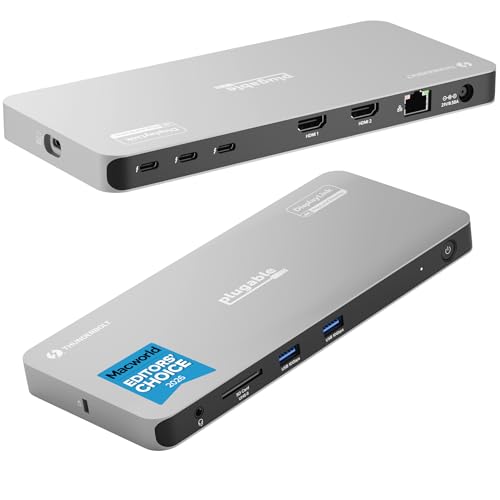
- Up to 4 displays with HDMI and Thunderbolt outputs
- 100W laptop charging and 4x 40Gbps Thunderbolt ports
- Includes Ethernet, USB, and SD card expansion
Best For: Users building a high-output Windows or Mac workstation with multiple external displays.
Best for Dual 4K Mac Setups
Plugable 16-in-1 Thunderbolt 4 Dock

- Dual 4K 60Hz output via HDMI or DisplayPort
- 100W charging plus 2.5Gb Ethernet
- 7 USB ports and SD/microSD card slots
Best For: Mac and USB4 laptop users who want a plug-and-play dual-monitor docking station with lots of ports.
Best for Triple-Display Power Users
Plugable 13-in-1 Triple 4K Dock
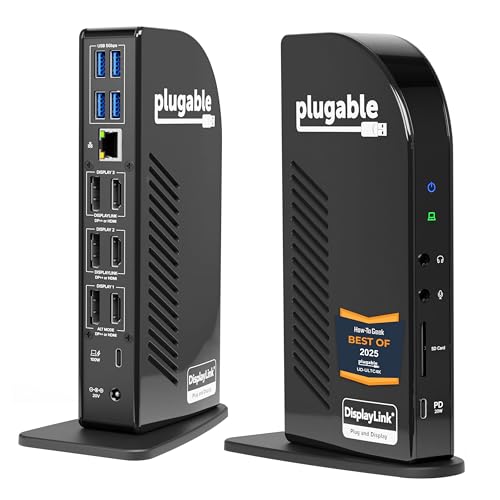
- Triple 4K at 60Hz with HDMI and DisplayPort options
- 100W Power Delivery helps charge your laptop through the dock
- 13 ports cover USB, Ethernet, SD, and audio needs
Best For: Users who want a high-connectivity dock for triple monitors and a full desktop setup.
Best for Shared Workspaces
StarTech Hybrid Docking Station

- Works with USB-C, Thunderbolt 3/4, and USB-A laptops
- Dual 4K 60Hz display support via HDMI and DisplayPort
- IT-friendly features for managed office deployments
Best For: Shared desks and IT-managed teams that need one dock for many laptop types.
Best for Dual 4K/8K – Plugable Thunderbolt 4 Dock with 100W Charging
If you want one of the most capable plugable thunderbolt 4 docks for a modern workstation, this Plugable model stands out for its 13-port layout, 40Gbps Thunderbolt 4 performance, and flexible display support. It’s a practical pick for users who need fast laptop charging, reliable wired networking, and the option to run dual 4K monitors or a single 8K display on supported systems.
Best For: Windows and compatible Mac users who want a high-end Thunderbolt 4 dock for dual displays, fast peripherals, and one-cable desk setups.
Pros:
- Dual 4K 60Hz HDMI or single 8K display support on compatible Thunderbolt 4/USB4 laptops
- 100W Power Delivery with 15W downstream Thunderbolt charging for accessories
- 13 total ports, including USB, Ethernet, SD/microSD, audio, and K-lock security
Cons:
- Dual-display support is limited on some Mac and USB-C systems
- Premium features make it more expensive than basic USB-C docks
This is a strong choice if your priority is serious desk connectivity rather than the lowest price. Among plugable thunderbolt 4 docks, it offers a balanced mix of speed, display output, and charging that fits demanding hybrid work setups.
Best for Mac and Windows Flexibility – Plugable 5-in-1 Thunderbolt 4 Hub
If you want one of the more flexible plugable thunderbolt 4 docks for a mixed Mac and Windows setup, this 5-in-1 hub is built around Thunderbolt 4, USB4, and USB-C compatibility. It adds three Thunderbolt 4 ports, one 10Gbps USB-A port, and an included USB-C to HDMI adapter, making it a practical expansion piece for modern laptops.
Best For: Mac and Windows users who need high-speed expansion, support for dual 4K or single 8K output, and a driverless setup.
Pros:
- Supports up to dual 4K displays or a single 8K display on compatible systems
- Three Thunderbolt 4 ports plus one 10Gbps USB-A port for flexible expansion
- Driverless design works with modern Thunderbolt 4, USB4, and USB-C laptops
- Includes a USB-C to HDMI adapter for easier display hookups
Cons:
- Not a full traditional docking station with a wide mix of built-in legacy ports
- Best display support depends on your laptop’s Thunderbolt/USB4 capabilities
- Thunderbolt 3 Windows systems and some older Macs are not recommended
This is a strong pick if you prefer a compact, modern expansion hub over a larger dock. Among plugable thunderbolt 4 docks, it stands out for portability, simple setup, and broad compatibility with current laptops.
Best for Quad Displays – StarTech.com USB-C Quad Monitor Dock
If you need one of the most flexible plugable thunderbolt 4 docks alternatives for multi-monitor setups, this StarTech.com dock is built around display output rather than just basic laptop expansion. It can drive up to four 4K 60Hz screens, supports mixed HDMI and DisplayPort connections, and works across Windows, macOS, ChromeOS, and Linux with DisplayLink.
Best For: Users who want to run three or four external monitors from a USB-C or Thunderbolt laptop, including Apple M-series systems.
Pros:
- Supports up to four 4K 60Hz displays, or dual 5K setups
- 100W Power Delivery helps charge most laptops through one cable
- Useful extras include Ethernet, USB hub ports, and headset audio
- IT-friendly tools like MAC pass-through and WiFi auto switching
Cons:
- Requires driver installation on Windows and macOS
- DisplayLink means it is less plug-and-play than native video docks
- Bulkier than simpler two-monitor docking stations
For buyers comparing plugable thunderbolt 4 docks, this model stands out when monitor count matters more than minimalist design. It is especially compelling for MacBook users who need more than the native display limit and for workstation-style desks that benefit from a full-featured hub.
Best for 5-Display Setups – Plugable USB-C Docking Station for 5 Monitors
If you need one of the most capable plugable thunderbolt 4 docks for multi-screen productivity, this DisplayLink model is built for extreme desktop expansion. It supports up to five 4K displays, offers strong laptop charging, and adds practical ports like 2.5Gbps Ethernet for a cleaner workstation.
Best For: MacBook and Windows users who want to run up to five external displays from a single dock, especially in office or power-user setups.
Pros:
- Drives up to 5 displays, including 4K 60Hz output across multiple ports
- Up to 140W laptop charging plus 30W device charging
- Includes 2.5Gbps Ethernet and a mix of HDMI and USB-C video outputs
- Lifetime support from Plugable’s North American team
Cons:
- DisplayLink software is required for video output
- Not ideal if you want a simple plug-and-play dock with no driver setup
- HDCP-protected streaming video is not supported
For buyers comparing plugable thunderbolt 4 docks by display count and workstation flexibility, this is a standout choice. It’s less about minimalism and more about turning a laptop into a true multi-monitor command center.
Best for Mac Dual-Display Setups – Plugable TB4 Dock for M4/M5 MacBook
If you want one of the most Mac-friendly plugable thunderbolt 4 docks for a clean desk setup, this 13-in-1 model is built around easy dual-display expansion, solid 100W charging, and driverless operation. It’s a practical pick for MacBook users who want a dock that just works without extra software.
Best For: MacBook Air and Pro users who need dependable dual 4K monitor support, lots of USB ports, and single-cable charging for work or creative setups.
Pros:
- Dual 4K 60Hz HDMI output on supported M4/M5, Pro/Max M-series, and M3 clamshell setups
- 100W host charging plus 13 total ports, including Thunderbolt 4, USB-A, USB-C, SD, microSD, and Ethernet
- Driverless plug-and-play setup for Mac and Windows Thunderbolt 4 / USB4 systems
- Aluminum build and lifetime support make it feel more office-ready than many basic docks
Cons:
- Base M1 and M2 Macs only support a single external display
- Base M3 Macs need clamshell mode for dual displays
- May be more dock than casual users need if you only want a few ports
For Mac users comparing plugable thunderbolt 4 docks, this one stands out for its straightforward setup and strong monitor support. It’s especially appealing if you want a dependable desktop hub that powers your laptop, drives displays, and keeps cables to a minimum.
Best for Quad-Display Power Users – Plugable Thunderbolt 4 Dock for Quad Monitors
If you need one of the more capable plugable thunderbolt 4 docks for a multi-monitor workstation, this dock stands out for its ability to drive up to four displays while still delivering laptop charging and high-speed connectivity. It’s a practical pick for desk setups that mix Thunderbolt, USB-C, HDMI, Ethernet, and SD card access.
Best For: Windows and Mac users who want a productivity dock built for up to four external displays and a full set of expansion ports.
Pros:
- Supports up to 4 displays, including dual HDMI plus Thunderbolt outputs
- Provides up to 100W host charging, with 96W certified delivery
- Includes 4x 40Gbps Thunderbolt ports, USB, Ethernet, and SD card support
- Works with Windows, macOS, and ChromeOS on compatible Thunderbolt/USB4 systems
Cons:
- DisplayLink software is required for the HDMI outputs to work
- Base model M1/M2 Macs and ChromeOS have more limited multi-display support
- Not the simplest option if you only need a basic single-monitor dock
This is a strong fit if you’re comparing plugable thunderbolt 4 docks for maximum desktop expansion rather than minimalism. The tradeoff is a bit of setup complexity, but the display flexibility and port density make it especially compelling for demanding workstations.
Best for Dual 4K Mac Setups – Plugable 16-in-1 Thunderbolt 4 Dock
If you need one of the more capable plugable thunderbolt 4 docks for a MacBook Air, MacBook Pro, or USB4 Windows laptop, this 16-in-1 model is built for serious desktop expansion. It supports dual 4K 60Hz displays, 100W charging, fast wired networking, and a wide mix of USB and card-reader ports in a single dock.
Best For: Mac users and USB4 laptop owners who want a clean dual-monitor setup with lots of ports and simple plug-and-play use.
Pros:
- Drives two 4K 60Hz monitors with HDMI or DisplayPort
- Provides 100W Power Delivery for laptop charging
- Includes 7 USB ports, 2.5Gb Ethernet, and SD/microSD readers
Cons:
- Premium price compared with basic USB-C docks
- Dual-monitor support depends on laptop compatibility
This is a strong pick if you want plugable thunderbolt 4 docks that prioritize dual-display productivity and a fuller desktop port selection. It stands out most for Mac users who want an easy, driver-free way to build a tidy workstation.
Best for Triple-Display Power Users – Plugable 13-in-1 Triple 4K Dock
If you need one of the most capable plugable thunderbolt 4 docks for a busy desk, this Plugable station stands out for its 13-port layout, triple-monitor support, and built-in laptop charging. It’s a practical pick for users who want to replace a pile of adapters with a single dock that handles displays, data, Ethernet, and peripherals through one USB-C connection.
Best For: Professionals who want a feature-packed Thunderbolt, USB4, or USB-C dock for triple 4K displays and full desk connectivity.
Pros:
- Drives three 4K monitors at 60Hz with flexible HDMI and DisplayPort outputs
- Includes up to 100W USB-C Power Delivery to charge most laptops through the dock
- Offers 13 total ports, including USB-A, SD card, Ethernet, and audio connections
- Works across Windows, macOS, and ChromeOS with DisplayLink support
Cons:
- Requires DisplayLink driver installation before full use
- HDCP streaming support is not included
- May be more dock than casual users need
For shoppers comparing plugable thunderbolt 4 docks, this model is strongest when display flexibility and port count matter more than simplicity. It’s a serious dock for multi-monitor productivity, but it does ask for driver setup and a compatible host system.
Best for Shared Workspaces – StarTech Hybrid Docking Station
If you’re comparing plugable thunderbolt 4 docks but need a more universal office-ready option, this StarTech hybrid dock is built for mixed fleets. It works over USB-C, Thunderbolt 3/4, and even USB-A, so it’s a practical pick for hot desks, hoteling setups, and teams with different laptop brands.
Best For: Offices, shared desks, and IT-managed environments that need one dock for USB-C, Thunderbolt, and older USB-A laptops.
Pros:
- Hybrid USB-C/USB-A connection makes it easy to support many laptop types
- Dual 4K 60Hz display output with DisplayPort and HDMI
- Useful IT features like MAC address pass-through and WiFi auto switching
- Built-in Ethernet, audio, and multiple USB ports for a fuller workstation setup
Cons:
- Driver installation is required for macOS and Windows dual-display support
- 60W charging is enough for many laptops but not ideal for high-power workstations
- DisplayLink-based setup may not suit users who want the simplest plug-and-play experience
This is a smart alternative if you like the flexibility people expect from plugable thunderbolt 4 docks, but want one dock that can also handle USB-A laptops in shared environments. It’s especially compelling when compatibility matters more than raw charging wattage.
Best Simple Pick – Plugable 14-in-1 Quad HDMI Dock
If you need one of the more flexible plugable thunderbolt 4 docks for a multi-monitor desk, this 14-in-1 Plugable dock is built around four HDMI outputs, strong charging, and a broad port mix. It’s a practical pick for Windows or ChromeOS users who want a single hub for displays, peripherals, storage, and wired networking.
Best For: Professionals who need four external monitors and a clutter-free USB-C/TB workspace on Windows or compatible ChromeOS systems.
Pros:
- Drives up to four 1080p displays for serious multitasking
- Includes 96W laptop charging plus USB, Ethernet, SD, and audio ports
- Supports USB4, Thunderbolt 3/4, and USB-C systems with DisplayPort Alt Mode MST
- Good fit for hot desks, office setups, and content-heavy workflows
Cons:
- HDMI 3 and 4 require a compatible USB-C port with DisplayPort Alt Mode MST
- macOS support is limited to three extended displays, with one mirrored
- DisplayLink drivers may require manual installation in some corporate environments
For buyers comparing plugable thunderbolt 4 docks, this model stands out less for raw speed and more for display flexibility and workstation convenience. If four screens matter more than high-end Thunderbolt expansion, it’s an easy dock to shortlist.
How We Picked the Best Plugable Thunderbolt 4 Docks
We prioritized real-world dock behavior: display support, charging output, port selection, host compatibility, and how well each model fits common work setups. We also looked for clear value differences between compact hubs, standard docks, and high-density options for multi-monitor users.
Because Plugable Thunderbolt 4 Docks are often bought to solve specific workflow problems, we favored models that make those choices easy: simple dual-4K office setups, higher-power laptop charging, and docks built for more demanding Windows or Mac display arrays.
Quick Comparison
If you want the simplest setup, choose a dock that matches your display count and your laptop’s power needs. Compact 5-in-1 hubs are best for travel and lighter desk use, while full docks with 100W or higher charging are better for primary workstations. If you need more than two monitors, look closely at DisplayLink-based models and multi-video ports.
Key Buying Factors for Plugable Thunderbolt 4 Docks
Display Support
Check whether the dock supports single 8K, dual 4K, or multiple 4K monitors. For most buyers, dual 4K is the sweet spot; quad-monitor support matters more for trading, coding, editing, or data-heavy workflows.
Charging Power
Many Plugable Thunderbolt 4 Docks provide 100W charging, which is enough for most thin-and-light laptops. If you use a power-hungry machine, confirm whether the dock’s output is sufficient for your model under load.
Port Mix and Expansion
Think beyond video. USB-A, USB-C, Ethernet, audio, and SD or microSD support can reduce adapter clutter and improve day-to-day convenience. If you plug in lots of accessories, a higher-port-count dock is usually worth it.
Mac and Windows Compatibility
Not every dock behaves the same across operating systems. Some are especially appealing for MacBook users, while others are better suited to Windows systems or hybrid environments. Always match the dock to your host machine and display strategy.
Who Should Buy Which Plugable Thunderbolt 4 Docks?
Choose a compact Thunderbolt 4 hub if you travel often or only need a few essentials at your desk. Pick a standard 100W dock if you want one-cable docking for a laptop and two monitors. Go with a DisplayLink or quad-display model if your setup demands maximum screen space, especially for productivity, monitoring, or content creation. For Mac users with newer M-series laptops, verify external display support carefully before buying.
In short, the best choice is the dock that matches your monitor count, charging needs, and operating system—not just the one with the most ports on paper.
