
If you’re looking to boost your productivity with a multi-monitor setup, the right docking station can make all the difference. With DisplayLink technology, these docks offer impressive connectivity and support for multiple high-resolution screens. From Anker to Plugable, you’ll find options tailored to your needs. Curious about which docks stand out and how they can transform your workspace? Let’s explore the top contenders for your multi-monitor configuration.
Anker Prime Docking Station (DL7400) – 14-Port Triple Display
If you’re a professional who juggles multiple tasks or a creative needing extensive screen real estate, the Anker Prime Docking Station (DL7400) is an ideal solution. With its 14 ports and triple display capability, you can effortlessly connect up to three external monitors, including one in stunning 8K resolution. It supports high-speed data transfer and charging through multiple USB-C ports, ensuring your devices stay powered. Plus, the built-in fan and ActiveShield 3.0 technology keep everything cool and stable. Whether you’re working on macOS or Windows, this docking station enhances your productivity like never before.
Best For: Professionals and creatives who require extensive screen real estate and efficient multitasking capabilities.
Pros:
- Supports triple external monitors, including one in 8K resolution for enhanced productivity.
- Multiple high-speed USB-C ports allow for rapid charging and data transfer.
- Built-in fan and ActiveShield 3.0 technology provide effective cooling and stability during use.
Cons:
- Front USB-C ports do not support media display, limiting their functionality.
- DRM-protected streaming may result in a black screen unless hardware acceleration is disabled.
- Requires the latest DisplayLink driver for optimal performance, which may be an extra step for some users.
TobenONE DisplayLink Docking Station for Quad 4K Monitors

The TobenONE DisplayLink Docking Station is perfect for professionals who need to maximize their productivity with multiple high-resolution displays. With the ability to connect up to four 4K monitors at 60Hz, you’ll enjoy seamless multitasking. It features 20 ports, including four HDMI, four DisplayPort, and various USB connections, ensuring all your devices are accommodated. A powerful 150W adapter provides 100W charging for laptops, while a USB-C port offers additional phone charging. Compatible with multiple operating systems, this docking station includes a two-year defect coverage and dedicated support, making it a reliable choice for your workspace.
Best For: Professionals seeking to enhance their multitasking capabilities with multiple high-resolution displays.
Pros:
- Supports up to four 4K monitors at 60Hz for seamless multitasking.
- Equipped with a powerful 150W adapter providing 100W charging for laptops.
- Compatible with various operating systems and devices, ensuring versatility in use.
Cons:
- Requires installation of Displaylink driver for functionality.
- M1 chip MacBooks are limited to extending only three monitors.
- HDCP support is not available, which may affect certain media playback.
TobenONE DisplayLink Docking Station Triple Monitor with 120W Power Adapter
Designed for professionals who rely on extensive multitasking, the TobenONE DisplayLink Docking Station makes managing multiple displays effortless. Supporting triple and quad monitor setups, you can connect up to three 4K displays via a single USB-C connection. With 18 ports, including 3 HDMI and 3 DP, it’s perfect for tasks like stock trading or video production. The 120W power adapter not only charges your laptop but also provides additional power for devices. Plus, with data transfer speeds up to 10Gbps, sharing files is seamless. Enjoy lifetime support from TobenONE, ensuring you get the most out of your docking station.
Best For: Professionals and remote workers who need to enhance their multitasking capabilities with multiple high-resolution monitors.
Pros:
- Supports triple and quad monitor setups with a single USB-C connection for efficient multitasking.
- Comes with a powerful 120W adapter that charges laptops and provides additional power for devices.
- High data transfer speeds of up to 10Gbps for seamless file sharing among multiple USB devices.
Cons:
- Requires downloading specific drivers based on the operating system for full functionality.
- macOS users are limited to connecting only three monitors, while Windows users can utilize up to four.
- Not compatible with Linux/Unix, which may limit use for some users.
Kensington 11-in-1 USB-C Docking Station

For professionals juggling multiple tasks, the Kensington 11-in-1 USB-C Docking Station stands out with its ability to support three external monitors. You can connect one 4K display at 30Hz and two 1080p monitors at 60Hz, utilizing DisplayLink technology. This dock is compatible with a range of devices, including MacBook M1 to M4 and various USB-C laptops. With 100W power delivery, you can charge your laptop and accessories simultaneously. Its 11-in-1 design offers ample connectivity options, while the Kensington DockWorks software enhances performance. Plus, it comes with a 3-year warranty, ensuring reliable productivity for your workspace.
Best For: Professionals who need to connect multiple devices and monitors for enhanced productivity in their workspace.
Pros:
- Supports up to three external monitors, including one 4K display, providing versatile display options.
- 100W power delivery allows simultaneous charging of laptops and accessories, reducing cable clutter.
- 11-in-1 design offers a wide range of connectivity options, accommodating various devices and peripherals.
Cons:
- DisplayLink technology may require additional software installation, which could be a hassle for some users.
- Mounting bracket sold separately for zero-footprint mounting, potentially increasing overall costs.
- Limited to Windows for DockWorks software, which may not appeal to all users, particularly those on macOS or Chrome OS.
Plugable USB C Triple Display Docking Station

Looking to boost your productivity with seamless multi-monitor support? The Plugable USB C Triple Display Docking Station is your solution. With 100W Power Delivery, it keeps your devices charged while supporting up to three HDMI monitors—one at 4K and two at 1080p. Its 12-in-1 design features six USB 3.0 ports, making it a versatile choice for hybrid teams. Compatible with Windows, macOS, and ChromeOS, it’s optimized for various tasks like data analysis and presentations. Plus, enjoy peace of mind with a 2-year warranty and reliable North American support. Elevate your workspace effortlessly with Plugable.
Best For: Professionals and hybrid teams seeking enhanced productivity through multi-monitor setups and versatile connectivity options.
Pros:
- Supports up to three monitors, allowing for increased workspace and productivity.
- 100W Power Delivery ensures devices remain charged during use.
- Wide compatibility with various operating systems including Windows, macOS, and ChromeOS.
Cons:
- Limited to HDMI outputs, which may require adapters for other display types.
- Weight and size may be less portable for users who travel frequently.
- Dependence on DisplayLink technology may lead to performance issues in certain high-demand applications.
Plugable 12-in-1 USB C Triple Monitor Docking Station

The Plugable 12-in-1 USB C Triple Monitor Docking Station stands out as the ideal choice for professionals who need to maximize productivity across multiple screens. This dock supports triple 4K displays via HDMI or DisplayPort, eliminating the hassle of adapters. With six USB 3.0 ports, Ethernet, and audio connectivity, you can easily connect all your devices. It’s compatible with USB-C, Thunderbolt, and various operating systems like Windows, macOS, and ChromeOS. Plus, the 100W power delivery keeps your laptop charged throughout the day. Backed by a 2-year warranty and lifetime support, it’s a reliable addition to your workspace.
Best For: Professionals needing to enhance productivity with multiple 4K displays and seamless connectivity.
Pros:
- Triple 4K support allows for an immersive multitasking experience without the need for additional adapters.
- Versatile compatibility with USB-C, Thunderbolt, and major operating systems ensures broad usability across devices.
- 100W power delivery keeps laptops charged, enabling continuous operation throughout the workday.
Cons:
- Limited to USB-C connectivity may not cater to older devices lacking this feature.
- Weight of 2.7 pounds could be considered bulky for portable setups.
- Higher price point compared to simpler docking stations may not suit all budgets.
Plugable USB-C Triple Monitor Docking Station (UD-ULTCDL)

Designed for professionals who require enhanced productivity, the Plugable USB-C Triple Monitor Docking Station (UD-ULTCDL) stands out with its ability to support three HDMI displays simultaneously, even if your laptop has limitations on the number of external monitors. This 13-in-1 dock offers robust connectivity with 3 HDMI ports, 4 USB-A ports, and Gigabit Ethernet, allowing you to create a thorough desk setup. It delivers up to 100W charging for laptops, ensuring your devices stay powered during intensive tasks. Compatible with various systems, this docking station is a solid choice for maximizing your workspace efficiency.
Best For: Professionals who need to connect multiple displays and enhance productivity in their workspace.
Pros:
- Supports up to three HDMI displays, allowing for an extensive multitasking setup.
- Provides 100W charging for laptops, ensuring devices remain powered during heavy use.
- Offers a variety of connectivity options with 13 ports, including USB-A and Gigabit Ethernet.
Cons:
- Requires installation of DisplayLink Manager for macOS to enable multiple displays.
- Limited to 4K 30Hz for the primary monitor, which may not meet the needs of high-resolution users.
- Some users may experience compatibility issues with certain laptop brands or models.
Plugable 13-in-1 USB C Docking Station (UD-ULTC4K)
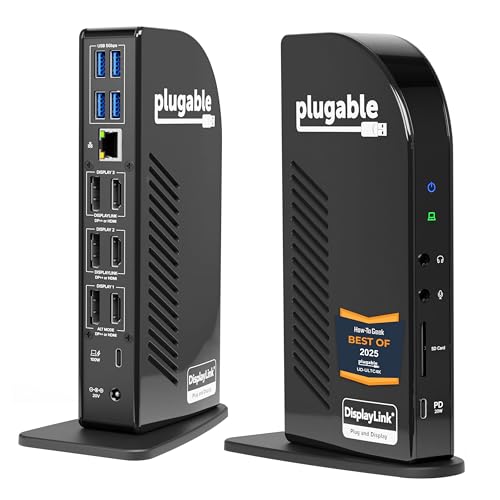
For professionals and creatives seeking a versatile docking solution, the Plugable 13-in-1 USB C Docking Station (UD-ULTC4K) stands out with its ability to support triple 4K monitors at 60Hz. With 13 ports—including USB-C, four USB-A, Ethernet, and an SD card reader—you’ll have all the connectivity you need. It delivers up to 100W power to charge your laptop directly, streamlining your workspace. Compatible with various systems, it works seamlessly with Thunderbolt and USB4 devices. Plus, the mixed HDMI and DisplayPort output lets you connect your monitors without extra dongles, enhancing your productivity effortlessly.
Best For: Professionals and creatives seeking a robust docking solution for multiple monitor setups and extensive connectivity options.
Pros:
- Supports triple 4K monitors at 60Hz for enhanced multitasking.
- Includes 13 ports for versatile connectivity, including USB-C, USB-A, and Ethernet.
- Provides up to 100W power delivery, eliminating the need for a separate laptop charger.
Cons:
- Requires DisplayLink drivers for full functionality, which may complicate setup.
- Some users may find the price higher compared to simpler docking stations.
- Limited to certain operating systems, which may exclude some potential users.
StarTech.com Triple Monitor USB-C Docking Station

If you’re a professional needing to connect multiple displays seamlessly, the StarTech.com Triple Monitor USB-C Docking Station is a standout choice. It supports triple 4K 60Hz displays and delivers up to 140W power over USB-C for your high-performance laptop. With DisplayLink-based HDMI and DisplayPort outputs, you’ll enjoy excellent video performance across platforms. The 2.5GbE Ethernet guarantees fast networking for large file transfers. Plus, built-in lock slots and mounting options allow for added security and organization. Rigorous testing assures reliability, making it perfect for IT professionals managing large-scale deployments and shifts to Windows 11.
Best For: Professionals needing to connect multiple high-resolution displays and requiring robust networking capabilities.
Pros:
- Supports triple 4K 60Hz displays for enhanced visual performance.
- Delivers up to 140W power over USB-C, compatible with high-performance laptops.
- Equipped with 2.5GbE Ethernet for fast networking and large file transfers.
Cons:
- Physical security features require additional mounting accessories, sold separately.
- May not be compatible with older laptops that lack USB-C ports.
- Setup may require additional configuration for dual-display configurations.
StarTech USB-C to Quad HDMI 4K60 Workstation Dock

The StarTech USB-C to Quad HDMI 4K60 Workstation Dock is perfect for professionals who need to maximize their workspace with multiple displays. With the ability to connect up to four 4K 60Hz HDMI monitors via a single USB-C connection, your multitasking capabilities will soar. It supports a range of devices, including Windows, Mac M1-M5, and various USB4 and Thunderbolt laptops. Plus, the 140W power delivery guarantees your devices stay charged. Its compact design makes it ideal for both office and travel use. Trust in its enterprise-grade reliability for seamless performance across IT, finance, engineering, and education environments.
Best For: Professionals in IT, finance, engineering, and education who require multiple displays for enhanced productivity.
Pros:
- Quad 4K60 Output: Connects up to four 4K 60Hz HDMI monitors for an expansive visual workspace.
- Wide Compatibility: Supports various operating systems and devices, including Windows, macOS, and USB4/Thunderbolt laptops.
- Compact and Portable: Lightweight design makes it easy to transport for on-the-go work.
Cons:
- Manual Driver Installation for macOS: Requires users to manually install drivers, which may be inconvenient.
- Limited USB Ports: Only includes a USB-A 2.0 passthrough, which may not suffice for users with multiple peripherals.
- Price Point: May be considered expensive for casual users who do not need multi-display setups.
Factors to Consider When Choosing Multi Monitor Docks With DisplayLink
When choosing a multi-monitor dock with DisplayLink, you should consider several key factors. Port configuration options, display resolution support, and power delivery capacity can greatly impact your setup. Also, guarantee compatibility with your devices and check for cooling and stability features to keep everything running smoothly.
Port Configuration Options
Choosing the right multi-monitor dock with DisplayLink technology hinges on port configuration options that suit your specific needs. Look for docks that offer a variety of connection types, including HDMI, DisplayPort, USB-C, and USB-A, to guarantee compatibility with your monitors and devices. Consider how many video output ports you need; options range from single outputs to docks with multiple ports for two, three, or even four external monitors. Additionally, check for enhanced data transfer capabilities, as USB ports supporting speeds up to 10Gbps can facilitate quick file transfers. Some docks also include specialized ports like Ethernet, SD card readers, and audio jacks, providing extensive connectivity for your workstation setup.
Display Resolution Support
Understanding display resolution support is essential for maximizing the benefits of your multi-monitor setup with DisplayLink technology. Many docks can handle multiple 4K monitors at 60Hz, which greatly enhances visual clarity and workspace efficiency. However, the maximum resolution you can achieve often depends on how many monitors you connect. For instance, some docks can drive one 8K display or up to three 4K displays simultaneously. Keep in mind that compatibility with your operating system and the need for DisplayLink drivers can impact your ability to utilize higher resolutions. If you opt for docks with lower power output, you might have to sacrifice video quality for the number of connections available. Choose wisely to suit your needs.
Power Delivery Capacity
Power delivery capacity plays an essential role in your decision-making process for multi-monitor docks with DisplayLink technology. It determines how much power the dock supplies to connected devices, typically ranging from 60W to 140W. A higher wattage allows you to charge your laptop while powering peripherals, ensuring an uninterrupted workflow during multitasking. Most docks offer a maximum output of 100W, which is sufficient for most laptops, but higher-end models can provide up to 140W for power-hungry devices. It’s vital to verify that the dock’s power delivery matches your laptop’s requirements to prevent underperformance or charging issues. Additionally, some docks feature extra power outputs for charging smartphones or tablets, enhancing overall device connectivity and convenience.
Compatibility With Devices
When selecting a multi-monitor dock with DisplayLink technology, compatibility with your devices is a key factor. These docks work with a variety of systems, including Windows (10 and later), macOS (11+), Chrome OS (v100+), and many Android devices. To guarantee full functionality, check if the dock supports Thunderbolt 3, 4, USB4, or USB-C Alt Mode. Keep in mind that devices with M1 and M2 chips might have limitations, usually supporting up to three external monitors. For ideal performance, you’ll often need the latest DisplayLink drivers installed. Always verify that the dock’s specifications match your device’s capabilities, particularly regarding video output and power delivery needs, to avoid any compatibility issues.
Cooling and Stability Features
While you might focus on connectivity and compatibility when selecting a multi-monitor dock with DisplayLink technology, cooling and stability features are equally important. Effective cooling systems, like built-in fans and thermal management technologies, prevent overheating during prolonged use. Look for docks that incorporate ActiveShield 3.0 technology, which helps regulate temperatures for consistent performance during heavy workloads. Many advanced docks come with smart displays that provide real-time updates on system temperatures and power usage, allowing you to monitor performance effectively. A well-designed cooling system not only enhances performance but also prolongs the dock’s lifespan by reducing thermal throttling and hardware failures. This is especially vital in high-performance environments like gaming or graphic design, where excessive heat is common.
Driver Installation Requirements
Driver installation is an essential step in maximizing the performance of your multi-monitor dock with DisplayLink technology. You’ll need to install the latest DisplayLink driver for peak functionality and multi-display support. If you skip this step, you might find yourself limited to just one display or dealing with poor video quality. DisplayLink drivers are compatible with various operating systems, including Windows, macOS, and ChromeOS, though specific requirements can vary by OS version. It’s also important to keep your driver updated to maintain compatibility with new OS updates and to enhance performance. Finally, be aware that some devices may have limitations on the number of external displays they support, which could impact your setup post-installation.
Size and Design Factors
After ensuring your DisplayLink drivers are correctly installed, it’s time to contemplate size and design factors for your multi-monitor dock. The dock’s dimensions play an important role in desk space efficiency; if you have limited space, opt for a compact design, while larger units might offer more connectivity options. Weight matters too; lighter docks are easier to transport between workspaces. A slim profile not only enhances aesthetics but also minimizes clutter, creating a visually appealing environment. Additionally, consider mounting options like VESA compatibility for flexibility and stability. Finally, the color and finish can influence how well the dock blends with your office decor, adding to a cohesive workspace design that reflects your personal style.
Warranty and Support Services
When choosing a multi-monitor dock with DisplayLink technology, warranty and support services are critical factors to evaluate. Look for a warranty that offers 2 to 3 years for parts and labor, ensuring you’re covered against defects. Customer support options are equally important; dedicated technical assistance can resolve issues quickly. Some models provide lifetime support or direct access to product engineers, enhancing your experience. Don’t forget to check the return policy—many manufacturers offer a 30-day guarantee, allowing you to return the dock if it doesn’t meet your needs. Finally, confirm that support services are compatible with your operating system, as driver installation and functionality can vary between platforms.
