
A screen extender can turn a MacBook into a more useful mobile workstation without requiring a permanent desk setup. The challenge is finding one that fits your laptop, connects reliably, and adds enough usable space to justify carrying it.
These 10 options include compact 14-inch displays, larger 15.6-inch panels, detachable designs, and triple-screen configurations. Here’s what matters before you choose.
Best 10 Macbook Screen Extenders with 1080p Panels Picks for 2026
Best Triple-Screen Setup
ZUMWALT P7 15.6-Inch Dual Extender
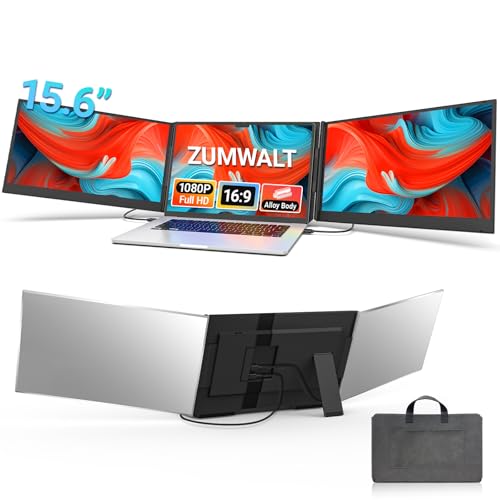
- Two 15.6-inch 1080p displays
- Two USB-C cables with suitable ports
- Some MacBooks need extra hardware and a driver
Best For: A portable three-display workspace
Best Adjustable Viewing
KEFEYA 14-Inch Laptop Extender

- 14-inch matte 1080p IPS screen
- 180-degree rotation
- HDMI use requires USB-A power
Best For: Adjustable second-screen positioning
Best Detachable Option
Wixzet 15.6-Inch FHD Screen Extender

- 15.6-inch 1080p IPS display
- Detaches for standalone use
- USB-C or HDMI connection options
Best For: MacBook users wanting a larger, flexible second screen
Best Lightweight Pick
Macsecor 14-Inch FHD Screen Extender

- Stated 1.9-pound design
- 1080p IPS display
- Rotates up to 225°
Best For: MacBook users prioritizing a lightweight travel setup
Best for Comfort
Enzion Dual 14-Inch FHD Extender

- Two 14-inch 1080p IPS screens
- Fits stated 13- to 17-inch laptops
- M1–M3 Macs need extra cable and driver
Best For: MacBook users needing two additional displays
Lightweight Travel Pick
BKVOO S8PRO 14-Inch Triple Screen Extender

- Two 14-inch, 1080p IPS displays
- Listed weight of 2.2 pounds
- H5-T cable included; driver may be needed
Best For: Travelers seeking a lighter extender with an included alternative connection cable
Sturdy Mount Pick
Blackview DCM5 14-Inch Triple Screen Extender

- Six-point mounting with rear stand
- Two 14-inch, 1080p IPS screens
- Check for suitable USB-C or HDMI ports
Best For: MacBook users prioritizing a secure laptop-mounted setup
Large-Screen Pick
P7 15.6-Inch Triple Screen Extender

- Two 15.6-inch, 1080p IPS displays
- Two-cable setup with supported USB-C ports
- Some M-series Macs need extra hardware and setup
Best For: Users seeking larger screens who can confirm MacBook compatibility
Best Triple-Screen Setup – ZUMWALT P7 15.6-Inch Dual Extender
Among macbook screen extenders with 1080p panels, the ZUMWALT P7 stands out for adding two 15.6-inch displays rather than one. Its slim aluminum construction and included carry bag make the larger workspace practical to transport, though the complete unit weighs about 4 pounds.
Best For: MacBook users who need two extra screens and can confirm their ports and connection requirements before buying.
Pros:
- Two 15.6-inch 1080p screens create a three-display workspace with the laptop.
- Two USB-C cables can handle setup when the laptop has suitable full-featured ports.
- Supports extend, mirror, and portrait viewing; a carry bag and power adapter are included.
Cons:
- M1, M2, and M3 MacBooks may require an additional H5-T cable, HDMI and USB-A connections, external power, and a driver.
- At roughly 4 pounds, it is heavier to carry than the single-screen options here.
The extra display area is the draw, but do not assume the two-cable setup will work with every MacBook. Check your model and ports—and whether you need the additional cable—before ordering.
Best Lightweight Clip-On – Blackview 14-Inch Screen Extender
If you are comparing macbook screen extenders with 1080p panels for travel, this Blackview adds one 14-inch display while keeping stated weight to 1.97 pounds. Its silicone-lined clip, six-point mounting, and adjustable stand are designed to keep the screen aligned with a 13- to 17.3-inch laptop.
Best For: MacBook users who want a relatively light, attached second screen for working away from a desk.
Pros:
- 14-inch 1080p IPS display with stated 300-nit brightness and TÜV SÜD eye-comfort certification.
- Single-cable USB-C video and power connection when the laptop supports it; HDMI plus USB-A power is another option.
- Supports extend, mirror, and portrait modes and includes a stated 24-month warranty.
Cons:
- The 14-inch panel offers less workspace than the 15.6-inch options.
- HDMI setup needs a separate USB-A power connection.
This is a sensible clip-on choice if portability and a tidy setup matter more than maximum screen size. Confirm that your MacBook can provide video and power over USB-C if one-cable use is important.
Best Detachable Display – FLYTOCCA 15.6-Inch Extender
The FLYTOCCA is one of the more flexible macbook screen extenders with 1080p panels: its 15.6-inch screen detaches and supports vertical mounting. That makes it worth considering if you alternate between side-by-side windows and long documents or code.
Best For: MacBook users who want a larger second screen they can detach or position vertically.
Pros:
- 15.6-inch matte IPS panel with 1920 × 1080 resolution and stated 300-nit brightness.
- Detachable display supports horizontal and vertical setups.
- Includes USB-C, USB-A-to-USB-C, and HDMI-to-mini-HDMI cables for different connection options.
Cons:
- One added display, not the two-screen expansion offered by a triple-screen model.
- One-cable operation depends on having a suitable USB-C port; otherwise, setup uses HDMI and USB-A.
Its detachable design is the reason to choose it over a fixed clip-on panel. Check your MacBook’s USB-C video capability before counting on the simplest connection.
Best Adjustable Viewing – KEFEYA 14-Inch Laptop Extender
For shoppers comparing macbook screen extenders with 1080p panels, the KEFEYA offers a 14-inch matte IPS display with 180-degree rotation. It is geared toward users who want to reposition an attached second screen for individual work or sharing a view with someone nearby.
Best For: MacBook users who value adjustable screen angles and both USB-C and HDMI connection options.
Pros:
- 14-inch 1920 × 1080 IPS panel with stated 300-nit brightness and 72% NTSC color gamut.
- Supports mirror, extend, landscape, and portrait modes, plus 180-degree rotation.
- USB-C, HDMI, and USB-A-to-USB-C cables are included; no driver download is specified.
Cons:
- HDMI requires an additional USB-A-to-USB-C connection for power.
- The 14-inch panel provides less display area than a 15.6-inch extender.
The KEFEYA’s rotation and display modes make it a versatile single-screen add-on. Before buying, check your MacBook’s available ports and plan for the extra power cable if you will use HDMI.
Best Detachable Option – Wixzet 15.6-Inch FHD Screen Extender
Among MacBook screen extenders with 1080p panels, this Wixzet model stands out for its larger 15.6-inch IPS display and detachable design. It fits 13- to 17.3-inch laptops and can serve as a standalone monitor when a side-mounted screen is not the right setup.
Best For: MacBook users who want a larger secondary screen that can also work independently.
Pros:
- 15.6-inch 1080p IPS panel with a stated 100% sRGB color gamut.
- Detachable screen, adjustable mounting height, and 192° horizontal rotation.
- USB-C or HDMI plus USB-A connection options; USB-C supports 100W PD pass-through with a suitable adapter.
Cons:
- At 2.75 pounds, it is heavier than the single-screen Macsecor option.
- HDMI setups may need a separate USB power connection, and insufficient power can cause a “No Signal” message.
The broad laptop-size range and detachable format make this a flexible desk-and-travel choice. Check your MacBook’s USB-C video support and plan for an external power source if your connection needs one.
Best Lightweight Pick – Macsecor 14-Inch FHD Screen Extender
If portability is your priority among MacBook screen extenders with 1080p panels, the Macsecor is worth considering. Its approximately 14-inch IPS screen attaches to 13- to 16-inch laptops, while the concealed sliding arm helps keep the design slim for travel.
Best For: MacBook owners who want a lightweight second display for mobile work.
Pros:
- Weighs a stated 1.9 pounds and supports 0°–225° screen rotation.
- 1080p IPS display with adjustable brightness, contrast, and backlight settings.
- Supports extended, mirrored, and portrait modes, with USB-C or HDMI connectivity.
Cons:
- Limited to the stated 13- to 16-inch laptop fit range.
- An external power connection may be needed if the image is dim or the display shows “No Signal.”
This is the most travel-focused single-screen option here by stated weight. Before buying, verify that your MacBook’s ports support the intended connection and that its size fits the sliding arm.
Best for Comfort – Enzion Dual 14-Inch FHD Extender
For shoppers comparing MacBook screen extenders with 1080p panels, this Enzion model adds two 14-inch IPS displays rather than one. It is designed to turn a compatible 13- to 17-inch laptop into a three-screen workspace for keeping multiple tasks visible.
Best For: MacBook users who need two additional displays and can check their model’s connection requirements before ordering.
Pros:
- Two 1920 × 1080 IPS panels with a stated 100% sRGB gamut and 300-nit brightness.
- Supports extended, mirrored, portrait, and presentation modes.
- Built-in telescopic support bracket and stated compatibility with 13- to 17-inch laptops.
Cons:
- M1, M2, or M3 MacBooks require an additional H5-T cable and driver installation, according to the seller.
- At about 3 pounds or more in the supplied specifications, it adds more carrying weight than a single-screen extender.
The extra panel is useful when screen space matters more than minimal packing weight. Its MacBook setup is less straightforward than a basic plug-and-play claim suggests, so confirm the required cable and compatibility with the seller first.
Lightweight Travel Pick – BKVOO S8PRO 14-Inch Triple Screen Extender
For shoppers comparing macbook screen extenders with 1080p panels, the BKVOO S8PRO pairs two 14-inch FHD IPS displays with a travel-friendly aluminum build. Its listed 2.2-pound weight and included leather case make it worth considering if you frequently move between workspaces.
Best For: MacBook users who prioritize a lighter dual-display attachment and flexible connection options.
Pros:
- Two 1920 x 1080 IPS panels offer 300-nit brightness and matte, anti-glare screens.
- Includes an H5-T cable for laptops without two full-function USB-C or HDMI connections.
- Pull-out stand supports 13- to 17.3-inch laptops, with adjustable tilt and rotation.
Cons:
- Using the H5-T cable may require installing the USB-DISPLAY driver.
- Confirm your MacBook’s ports and display setup before expecting a simple cable-only connection.
The included H5-T cable is a useful differentiator, particularly if your MacBook lacks the ports needed for a straightforward two-cable setup. Budget extra setup time if that connection requires a driver.
Sturdy Mount Pick – Blackview DCM5 14-Inch Triple Screen Extender
The Blackview DCM5 stands out among macbook screen extenders with 1080p panels for its reinforced mounting design. It combines two 14-inch FHD IPS screens with a six-point grip and adjustable rear stand, making stability a key reason to consider it.
Best For: MacBook owners who want a firmly mounted portable workstation and have the required display-capable ports.
Pros:
- Six-point mounting system, non-slip pads, and a rear stand help secure it to 13- to 17.3-inch laptops.
- 1080p IPS displays are specified at 300 nits, with eye-care features and TÜV SÜD certification.
- Supports extended, mirrored, and portrait modes without drivers when connected through supported ports.
Cons:
- For dual-display use, the listing recommends two full-featured USB-C ports or one USB-C port plus HDMI.
- Its listed 3-pound weight is heavier than some travel-focused alternatives.
This is a sensible choice if attachment stability matters more to you than minimizing pack weight. Check your MacBook’s available ports before relying on the advertised plug-and-play setup.
Large-Screen Pick – P7 15.6-Inch Triple Screen Extender
If you want more display area from macbook screen extenders with 1080p panels, the P7 adds two 15.6-inch FHD IPS screens to your laptop. Its clip-free design and two-cable USB-C setup are appealing, provided your MacBook supports the required connections.
Best For: Users who value larger auxiliary screens and can verify their MacBook’s connection requirements before buying.
Pros:
- Two 15.6-inch 1920 x 1080 IPS displays provide more workspace than 14-inch options.
- Can connect with two USB-C cables when the laptop has full-featured USB-C ports.
- Clip-free, top-baffle-free design avoids placing a mounting clip over the laptop screen; carrying case and power adapter are included.
Cons:
- At a listed 3.9 pounds, it adds substantial weight to a travel bag.
- Some M1, M2, or M3 MacBooks may need a separately purchased H5-T cable, HDMI and USB-A connections, external power, and a driver.
The larger panels suit workflows that benefit from more visible windows, but MacBook compatibility is the deciding factor here. Verify your specific model and port setup, especially if it uses an M-series chip.
How We Picked the Best Macbook Screen Extenders with 1080p Panels
We focused on the practical differences among these 10 listed extenders: 14-inch versus 15.6-inch 1080p panels, single- versus dual-add-on-screen designs, stated laptop fit ranges, and features such as detachable screens or vertical mounting. Product titles do not establish real-world brightness, color accuracy, Mac compatibility, or cable requirements, so verify those details with the seller before ordering.
Quick Comparison: Which Format Fits Your Work?
A single 14-inch extender is the most straightforward choice for extra room for chat, notes, or reference documents while traveling. A single 15.6-inch model provides a larger workspace but takes up more room in a bag and on a table. Triple-screen extenders add two side panels for heavier multitasking, though they also increase weight, cable complexity, and the need for a stable work surface. Detachable models offer more flexibility if you sometimes want to place the second screen beside your MacBook rather than attach it.
Key Buying Factors for Macbook Screen Extenders with 1080p Panels
Connection and MacOS Support
Check your exact MacBook model, not just whether the listing says “USB-C.” A USB-C port may provide power without carrying video, while some extenders require a separate HDMI or power connection. For a triple-screen setup, confirm that your MacBook can drive the desired number of independent external displays and whether the product needs a dock, adapter, driver, or DisplayLink-based solution. MacBook display limits vary by chip and model.
Fit, Weight, and Stability
Compare the extender’s stated laptop-size range with your MacBook’s dimensions, screen thickness, and hinge design. Make sure the mounting frame will not obstruct the camera, vents, or ports. A larger or triple-panel attachment can pull on the laptop lid; a built-in kickstand or separate support can make long sessions more comfortable.
Screen Size and Image Expectations
All options here are advertised as 1080p, but size changes how sharp text appears: a 14-inch panel generally looks denser than a 15.6-inch panel at the same resolution. Check brightness, viewing angles, finish, and adjustable settings if you work near windows or need to match your MacBook display. Do not assume an extender will match a MacBook’s color performance.
Who Should Buy Which Macbook Screen Extenders with 1080p Panels?
Choose a 14-inch single-screen model if portability and a simpler setup come first. Pick a 15.6-inch single-screen extender if larger spreadsheets or side-by-side documents matter more than minimal bulk. Consider a detachable option for varied desk layouts or vertical reading. A triple-screen model makes the most sense for users who routinely keep several apps visible and have already checked their MacBook’s external-display support. If you mainly work at one desk, compare these attachments with a conventional external monitor before buying.
