
If you’re looking to enhance your productivity with a dual monitor setup for your MacBook Pro, you’re in the right place. With the right docking station and displays, you can transform your workspace into a multitasking powerhouse. From high-resolution outputs to seamless connectivity, there are several configurations that can meet your needs. Let’s explore the top options available in 2026, ensuring you find the perfect setup for your workflow.
Acer 4-in-1 USB C Hub, Type C to Dual HDMI Adapter
If you’re looking to enhance your MacBook Pro dual monitor setup, the Acer 4-in-1 USB C Hub is a game changer. This compact hub features dual HDMI ports that support stunning 4K@60Hz output, ensuring crisp visuals for your projects. With a USB-A port that transfers data at 5Gbps, you can quickly move large files without hassle. Plus, the 100W power delivery port keeps your laptop charged while you work. It’s compatible with a range of devices and simplifies your setup. Just remember, for Mac users, dual display configurations are limited, but it’s still an excellent addition to your workspace.
Best For: Professionals and MacBook users seeking to enhance their dual monitor setup with high-quality visuals and efficient data transfer.
Pros:
- Supports dual HDMI outputs with 4K@60Hz for stunning visuals.
- Fast data transfer speeds of up to 5Gbps via USB-A port.
- 100W power delivery ensures your laptop stays charged during use.
Cons:
- Dual display configurations for Mac users are limited to AAA or ABB setups.
- Requires a 65W or higher external power adapter for optimal charging.
- The included 20 cm (0.66 ft) cable may not suit all setups.
TobenONE 18-in-2 Docking Station for MacBook Pro/Air
The TobenONE 18-in-2 Docking Station is an exceptional choice for MacBook Pro and Air users seeking to enhance their dual monitor setups. With 18 ports, including dual HDMI and a 4K USB-C video port, it supports high-resolution displays at 60Hz. You can enjoy fast file transfers at 10Gbps, and the 150W adapter guarantees efficient charging for your MacBook and other devices. Plus, the 2.5Gbps Ethernet provides a stable internet connection, perfect for remote work. With a solid 4.9-star rating and a 2-year warranty, this docking station is a reliable investment for boosting your productivity.
Best For: MacBook Pro and Air users looking to enhance their productivity with dual monitor capabilities and extensive connectivity options.
Pros:
- Supports dual external monitors with 4K@60Hz resolution for high-quality visuals.
- Fast file transfer speeds of up to 10Gbps and efficient charging with a 150W adapter.
- Includes a variety of ports, ensuring versatile connectivity for multiple devices.
Cons:
- Not compatible with Windows laptops or other Mac models like Mac Studio or Mac mini.
- M1/M2/M3 Mac users can only extend a single monitor, limiting dual monitor functionality.
- Higher price point compared to simpler docking stations with fewer features.
Plugable 16-in-1 Thunderbolt 4 Dock for MacBook Air/Pro

For professionals and multitaskers seeking an efficient dual monitor setup, the Plugable 16-in-1 Thunderbolt 4 Dock is a game changer. It supports dual 4K 60Hz displays with seamless connectivity via HDMI or DisplayPort, perfect for enhancing your workflow. With 16 ports, including 7 USB ports and 2.5Gbps Ethernet, you can easily connect all your devices. The dock delivers 100W Power Delivery, ensuring your MacBook stays charged throughout the day. Compatible with Thunderbolt 4 and USB-C laptops, it’s designed for macOS and Windows. Plus, its compact design and solid customer ratings make it an essential addition to your setup.
Best For: Professionals and multitaskers looking for a versatile docking solution to enhance their dual monitor setup and streamline their workflow.
Pros:
- Supports dual 4K 60Hz displays, boosting productivity for content creation and multitasking.
- Offers 100W Power Delivery, ensuring laptops stay charged all day without needing extra chargers.
- Compact design with 16 ports, including multiple USB options and Ethernet, allowing for extensive device connectivity.
Cons:
- May be overkill for users with simpler setups who do not need extensive port options.
- Higher price point compared to basic docking stations, which might not be suitable for budget-conscious buyers.
- Limited compatibility with older devices that do not support Thunderbolt or USB-C standards.
TobenONE 16-in-2 MacBook Docking Station
Designed specifically for creative professionals and multitaskers, the TobenONE 16-in-2 MacBook Docking Station excels at supporting dual 4K displays, making it perfect for video editing, graphic design, and presentations. Compatible with MacBook Pro and Air models from 2016 to 2026, this compact dock offers two HDMI ports, seven USB connections, Ethernet, and SD/Micro SD slots for seamless multitasking. With 100W Power Delivery, you can charge your MacBook while working, eliminating downtime. Weighing just 0.73 pounds, it’s portable enough for any workspace. Customers rave about its performance, earning it a stellar 5-star rating and a 2-year warranty for peace of mind.
Best For: Creative professionals and multitaskers who require dual 4K display support and extensive connectivity for their MacBooks.
Pros:
- Supports dual 4K displays, ideal for video editing and graphic design.
- Multiple connectivity options including 2 HDMI, 7 USB ports, and SD/Micro SD slots.
- Lightweight and portable design makes it easy to transport between workspaces.
Cons:
- M1/M2/M3 base chip models only support a single display.
- No power adapter included for charging.
- Limited to specific MacBook models (2016-2026).
TobenONE MacBook Docking Station Dual 4K Monitor (13-in-2 USB C Docking Station)

Looking to elevate your productivity with a dual monitor setup? The TobenONE MacBook Docking Station is your ideal solution, supporting dual 4K monitors for M1-M5 Pro/Max models. With 13 versatile ports, including 2 HDMI and VGA, you can connect multiple devices seamlessly. Enjoy stunning visuals at 4K@60Hz, perfect for video editing or graphic design. The included 100W power adapter charges your MacBook quickly, eliminating battery anxiety. This sleek docking station also serves as a vertical stand, saving desk space while organizing cables. Just verify your MacBook Pro or Air model is compatible, and you’re all set!
Best For: Professionals working with MacBook Pro or Air models who need a dual monitor setup for enhanced productivity in tasks like video editing and graphic design.
Pros:
- Supports dual 4K monitors at 60Hz for stunning visuals.
- Includes a 100W power adapter for rapid MacBook charging.
- Combines docking station and vertical stand for space-saving and cable organization.
Cons:
- Exclusively compatible with specific MacBook models (Pro 2016-2024, Air 2018-2025).
- M1/M2/M3 chip MacBooks only support single-screen expansion.
- Slightly heavier at 1.8 pounds compared to other docking stations.
TobenONE MacBook Docking Station Dual 4K@60Hz
The TobenONE MacBook Docking Station stands out for those who demand seamless multitasking with dual 4K@60Hz monitor support. With its 16-in-2 design, you can connect two 4K monitors via HDMI, making it perfect for coding, design, or data analysis. The 7 USB ports, including a 20W fast-charging option, guarantee your devices stay powered. Plus, the 100W pass-through charging simplifies your setup, eliminating extra cables. Enjoy lightning-fast 2.5Gbps Ethernet for high-speed data transfers. Weighing only 351 grams, it’s portable and compatible with various MacBook models. Elevate your productivity with the TobenONE docking station today!
Best For: Professionals and creatives who require dual monitor setups for multitasking and high-speed connectivity with their MacBooks.
Pros:
- Dual 4K@60Hz output allows for enhanced multitasking capabilities, ideal for tasks like coding and design.
- 7 USB ports, including a dedicated fast-charging port, provide ample connectivity for multiple devices.
- 100W pass-through charging simplifies setup by allowing you to charge your MacBook without additional cables.
Cons:
- Incompatible with Windows laptops, limiting its usability for non-MacBook users.
- MacBook with M1/M2/M3 (non-Pro/Max) can only extend one external monitor, which may be a drawback for some users.
- Weight of 351 grams may be considered slightly heavier compared to other portable docking solutions.
iVANKY 12-in-2 FusionDock for M5 MacBook

For users of the M4 and M5 MacBook models, the iVANKY 12-in-2 FusionDock is the ultimate solution for maximizing your dual monitor setup. It supports dual 4K@144Hz displays, ensuring crisp visuals for your multitasking needs. With a powerful 150W adapter, it charges your laptop up to 96W while providing efficient power delivery to other devices. You’ll benefit from 4 USB 3.0 ports for fast data transfer, plus an SD/TF card slot and a Gigabit Ethernet port for seamless connectivity. Backed by a 24-month warranty and responsive customer support, it’s a reliable choice for any professional.
Best For: Users of M4 and M5 MacBook models looking to enhance their dual monitor experience with high-resolution displays and efficient power delivery.
Pros:
- Supports dual 4K@144Hz displays for a superior visual experience, ideal for multitasking and high-resolution tasks.
- 150W power adapter ensures efficient charging for laptops and connected devices, providing up to 96W for the laptop.
- Multiple connectivity options with 4 USB 3.0 ports, SD/TF card slot, and Gigabit Ethernet for seamless data transfer and internet access.
Cons:
- Limited to single display for M1/M2/M3 base chip models, which may restrict users with these configurations.
- Not compatible with older Intel MacBooks beyond the 2016-2020 models for dual 4K@60Hz support, potentially excluding some users.
- Higher price point compared to simpler docking solutions, which may not be justified for users with basic connectivity needs.
Anker USB C Hub for MacBook (7-in-2)

Maximizing productivity with a dual monitor setup becomes effortless with the Anker USB C Hub for MacBook (7-in-2). This hub expands your MacBook’s capabilities, transforming two USB-C ports into a multi-function USB-C port, two USB-A ports, an HDMI port, and both SD and microSD card slots. You can enjoy stunning 4K@60Hz resolution on your external display while seamlessly transferring data at speeds up to 40 Gb/s. Designed specifically for MacBook Pro and Air models, it won’t obstruct your MagSafe port. Plus, with an 18-month warranty, you can rely on Anker’s quality and customer support.
Best For: Professionals and creatives who need to expand their MacBook’s connectivity for enhanced productivity and multi-monitor setups.
Pros:
- Supports 4K@60Hz resolution for an impressive external display experience.
- High-speed data transfer of up to 40 Gb/s, allowing for quick file transfers.
- Designed specifically for MacBook models, ensuring compatibility and unobstructed access to the MagSafe port.
Cons:
- Not compatible with MacBook Neo, limiting its use for certain models.
- M1 and M2 MacBooks do not support dual external displays, which may restrict multi-monitor setups.
- Requires two USB-C ports, which may be a limitation for users with fewer available ports.
Acer 11-in-1 USB C Laptop Docking Station
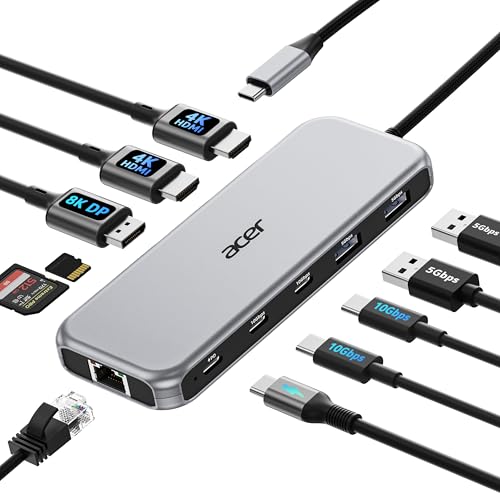
Acer’s 11-in-1 USB C Laptop Docking Station is an excellent choice for MacBook Pro users looking to enhance their dual monitor setups. With support for three monitors—two HDMI at 4K@60Hz and one DisplayPort at 8K@30Hz—you’ll enjoy stunning visuals. It features two USB-C ports for fast data transfer, an Ethernet port for stable connectivity, and SD/MicroSD slots for added convenience. Plus, its 100W power delivery charges your laptop efficiently. This docking station is compatible with various devices, ensuring you have everything you need for maximum productivity. With a solid warranty and positive reviews, it’s a reliable addition to your workspace.
Best For: MacBook Pro users seeking to enhance their dual monitor setups with high-resolution display capabilities.
Pros:
- Supports up to three monitors, allowing for versatile multi-display configurations.
- Fast data transfer rates of up to 10Gbps for USB-C and 5Gbps for USB-A, enhancing productivity.
- 100W power delivery ensures efficient charging for laptops while using the docking station.
Cons:
- Requires a laptop with a USB-C port that supports DisplayPort Alt Mode, which may not be available on all devices.
- Limited to certain brands, potentially excluding some users with incompatible devices.
- The performance may depend on the HDMI version of the connected monitors, necessitating HDMI 2.0 or higher for optimal results.
Kensington USB-C Triple Video Mobile Dock (K31343WW)

The Kensington USB-C Triple Video Mobile Dock (K31343WW) is an excellent choice for professionals who rely on multiple displays to enhance their productivity. Supporting MacBook M1/M2/M3/M4 chipsets, it enables dual and triple display setups with ease. Its 12-in-1 design includes five USB ports, three video ports, and a Gigabit Ethernet port, ensuring you’ve got all the connectivity you need. Plus, it supports 4K output at 60Hz for stunning visuals. Though it requires a separate power adapter, its sleek aluminum design fits perfectly in any workspace. With a 2-year warranty and lifetime support, it’s a reliable choice for your setup.
Best For: Professionals needing multiple displays for enhanced productivity, particularly those using MacBook M1/M2/M3/M4 chipsets.
Pros:
- 12-in-1 design provides extensive connectivity options, including five USB ports and three video ports.
- Supports 4K output at 60Hz, delivering stunning visuals for presentations and multitasking.
- Sleek aluminum design complements modern workspaces, making it both functional and aesthetically pleasing.
Cons:
- Requires a separate power adapter for operation, which is not included in the package.
- Limited compatibility with only specific laptop models (MacBook M1/M2/M3/M4 and select USB-C/Thunderbolt devices).
- Higher restocking fees may apply for returns if the product is misrepresented in condition.
Factors to Consider When Choosing Macbook Pro Dual Monitor Setups
When you’re setting up a dual monitor system with your MacBook Pro, there are several important factors to keep in mind. You’ll want to take into account display resolution requirements, port compatibility, and power delivery capacity to guarantee everything runs smoothly. Additionally, think about data transfer speeds and multi-monitor configuration options to maximize your productivity.
Display Resolution Requirements
Choosing the right display resolution for your MacBook Pro dual monitor setup can greatly impact your overall experience. Aim for 4K@60Hz if you want crisp visuals, especially for tasks like video editing and graphic design. However, keep in mind that the maximum resolution your MacBook Pro can support varies by chip; M1/M2/M3 base models can only handle a single display, while Pro and Max models can manage dual 4K displays. Make certain your monitors support this resolution and use HDMI 2.0 or higher cables for peak performance. Also, check for DisplayPort Alternate Mode compatibility to guarantee smooth video signal transmission between your MacBook and both displays. Investing in the right resolution enhances productivity and visual clarity.
Port Compatibility
Understanding display resolution is just the beginning; you also need to take into account port compatibility for your MacBook Pro dual monitor setup. First, verify your MacBook has the necessary ports, like Thunderbolt 3 or USB-C, to support dual monitors. Next, check that your docking station or hub supports DisplayPort Alternate Mode, which is vital for extending displays from a USB-C port. Check the HDMI version of your docking solution; HDMI 2.0 or higher is indispensable for peak 4K@60Hz performance across dual displays. Finally, confirm compatibility with your specific MacBook model, as chipsets like M1/M2 might limit the number of external displays you can connect. Make these considerations to enhance your productivity effectively.
Power Delivery Capacity
While setting up dual monitors for your MacBook Pro, it’s vital to take into account power delivery capacity to guarantee your device stays charged and performs at its finest. Look for a docking station or hub that offers a power delivery output between 30W and 100W. Higher capacities are important, especially when you’re tackling demanding tasks like video editing or graphic design. Devices with Power Delivery (PD) capabilities can charge your MacBook faster, allowing for up to 100W input during heavy usage. This guarantees your laptop won’t throttle performance while multitasking. Always match the docking station’s power delivery with your MacBook’s requirements to maintain peak functionality and prevent any interruptions in your workflow.
Data Transfer Speeds
When setting up a dual monitor configuration for your MacBook Pro, data transfer speeds become essential, especially if you frequently move large files between devices or external storage. USB 3.0 ports offer speeds up to 5Gbps, while USB 3.1 and 3.2 can reach 10Gbps and 20Gbps, respectively. For maximum efficiency, consider Thunderbolt 3 or Thunderbolt 4, which provide lightning-fast data transfer rates of up to 40Gbps. This allows you to connect multiple high-bandwidth devices seamlessly. Additionally, the number and type of ports on your docking station or hub can greatly impact overall transfer efficiency. Utilizing USB-C with Power Delivery (PD) enables simultaneous charging and high-speed data transfer, enhancing your productivity during multitasking tasks.
Multi-Monitor Configuration Options
Choosing the right multi-monitor configuration for your MacBook Pro can greatly enhance your workflow and productivity. First, consider your MacBook model; if you’re using the M1, M2, or M3 base chips, you can only extend one external monitor. However, the Pro and Max variants allow for dual monitor setups. Aim for displays that support resolutions up to 4K@60Hz, making sure your connections meet the HDMI or DisplayPort specifications. You can mix HDMI and VGA outputs for either identical displays or an extended desktop. Don’t forget to choose a docking station that supports DisplayPort Alternate Mode for video output and has power delivery capabilities, so your MacBook stays charged while powering those external displays.
Device Compatibility
Setting up a dual monitor configuration for your MacBook Pro requires careful consideration of device compatibility. First, verify your model supports dual monitors; only M1 Pro, M1 Max, M2 Pro, M2 Max, M3 Pro, and M3 Max can handle dual 4K displays. Base models of M1, M2, and M3 are limited to one external monitor. Next, check your specific MacBook’s display capabilities, as older Intel models may differ. Verify that your docking station or adapter is compatible, especially for power delivery and video output. Finally, confirm that your external monitors support the desired resolution and refresh rate, utilizing HDMI 2.0 or DisplayPort connections for peak performance. Look for devices that support DisplayPort Alternate Mode for seamless connectivity.
Docking Station Features
A quality docking station can greatly enhance your MacBook Pro dual monitor setup. Look for one that supports dual monitors with at least 4K@60Hz resolution to guarantee ideal visual clarity and smooth performance. Make certain it has multiple HDMI or DisplayPort outputs, allowing you to connect various display configurations seamlessly. Additionally, check for ample USB ports, preferably USB 3.0 or higher, to accommodate peripherals and facilitate fast data transfer rates, ideally up to 10Gbps. Power delivery capabilities are essential as well; aim for at least 100W to keep your MacBook charged while in use. Finally, verify compatibility with your specific MacBook model and its chip architecture, as some models may only support a single external display.
Ergonomic Setup Considerations
When optimizing your MacBook Pro dual monitor setup, ergonomic considerations play a significant role in your comfort and productivity. Position your monitors at eye level, 20 to 30 inches away, to reduce neck strain and maintain a natural viewing angle. Use adjustable monitor stands or arms for height and tilt adjustments, which help minimize glare. Place your primary monitor directly in front of you, with the secondary monitor slightly angled to lessen head movement. Choose a chair that supports good posture, allowing your feet to rest flat on the floor and your arms to sit comfortably while using the keyboard and mouse. Finally, remember to take regular breaks, following the 20-20-20 rule to reduce eye fatigue.
