
Two DisplayPort monitors can make a MacBook workspace easier to manage—but two ports on a dock do not automatically mean two independent external displays. Your MacBook model, the dock’s display technology, and the monitors’ resolution and refresh rate all matter.
These six docks cover dual-DisplayPort and flexible HDMI/DisplayPort setups. Use the guide below to narrow the field before checking the exact display modes and charging support you need.
Best 6 Macbook Docking Stations with Dual Displayport Picks for 2026
Best for Triple 4K Workspaces

- Two DisplayPort channels support dual 4K@60Hz
- Third 4K@60Hz display needs USB-C video output
- 100W laptop charging and Gigabit Ethernet
Best For: Three-screen office setups with dual DP monitors
Best for Office Multitasking

- Dual DisplayPort channels support up to 2K@60Hz
- Five USB data ports plus SD/TF readers
- Up to 100W laptop Power Delivery
Best For: Dual-monitor office work and peripheral-heavy desks
Best for High-Resolution Dual DP
WAVLINK 13-in-1 DisplayLink Dock

- Supports two 5K@60Hz displays via DisplayPort
- Alternatively supports dual 4K@60Hz via HDMI
- 100W charging and five USB data ports
Best For: High-resolution dual-DisplayPort MacBook desks
Best for USB-A Compatibility
Plugable UD-6950Z Dual 4K Dock

- Two 4K 60Hz displays via DP or HDMI
- Six USB 3.0 ports plus Ethernet
- Mac driver required; no laptop charging
Best For: Dual-monitor MacBook desks with existing laptop power
Best for Windows Multi-Monitor Setups
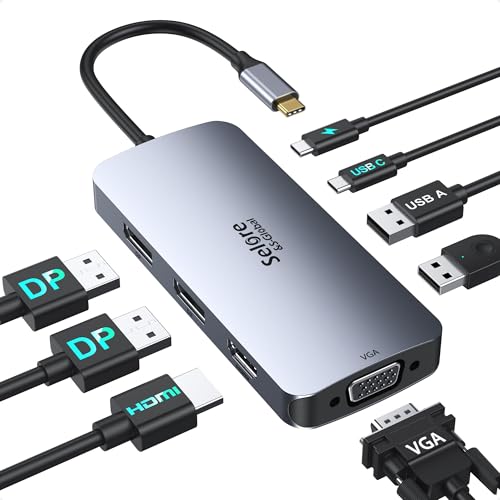
- Two DP ports plus HDMI and VGA
- Windows supports MST extended displays
- macOS cannot extend multiple displays via MST
Best For: Windows laptops needing a compact multi-display hub
Best for MacBook Charging
Plugable UD-6950PDH DisplayLink Dock

- Two 4K 60Hz displays via HDMI or DP
- Up to 100W laptop charging
- DisplayLink software required
Best For: Dual-display MacBook workstations needing one-cable charging
Best for Triple 4K Workspaces – WAVLINK DisplayLink-6950 Dock
Among MacBook docking stations with dual DisplayPort, this WAVLINK model suits buyers who want two DP connections plus an option for a third screen. Its DisplayLink-6950 channels support two 4K@60Hz displays, while a separate HDMI Alt Mode connection can support another 4K@60Hz display on a compatible laptop.
Best For: MacBook users building a three-screen office setup with dual DisplayPort monitors and a compatible USB-C video-output port.
Pros:
- Two DisplayPort connections support dual 4K@60Hz displays through DisplayLink.
- Offers 100W laptop Power Delivery, five USB data ports, Gigabit Ethernet, and SD/TF readers.
- Additional HDMI Alt Mode channel can drive a third 4K@60Hz screen with a compatible host.
Cons:
- Requires DisplayLink software; it is not plug-and-play.
- HDMI and DisplayPort on the same display channel cannot be used simultaneously, and the third display requires USB-C video output.
Choose this dock if triple-display capability matters, but check your MacBook’s video-output support before counting on the third monitor.
Best for Office Multitasking – WAVLINK DisplayLink-6350 Dock
If you’re comparing MacBook docking stations with dual DisplayPort for spreadsheets and dashboards, this WAVLINK dock offers two DP connections alongside HDMI alternatives. Its DisplayLink-6350 chipset supports up to two 2K@60Hz displays through the first two display channels, making it a practical office-focused option rather than a high-resolution specialist.
Best For: MacBook users who want dual DisplayPort office monitors, plenty of peripherals, and laptop charging from one dock.
Pros:
- Two HDMI/DisplayPort display channels support up to dual 2K@60Hz.
- Includes five USB data ports, Gigabit Ethernet, SD/TF readers, and audio connectivity.
- Included 130W adapter enables up to 100W Power Delivery to a compatible laptop.
Cons:
- Requires a DisplayLink driver; it is not plug-and-play.
- HDMI and DisplayPort on the same channel cannot run simultaneously; HDMI Alt Mode requires USB-C video output.
This is a sensible pick for productivity displays and wired accessories. If sharper dual-monitor output is your priority, the dual-5K DisplayPort model in this roundup is the stronger match.
Best for High-Resolution Dual DP – WAVLINK 13-in-1 DisplayLink Dock
For MacBook docking stations with dual DisplayPort, this WAVLINK dock stands out for its stated support for two 5K@60Hz monitors over DP. It can alternatively drive two 4K@60Hz displays over HDMI, giving buyers a clear choice between high-resolution DisplayPort screens and HDMI monitors.
Best For: MacBook users who want a high-resolution two-monitor DisplayPort setup without adding a third screen.
Pros:
- Supports dual 5K@60Hz displays via DisplayPort or dual 4K@60Hz via HDMI.
- DisplayLink enables two external displays on supported M1 through M4 MacBooks after driver installation.
- Includes five USB data ports, Gigabit Ethernet, audio, and up to 100W laptop Power Delivery.
Cons:
- DisplayLink driver installation is required.
- Designed for two external displays, not the three-screen setup offered by the other WAVLINK docks here.
Pick this model when dual DisplayPort resolution matters more than a third output; its dual 5K@60Hz claim is the clearest high-resolution DP option of the three.
Best for USB-A Compatibility – Plugable UD-6950Z Dual 4K Dock
For shoppers comparing macbook docking stations with dual displayport, the Plugable UD-6950Z offers two DisplayPort outputs alongside two HDMI outputs. Its DisplayLink connection supports two 4K monitors at 60Hz, and it can connect to a MacBook through USB-C or USB 3.0.
Best For: MacBook users who want dual 4K office displays and plenty of USB ports, but do not need laptop charging from the dock.
Pros:
- Supports two 4K 60Hz displays through DisplayPort or HDMI.
- Includes six USB 3.0 ports, Gigabit Ethernet, and an audio jack.
- Connects to the host through USB-C or USB 3.0.
Cons:
- Requires manual DisplayLink driver installation on macOS.
- Does not charge the host laptop or support HDCP-protected playback.
This is a practical desk dock if your priority is display and peripheral connectivity rather than one-cable power. It is designed for productivity work, not gaming.
Best for Windows Multi-Monitor Setups – Selore Dual DisplayPort Hub
The Selore hub appears in searches for macbook docking stations with dual displayport because it has two 4K 60Hz DisplayPort outputs, plus HDMI and VGA. The key buying distinction is its display behavior: Windows supports extended displays through MST, while macOS does not support MST and is limited to mirror mode or a single extended display.
Best For: Windows laptop users who want multiple external displays from a compact USB-C hub.
Pros:
- Provides two DisplayPort outputs, HDMI, and VGA.
- Supports up to four extended displays on compatible Windows systems.
- Offers up to 100W USB-C PD pass-through with a separate compatible adapter.
Cons:
- Cannot provide multiple independent extended displays through MST on macOS.
- Requires a host USB-C port with DP Alt Mode or Thunderbolt; the 100W charger is not included.
Its port selection is useful, but MacBook buyers seeking two independently extended DisplayPort monitors should choose a different dock.
Best for MacBook Charging – Plugable UD-6950PDH DisplayLink Dock
Among macbook docking stations with dual displayport, the Plugable UD-6950PDH is a useful alternative when you want a choice of DisplayPort or HDMI connections rather than two DisplayPort-only outputs. Its DisplayLink technology enables two 4K 60Hz external monitors, including on supported Macs that natively allow only one external display.
Best For: MacBook users who need two extended 4K work displays, laptop charging, and everyday desk connections in one dock.
Pros:
- Supports two 4K 60Hz monitors using HDMI, DisplayPort, or a mix of the two.
- Provides up to 100W laptop charging.
- Includes USB ports, SD and microSD readers, Ethernet, and a headset jack.
Cons:
- Requires DisplayLink software installation for full functionality.
- Does not support HDCP-protected content.
This is the more complete MacBook desk setup of the three if you want charging alongside dual external displays. Check the available video connections against your monitors before choosing it.
How We Picked the Best Macbook Docking Stations with Dual Displayport
We focused on the six selected docks’ stated DisplayPort connectivity, display options, and practical fit for MacBook users. The group includes DisplayLink models and docks offering both HDMI and DisplayPort outputs. Because the product names alone cannot establish every supported configuration, treat advertised resolution, refresh rate, power delivery, and monitor count as specifications to verify against the manufacturer’s documentation for your exact MacBook.
Quick Comparison: Which Type Fits Your Desk?
The WAVLINK triple-monitor models suit shoppers who want a mix of HDMI and DisplayPort connections and are willing to set up DisplayLink. The WAVLINK 13-in-1 dual-monitor model is a more focused option for a two-screen desk with additional ports. Plugable’s Dual DisplayPort & HDMI model is worth considering if you use older USB 3.0 as well as USB-C laptops, while its USB-C dual-monitor model targets a modern one-cable setup. The USB-C hub-style option may appeal if you want a compact connection point rather than a larger desktop dock. Check each listing for which video ports can run simultaneously; having both HDMI and DisplayPort sockets does not guarantee every combination works at once.
Key Buying Factors for Macbook Docking Stations with Dual Displayport
Confirm Independent Display Support
Start with your MacBook’s chip and year. Native external-display limits differ across MacBook models, and macOS does not support every multi-stream transport setup the way Windows does. A dock with two DisplayPort jacks may mirror a screen rather than extend your desktop. DisplayLink can add independent displays on compatible setups, but it requires software installation and permissions. Check the dock’s Mac compatibility chart before buying.
Match the Monitors and Video Modes
List each monitor’s resolution, target refresh rate, and DisplayPort input version, then check the dock’s supported modes when both screens are connected. A headline 4K or 5K figure may describe one output rather than the full dual-display configuration. Also confirm whether the dock accepts standard DisplayPort cables or needs adapters for your monitors.
Check Charging and Everyday Ports
If you want one cable to handle your desk, compare the dock’s stated laptop charging output with your MacBook’s power needs. A dock that cannot supply enough power under load may leave you using the MacBook charger. Count the USB ports, Ethernet connection, and audio connections you actually need, and check whether the dock uses its own power adapter.
Who Should Buy Which Macbook Docking Stations with Dual Displayport?
Choose a DisplayLink-based WAVLINK option if your priority is multiple independent external displays and you can install the required software. Favor a dual-monitor-focused dock if you only have two screens and want fewer unused video outputs. Consider the Plugable USB 3.0 & USB-C model for a desk shared with older computers, or a USB-C hub-style option when portability matters more than a full desktop port selection. Before checkout, verify your exact MacBook model, simultaneous DisplayPort modes, charging output, and return policy.
