
A dual-monitor KVM switch lets you move between a Mac and PC without swapping display cables, keyboards, or mice. The catch: your computers and monitors must support the switch’s exact video connections.
These 10 picks cover HDMI, DisplayPort, and a dock-style option. Use the buying guide below to narrow them down by ports, display requirements, and the cables you’ll need.
Best 10 Kvm Switch for Dual Computers Mac and PC Picks for 2026
Best MacBook-and-Desktop Dock
AV Access Dual-Monitor KVM Dock

- Dual 4K HDMI displays without DisplayLink
- Up to 100W MacBook charging; always-on Ethernet
- Requires one MacBook and one desktop PC
Best For: A compatible MacBook and desktop sharing a dual-monitor desk
Best High-Refresh Option

- Advertised 8K@60Hz or 4K@120Hz
- Four 5Gbps USB 3.0 ports
- Wired remote and braided HDMI cable included
Best For: HDMI-equipped Mac and PC setups prioritizing video specifications
Best Cable-Included Setup

- Dual HDMI output up to 4K@60Hz
- Four shared USB 3.0 ports
- Four HDMI cables included; no EDID emulation
Best For: HDMI-ready Mac and PC desks needing a bundled cable kit
Best for EDID Window Retention

- Dual displays up to 4K@60Hz
- EDID copy helps retain window placement
- Four USB 3.0 ports; wired controller
Best For: Dual-monitor switching with fewer window-layout disruptions
Best for HDMI Desk Setups

- Two computers share two HDMI monitors
- Four USB 3.0 ports and wired controller
- Requires two HDMI outputs per computer
Best For: Mac-and-PC desks with dual HDMI outputs
Best for Extended Displays

- Supports mirrored or extended displays
- Four USB 3.0 ports for shared devices
- Two HDMI outputs needed per computer
Best For: Extended dual-monitor desktops with shared USB peripherals
Best for Mixed Video Connections
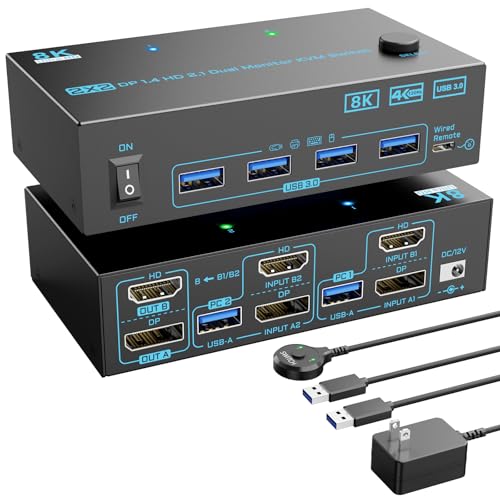
- Combines DisplayPort 1.4 and HDMI 2.1
- Supports up to 4K at 144Hz
- Four USB 3.0 ports and wired remote
Best For: Dual-monitor setups needing both DisplayPort and HDMI
Best HDMI Kit
UGREEN 8K Dual-Monitor HDMI KVM

- Two-computer, two-monitor HDMI switching
- Four USB 3.0 ports; HDMI cables included
- No EDID emulation or hotkey switching
Best For: Mac and PC setups with two HDMI outputs per computer
Best DisplayPort Pick

- DP 1.4 support up to 8K at 60Hz
- Four shared USB 3.0 ports
- Requires separate DP cables
Best For: Mac and PC workstations with two DisplayPort outputs each
Best 4K High-Refresh Option

- Lists 4K at 144Hz and 8K at 60Hz support
- Four shared USB devices; desktop controller
- Mac compatibility unconfirmed; DP cables extra
Best For: Dual-DisplayPort desks seeking high refresh rates, subject to compatibility checks
Best MacBook-and-Desktop Dock – AV Access Dual-Monitor KVM Dock
If your search for a kvm switch for dual computers mac and pc means one MacBook and one desktop PC, this AV Access dock combines dual-monitor switching with USB peripherals, audio, Ethernet, and laptop charging in one unit.
Best For: A compatible MacBook and desktop PC sharing two HDMI monitors and a full desk setup.
Pros:
- Supports two 4K HDMI displays without DisplayLink software or drivers.
- Provides up to 100W USB-C Power Delivery for the MacBook and always-on Gigabit Ethernet for both computers.
- Includes USB expansion, an SDXC reader, audio, EDID emulation, and a wired switching remote.
Cons:
- Designed for one MacBook and one desktop PC, not two laptops.
- Base M1 and M2 MacBooks support only one external display; a base M3 MacBook needs its lid closed for two.
- The desktop PC needs HDMI, DisplayPort, and USB Host connections.
Choose this for its docking features rather than treating it as a universal two-computer switch. Check your Mac chip and desktop ports before ordering.
Best High-Refresh Option – 8K HDMI Dual-Monitor KVM
For a kvm switch for dual computers mac and pc where high-resolution or high-refresh HDMI output matters, this model advertises up to 8K at 60Hz or 4K at 120Hz while sharing two monitors and USB devices.
Best For: Windows, Mac, or Linux setups that prioritize the stated HDMI video modes and four shared USB ports.
Pros:
- Supports mirror and extended-display modes, with advertised 8K@60Hz and 4K@120Hz output.
- Four USB 3.0 ports offer up to 5Gbps device sharing.
- Includes a wired remote, power adapter, and braided 8K HDMI cable; no drivers are required.
Cons:
- It is an HDMI-and-USB switch, not a USB-C docking solution with laptop charging.
- Confirm that each computer can provide the video connections needed for two monitors.
Its video specifications distinguish it from the 4K@60Hz models here. Plan your Mac and PC cabling separately, particularly if either computer has only USB-C video outputs.
Best Cable-Included Setup – UGREEN 4K Dual-Monitor KVM
For a kvm switch for dual computers mac and pc with two HDMI displays, the UGREEN package includes the four HDMI cables and two USB-A cables needed to connect two computers, plus a desktop switching controller.
Best For: HDMI-capable Mac and PC users who want a supplied cable kit and shared 4K@60Hz monitors.
Pros:
- Supports extended or mirrored dual-monitor output up to 4K@60Hz.
- Shares four USB 3.0 ports: three USB-A and one USB-C.
- Includes four HDMI cables, two USB-A cables, a power adapter, and a desktop controller.
Cons:
- No EDID emulation or keyboard-hotkey switching.
- Each computer needs two HDMI video connections and a USB-A connection; USB-C-only laptops need an adapter for USB data.
- Both monitors show the selected computer, not one screen from each computer simultaneously.
This is a practical pick when included cabling matters. Confirm that your Mac supports two external displays and has suitable video outputs before relying on extended mode.
Best for EDID Window Retention – Ouluoa 4K Dual-Monitor KVM
If you need a kvm switch for dual computers mac and pc and frequently move between workspaces, the Ouluoa pairs two 4K@60Hz HDMI displays with EDID copy intended to keep desktop windows from rearranging when you switch.
Best For: Dual-monitor Mac and PC users who value EDID copy, shared USB devices, and a wired desk controller.
Pros:
- Supports extended or mirrored displays up to 3840×2160 at 60Hz.
- EDID copy is designed to preserve window arrangement across switches.
- Four USB 3.0 ports offer up to 5Gbps; front-button and wired-remote switching are available.
Cons:
- No HDMI cables are listed among the included accessories.
- This HDMI KVM does not list USB-C laptop charging or integrated docking features.
Consider it when display-layout consistency matters more than docking extras. Check your computers’ dual-display capabilities and budget for any HDMI cables you still need.
Best for HDMI Desk Setups – 8K Dual-Monitor HDMI KVM
If you need a kvm switch for dual computers mac and pc, this HDMI model lets two computers share two monitors, one keyboard and mouse, and four USB devices. Its wired controller is useful when the switch itself sits out of reach.
Best For: Mac-and-PC desks where both computers can provide two HDMI video outputs.
Pros:
- Supports up to 8K at 60Hz or 4K at 120Hz.
- Four USB 3.0 ports share peripherals at up to 5Gbps.
- Includes a wired controller, 12V power adapter, and two USB 3.0 cables.
Cons:
- Each computer needs two HDMI outputs for a dual-monitor setup; a single video output will not add a second display.
- No keyboard-hotkey switching; video conversion requires active adapters rather than passive cables.
The key buying check is your computers’ video output: once each can drive both displays, this is a practical way to consolidate HDMI monitors and USB peripherals.
Best for Extended Displays – 8K HDMI KVM With USB Hub
For a kvm switch for dual computers mac and pc, this model combines dual HDMI displays with a four-port USB 3.0 hub. It supports mirrored or extended displays, provided each computer can output video to both monitors.
Best For: Users who want to switch a two-screen extended desktop and shared USB peripherals between compatible computers.
Pros:
- Supports mirror and extend modes, with video up to 8K at 60Hz or 4K at 120Hz.
- Four USB 3.0 ports offer up to 5Gbps transfers.
- Switches by panel button or included wired controller; includes a 12V power adapter.
Cons:
- Both computers need two HDMI output ports for dual-monitor operation.
- Keyboard-shortcut switching is not supported.
Choose this one when extended-screen operation is central to your setup, but verify both computers’ HDMI connections before ordering.
Best for Mixed Video Connections – DisplayPort and HDMI KVM
If your kvm switch for dual computers mac and pc needs DisplayPort and HDMI rather than two HDMI-only connections, this model is built to share two monitors and a keyboard-and-mouse setup. Check that both computers can drive the intended two-display arrangement before connecting the switch.
Best For: Two-computer setups that need DisplayPort 1.4 and HDMI 2.1 connections for their monitors.
Pros:
- Supports video up to 8K at 60Hz or 4K at 144Hz.
- Four USB 3.0 ports offer up to 5Gbps for shared peripherals.
- Provides panel-button and wired-remote switching, plus a separate power switch for restarting signal recognition.
Cons:
- Both computers must support the intended multi-display setup; confirm this by connecting them directly to the monitors first.
- USB cables from each computer are needed for USB data transfer and switch power.
Its mixed DisplayPort-and-HDMI layout is the reason to pick it over an HDMI-only model; confirm your ports and monitor arrangement before buying.
Best HDMI Kit – UGREEN 8K Dual-Monitor HDMI KVM
If you need a kvm switch for dual computers mac and pc with HDMI connections, this UGREEN model lets you share two monitors, a keyboard, a mouse, and other USB devices between systems. It supports macOS and Windows, with mirror and extended display modes.
Best For: Mac and PC desks where both computers can supply two HDMI outputs.
Pros:
- Supports up to 8K at 60Hz with compatible computers, displays, and cables.
- Four USB 3.0 ports include three USB-A ports and one USB-C port.
- Includes four HDMI cables, two USB-A cables, and a desktop switching controller.
Cons:
- Each computer needs two HDMI connections and one USB-A connection; USB-C-only laptops need an adapter for USB.
- No EDID emulation or keyboard-hotkey switching.
The included HDMI cables make this a practical starting point, but check both computers’ dual-display outputs before buying. Both monitors switch together to the selected computer.
Best DisplayPort Pick – UGREEN 8K Dual-Monitor DP KVM
For a kvm switch for dual computers mac and pc that both have DisplayPort outputs, this UGREEN DP 1.4 model shares two monitors and four USB devices. It supports macOS and Windows, plus extended or mirrored displays.
Best For: Dual-DisplayPort Mac and PC workstations that need shared USB peripherals.
Pros:
- Supports up to 8K at 60Hz when the connected hardware and DP cables support it.
- Four USB 3.0 ports comprise three USB-A ports and one USB-C port.
- Switches by onboard button or included desktop controller.
Cons:
- Each computer requires two DisplayPort connections and one USB-A connection; DP cables are not included.
- No EDID emulation or keyboard-hotkey switching.
Choose this over an HDMI switch only if your computers and monitors suit DisplayPort. The two monitors show the selected computer, not one computer each.
Best 4K High-Refresh Option – Dual-Monitor DisplayPort KVM
This DisplayPort model is an option when shopping for a kvm switch for dual computers mac and pc, provided each machine has two DP outputs and a USB-A connection. Its stated support for 4K at 144Hz suits a high-refresh dual-monitor desk, though the notes do not explicitly confirm macOS compatibility.
Best For: Two-computer DisplayPort setups prioritizing 4K at 144Hz and a remote switching button.
Pros:
- Lists support for 4K at 144Hz and 8K at 60Hz, with extended and mirrored display modes.
- Shares up to four USB devices over USB 3.0 connections.
- Includes a desktop controller and external power adapter.
Cons:
- Requires two DP cables and one USB-A cable per computer; DP cables are not included.
- No hotkey switching; the seller advises checking compatibility for high-performance USB devices such as webcams.
Confirm macOS compatibility before pairing it with a Mac, and plan for four separate DP cables. The supplied notes also conflict on power-adapter details, so verify the included hardware with the seller.
How We Picked the Best Kvm Switch for Dual Computers Mac and PC
We focused on switches designed to share two monitors and USB peripherals between two computers, including HDMI, DisplayPort, mixed-port, and dock-style designs. The selection spans 4K@60Hz models and options advertising higher refresh rates or 8K support. Because a listed maximum is not a guarantee for every setup, prioritize the specifications for both displays running together and check the required cables, adapters, and host connections before buying.
Quick Comparison
HDMI switches: A practical starting point when both computers and both monitors have suitable HDMI connections. The selection includes 4K@60Hz models and models advertising 8K@60Hz or 4K@120Hz.
DisplayPort switches: Worth considering if your monitors and PC use DisplayPort or you want to investigate higher-refresh options. Confirm how your Mac will connect before choosing one.
Mixed HDMI/DisplayPort and dock-style options: These may better fit unlike computers, but check the video input required from each host. A dock-style design does not necessarily mean one cable from each computer carries every display and USB connection.
Key Buying Factors for a KVM Switch for Dual Computers, Mac and PC
Map the Complete Video Path
Start with each computer’s video outputs and each monitor’s inputs, then compare them with the KVM’s per-computer inputs and monitor outputs. A dual-monitor switch may need two separate video feeds from each computer. Macs with USB-C or Thunderbolt ports may need adapters or a compatible dock, and Mac display support varies by model. Verify that your particular Mac can drive two external monitors in the arrangement you want; a KVM cannot add unsupported display capability.
Check Resolution and Refresh Rate Per Screen
If you use 4K monitors, confirm the supported refresh rate with two displays attached. Higher advertised modes depend on the computers’ video outputs, the switch, the monitors, and appropriately rated cables. Also check whether you need extended desktops rather than mirrored screens and whether the switch supports your intended arrangement.
Count USB Ports and Check Switching Behavior
Allow a USB port for every shared device: keyboard, mouse, webcam, headset, or storage drive. USB 3.0 ports are useful for faster peripherals, but inspect the host-side USB connection and any device-specific compatibility requirements. A wired remote can make switching easier if the KVM sits under a desk. Expect some displays and USB devices to reconnect during a switch; confirm any stated support for maintaining window positions if that matters to your workflow.
Who Should Buy Which Kvm Switch for Dual Computers Mac and PC?
Choose a straightforward 4K@60Hz HDMI model for office work if its ports match all four video paths. Look at the higher-bandwidth HDMI or DisplayPort options if your monitors run above 60Hz, but verify the exact two-screen mode first. If one computer is a MacBook with limited ports, compare the dock-style and mixed-port choices against the adapters and cables a conventional KVM would require. For any Kvm Switch for Dual Computers Mac and PC, the best choice is the one whose connections and supported display modes match your actual equipment—not simply the highest resolution printed on the box.
