
Adding one or more external displays to a laptop or desktop does not always require a new graphics card. The best high-performance USB video adapters use USB 3.0, USB-C, and DisplayLink technology to provide practical multi-monitor expansion for work, productivity, and digital signage.
This roundup compares 10 USB-to-HDMI solutions, including single-display adapters, dual- and quad-monitor models, and options supporting resolutions up to 4K at selected refresh rates. Check operating-system, driver, port, and resolution requirements before choosing.
Best 10 High-Performance USB Video Adapters Picks for 2026
Most Versatile
WAVLINK USB 3.0/USB-C to HDMI Adapter

- Supports USB-A and USB-C connections
- Up to six additional monitors on PCs
- Works across Windows, macOS, ChromeOS, and Ubuntu
Best For: Flexible multi-monitor setups across several operating systems
Best for Windows Simplicity
StarTech USB-A to HDMI Converter

- Adds one HDMI display to a Windows computer
- Supports 1080p at 60Hz
- Compact and USB bus-powered
Best For: Windows users adding one external monitor
Best DisplayLink Value
gofanco USB 3.0 to HDMI Adapter

- Supports up to six adapters per system
- Up to 2560x1440 HDMI output
- Includes HDMI-to-DVI adapter and flexible cable
Best For: Productivity-focused multi-monitor expansion
Best Quad-Monitor Choice
StarTech USB-A to Quad HDMI Adapter

- Adds up to four 1080p 60Hz HDMI displays
- Supports five extended displays with the laptop screen
- Includes monitor arrangement software
Best For: Windows users building a four-monitor workstation
Versatile DisplayLink Pick
CableCreation USB 3.0 to HDMI Adapter

- Up to 2560×1440 HDMI output
- Mirror or extend a display
- Supports Windows, macOS, ChromeOS, and Linux
Best For: Mixed-platform setups needing an extra HDMI display
Dual-Display 4K Choice
StarTech USB-A to Dual HDMI Adapter

- Adds two HDMI displays
- Supports 4K at 30Hz plus 1080p at 60Hz
- Designed for Windows systems
Best For: Windows users expanding a productivity workstation
Travel-Friendly 1440p Pick
Cable Matters USB 3.0 to HDMI Adapter

- Supports up to 2560×1440
- Bus-powered for easy portability
- Includes an HDMI-to-DVI adapter
Best For: Windows users connecting displays while traveling
Best for Simple Expansion
j5create USB to HDMI Multi-Monitor Adapter
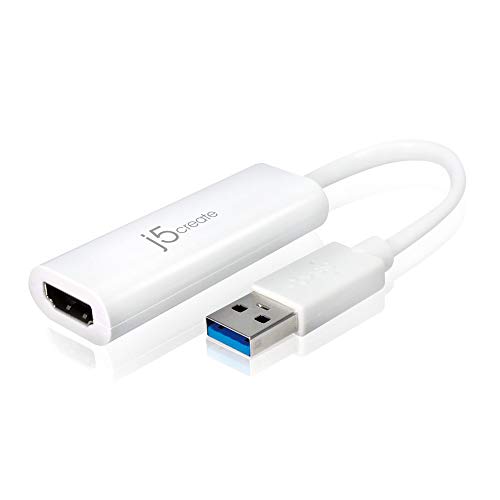
- Adds one HDMI display through USB 3.0
- Supports up to 2048x1152 video
- Hot-swappable monitor connection
Best For: Windows users adding a single external monitor
Best for Dual-Output Connectivity
StarTech USB 3.0 HDMI/DVI Adapter

- Offers HDMI and DVI-I/VGA outputs
- Supports up to 2048x1152 resolution
- Includes 5.1 surround sound audio support
Best For: Mixed-display setups using HDMI and DVI/VGA equipment
Most Versatile – WAVLINK USB 3.0/USB-C to HDMI Adapter
The WAVLINK adapter is a flexible choice for users who need high-performance USB video adapters across newer USB-C systems and traditional USB-A computers. It can mirror or extend a display, supports resolutions up to 2048×1152 at 60Hz or 2560×1440 at 50Hz, and allows up to six additional monitors on compatible PCs.
Best For: Windows, macOS, ChromeOS, Ubuntu, or compatible Android users building a multi-monitor workspace.
Pros:
- Supports USB-C, USB-A, Thunderbolt 3/4/5, and USB 4 connections.
- Can support up to six additional monitors on PCs, with one adapter per monitor.
- Includes microphone input and earphone output, plus an 18-month limited warranty.
Cons:
- DisplayLink driver installation is required.
- Maximum resolution and monitor support vary by operating system and computer.
With broad system compatibility and both USB-A and USB-C connectivity, this is the most adaptable option in the group. It is a strong fit when flexibility and multi-display expansion matter more than a plug-and-play setup without drivers.
Best for Windows Simplicity – StarTech USB-A to HDMI Converter
StarTech’s USB-A to HDMI converter is a compact Windows-only option for adding one HDMI display to a laptop or desktop. It delivers 1920×1200 or 1080p video at 60Hz, carries two-channel audio through HDMI, and runs from USB power without a separate supply.
Best For: Windows workstations, home offices, and travel setups that need one additional HDMI monitor.
Pros:
- Supports 1080p at 60Hz and up to 1920×1200 resolution.
- Compact, lightweight, and USB bus-powered.
- Works with Windows X86, X64, and ARM platforms, including Snapdragon X Copilot+ PCs.
Cons:
- Does not support macOS, ChromeOS, or Linux.
- Driver installation requires administrator rights.
This converter is a focused choice for Windows users who want a single extra HDMI output in a travel-friendly package. Its operating-system limitation is significant, but its 60Hz output and simple bus-powered design suit everyday productivity setups.
Best DisplayLink Value – gofanco USB 3.0 to HDMI Adapter
The gofanco USB 3.0 to HDMI adapter uses a DisplayLink chipset to add an external display or expand to multiple monitors. It supports up to 2560×1440 through HDMI, is powered over USB, and includes a 10-inch pigtail cable for easier positioning around a desk.
Best For: Users who want a flexible DisplayLink-based monitor expansion option for Windows or supported macOS systems.
Pros:
- Supports up to six adapters per system.
- Delivers up to 2560×1440 over HDMI and includes an HDMI-to-DVI adapter.
- USB-powered design, 10-inch cable, and activity LED simplify desk installation.
Cons:
- Requires current drivers, and macOS has stated compatibility limitations.
- Does not support HDCP-protected streaming content in Safari or movie playback through iTunes.
The gofanco model offers useful resolution and multi-monitor capability in a straightforward USB 3.0 design. It is particularly appealing for productivity displays, provided your operating system and media-use requirements fit its DisplayLink limitations.
Best Quad-Monitor Choice – StarTech USB-A to Quad HDMI Adapter
For a high-performance USB video adapter aimed at serious multitasking, StarTech’s USB-A to Quad HDMI model can drive up to four 1080p displays at 60Hz from one USB 3.0 connection. It supports five total extended displays when the laptop screen is included and uses USB power instead of an external supply.
Best For: Windows users building a four-monitor office, trading, control, or remote-work station.
Pros:
- Connects up to four HDMI monitors at 1080p and 60Hz.
- Supports up to five extended displays including the laptop screen.
- Includes window-arrangement software and a 3.3-foot attached USB-A cable.
Cons:
- Compatible only with Windows; macOS, ChromeOS, and Linux are not supported.
- Administrator rights are required for driver installation.
- Two-channel audio is replicated across all connected displays.
This is the strongest option here for creating a concentrated four-monitor workspace from a single USB-A port. Its Windows-only design and driver requirement narrow the audience, but the four 1080p outputs make it well suited to display-heavy productivity.
Versatile DisplayLink Pick – CableCreation USB 3.0 to HDMI Adapter
For a flexible option among high-performance USB video adapters, this CableCreation model connects a USB-A computer to an HDMI display, projector, or TV. It supports up to 2560×1440 when the target device supports that resolution, along with mirror and extended-display modes.
Best For: Users who need broad operating-system compatibility and an extra HDMI display for work, presentations, or media.
Pros:
- Supports HDMI video and audio, including up to 2560×1440 resolution.
- Offers both mirrored and extended desktop modes.
- Works with Windows, macOS, ChromeOS, and Linux, with DisplayLink drivers.
- Includes a two-year warranty and lifetime technical support.
Cons:
- Uses USB-A, so newer USB-C-only devices need an appropriate adapter or port.
- macOS users may need to update the system for compatibility.
- Maximum performance depends on the connected display supporting the selected resolution.
This is a strong general-purpose choice when compatibility matters more than 4K output. Its DisplayLink design and flexible operating-system support make it useful for adding a monitor to a wide range of computers.
Dual-Display 4K Choice – StarTech USB-A to Dual HDMI Adapter
This StarTech adapter is designed for Windows users building a two-screen workstation. It adds two HDMI outputs over USB 3.0, supporting one display at 4K 30Hz and a second at 1080p 60Hz for productivity-focused setups.
Best For: Windows office and home-workstation users who want two additional HDMI monitors from one USB-A connection.
Pros:
- Adds up to two extended HDMI displays.
- Supports one 3840×2160 display at 30Hz and one 1080p display at 60Hz.
- Handles two-channel audio through HDMI and supports HDCP 1.4.
- Backed by three-year coverage and lifetime 24/5 multilingual technical assistance.
Cons:
- Compatible only with Windows; macOS, ChromeOS, and Linux are not supported.
- Administrator rights are required to install the drivers.
- The 4K output is limited to 30Hz.
Among high-performance USB video adapters, this is the most workstation-oriented option in the group. Choose it when dual-monitor expansion and Windows support are priorities, rather than cross-platform flexibility.
Travel-Friendly 1440p Pick – Cable Matters USB 3.0 to HDMI Adapter
The Cable Matters adapter provides a portable way to add an HDMI display through USB 3.0. It supports resolutions up to 2560×1440, can mirror or extend a laptop screen, and includes an HDMI-to-DVI adapter for compatible video-only displays.
Best For: Windows users who need a compact adapter for presentations, travel, or an additional monitor.
Pros:
- Supports up to 2560×1440, including 1920×1080.
- Bus-powered, with no external power supply required.
- Includes an HDMI-to-DVI adapter for added display flexibility.
- Supports multiple monitors when additional adapters are used.
Cons:
- Listed compatibility is limited to Windows systems.
- DVI connection is for video only.
- Requires driver installation and does not provide 4K output in the supplied specifications.
This is a practical choice for mobile setups that value portability and straightforward 1440p support. Its included DVI adapter is especially useful when connecting to an older compatible display.
Best for Simple Expansion – j5create USB to HDMI Multi-Monitor Adapter
The j5create JUA254 is a practical choice among high-performance USB video adapters for adding one HDMI display through a USB 3.0 port. It supports up to 2048×1152 video, offers hot-swappable monitor connectivity, and avoids the need for an internal graphics-card installation.
Best For: Windows users who need an additional HDMI monitor for documents, multitasking, or everyday productivity.
Pros:
- Adds an extra display through USB 3.0 and HDMI.
- Supports video playback at up to 2048×1152.
- Hot-swappable connection lets you add or remove the monitor without rebooting.
- Includes a two-year limited manufacturer’s warranty.
Cons:
- Currently not compatible with macOS 11 Big Sur.
- Provides one additional display output rather than a dual-output design.
This adapter is a straightforward way to expand a compatible computer without opening the system or installing an internal video card. Mac users should confirm operating-system compatibility before buying.
Best for Flexible Everyday Use – USB 3.0/2.0 to HDMI Adapter
This USB to HDMI adapter is one of the more flexible high-performance USB video adapters for connecting a laptop to an HDMI display, television, or projector. With USB 3.0, it supports up to 1080p at 60Hz, while its extend and mirror modes suit multitasking, presentations, and home entertainment.
Best For: Laptop users who want an affordable, portable HDMI adapter for extended or mirrored displays.
Pros:
- Supports up to 1080p at 60Hz through USB 3.0.
- Works with Windows 7 through Windows 11 and Mac OS.
- Offers both extend and mirror display modes.
- Lightweight design is convenient for travel.
Cons:
- USB 2.0 use is recommended only at up to 720p.
- Linux, Vista, Chrome, and Firestick are not supported.
- Requires driver installation and a computer restart.
Its broad Windows support, Mac OS compatibility, and portable form make it useful for routine display expansion. For the smoothest results, use a USB 3.0 port and plan for the included driver setup.
Best for Dual-Output Connectivity – StarTech USB 3.0 HDMI/DVI Adapter
The StarTech USB32HDDVII stands out among high-performance USB video adapters by providing both HDMI and DVI-I/VGA connectivity from one USB 3.0 connection. It supports up to 2048×1152 resolution, 1080p and 1920×1200 video, plus 5.1 surround sound audio for compatible multi-monitor setups.
Best For: Desktop or laptop users who need flexible HDMI and DVI/VGA display connectivity across computers, monitors, or projectors.
Pros:
- Provides HDMI and DVI-I/VGA output options.
- Supports up to 2048×1152 video, including 1080p and 1920×1200.
- Uses USB 3.0 bandwidth and remains backward compatible with USB 2.0.
- Supports 5.1 surround sound audio.
Cons:
- USB 3.0 is recommended for optimal performance.
- Operating-system support varies by version, so compatibility should be checked before purchase.
- Its multi-connector design may be more than needed for a single HDMI-only setup.
This is the strongest fit when display flexibility matters more than having a compact single-output adapter. Its broad listed operating-system support and dual-connection design make it suitable for mixed monitor and projector environments.
How We Picked the Best High-Performance USB Video Adapters
We focused on adapters that add HDMI displays through USB while balancing resolution support, refresh rate, monitor capacity, compatibility, driver requirements, and overall practicality. The selection includes compact single-monitor models as well as DisplayLink-based adapters designed for dual- or quad-screen workstations.
We also considered connection type. USB 3.0 generally provides better bandwidth than USB 2.0, while USB-C models may be more convenient for newer laptops. Because these are USB graphics solutions rather than conventional video cables, users should confirm operating-system support and install the required driver before deployment.
Quick Comparison
- Single-monitor use: Choose a basic USB 3.0-to-HDMI adapter for adding one external screen.
- Dual monitors: Look for a dual-output adapter or two compatible single-display adapters.
- Three or four displays: Select a purpose-built multi-monitor or quad-HDMI model and verify system limits.
- Higher resolution: Some adapters support 4K at 30Hz, while many prioritize 1080p at 60Hz.
- Older and newer ports: USB-A models suit traditional desktops and laptops; USB-C versions offer easier connectivity on modern systems.
Key Buying Factors for High-Performance USB Video Adapters
Resolution and Refresh Rate
1080p at 60Hz is usually the most dependable target for office work, web browsing, and video playback. If you need 4K, confirm whether the adapter supports 4K at 30Hz or 60Hz; the distinction affects cursor movement and video smoothness.
Monitor Count and Layout
Match the adapter to the number of screens you actually need. A single-output model is simpler and often easier to troubleshoot, while dual- and quad-output units reduce cable clutter but place greater demands on drivers, USB bandwidth, and system resources.
Operating-System and Driver Support
Many USB display adapters require DisplayLink or another Windows driver. Check support for your exact Windows version, corporate security policies, and any restrictions on installing drivers. Compatibility with macOS, ChromeOS, or Linux should never be assumed from USB or HDMI labeling alone.
USB Port and Power Requirements
Use a USB 3.0 port when possible, especially for high-resolution or multiple-display setups. Hubs and unpowered docks may limit performance, so connect directly to the computer if an adapter behaves inconsistently.
Who Should Buy Which High-Performance USB Video Adapters?
Choose a single-display adapter if you need an extra monitor for email, documents, dashboards, or presentations. Choose a dual-HDMI model for a home office or workstation with two external screens. Choose a quad-HDMI adapter when you regularly manage four displays and are comfortable checking detailed driver and hardware requirements. For a newer laptop with USB-C ports, a USB-C-compatible model can be the most convenient choice. Finally, users who need gaming-grade latency, high-refresh 4K, or intensive 3D workloads should consider a dedicated graphics solution instead of relying on a USB video adapter.
