
Choosing the right workstation can make Blender feel dramatically faster, especially when your scenes rely on GPU rendering, heavy textures, or complex simulations.
Below, we focus on five capable options for different budgets and workloads, so you can pick a system that matches your workflow instead of overspending on specs you will not use.
Best 5 GPU Workstations for Blender Rendering Picks for 2026
Best Entry-Level CAD Workstation
Dell Precision 3431 Quadro P620

- Quadro P620 suits light CAD and Blender work
- 16GB RAM + 1TB SSD for smooth day-to-day use
- Windows 11 Pro and WiFi 6 simplify setup
Best For: Students and small offices needing an affordable workstation for light Blender and design work.
Best for Heavy Blender Scenes

- 48GB GDDR6 for large Blender scenes
- 61 TFLOPS with 96 compute units
- DisplayPort 2.1 plus AV1 support
Best For: Blender artists and 3D professionals working on large, memory-heavy projects.
Best for Balanced Blender Performance
Dell Tower Plus EBT2250 RTX 5060
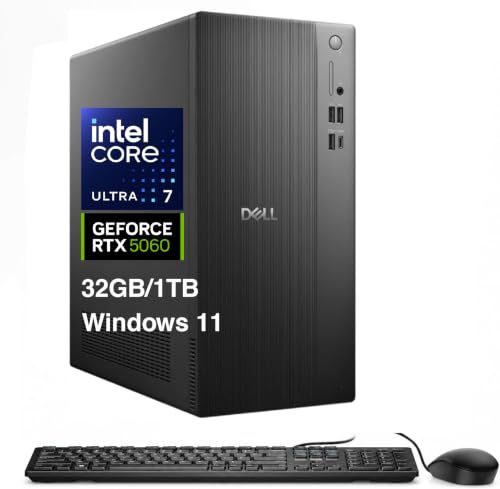
- RTX 5060 accelerates Blender GPU renders
- 32GB DDR5 and Ultra 7-265 keep workflows smooth
- 1TB SSD and modern ports make setup easy
Best For: Blender artists who want a ready-to-use tower for balanced GPU rendering and daily 3D work.
Best for AI-Scale Blender Scenes
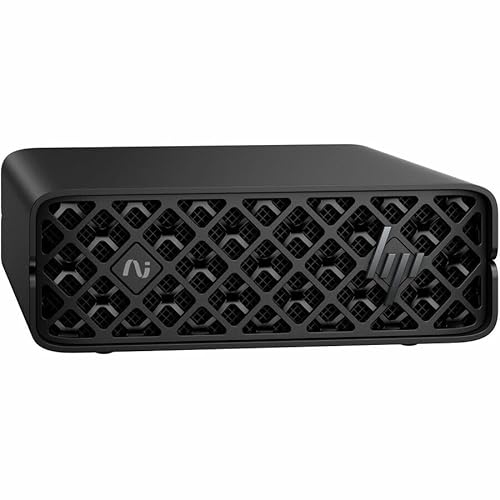
- 128 GB unified memory for huge scenes
- NVIDIA GB10 Superchip for heavy local compute
- Compact mini PC with 1 TB SSD
Best For: Blender users handling massive scenes, AI-assisted workflows, and compact local compute.
Best for Easy Setup

- 24-core Threadripper CPU for demanding simulation and render tasks
- RTX 5080 accelerates Blender GPU rendering and viewport work
- 256GB ECC DDR5 RAM with 4TB SSD for huge project files
Best For: Blender artists and 3D professionals running large scenes, simulations, and multitask-heavy workflows.
Best Entry-Level CAD Workstation – Dell Precision 3431 Quadro P620
If you need an affordable tower among gpu workstations for blender rendering, the Dell Precision 3431 is a practical business-first option with a Quadro P620, 16GB RAM, and a fast 1TB SSD. It is better suited to lighter Blender scenes, editing, CAD, and general 3D work than heavy, high-poly rendering jobs.
Best For: Students, home offices, and creators who want a reliable workstation for entry-level Blender work, design apps, and everyday productivity.
Pros:
- Quadro P620 graphics support stable visual performance for CAD and 3D workflows
- 16GB RAM and 1TB SSD help with responsive multitasking and fast loading
- Windows 11 Pro, WiFi 6, and Bluetooth make it easy to set up and use
Cons:
- 2GB GPU VRAM is limited for demanding Blender rendering scenes
- Not ideal for users who need modern high-end GPU acceleration
- Renewed configuration may not suit buyers wanting brand-new hardware
As one of the more accessible gpu workstations for blender rendering, this Dell Precision makes sense when reliability and budget matter more than raw render speed. It’s a sensible starter workstation for 3D beginners, but power users will want a stronger GPU for complex projects.
Best for Heavy Blender Scenes – AMD Radeon Pro W7900 48GB
If you need a serious GPU for gpu workstations for blender rendering, the Radeon Pro W7900 stands out with 48GB of GDDR6 memory, 96 compute units, and 61 TFLOPS of FP32 performance. It is aimed at demanding 3D work where large scenes, high-res textures, and smooth viewport responsiveness matter more than gaming features.
Best For: Blender artists, VFX creators, and 3D professionals handling large projects, heavy multitasking, and 4K/8K workflows.
Pros:
- 48GB VRAM helps with large Blender scenes and memory-heavy assets
- 61 TFLOPS and 96 CUs provide strong compute performance for pro workloads
- DisplayPort 2.1 support is useful for 4K/8K editing and multi-monitor setups
- AV1 encode/decode adds flexibility for modern video and content pipelines
Cons:
- 295W TDP means it needs a capable power and cooling setup
- Professional pricing puts it well above mainstream GPU options
- More GPU than many casual Blender users actually need
For gpu workstations for blender rendering, this card makes the most sense when scene size, stability, and memory capacity are the priority. It is a workstation-focused option for creators who regularly push beyond consumer-GPU limits.
Best for Balanced Blender Performance – Dell Tower Plus EBT2250 RTX 5060
If you want a desktop that can handle everyday 3D work without overcomplicating the build, this Dell Tower Plus is a practical fit for gpu workstations for blender rendering. The RTX 5060 gives you dedicated GPU acceleration, while the Intel Ultra 7-265 and 32GB of DDR5 help keep scenes, textures, and multitasking responsive.
Best For: Blender users who want a ready-to-go tower for moderate GPU rendering, general 3D creation, and smooth daily productivity.
Pros:
- RTX 5060 8GB GDDR7 provides dedicated GPU power for Blender renders.
- 32GB DDR5 and a 20-core Ultra 7-265 support multitasking and scene handling.
- 1TB PCIe SSD offers fast project loading and ample room for active files.
- Useful connectivity, including Wi‑Fi 7, Bluetooth 5.4, Thunderbolt 4, and multiple display outputs.
Cons:
- 8GB of VRAM may feel limited for very large Blender scenes or heavy geometry.
- 460W PSU leaves less headroom for major future GPU upgrades.
- Not an ideal choice for users who need a workstation with lots of internal expansion.
Overall, this is a solid middle-ground option among gpu workstations for blender rendering: fast enough for serious hobbyist and light professional use, but not built for the most demanding memory-heavy production scenes.
Best for AI-Scale Blender Scenes – HP ZGX Nano Workstation
If you’re comparing gpu workstations for blender rendering, the HP ZGX G1n stands out as a compact, high-memory system built more like an AI box than a traditional tower. Its NVIDIA GB10 Grace Blackwell Superchip, 128 GB of unified memory, and 1 TB SSD make it a strong fit when you need to work on very large scenes, complex assets, or hybrid 3D and AI pipelines locally.
Best For: Blender creators who want a small, local powerhouse for massive scenes, AI-assisted workflows, and fast iteration without relying on cloud compute.
Pros:
- 128 GB of coherent unified memory helps with very large projects and multitasking.
- NVIDIA GB10 Grace Blackwell Superchip is geared toward heavy local AI and compute workloads.
- Compact mini PC design saves desk space while still offering high-end networking.
- 1 TB SSD provides solid local storage for projects, cache, and assets.
Cons:
- It’s more specialized for AI/compute than a conventional Blender workstation tower.
- ARM-based platform may not suit every desktop workflow or plugin setup.
- Likely overkill if you only need a basic Blender render machine.
For buyers shopping gpu workstations for blender rendering, this HP system is best when memory capacity, compact size, and local accelerated compute matter more than a traditional upgrade path. It’s a niche but powerful choice for creators who also need AI-ready performance.
Best for Easy Setup – CLX Horus Creator Workstation
If you’re comparing gpu workstations for blender rendering, the CLX Horus Creator Workstation stands out as a high-end option built for large scenes, dense multitasking, and fast viewport responsiveness. The Threadripper CPU, RTX 5080, and huge memory pool make it a strong fit for creators who want a single tower that can handle rendering, simulation, and editing without feeling constrained.
Best For: Blender artists, 3D creators, and content professionals who need top-tier CPU/GPU horsepower and lots of RAM for demanding projects.
Pros:
- Threadripper 9960X delivers 24 cores and 48 threads for heavy production workloads
- RTX 5080 with 16GB GDDR7 supports fast GPU rendering and smooth real-time previews
- 256GB ECC DDR5 memory plus a 4TB NVMe SSD provide generous headroom for large projects
- 360mm liquid cooling and Windows 11 Pro round out a stable creator-focused setup
Cons:
- Premium pricing puts it well above mainstream creator PCs
- 16GB of VRAM may still be limiting for the biggest texture-heavy Blender scenes
For buyers prioritizing raw workstation muscle, this CLX build is one of the more serious gpu workstations for blender rendering, especially if your workflow mixes complex scenes, simulation, and multitasking across creative apps.
How We Picked the Best GPU Workstations for Blender Rendering
For GPU Workstations for Blender Rendering, we prioritized graphics performance, VRAM capacity, CPU headroom, memory size, storage speed, and overall system balance. We also looked for configurations that make sense for real creator workflows, including scene prep, viewport interaction, and render throughput.
Because Blender workloads vary widely, we included both full desktop workstations and specialized high-end systems so buyers can compare traditional towers against more focused pro graphics options.
Quick Comparison
If you want a straightforward Blender setup, a well-balanced tower with a modern GPU is often the easiest choice. If your scenes are large or texture-heavy, higher VRAM and more system memory matter more than raw CPU marketing numbers. For professional pipelines, workstation-grade support, ECC memory, and expansion options can be just as important as frame-by-frame render speed.
Key Buying Factors for GPU Workstations for Blender Rendering
GPU Power and VRAM
For Cycles rendering, the GPU is usually the main performance driver. More VRAM helps avoid crashes or slowdowns when scenes exceed memory limits, especially with high-resolution textures, dense geometry, and multiple assets. Aim for a card that fits your scene size today with room to grow.
CPU, RAM, and Storage Balance
Blender still benefits from a strong CPU for simulation, baking, imports, exports, and general responsiveness. At least 32GB of RAM is a sensible starting point for serious work, while 64GB or more is better for larger projects. Fast NVMe SSD storage keeps file loading and cache handling snappy.
Cooling, Power, and Expandability
High-performance GPUs and thread-heavy CPUs need adequate cooling and a power supply that can sustain long render sessions. If you expect your projects to grow, look for extra M.2 slots, RAM slots, and room for future GPU upgrades.
Who Should Buy Which GPU Workstations for Blender Rendering?
Choose a balanced tower if you want an easy, ready-to-use Blender desktop for everyday 3D work. Pick a higher-end creator workstation if you handle complex scenes, large simulations, or frequent client deadlines. Go for a pro graphics-focused system if your workflow values reliability, driver support, and large VRAM over gaming-style features.
For teams and power users, the best GPU Workstations for Blender Rendering are the ones that match your scene complexity, storage needs, and upgrade plans, not just the biggest headline GPU spec.
