
A trackball lets you move the pointer without sliding a mouse across your desk—a useful change if space is tight or repeated reaching feels uncomfortable.
These eight picks include thumb-operated and finger-operated designs, adjustable tilt options, and several Logitech M575S listings. The right choice depends on how you prefer to move the cursor, not just the shape of the mouse.
Best 8 Ergonomic Trackballs Picks for 2026
Best Adjustable Tilt

- Choose a 0° or 18° tilt
- Switch among three connected devices
- Five DPI levels; USB-C rechargeable
Best For: Right-handed users comparing wrist angles across devices
Best for Quiet Workspaces
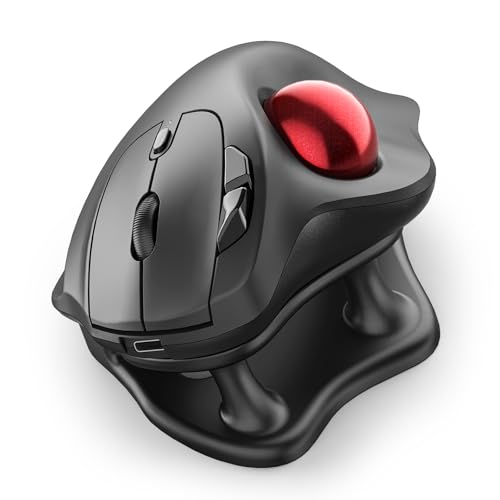
- 21.7° tilt stand
- Quiet ball, buttons, and scroll wheel
- Three-device switching; four DPI levels
Best For: Right-handed users in shared or late-night workspaces
Best Ambidextrous Pick
Kensington Orbit with Scroll Ring

- Works with either hand
- Dedicated scroll ring and removable wrist rest
- Two software-customizable buttons
Best For: Left- or right-handed users who prefer a wired desk setup
Best Long-Battery Option

- Up to 18 months on an included AA battery
- Bluetooth or Logi Bolt USB connection
- Quiet clicks and customizable controls
Best For: Right-handed users seeking low-maintenance wireless use
Best for Larger Hands
TECKNET Wireless Trackball Mouse

- 16° angled, right-handed shape
- Switches among three devices
- Five DPI settings; rechargeable
Best For: Medium- to large-handed users with compact workspaces
Best for Customization

- 20° tilt and thumb control
- Six customizable buttons
- USB-C rechargeable; dual wireless
Best For: Medium- to large-handed users who rely on shortcuts
Best for Simple Desk Setups
Logitech ERGO M575S Black/Silver

- Up to 18 months on one AA
- Bluetooth or included Bolt receiver
- Quiet clicks; thumb-operated ball
Best For: Compact desks and users who prefer AA battery power
Best for Multi-Platform Use
Logitech ERGO M575S Black/Blue

- Windows, macOS, Android, iOS listed
- Bluetooth or included Bolt receiver
- Up to 18 months on included AA
Best For: Compact workspaces with mixed operating systems
Best Adjustable Tilt – SABLUTE MAM1 Pro Trackball
Among ergonomic trackballs, the SABLUTE MAM1 Pro stands out for its choice of a flat 0° position or an 18° tilt. Its thumb-operated ball keeps cursor movement at your fingertips rather than requiring room to move the mouse.
Best For: Right-handed users who want to try two wrist angles and switch among multiple devices.
Pros:
- Adjustable 0°/18° tilt offers two hand positions.
- Bluetooth and 2.4 GHz connections support up to three devices.
- Five DPI settings, quiet-touch buttons, and USB-C recharging add flexibility.
Cons:
- Designed for right-handed use.
- Its customization driver is not compatible with macOS.
The adjustable angle is the main reason to choose this model. If you plan to customize button behavior on a Mac, note the driver limitation before buying.
Best for Quiet Workspaces – Nulea M511 Trackball
The Nulea M511 is an ergonomic trackball aimed at shared desks and focused work. Its thumb-controlled ball sits alongside a 21.7° tilt stand, while the buttons, scroll wheel, and ball are designed for quiet operation.
Best For: Right-handed users who want a tilted trackball with quiet controls for office or late-night use.
Pros:
- 21.7° stand provides an elevated hand position.
- Quiet controls include the trackball, buttons, and scroll wheel.
- Bluetooth and USB receiver connections let you switch among up to three devices.
- Four DPI settings range from 400 to 1600.
Cons:
- Designed for right-handed use.
- None of its buttons are programmable.
Choose this one if reducing input noise matters as much as a tilted grip. Users who rely on custom button assignments should look elsewhere.
Best Ambidextrous Pick – Kensington Orbit with Scroll Ring
For shoppers comparing ergonomic trackballs across hand preferences, the wired Kensington Orbit offers an ambidextrous shape rather than a right-handed thumb-ball layout. Its scroll ring and detachable wrist rest make it a practical desk-based option.
Best For: Left- or right-handed users who prefer a wired trackball with a dedicated scroll ring.
Pros:
- Ambidextrous design accommodates either hand.
- Scroll ring handles document and page navigation.
- Detachable wrist rest adds cushioning.
- Kensington software can customize both buttons and cursor and scrolling speeds.
Cons:
- USB cable limits wireless desk flexibility.
- Only two buttons are available for assignments.
The Orbit is strongest when both-handed access, scrolling, and a supported wrist matter more than wireless connectivity or a larger button count.
Best Long-Battery Option – Logitech ERGO M575S
The Logitech ERGO M575S brings a sculpted, right-handed shape to ergonomic trackballs, with thumb control that saves space on a crowded desk. Bluetooth and the included Logi Bolt USB receiver offer two connection options without requiring a charging routine.
Best For: Right-handed users who want a space-saving wireless trackball with long AA-battery life.
Pros:
- Thumb control keeps the mouse stationary on a small work surface.
- Quiet clicks suit shared workspaces.
- Included AA battery is rated for up to 18 months of use.
- Logi Options+ supports button customization, shortcuts, and cursor-speed adjustment.
Cons:
- Right-handed shape does not suit left-handed use.
- Runs on a replaceable AA battery rather than USB charging.
This is a sensible fit if you value a familiar wireless setup and infrequent battery changes. Check that the fixed sculpted shape suits your hand, since it offers no adjustable tilt.
Best for Larger Hands – TECKNET Wireless Trackball Mouse
Among ergonomic trackballs, this TECKNET model stands out for its roomy right-handed shape and 16° angled design. Its thumb-operated ball lets you navigate without moving the mouse across your desk.
Best For: Medium- to large-handed users who want a rechargeable trackball for a compact workspace.
Pros:
- Switches among two Bluetooth connections and one 2.4 GHz connection.
- Five sensitivity settings, from 100 to 1200 DPI.
- USB-rechargeable battery; a 15-minute charge is rated for a day of use.
Cons:
- Right-handed design is specifically sized for medium to large hands.
- TECKNET recommends allowing one to two weeks to get used to it.
The adjustable sensitivity and three-device switching make this a flexible choice if its larger grip suits your hand.
Best for Customization – Logitech MX Ergo S
The Logitech MX Ergo S is one of the more configurable ergonomic trackballs here, pairing a 20° tilt with thumb control and a button that switches between speed and high-precision tracking.
Best For: Medium- to large-handed users who want customizable controls and a rechargeable mouse.
Pros:
- Six customizable buttons support shortcuts through the Logi Options+ app.
- Connects by Bluetooth or the included Logi Bolt USB receiver.
- USB-C charging is rated for up to 24 hours of use from a one-minute charge.
- Contoured right-handed shape includes a soft rubber grip.
Cons:
- Charging cable is not included.
- Its contoured fit is intended for medium to large hands.
Choose this model if shortcuts and quick charging matter more to you than a simpler, battery-powered setup.
Best for Simple Desk Setups – Logitech ERGO M575S Black/Silver
If you want ergonomic trackballs without a charging routine, this ERGO M575S uses an included AA battery rated for up to 18 months. Its stationary, thumb-controlled design also suits desks with little room to move a mouse.
Best For: Users seeking a space-saving, right-handed trackball with long AA battery life.
Pros:
- Connects over Bluetooth or with the included Logi Bolt USB receiver.
- Sculpted shape is designed to support the hand and forearm.
- Offers quiet clicks and three customizable buttons through Logi Options+.
Cons:
- Uses a replaceable AA battery rather than USB charging.
- Right-handed shape will not suit left-handed use.
This is a straightforward option when you prefer a familiar, low-maintenance trackball over tilt adjustments or charging features.
Best for Multi-Platform Use – Logitech ERGO M575S Black/Blue
Logitech Ergo M575S Wireless Ergonomic Trackball Mouse, Black/Blue (910-007026)
Check Price On AmazonThis black-and-blue ERGO M575S brings space-saving thumb control to the ergonomic trackballs lineup. Its listed compatibility includes Windows, macOS, Android, and iOS devices, making it worth considering for a mixed-device desk.
Best For: Users who want a thumb trackball for a compact workspace with broad listed device compatibility.
Pros:
- Connects via Bluetooth or the included Logi Bolt receiver.
- Included AA battery is rated for up to 18 months.
- Three customizable buttons support shortcuts and Smart Actions.
Cons:
- AA-powered rather than rechargeable.
- No adjustable tilt is listed in the supplied specifications.
Its appeal is the combination of a stationary trackball, customizable controls, and support for several operating systems; check compatibility with your specific device before buying.
How We Picked These Ergonomic Trackballs
We focused on differences that matter in daily use: ball placement, hand angle, scrolling controls, connectivity, and charging or battery setup. We also considered whether a model suits a compact desk and how easily a buyer can identify the exact version listed. Several selections are Logitech Ergo M575S variants, so the eight listings do not represent eight entirely different designs. Product specifications can vary by seller; confirm the model number and included accessories before ordering.
Quick Comparison
For adjustable hand position: Start with the Logitech MX Ergo S or the rechargeable 0°/18° adjustable-angle model. Their tilt options may help you find a more natural resting position.
For a familiar thumb-operated layout: Consider the Logitech Ergo M575S listings, the Nulea 21.7° tilt model, or the TECKNET wireless trackball. Compare their connection options and power requirements rather than choosing by color alone.
For finger-operated control: The Kensington Orbit uses a different layout and has a scroll ring, making it worth considering if you do not want to steer the ball with your thumb.
Key Buying Factors for Ergonomic Trackballs
Ball Position and Hand Fit
Thumb trackballs keep the ball beside your hand and often feel familiar to mouse users. A centrally placed, finger-operated ball shifts cursor movement to your fingers. Neither is universally better: your hand size, grip, and existing thumb or finger discomfort should guide the choice. If possible, try both styles before committing.
Tilt and Desk Position
A tilted body can change how your forearm rests, but the most angled option is not automatically the most comfortable. Look for a position that lets your wrist stay relatively straight and your shoulder relax. Because the device stays put while the pointer moves, trackballs can work particularly well on crowded desks.
Connections, Power, and Scrolling
Check whether your computer supports the listed Bluetooth or USB receiver connection, especially if ports are limited or you switch between devices. Decide whether you prefer recharging or replacing batteries. Scrolling also differs: a dedicated ring feels unlike a conventional wheel, so consider the documents and apps you use most.
Who Should Buy Which Ergonomic Trackballs?
Choose an adjustable-tilt option if hand angle is your main concern. Choose an M575S variant if you want a straightforward thumb-operated trackball and find a listing with the connection and color you prefer. Try the Kensington Orbit if finger control and a scroll ring appeal to you. Consider the Nulea or TECKNET when their listed features and price fit your needs. Whatever you choose, ease into longer sessions and adjust your workstation as a whole; a trackball alone cannot guarantee relief from pain.
