
A second screen can make a MacBook much easier to use for research, spreadsheets, calls, and editing. Portable extenders promise that extra space without committing to a desk-bound monitor.
The catch is compatibility: a product labeled “plug and play” may still need the right ports, cables, power supply, or display software. These 10 options cover compact extenders, larger panels, and multi-screen travel setups.
Best 10 Dual Screen Monitor Setups for Macbook Picks for 2026
Cleanest Cable Setup
ZUMWALT P7 Triple-Screen Extender
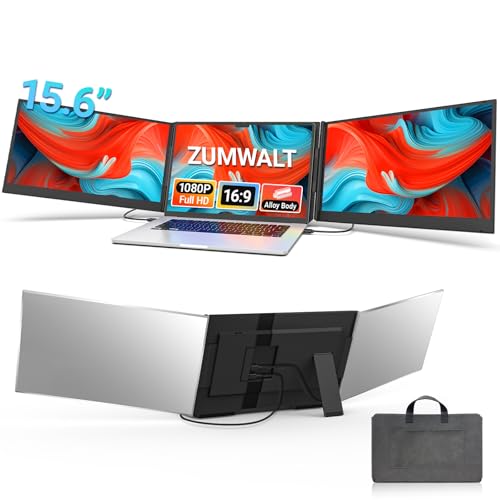
- Two USB-C cables on compatible laptops
- Two 15.6-inch 1080p displays
- Base M1–M3 MacBooks need an H5-T adapter
Best For: Travelers with compatible full-featured USB-C MacBooks
Most Complete Cable Kit
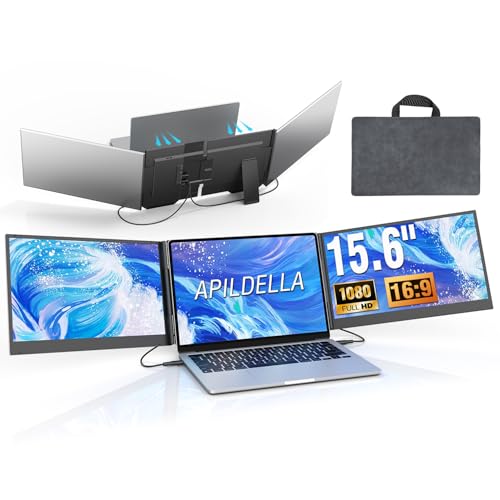
- Two 15.6-inch portable displays
- Cables, power adapter, and bag included
- M1–M4 MacBooks require separate H5-T accessory
Best For: Mobile workers seeking an accessory-packed triple-screen kit
Lightest Single-Screen Pick

- One 14.2-inch 1080p display
- Weighs 1.87 pounds
- USB-C or HDMI-plus-USB-A connection
Best For: Frequent travelers needing one lightweight extra screen
Best Simple Side Screen
KEFEYA 14-Inch Laptop Screen Extender

- One 14-inch 1080p IPS side screen
- Driver-free setup with included cables
- HDMI needs a separate power connection
Best For: Portable MacBook setups needing one extra display
Best Stacked Workspace
VisionOwl Dual 15.6-Inch Portable Monitor

- Two stacked 15.6-inch FHD displays
- Kickstand, VESA support, and travel sleeve
- macOS requires a DisplayLink driver
Best For: Two external screens in a stacked workspace
Best Lightweight Triple-Screen Attachment

- Two 14-inch FHD IPS extender screens
- 3.0-pound attachable design
- M1/M2/M3 dual-screen use needs DisplayLink
Best For: Travelers seeking a laptop-attached triple-screen layout
Best Freestanding Triple-Screen Setup
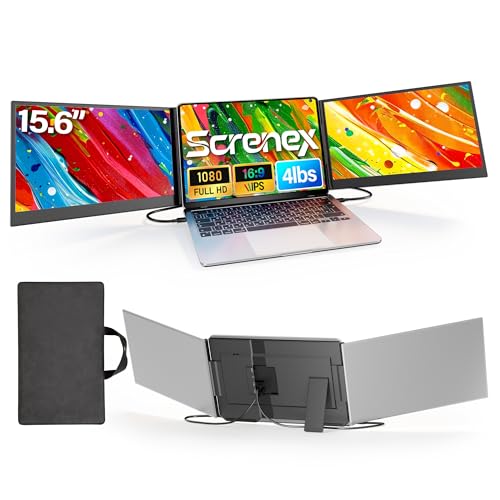
- Adds two 15.6-inch 1080p IPS screens
- Freestanding stand avoids lid-mounted weight
- M1–M3 MacBooks need extra cable and driver
Best For: MacBook users seeking two additional, freestanding displays
Best Compact Second Screen

- Foldable 1080p IPS second screen
- Listed weight of 0.89 kg
- HDMI use needs a separate power connection
Best For: Travelers wanting a compact MacBook second screen
Best Detachable Display

- Detaches for standalone placement
- 15.6-inch 1080p IPS screen
- USB-C video requires a compatible port
Best For: Flexible attached or standalone second-screen use
Most Flexible Layout – 15.6-Inch Detachable Screen Extender
For dual screen monitor setups for MacBook users who want flexible screen placement, this extender adds two 15.6-inch 1080p displays that can detach for separate use. Its stand supports landscape, portrait, and stacked arrangements.
Best For: MacBook Pro or Max chip users who want adjustable, detachable displays.
Pros:
- 235° horizontal and 90° vertical rotation support varied layouts.
- Each display can be detached and used independently.
- IPS panels include speakers, low-blue-light filtering, and anti-glare features.
Cons:
- Does not support base M1, M2, or M3 chips, according to the listing.
- HDMI connections also need a USB cable to power each display.
The detachable design is the standout feature. Check your MacBook chip and available ports before choosing it.
Cleanest Cable Setup – ZUMWALT P7 Triple-Screen Extender
Among dual screen monitor setups for MacBook laptops, the ZUMWALT P7 aims to keep wiring simple: its two 15.6-inch 1080p displays connect with two USB-C cables when the laptop has suitable full-featured ports. The clip-free aluminum design also comes with a carry bag.
Best For: Travelers with compatible USB-C MacBooks who want a tidier triple-screen workspace.
Pros:
- Two-cable USB-C setup on supported laptops.
- Two 15.6-inch FHD screens provide room for multiple applications.
- Clip-free design, aluminum shell, and included carry bag suit travel.
Cons:
- Base M1, M2, and M3 MacBooks require an additional H5-T cable and driver installation.
- The roughly 4-pound extender adds noticeable weight to a travel bag.
This is a practical choice if your MacBook supports the straightforward USB-C connection. Otherwise, confirm the required adapter and cabling before buying.
Most Complete Cable Kit – APILDELLA 15.6-Inch Extender
For dual screen monitor setups for MacBook users who prefer accessories in the box, this APILDELLA extender includes two 15.6-inch displays, multiple connection cables, a power adapter, and a travel bag. Its two-cable arrangement applies when the laptop has the required video-capable ports.
Best For: Mobile workers who want a packaged triple-screen kit and can verify MacBook compatibility first.
Pros:
- Includes USB-C, USB-A, and HDMI connection cables plus a power adapter.
- Clip-free aluminum design folds for transport and includes a travel bag.
- Supports extended and mirrored display modes.
Cons:
- The listing says M1–M4 MacBooks need a separate H5-T accessory.
- Requires two DisplayPort-capable USB-C ports or a compatible USB-C and HDMI combination.
The included accessories make planning easier, but they do not eliminate the MacBook-specific adapter requirement. Confirm your chip and ports before ordering.
Lightest Single-Screen Pick – 14.2-Inch Travel Extender
If your ideal dual screen monitor setup for MacBook needs just one extra display, this 14.2-inch 1080p extender keeps the kit compact. It weighs 1.87 pounds and fits laptops from 14 to 17.3 inches.
Best For: Frequent travelers who want one lightweight screen beside a compatible MacBook.
Pros:
- 1.87-pound, 0.27-inch-thin design is easy to pack.
- Matte IPS display is rated at 300 nits and adjusts through a 226° range.
- Uses one full-featured USB-C connection or included HDMI and USB-A cables.
Cons:
- Adds one display, not the two external screens offered by triple-screen extenders.
- Laptops without full-featured USB-C need both HDMI and USB-A connections.
Choose this one when portability matters more than maximum screen count. Check your MacBook’s port capabilities to know which cables you will need.
Best Simple Side Screen – KEFEYA 14-Inch Laptop Screen Extender
For dual screen monitor setups for MacBook users who want one extra display without installing a driver, the KEFEYA adds a 14-inch, 1080p IPS screen alongside a 13- to 17-inch laptop. Its 180-degree rotation is handy when you need to show someone your work.
Best For: MacBook users who want a portable side screen for documents, calls, or reference material.
Pros:
- 14-inch matte IPS display with 1080p resolution and 300-nit rated brightness.
- Includes USB-C, USB-A-to-USB-C, and HDMI cables; no driver installation is specified.
- Supports extended, mirrored, landscape, and portrait display modes.
Cons:
- Provides one additional screen, not two.
- HDMI connections also require a USB-A-to-USB-C cable for power.
This is the straightforward pick when a single attachable display meets your needs. Check your MacBook’s available ports and plan for the extra power connection if you use HDMI.
Best Stacked Workspace – VisionOwl Dual 15.6-Inch Portable Monitor
If you prefer vertical space in dual screen monitor setups for MacBook, the VisionOwl puts two 15.6-inch, 1080p IPS displays in a foldable stacked unit. It can sit on its adjustable kickstand or attach to a VESA mount, but macOS setup requires installing the official DisplayLink driver.
Best For: MacBook users who want two external screens for documents, dashboards, and chats without spreading displays across a desk.
Pros:
- Two matte 15.6-inch FHD screens with a stated 107% sRGB color gamut.
- Folds for travel and includes a padded sleeve, power adapter, and connection cables.
- Offers a kickstand, VESA support, and landscape or portrait positioning.
Cons:
- macOS users must install DisplayLink software.
- At 3.5 pounds, it adds noticeable weight to a travel bag.
- The stacked panels work as separate displays, not one continuous screen.
Choose this model when two external work areas matter more than a driver-free setup. The supplied accessories make the connections easier to plan, while the stacked layout keeps the footprint relatively narrow.
Best Lightweight Triple-Screen Attachment – Vixtan 14-Inch Extender
The Vixtan is an attachable option for dual screen monitor setups for MacBook shoppers who may want to expand to a laptop-plus-two-screen workspace. Its 14-inch, 1080p IPS panels are supported by an adjustable rear stand, but the stated MacBook M1/M2/M3 limitation needs attention before you buy.
Best For: Travelers with compatible laptops who want an attachable triple-screen layout and are willing to verify their MacBook’s display support.
Pros:
- Two 14-inch FHD IPS screens create a triple-screen setup with the laptop display.
- Weighs 3.0 pounds and fits laptops from 13 to 17.3 inches.
- Includes USB-C and HDMI cables and supports extended, mirrored, and portrait modes.
Cons:
- The notes state that M1/M2/M3 MacBooks support only one external screen without a DisplayLink adapter for a dual-external-screen setup.
- Flickering or low brightness may require a separate 5V/3A-or-higher power adapter.
The appeal is a compact, laptop-attached workspace rather than separate desk monitors. For an M1, M2, or M3 MacBook, budget for the specified adapter if your goal is to use both extender screens.
Best Freestanding Triple-Screen Setup – 15.6-Inch P7 Laptop Extender
For dual screen monitor setups for MacBook users who want even more room, this extender adds two 15.6-inch 1080p IPS displays. Its freestanding design sits behind the laptop rather than hanging from the screen.
Best For: MacBook users who want two additional displays without attaching their weight to the laptop lid.
Pros:
- Two matte 15.6-inch 1080p IPS panels provide ample workspace.
- Freestanding, non-slip stand avoids clamping onto the laptop screen.
- Includes a carry case, power adapter, and connection cables.
Cons:
- At 3.9 pounds, it is a substantial addition to a travel bag.
- M1–M3 MacBooks require an extra H5-T cable, an HDMI and USB-A connection, and a driver; the H5-T cable is not listed among included accessories.
This is the space-maximizing choice if you can accommodate its footprint and verify your MacBook’s connection requirements before buying.
Best Compact Second Screen – SIUT A5 14-Inch Extender
If you are comparing dual screen monitor setups for MacBook travel, the SIUT A5 adds one foldable 14-inch-class 1080p IPS display. It supports extended and mirrored views, with portrait positioning for documents or chat.
Best For: Travelers who want a compact second screen for a 13- to 17-inch MacBook or other laptop.
Pros:
- Foldable design and listed 0.89 kg weight suit mobile use.
- 1080p IPS panel offers 300-nit brightness and adjustable picture settings.
- Includes USB-C, USB-A, and HDMI cables; the listing states no driver is required.
Cons:
- HDMI video requires a separate cable connection for power.
- Verify your MacBook’s available video-output ports before relying on a single-cable setup.
Choose this one when portability matters more than maximum display area; its connection options are flexible, but HDMI setups need power as well as video.
Best Detachable Display – Wixzet 15.6-Inch Extender
Among dual screen monitor setups for MacBook owners, this 15.6-inch extender stands out because its display can detach for standalone use. The 1080p IPS screen supports extended, mirrored, and portrait workflows.
Best For: Users who want a second screen that can work attached to a laptop or separately on a desk.
Pros:
- Detachable screen and adjustable stand offer different placement options.
- 15.6-inch 1080p IPS panel lists 100% sRGB coverage and a 178° viewing angle.
- Supports USB-C video or HDMI with USB-A power, with the necessary cables included.
- Supports up to 100W USB-C PD pass-through when connected to a suitable PD adapter.
Cons:
- At 2.75 pounds, it still adds noticeable travel weight.
- USB-C video requires a compatible Thunderbolt or DisplayPort Alt Mode port; HDMI also needs power.
The detachable design is the main reason to pick it: you can change your screen placement as your workspace changes, provided your MacBook has a suitable video connection.
How We Picked the Best Dual Screen Monitor Setups for Macbook
We focused on portable displays and laptop-mounted extenders that could add useful workspace without a permanent desk setup. The selection spans 14-inch and 15.6-inch 1080p options, single additional screens and products marketed for triple-screen use, plus USB-C and HDMI connection choices. We considered screen size, carrying weight, mounting style, and the compatibility details buyers should verify. Listed specifications are a starting point, not proof that every display mode works with every MacBook.
Quick Comparison
For the lightest-feeling travel setup, start with a 14-inch extender, such as the KEFEYA or Vixtan, and check its actual weight and mounting clearance. A 15.6-inch model gives documents and side-by-side windows more room but takes up more bag space. The VisionOwl’s foldable, stacked design offers a different layout from side-mounted extenders; check the height and stability of your intended workspace. Products described as “triple” typically aim to give you two external screens alongside the MacBook display, so compatibility matters more than the label.
Key Buying Factors for Dual Screen Monitor Setups for Macbook
External-Display Support
Check your exact MacBook model and chip before buying. Native external-display limits vary across Apple silicon generations and configurations. Some multi-screen extenders may require a DisplayLink-compatible adapter and driver, while others may mirror screens or fail to run both panels independently. Confirm the seller’s macOS instructions and the number of extended displays supported—not just whether a USB-C plug fits.
Ports, Power, and Cables
USB-C can carry video only when the MacBook port, cable, and display support the required video mode. HDMI connections often need separate USB power, and a single MacBook USB-C port may not power two panels reliably. Look for an included cable list, power requirements, and a connection diagram for your MacBook. If you use a dock, verify its macOS display support separately.
Fit and Everyday Usability
Check the extender’s supported laptop size against your MacBook’s physical dimensions, screen thickness, and case. A clamp-on unit can add weight to the lid; a freestanding or detachable screen may work better on a small table. Most options here are FHD rather than Retina-density displays, so expect visible differences in text sharpness beside your MacBook screen. Also consider brightness, viewing angles, rotation, and whether the layout leaves room for your charger.
Who Should Buy Which Dual Screen Monitor Setups for Macbook?
Choose a compact 14-inch extender if bag space and occasional travel use come first. Pick a 15.6-inch screen if you routinely keep reference material, chat, or spreadsheets open beside your main task. Consider a foldable stacked design when side-to-side desk space is limited. If you want two independent external screens, make verified support for your specific MacBook the deciding factor; for many buyers, one dependable second display is more useful than a three-screen setup that requires extra adapters and power.
