
The best drawing display tablets for home offices combine a responsive pen, a comfortable screen, and practical controls without taking over your desk. The right choice depends on your workspace, creative software, connection options, and budget.
We’ve selected 10 models ranging from compact 11.6-inch displays to larger, higher-resolution tablets, including options with shortcut keys, dials, touch bars, laminated screens, and wide color coverage.
Best 10 Drawing Display Tablets for Home Offices Picks for 2026
Best Precision Pick

- Fully laminated 11.6-inch anti-glare screen
- Red dial plus 8 customizable shortcut keys
- 8,192 pressure levels with 60° tilt
Best For: Artists and remote teachers needing compact, precise on-screen control
Best Color Accuracy

- 13.3-inch laminated Canvas Glass 2.0 display
- 99% sRGB and average ΔE below 1.5
- 16,384 pressure levels with dual dials
Best For: Designers and illustrators who need color-focused control
Best Compact Value

- 11.6-inch Full HD IPS display
- Battery-free 8,192-pressure-level pen
- 6 keys and programmable touch bar
Best For: Beginners, students, and teachers working from a computer
Best Large Canvas
- Spacious 15.6-inch laminated anti-glare display
- 120% sRGB and 92% AdobeRGB coverage
- 6 keys, touch bar, and adjustable stand
Best For: Artists wanting a roomy, color-rich home-office display
Practical Starter Pick
- 11.6-inch Full HD matte display
- Battery-free pen with tilt and 8,192 levels
- Eight programmable shortcut keys
Best For: Beginners and home-office creators using Windows or Mac
Flexible Connectivity Pick

- 13.3-inch fully laminated Full HD display
- 16,384-pressure battery-free stylus
- USB-C, shortcut keys, dial, and stand
Best For: Creators switching among compatible computers, Chromebooks, and Android devices
Color-Accurate Workhorse
- 13.3-inch full-laminated Canvas Glass 2.0
- Factory-calibrated color with ΔE<1.5
- Dual dials and five silent shortcut keys
Best For: Color-conscious artists, designers, and editors
Premium QHD Pick

- 2.5K 16-inch laminated anti-glare display
- 16,384 pressure levels with 60° tilt
- Includes stand, remote, and wrist rest
Best For: Detailed illustration, editing, and 3D work
Compact Workflow Pick
- 13.3-inch fully laminated FHD display
- Dial, eight shortcut keys, and tilt support
- Includes battery-free stylus and stand
Best For: Compact home-office drawing and teaching setups
Color-Mode Value Pick
UGEE UE16 15.4-inch Drawing Tablet

- 15.4-inch full-laminated 1080p display
- 143% sRGB with four color modes
- Eight keys, wheel, and 16K pressure
Best For: Painting and design with flexible color settings
Best Precision Pick – XP-Pen Artist12 Pro
For home offices that need responsive, on-screen control, the XP-Pen Artist12 Pro is a compact choice among drawing display tablets for home offices. Its fully laminated 11.6-inch display, dial, shortcut keys, and battery-free stylus support detailed drawing, editing, annotation, and remote presentations.
Best For: Digital artists, remote teachers, and home-office users who value precise cursor placement and customizable controls.
Pros:
- Fully laminated anti-glare display helps reduce visual gaps and reflections.
- Red dial and eight customizable keys streamline zooming, brush sizing, and shortcuts.
- Battery-free stylus offers 8,192 pressure levels and up to 60° tilt support.
- Works with Windows, macOS, ChromeOS, and Linux, plus common creative software.
Cons:
- It must be connected to a computer and cannot work as a standalone tablet.
- The 11.6-inch screen may feel limited for users who prefer a larger canvas.
The Artist12 Pro is a well-equipped small display for precise creative work. Its shortcut layout and remote-work features make it especially practical when desk space is limited.
Best Color Accuracy – HUION Kamvas 13 Gen 3
The HUION Kamvas 13 Gen 3 stands out for home-office creators who want a larger working area and dependable color. Its 13.3-inch laminated display, high color coverage, dual dials, and included adjustable stand make it a flexible option among drawing display tablets for home offices.
Best For: Illustrators, designers, and animators who prioritize color consistency, ergonomic positioning, and efficient controls.
Pros:
- 13.3-inch Canvas Glass 2.0 display is fully laminated and designed to reduce glare.
- Supports 16,384 pressure levels, 2g initial activation force, and three pen buttons.
- Offers 99% sRGB coverage, Rec.709 support, and reported average ΔE below 1.5.
- Includes five programmable keys, dual dials, and an adjustable stand.
Cons:
- It is a pen display, not a standalone device, and requires a compatible host.
- Some connection setups may require a separate full-featured USB-C cable.
With its stronger color specifications and included stand, the Kamvas 13 Gen 3 is a compelling home-office display for visual work. It also supports Windows, macOS, Linux, and select Android devices.
Best Compact Value – XP-Pen Artist12
The original XP-Pen Artist12 is a straightforward, compact option for home offices adding pen input to a computer. Its 11.6-inch Full HD display, programmable touch bar, battery-free stylus, and broad software compatibility make it approachable for drawing, annotation, and online teaching.
Best For: Students, teachers, and beginners who want an accessible drawing display for a computer-based home workspace.
Pros:
- Full HD IPS display provides 72% NTSC and 100% sRGB color coverage according to the supplied notes.
- Battery-free pen includes an eraser and supports 8,192 pressure levels.
- Six customizable keys and a programmable touch bar support common shortcuts.
- Compatible with Windows, macOS, Linux, and many popular creative and conferencing apps.
Cons:
- It must be connected to a computer to operate.
- Connection requires available HDMI and USB-A ports or suitable adapters.
- The compact 11.6-inch workspace may be restrictive for detailed, large-format projects.
The Artist12 keeps the feature set practical without taking over a desk. It is particularly useful for remote instruction and handwritten screen annotation, provided your computer has the required ports.
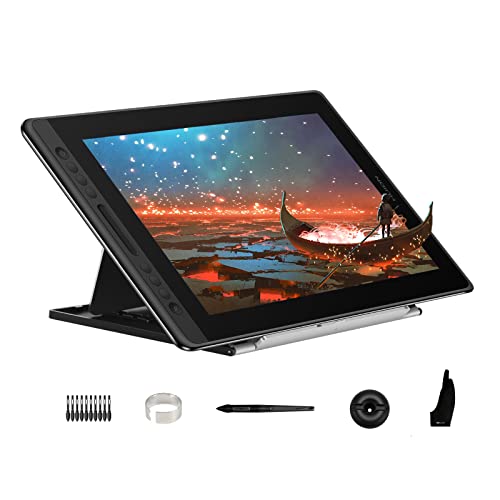
Best Large Canvas – HUION Kamvas Pro 16
For home-office artists who prefer more room to draw, the HUION Kamvas Pro 16 combines a 15.6-inch laminated display with a stand and built-in workflow controls. Its wide color gamut, anti-glare glass, touch bar, and shortcut keys make it a strong larger-format entry among drawing display tablets for home offices.
Best For: Digital painters, designers, and editors who want a spacious screen and adjustable desk positioning.
Pros:
- 15.6-inch Full HD display uses full lamination and anti-glare glass.
- 120% sRGB volume and 92% AdobeRGB coverage support vivid, detailed visuals.
- Six express keys and a touch bar provide quick access to creative controls.
- Includes an adjustable stand with viewing angles from 20° to 60°.
Cons:
- It requires a connected computer or laptop and is not standalone.
- The larger display weighs about three pounds and occupies more desk space.
- Its stylus offers 8,192 pressure levels, fewer than some newer compact models.
The Kamvas Pro 16 is best suited to users who value canvas size and color range over a minimal footprint. The included stand and shortcut controls also help make longer home-office sessions more comfortable.
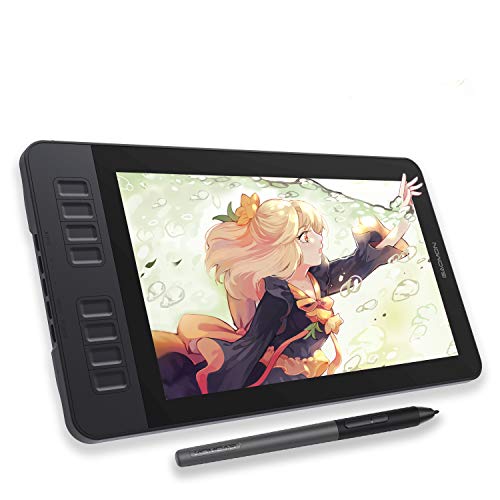
Practical Starter Pick – GAOMON PD1161
For shoppers comparing drawing display tablets for home offices, the GAOMON PD1161 offers a straightforward screen-based setup for sketching, image editing, design work, notes, and remote collaboration. Its 11.6-inch Full HD display has a matte anti-glare film, while the battery-free pen provides 8,192 pressure levels and tilt support.
Best For: Beginners, students, teachers, and home-office creators who want an affordable pen display for Windows or Mac.
Pros:
- Draw directly on an 11.6-inch Full HD IPS screen with a paper-like matte surface.
- Battery-free stylus includes 8,192 pressure levels and tilt functionality.
- Eight programmable side keys and two pen buttons support customizable shortcuts.
- Works with Windows 7 or later, macOS 10.12 or later, and software such as Krita, Photoshop, Blender, and OneNote.
Cons:
- It is not standalone and must be connected to a compatible computer.
- Connecting requires available HDMI and USB ports, or an additional converter.
- A power adapter may be needed if the computer cannot supply enough power.
The PD1161 is a sensible entry-level choice when you want direct-on-screen drawing without paying for a standalone tablet. Confirm your computer ports and workspace connections before buying.
Flexible Connectivity Pick – XP-PEN Artist 13.3 Pro V2
The XP-PEN Artist 13.3 Pro V2 is a versatile option among drawing display tablets for home offices, especially if you move between devices. It combines a fully laminated 13.3-inch Full HD screen with a 16K-pressure battery-free stylus, USB-C connectivity, and a foldable stand.
Best For: Digital art students, animators, remote educators, and creators who need broad device compatibility and refined shortcut controls.
Pros:
- Supports compatible Windows, Mac, Chromebook, and Android devices through full-featured USB-C.
- 16,384 pressure levels, low initial activation force, and a built-in pen eraser support precise work.
- Fully laminated display reduces parallax, with broad stated coverage across sRGB, Adobe RGB, and P3 color spaces.
- Red dial, eight shortcut keys, included stand, and pen-tablet mode add workflow flexibility.
Cons:
- It is not a standalone tablet and requires a computer or compatible device.
- Traditional HDMI connection requires a separately sold 3-in-1 cable.
- USB-C direct connection requires a compatible USB 3.1 DP 1.2 device.
Choose this model if connection flexibility and high-resolution pen control matter more than a minimalist setup. Its included stand and dual operating modes also suit longer home-office sessions.
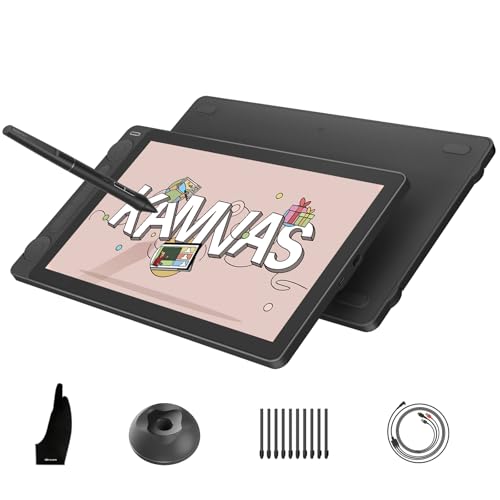
Color-Accurate Workhorse – HUION Kamvas 13 Gen 3
For color-sensitive projects, the HUION Kamvas 13 Gen 3 stands out among drawing display tablets for home offices with factory-calibrated color, a full-laminated Canvas Glass 2.0 surface, and PenTech 4.0. Its 13.3-inch display and dual dials are suited to illustration, animation, editing, and design workflows.
Best For: Artists, designers, editors, and other creators who prioritize color fidelity, tactile controls, and a portable pen display.
Pros:
- Full-laminated anti-glare glass uses nano-etching for a paper-textured drawing feel.
- PenTech 4.0 delivers 16,384 pressure levels, 2g initial activation force, tilt alignment, and three pen buttons.
- Factory calibration is rated at ΔE<1.5, with stated coverage of 99% sRGB/Rec.709 and 90% Adobe RGB.
- Two dials and five silent keys provide controls for brushes, canvas adjustments, opacity, and other settings.
Cons:
- It is not standalone and must connect to a computer or laptop.
- Full-featured USB-C connectivity requires a compatible USB 3.1 Gen 1 and DP 1.2 device.
- Some listed operating-system support has specific requirements, including Windows 10 or later and Ubuntu 20.04 LTS for Linux.
The Kamvas 13 Gen 3 is the strongest fit here for creators who will use its color calibration and dial controls. Its 865g weight and 11.7mm profile also make it practical for moving between workspaces.
Premium QHD Pick – XPPen Artist Pro 16 Gen2
For home offices where screen clarity and color precision matter, the XPPen Artist Pro 16 Gen2 is a strong choice among drawing display tablets for home offices. Its 16-inch 2.5K display, full lamination, anti-glare etched glass, and battery-free stylus are suited to detailed illustration, editing, and 3D work. Note that it must be connected to a computer or laptop.
Best For: Artists and designers who want a spacious, high-resolution display with precise color and included workflow accessories.
Pros:
- 2.5K QHD resolution with full lamination and anti-glare glass helps reduce visual distraction and parallax.
- 16,384 pressure levels, 60-degree tilt support, and a battery-free X3 Pro stylus support nuanced strokes.
- Includes a foldable stand, wireless shortcut remote, and ergonomic wrist rest.
- Supports Windows, macOS, Android, Chrome OS, Linux, and major creative applications.
Cons:
- Requires connection to a computer or laptop; it is not a standalone drawing computer.
- The 16-inch display and included accessories contribute to its 3.88 kg weight.
This is the most feature-rich option of the three for creators who can accommodate a larger setup. Its high-resolution screen and included controls make it particularly practical for detailed home-office workflows.
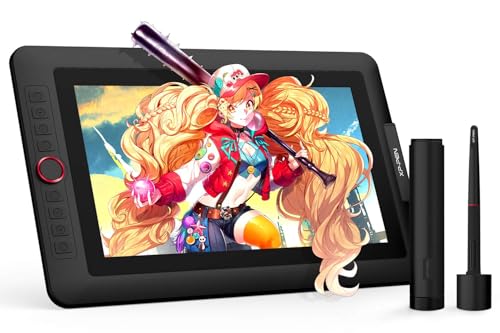
Compact Workflow Pick – XPPen Artist 13.3 Pro V2
The XPPen Artist 13.3 Pro V2 offers a more compact setup for drawing display tablets for home offices. Its fully laminated 13.3-inch FHD screen, tilt-enabled battery-free stylus, red dial, and eight customizable shortcut keys provide useful controls without requiring a large desk footprint. It must be connected to a computer or laptop.
Best For: Home-office artists, students, tutors, and hobbyists who want direct screen drawing with physical workflow controls.
Pros:
- Fully laminated FHD display helps minimize the gap between the stylus tip and cursor.
- 16,384 pressure levels and up to 60 degrees of tilt support enable natural line and shading control.
- Red dial and eight customizable keys provide convenient access to zoom, brush size, and canvas functions.
- Includes a battery-free stylus, pen holder with replacement nibs, stand, and multiple cables.
Cons:
- Requires a computer or laptop for use.
- Its 13.3-inch FHD screen provides less workspace and resolution than the larger 16-inch QHD model.
Choose this model when desk space and hands-on shortcuts are priorities. It balances a useful color display and responsive pen features with a smaller footprint suited to everyday home-office creation.
Color-Mode Value Pick – UGEE UE16 15.4-inch Drawing Tablet
The UGEE UE16 is a practical option for buyers comparing drawing display tablets for home offices, especially those who want a large 15.4-inch screen and multiple color modes. Its full-laminated 1080p display, 16,384 pressure levels, shortcut keys, and scroll wheel support painting and design tasks while keeping controls close at hand. The tablet connects to a compatible computer or other supported device.
Best For: Artists and students who value broad color-gamut coverage, selectable color spaces, and physical controls.
Pros:
- 143% sRGB coverage and sRGB, Adobe RGB, DCI-P3, and black-and-white modes offer flexible viewing options.
- 15.4-inch full-laminated display and 16,384 pressure levels support direct, precise drawing.
- Eight shortcut keys and a switchable scroll wheel provide tactile workflow controls.
- Battery-free stylus includes two shortcut buttons and a pressure-sensitive eraser.
Cons:
- 1920×1080 resolution is lower than the 2.5K resolution offered by the XPPen Artist Pro 16 Gen2.
- Requires a separate compatible computer or device and the 3-in-1 cable is packed separately.
- The supplied notes do not specify the current software-update support date.
The UE16 stands out for its color-space choices and generous screen size. It is a sensible fit for home-office users who want tactile controls and flexible color presentation more than maximum display resolution.
How We Picked the Best Drawing Display Tablets for Home Offices
We compared these tablets by looking at the features that matter most for home-based creative work: active display size, resolution, color coverage, pen performance, shortcut controls, screen surface, compatibility, and desk practicality. We also considered whether each model suits beginners, hobbyists, students, illustrators, photo editors, or professional artists.
Specifications vary by exact generation and bundle, so check the manufacturer’s current compatibility details, included cables, and operating-system support before ordering. A tablet that works well with a desktop PC may require a different adapter or powered hub for a laptop or Chromebook.
Quick Comparison
| Best For | What to Prioritize | Models to Consider |
|---|---|---|
| Small desks | 11.6–13.3-inch screen, simple cabling, compact controls | XPPen Artist12 Pro, XP-PEN Artist12, GAOMON PD1161 |
| Everyday illustration | Full lamination, tilt support, programmable keys | HUION Kamvas 13 Gen 3, XP-PEN Artist 13.3 Pro V2 |
| Photo and design work | Wide color gamut, higher resolution, larger workspace | HUION Kamvas Pro 16, XPPen Artist Pro 16 Gen2 |
| Large-screen value | 15.4–16-inch display and useful controls | UGEE UE16, HUION Kamvas Pro 16 |
Key Buying Factors for Drawing Display Tablets for Home Offices
Screen Size and Desk Space
An 11.6-inch display is easier to fit beside a keyboard and is often more portable, but larger screens provide more room for detailed linework, timelines, and palettes. Measure your desk depth before choosing a 15.4- or 16-inch model, and leave space for the stand and cables.
Resolution, Lamination, and Surface Feel
Full-laminated screens reduce the visible gap between the pen tip and cursor, which can make drawing feel more direct. QHD resolution is especially useful on larger displays because artwork and interface elements appear sharper. Anti-glare coatings can also reduce reflections in bright home offices.
Color and Pen Performance
Artists working for print, branding, or client delivery should prioritize broad color coverage and reliable calibration. Battery-free pens are convenient, while high pressure sensitivity and tilt support help with brush size, opacity, and natural shading. Pressure-count figures are less important than consistent tracking and good software support.
Controls and Connectivity
Shortcut keys, dials, and touch bars can speed up zooming, undoing, rotating, and changing brush size. Check whether the tablet uses USB-C, HDMI, or a combined cable, and confirm that your computer has the required video output. Driver quality and compatibility with applications such as Photoshop, Clip Studio Paint, Krita, and similar tools are equally important.
Who Should Buy Which Drawing Display Tablets for Home Offices?
Choose a compact 11.6-inch model if you have limited space, travel between work areas, or are starting digital art. A 13.3-inch tablet is a strong middle ground for everyday illustration and home-office use. Move to a 15.4- or 16-inch display if you regularly create detailed artwork, edit photos, or want a more monitor-like canvas. For professional workflows, prioritize color accuracy, QHD resolution, a comfortable stand, and controls that reduce repeated keyboard movements.
