
If you’re looking to boost your productivity in a multi-workstation setup, choosing the right docking station can make all the difference. These devices offer a range of features that facilitate seamless multitasking and enhance your workspace efficiency. From extensive connectivity options to support for multiple displays, the right docking station can streamline your tasks. Curious about which models stand out in today’s market? Let’s explore the top contenders.
Anker 13-in-1 USB-C Laptop Docking Station

If you’re juggling multiple tasks across different screens, the Anker 13-in-1 USB-C Laptop Docking Station is an ideal choice for your multi-workstation setup. With triple display support via 2x HDMI and 1x DisplayPort, you can stream media seamlessly on three monitors. Enjoy speedy data transfers with 10 Gbps USB-C and 5 Gbps USB-A ports. This docking station offers an 85W laptop-charging USB-C port and various connectivity options, including Ethernet and SD/microSD card slots. Designed for compatibility with Windows 10 and 11, it’s perfect for boosting productivity in any workspace while maintaining a compact design.
Best For: Users looking to enhance their productivity with a multi-display setup and fast data transfer capabilities.
Pros:
- Supports triple display with 2x HDMI and 1x DisplayPort for seamless multitasking.
- High-speed data transfer rates of 10 Gbps USB-C and 5 Gbps USB-A for quick file access.
- Compact design makes it easy to integrate into any workspace without taking up much room.
Cons:
- Limited compatibility with macOS and iPadOS, only supporting Single-Stream Transport mode.
- Not compatible with Linux, which may limit use for some users.
- Requires Windows 10 or 11, potentially excluding users with older operating systems.
Acer 11-in-1 USB C Docking Station for Laptops
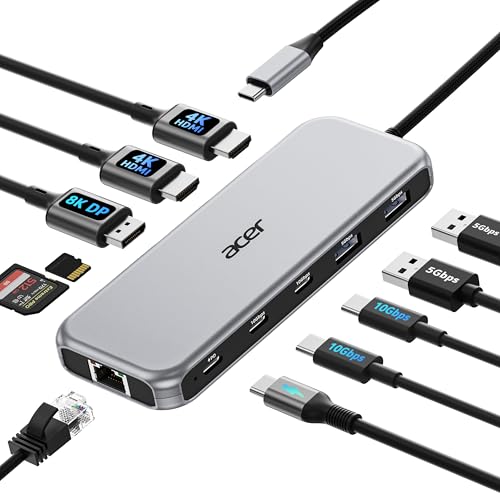
The Acer 11-in-1 USB C Docking Station is ideal for professionals who require seamless connectivity across multiple devices, as it supports up to three monitors with impressive display capabilities. With dual HDMI outputs offering 4K at 60Hz and a DisplayPort supporting 8K at 30Hz, your visuals will be stunning. You’ll also enjoy fast data transfers through two USB-C ports (10Gbps) and two USB-A ports (5Gbps). Plus, the 1000Mbps Ethernet guarantees a reliable internet connection. Compatible with various brands, just verify your laptop supports DisplayPort Alt Mode. With a one-year warranty, it’s a smart investment for your setup.
Best For: Professionals who need versatile connectivity and high-resolution displays for multitasking across multiple devices.
Pros:
- Supports up to three monitors with dual 4K HDMI outputs and an 8K DisplayPort, providing stunning visuals.
- Fast data transfer capabilities with USB-C (10Gbps) and USB-A (5Gbps) ports for efficient file management.
- Includes a 1000Mbps Ethernet port for stable and reliable internet connectivity.
Cons:
- Requires a laptop with USB-C port supporting DisplayPort Alt Mode, limiting compatibility with some devices.
- Maximum output for charging laptops is 85W, which may not be sufficient for power-hungry devices.
- Some users may find the price point higher compared to simpler docking solutions.
Acer 13-in-1 Docking Station with Triple Monitor Support

For professionals who require extensive connectivity and multiple display options, the Acer 13-in-1 Docking Station stands out with its impressive triple monitor support. You can easily expand your workspace with dual 4K HDMI and a DisplayPort, utilizing MST technology for independent screens. This sleek, aluminum docking station not only consolidates networking and power but also features an integrated security slot for added protection. With a powerful 110W adapter supplying 85W to your laptop, it guarantees peak performance during heavy tasks. Plus, Acer’s responsive support enhances your productivity, making this docking station a smart investment for any multi-workstation setup.
Best For: Professionals and creatives who require extensive connectivity options and the ability to use multiple monitors for enhanced productivity.
Pros:
- Triple display support allows for an expanded workspace with dual 4K HDMI and DisplayPort connections.
- Robust power supply with a 110W adapter ensures laptops receive 85W, maintaining performance even during demanding tasks.
- Sleek aluminum design not only looks professional but also aids in heat dissipation and includes an integrated security slot for added protection.
Cons:
- Limited functionality for macOS users, who can only mirror displays instead of extending them.
- Power supply restrictions mean it cannot power external monitors or high-demand peripherals.
- Compatibility issues may arise with non-Windows laptops, limiting its usability across different systems.
Acer USB C Docking Station with Dual Monitor Support

Designed specifically for users who need to enhance their productivity, the Acer USB-C Docking Station with dual monitor support is perfect for professionals juggling multiple tasks. With 9-in-1 functionality, it offers dual HDMI ports for 4K@60Hz displays, ensuring seamless screen extension or mirroring. You’ll enjoy fast data transfer through three USB-A and one USB-C port, plus SD/MicroSD slots. The 100W Power Delivery allows you to charge your laptop efficiently, while the sleek aluminum design adds a modern touch. Just make sure your devices support the required specifications for peak performance and enjoy an organized, efficient workspace.
Best For: Professionals and multitaskers looking to enhance productivity with multiple display options and fast data transfer capabilities.
Pros:
- Supports dual monitors with 4K@60Hz resolution for effective screen extension or mirroring.
- Fast data transfer through multiple USB-A and USB-C ports, along with SD/MicroSD slots for added convenience.
- 100W Power Delivery enables efficient charging, delivering up to 90W to your laptop, reducing cable clutter.
Cons:
- Limited macOS support for external monitors, allowing only one display in Extended mode.
- Requires a 65W+ power adapter (not included) for optimal charging performance.
- Compatibility issues may arise with devices lacking full-featured USB-C ports that support display, charging, and data transfer.
Anker Nano 13-in-1 Laptop Docking Station

Considering the diverse connectivity options it offers, the Anker Nano 13-in-1 Laptop Docking Station is perfect for professionals who need to maximize their workstation efficiency. With 13 ports, including dual HDMI outputs for 4K displays and USB-C data transfer speeds up to 10 Gbps, it effortlessly connects all your devices. The detachable hub adds portability, making it ideal for on-the-go use. You’ll enjoy up to 100W power delivery, ensuring your laptop stays charged. Compatible with popular brands like Dell and MacBook, this docking station ranks highly among users, boasting a 4.3-star rating. It’s a reliable choice for your multi-workstation setup.
Best For: Professionals and remote workers seeking a versatile and efficient docking solution for multiple devices.
Pros:
- Versatile Connectivity: Offers 13 ports, including dual HDMI outputs for 4K displays and fast USB-C data transfer.
- Portability: The detachable hub allows for easy transport and mobile use.
- High Power Delivery: Provides up to 100W power delivery to keep laptops charged during use.
Cons:
- Requires Laptop Connection: Ports activate only when connected to a laptop, limiting standalone use.
- Compatibility Limitations: Best suited for devices with USB-C/Thunderbolt 3/4/5, which may exclude some older models.
- Weight Consideration: At 1.0 count, it may be heavier than some users prefer for mobile setups.
Plugable USB C Triple Display Docking Station

The Plugable USB C Triple Display Docking Station is an excellent choice for professionals needing to expand their workspace efficiently, as it supports up to three HDMI monitors. With 100W Power Delivery, you can charge your laptop while using it. The dock features six USB 5Gbps ports, perfect for connecting peripherals. It’s compatible with Windows, macOS, and ChromeOS, making it versatile for mixed-fleet IT environments. The compact design fits easily on your desk, while expert North American support guarantees you’ll have help if needed. Enjoy seamless presentations and data analysis with this powerful docking station that enhances your productivity.
Best For: Professionals who need to connect multiple displays and peripherals for enhanced productivity in a mixed-fleet IT environment.
Pros:
- Supports up to three HDMI monitors, allowing for an expansive workspace.
- 100W Power Delivery enables simultaneous charging of laptops while in use.
- Six USB 5Gbps ports provide ample connectivity for various peripherals.
Cons:
- Not compatible with Linux operating systems.
- HDCP (High-bandwidth Digital Content Protection) is not supported.
- May not fully utilize features on Apple M1/M2/M3/M4/M5 systems due to hardware limitations.
Plugable Thunderbolt 4 Dock with 100W Charging (TBT4-UD5)
For professionals who need to connect multiple displays and devices seamlessly, the Plugable Thunderbolt 4 Dock (TBT4-UD5) stands out with its impressive 100W power delivery. With 13 high-performance ports, it supports dual 4K 60Hz HDMI displays or one 8K monitor, ensuring you can manage your workload efficiently. It delivers ultra-fast 40Gbps speeds and is compatible with various systems, including Windows 11 and select macOS devices. Weighing just 2.42 pounds, its compact design fits easily into any workspace. Backed by a 2-year warranty, it’s a solid investment for enhancing your productivity.
Best For: Professionals who require robust connectivity options and high-performance displays for multitasking efficiently.
Pros:
- Supports dual 4K 60Hz HDMI displays or one 8K monitor for enhanced visual productivity.
- Ultra-fast 40Gbps data transfer speeds and 100W power delivery ensure quick charging and efficient device performance.
- Compact design and lightweight at 2.42 pounds, making it easy to integrate into any workspace.
Cons:
- Limited display support for macOS base M1 and M2 models, allowing only a single external display.
- Higher price point compared to basic docking stations may not be suitable for budget-conscious users.
- Some users may find the weight and size less portable for travel compared to smaller docking options.
VisionTek VT4600DL Universal Dual 4K Docking Station

If you’re looking to enhance your productivity in a multi-workstation setup, the VisionTek VT4600DL Universal Dual 4K Docking Station is an excellent choice. Weighing just 12.32 ounces and measuring 8.86 x 3.35 x 0.87 inches, it’s compact yet powerful. With 100W charging and six USB ports, you can easily connect dual monitors and other peripherals. It supports Windows, macOS, and ChromeOS, ensuring reliable dual-display performance, even for systems lacking native support. Plus, its three-year warranty gives you peace of mind. Elevate your workspace efficiency with this versatile docking station from VisionTek.
Best For: Professionals seeking a reliable and versatile docking solution for dual monitor setups across various operating systems.
Pros:
- Supports multiple operating systems: Compatible with Windows, macOS, and ChromeOS for seamless integration.
- Compact design: Lightweight and small dimensions make it easy to fit into any workspace.
- High charging capacity: Provides 100W charging to power devices while connecting peripherals.
Cons:
- Limited HDMI ports: Only two HDMI ports may restrict connectivity for some users with more monitors.
- Dependence on DisplayLink: Relies on DisplayLink technology, which may not perform as well as native multi-display support in some cases.
- Customer reviews indicate mixed experiences: With a rating of 4.1 out of 5 stars, some users may encounter issues that affect overall satisfaction.
Anker Prime Docking Station (DL7400) – 14-Port Triple Display
Designed for professionals managing multiple displays and devices, the Anker Prime Docking Station (DL7400) stands out with its impressive 14-port configuration and support for triple 4K display setups. You’ll enjoy seamless connectivity with multiple USB-C and HDMI ports, plus an 8K output for high-resolution needs. The 140W power delivery guarantees your devices stay charged while the built-in cooling system keeps everything running smoothly. With compatibility for macOS and Windows, it’s versatile enough for any setup. Just remember to install the latest DisplayLink driver for peak performance, and you’re ready to enhance your productivity like never before!
Best For: Professionals seeking to maximize productivity with multiple high-resolution displays and extensive connectivity options.
Pros:
- Supports triple 4K displays and includes an 8K output for high-resolution needs.
- 14-port configuration offers versatile connectivity for various devices.
- Built-in cooling system with ActiveShield 3.0 ensures optimal performance and temperature management.
Cons:
- Requires the latest DisplayLink driver for full functionality, which may be an additional step for users.
- Streaming limitations for DRM-protected content may require adjustments in browser settings.
- Power delivery is limited to charging only on certain ports, which may restrict media display capabilities.
Anker Prime Docking Station, 14-Port with Dual 4K Displays

The Anker Prime Docking Station stands out as an ideal solution for professionals juggling multiple devices and displays. With 14 ports, including three USB-C and dual HDMI, you can connect all your essential gear seamlessly. This dock supports dual 4K displays, ensuring your visuals remain sharp and vibrant. Its impressive 160W power output allows you to charge up to four devices simultaneously, while data transfer speeds reach up to 10Gbps. Compatible with various operating systems and laptops, it’s designed to enhance your productivity. Plus, with a 24-month warranty, you can feel confident in your investment.
Best For: Professionals and creatives who need to connect multiple devices and displays for enhanced productivity.
Pros:
- Versatile Connectivity: Offers 14 ports including USB-C and dual HDMI, accommodating various devices.
- High Power Output: Supports charging of up to four devices at once with a total output of 160W.
- Fast Data Transfer: Provides data transfer speeds of up to 10Gbps for efficient file management.
Cons:
- Limited Display Compatibility: Not compatible with 5120*1440 monitors, which may restrict some users.
- Weight: Weighs 1.28 kg, making it less portable compared to lighter docking stations.
- Price Point: Higher price range may not be suitable for budget-conscious consumers.
Factors to Consider When Choosing Docking Stations for Multi Workstation Setups
When choosing docking stations for your multi-workstation setup, you need to contemplate several key factors. Think about the variety and count of ports, display support capabilities, and power delivery specifications that fit your devices. Don’t forget to check compatibility and data transfer speeds to guarantee everything runs smoothly.
Port Variety and Count
Choosing the right docking station for your multi-workstation setup means considering the variety and count of ports it offers—typically ranging from 9 to 14. The more ports, the greater your versatility. Look for multiple USB-A and USB-C ports to connect various peripherals, which boosts your productivity. SD and microSD card slots are also handy for quick data transfers from cameras and other devices without extra adapters. Additionally, docking stations with HDMI and DisplayPort support multiple monitors, enhancing your multitasking capabilities. Don’t forget about Power Delivery (PD) ports; some offer up to 140W, allowing you to charge your laptop and devices simultaneously while you work. This combination of ports is essential for an efficient and effective multi-workstation setup.
Display Support Capabilities
Having the right ports is only part of the equation for a successful multi-workstation setup; display support capabilities are equally important. When choosing a docking station, consider how many monitors it can support—some models allow for triple displays while others may only offer dual or single displays. Look for options that provide high resolutions, like 4K at 60Hz or even 8K at lower refresh rates, ensuring crisp visuals. Pay attention to display technology, such as DisplayPort Multi-Stream Transport (MST), which enhances workspace efficiency. Also, verify compatibility with your operating system, as some platforms may restrict multi-display functionality. Finally, check the HDMI or DisplayPort version to achieve peak performance and resolution outputs.
Power Delivery Specifications
Power Delivery (PD) specifications play an essential role in selecting the right docking station for your multi-workstation setup. You’ll want to look for docking stations offering higher wattage outputs, typically between 85W and 140W. A power output of 100W or more is critical for efficiently charging laptops while using peripherals and displays simultaneously. Many modern docking stations support PD through USB-C, allowing for faster charging compared to traditional USB-A ports. Make sure the power delivery capability aligns with your laptop’s power requirements to avoid performance issues during heavy workloads. Additionally, some docking stations can distribute power across multiple ports, enabling you to charge several devices at once—a great advantage in multi-workstation setups.
Compatibility With Devices
When setting up a multi-workstation environment, compatibility with your devices is essential for a seamless experience. First, verify the docking station supports your specific operating systems, like Windows 10/11, macOS, or ChromeOS, since some may only work with certain versions. Next, verify that your laptop features a USB-C port with DisplayPort Alternate Mode capabilities, critical for video output. It’s also important to check compatibility with your device brands, as some docking stations are optimized for specific manufacturers. Additionally, consider the maximum resolution and refresh rate for external displays, especially if you’re using 4K or 8K monitors. Finally, review the power delivery specifications to confirm the docking station can adequately charge your devices.
Data Transfer Speeds
Data transfer speeds play an essential role in optimizing your multi-workstation setup. USB standards vary considerably—USB 3.0 offers up to 5 Gbps, USB 3.1 provides up to 10 Gbps, and USB 4 can reach an impressive 40 Gbps. Higher data transfer speeds allow for quicker file transfers, minimizing wait times when handling large files. When choosing a docking station, consider the number of USB ports and their speeds to guarantee you have enough bandwidth for all your connected devices. Multiple USB-C ports with 10 Gbps or higher can greatly boost the performance of external drives and peripherals. Just remember to check your devices’ compatibility with the docking station’s capabilities to make the most of your setup.
Design and Build Quality
Choosing the right docking station goes beyond just functionality; design and build quality are equally important. A well-designed docking station prioritizes efficient heat dissipation, often using aluminum materials that enhance longevity and performance during demanding tasks. In multi-workstation setups, a compact and lightweight design makes it easier to move devices as needed. Look for robust build quality, featuring reinforced connectors and sturdy casing, to withstand daily wear and tear. Integrated security features, like locking mechanisms, offer extra protection in shared environments. Finally, ergonomic elements such as angled ports and intuitive layouts promote easier access and organization, contributing to a more efficient workspace. Prioritize these aspects to enhance your productivity and guarantee a seamless experience.
Cooling and Thermal Management
Effective cooling and thermal management are essential for maintaining performance in docking stations, especially during extended use in multi-workstation setups. Overheating can lead to reduced performance and even hardware damage, so it’s vital to choose a docking station that incorporates built-in fans or cooling systems. Look for designs made from materials like aluminum, which enhance heat dissipation and help maintain ideal operating temperatures. Some docking stations even feature real-time monitoring systems that keep you updated on device temperatures, enabling you to manage workloads effectively. Remember, inadequate thermal solutions can compromise connection stability and data transfer rates, which is why prioritizing efficient cooling features can greatly enhance your productivity in a multi-workstation environment.
Warranty and Support Options
While maintaining ideal performance through cooling is important, warranty and support options shouldn’t be overlooked when selecting a docking station for your multi-workstation setup. Consider the length and terms of the warranty; options typically range from 1 to 3 years, reflecting the manufacturer’s confidence in their product. Look for a docking station that provides accessible customer support, ideally with North American-based assistance or direct access to engineers for troubleshooting. A robust return policy, usually around 30 days, allows you to test the docking station and return it if it doesn’t meet your needs. Additionally, check for available resources like user manuals or QR codes for support, and read customer ratings to gauge the reliability of the warranty and services offered.
