
If you’re looking to elevate your MacBook Air setup, choosing the right DisplayLink dock can make all the difference. With so many options available, it’s essential to find one that meets your connectivity needs and enhances your productivity. Whether you need support for multiple monitors or extensive port options, there’s a dock that fits your requirements. Let’s explore the top picks that can transform your workspace into a streamlined powerhouse.
Anker Prime Docking Station (DL7400) – 14-Port Triple Display
The Anker Prime Docking Station (DL7400) is an excellent choice for MacBook Air users seeking to maximize their productivity with its impressive 14-port triple display capability. You can connect up to three external monitors, including one in stunning 8K, allowing for seamless multitasking. With 140W max power and multiple USB-C and USB-A ports, it’s easy to charge devices and transfer data quickly. The built-in fan and ActiveShield 3.0 guarantee ideal cooling and stability. Just remember to install the latest DisplayLink driver for the best performance. Enjoy enhanced productivity and connectivity with this powerful docking station!
Best For: MacBook Air users looking to enhance their productivity with multiple displays and fast connectivity options.
Pros:
- Supports triple external monitors, including one in 8K for superior multitasking.
- Offers a variety of ports, including USB-C and USB-A, for fast data transfer and device charging.
- Built-in fan and ActiveShield 3.0 ensure optimal cooling and performance stability.
Cons:
- Requires the latest DisplayLink driver for optimal functionality.
- DRM-protected streaming may result in a black screen, needing adjustments in browser settings.
- Front USB-C ports do not support media display.
StarTech.com USB-C Quad Monitor Docking Station for MacBook Pro/Air & Windows

For users looking to maximize their productivity with a MacBook Air or Pro, the StarTech.com USB-C Quad Monitor Docking Station offers unparalleled display support, allowing you to connect up to four 4K monitors at 60Hz. With extensive compatibility across various operating systems, you can easily set up quad, triple, or dual displays. This dock also features multiple ports, including HDMI, DisplayPort, and USB-A, ensuring all your devices connect seamlessly. Plus, it delivers 100W of power to charge your laptop. With a lightweight design and efficient ventilation, it’s perfect for users needing flexibility and performance in their workspace.
Best For: Users seeking to enhance their productivity with multiple high-resolution displays while using a MacBook Air or Pro.
Pros:
- Supports up to four 4K monitors at 60Hz, providing extensive display options for multitasking.
- Multiple connectivity options with HDMI, DisplayPort, and USB ports, allowing seamless integration of various devices.
- 100W power delivery for laptop charging ensures your device stays powered throughout the day.
Cons:
- Driver installation required for Windows and macOS, which may complicate setup for some users.
- Limited to USB-C devices, potentially excluding users with older laptops or those lacking USB-C ports.
- Size and weight may not be ideal for ultra-portable setups, as it could take up desk space.
StarTech.com USB-C / USB-A Hybrid Docking Station for MacBook and Windows

Looking to expand your MacBook Air’s capabilities? The StarTech.com USB-C / USB-A Hybrid Docking Station is an excellent choice. It supports both Mac and Windows, allowing you to connect up to three external displays at 4K 60Hz. With 85W Power Delivery, it charges your devices quickly. Plus, it features six USB ports for all your peripherals and a Gigabit Ethernet port for reliable internet. Security is enhanced with a screw-lock host port and K-slot for a Kensington lock. This dock’s versatility makes it ideal for both home and office setups, ensuring you stay productive no matter where you are.
Best For: Users looking to enhance their productivity with multiple displays and fast charging capabilities for both Mac and Windows laptops.
Pros:
- Supports up to three 4K displays, perfect for multitasking and presentations.
- Provides 85W Power Delivery, ensuring quick charging for laptops and devices.
- Includes a variety of USB ports and a Gigabit Ethernet port for extensive connectivity options.
Cons:
- Driver installation is required for Windows and macOS, which may be inconvenient for some users.
- Older USB-A laptops are limited to a dual monitor setup, reducing versatility.
- The dock may require additional mounting accessories for optimal placement in certain setups.
TobenONE DisplayLink Docking Station Triple Monitor
Designed for professionals who thrive on multitasking, the TobenONE DisplayLink Docking Station enables seamless connections to triple or quad monitor setups. With 18 ports and support for multiple 4K displays via a single USB-C connection, you’ll enhance your productivity like never before. It’s compatible with various operating systems, including macOS 11+, ensuring versatility. The docking station features 3x HDMI and 3x DP ports, perfect for stock trading or content creation. Plus, the 120W power adapter charges your laptop quickly while providing power for your devices. Experience efficient data transfers with USB 3.1 ports, making it ideal for any workspace.
Best For: Professionals and multitaskers who require seamless connectivity for triple or quad monitor setups in their workspaces.
Pros:
- Supports multiple 4K displays through a single USB-C connection, enhancing productivity.
- Includes a powerful 120W adapter for fast laptop charging and additional device power.
- Features multiple USB 3.1 and Type-C ports for high-speed data transfer, accommodating various devices.
Cons:
- Requires downloading specific drivers for different operating systems, which may be inconvenient for some users.
- macOS supports only up to 3 monitors, limiting some users compared to Windows.
- Compatibility with operating systems does not include Linux/Unix, which may exclude some potential users.
Plugable Thunderbolt 4 Dock with 100W Charging
The Plugable Thunderbolt 4 Dock shines as an ideal choice for MacBook Air users who need robust connectivity and power delivery. With a powerful 100W charging capability, it guarantees your device stays powered throughout the day. You can connect dual 4K displays or a single 8K display, making it perfect for multitasking. The dock features a thorough 13-port design, including HDMI, USB, and Ethernet ports, accommodating various peripherals. Compatible with multiple laptop brands, it offers lightning-fast 40Gbps speeds. Plus, its compact size and sleek black finish fit seamlessly into any workspace, backed by a 2-year warranty for peace of mind.
Best For: The Plugable Thunderbolt 4 Dock is best for MacBook Air users seeking extensive connectivity and high power delivery for demanding tasks.
Pros:
- Versatile Display Support: Connect dual 4K displays or a single 8K display for enhanced multitasking capabilities.
- High-Speed Performance: Offers lightning-fast 40Gbps Thunderbolt 4 speeds for quick data transfers and efficient operation of peripherals.
- Comprehensive Port Options: Features a robust 13-port design to accommodate a variety of devices and accessories.
Cons:
- Limited macOS Compatibility: Some models may only support single display on base M1 and M2 chips, limiting dual display functionality.
- Weight and Size: At 2.4 pounds, it may be bulkier compared to other docking options, making portability a concern.
- Price Point: The advanced features and capabilities may come at a higher price compared to basic docking stations.
Anker USB C Hub for MacBook (7-in-2 with 4K HDMI)

If you’re a MacBook Air M1 or M2 user seeking seamless connectivity, the Anker USB C Hub is an excellent choice. This 7-in-2 hub expands your MacBook’s capabilities, turning two USB-C ports into a multi-function USB-C port, USB-C data port, two USB-A ports, HDMI port, and both SD and microSD card slots. You’ll enjoy 4K@60Hz HDMI output, while the multi-function port allows for 100W charging and data transfer speeds up to 40 Gb/s. Designed specifically for MacBook models, it won’t obstruct the MagSafe port. Plus, it comes with an 18-month warranty for peace of mind.
Best For: MacBook Air M1 and M2 users looking for enhanced connectivity options and high-performance expansion capabilities.
Pros:
- Supports multiple device connections with two USB-A ports, USB-C data port, and card slots for SD and microSD.
- High-resolution output with HDMI supporting 4K@60Hz for clear media display.
- Fast data transfer speeds of up to 40 Gb/s and 100W charging capability through the multi-function USB-C port.
Cons:
- Limited compatibility as it is not suitable for MacBook Neo models.
- M1 and M2 MacBooks do not support dual external displays, which may limit multitasking options.
- Physical design may not suit all setups, especially in tight spaces due to the hub’s size.
Anker Nano Laptop Docking Station (13-in-1 USB-C Triple Display)

For professionals seeking a versatile docking solution, the Anker Nano Laptop Docking Station stands out with its 13-in-1 functionality, making it perfect for those who need multiple display options and connectivity on the go. You can easily set up a triple-screen workstation, supporting up to 4K resolution on external displays. With a detachable 6-in-1 hub, you’ll have mobile access and fast data transfer at 10 Gbps via USB-C. It features numerous ports, including USB-C, HDMI, and Ethernet, ensuring you’re well-equipped. Plus, with a 4.2-star rating from customers, it’s a reliable choice for any workspace.
Best For: Professionals seeking a versatile and portable docking solution to enhance their multi-display setup.
Pros:
- Versatile connectivity with 13 ports, including USB-C, HDMI, and Ethernet, accommodating various devices.
- Supports triple display setups with up to 4K resolution, perfect for multitasking and productivity.
- Fast data transfer speeds of up to 10 Gbps via USB-C, ensuring efficient file transfers.
Cons:
- Limited compatibility with certain operating systems, as macOS may only mirror content instead of extending displays.
- Size may be bulky for some users looking for a more compact solution.
- Potential overheating issues reported during prolonged use, necessitating caution for high-demand tasks.
StarTech.com USB-C Triple Monitor Docking Station for MacBook Pro/Air & Windows
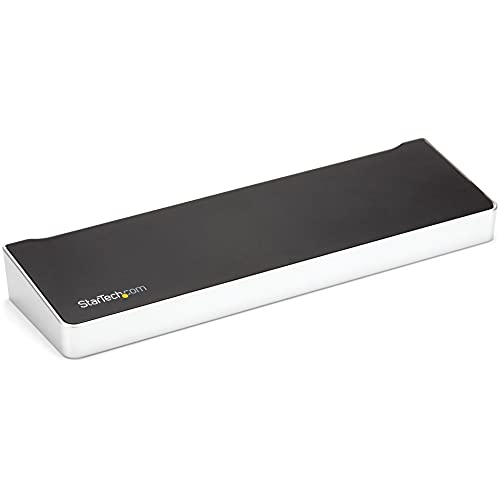
Looking to expand your workspace? The StarTech.com USB-C Triple Monitor Docking Station is your solution for the MacBook Pro/Air and Windows laptops. With support for universal 4K HDMI and DP docking, you’ll enjoy stunning visuals across three displays. This dock offers 60W Power Delivery, four USB-A ports, and a USB-C hub, making it incredibly versatile. Plus, it features Gigabit Ethernet and separate audio ports for headsets and speakers. Whether you’re working on an M-Series Mac or Windows laptop, this docking station enhances your productivity and connectivity effortlessly. Just remember, driver installation is required for peak performance.
Best For: Professionals and creatives seeking to enhance their productivity with multiple displays on MacBook Pro/Air and Windows laptops.
Pros:
- Supports triple display setup for extensive multitasking capabilities.
- Equipped with 60W Power Delivery for charging laptops while connected.
- Versatile connectivity options including multiple USB ports and Gigabit Ethernet.
Cons:
- Driver installation is necessary for optimal performance on both Windows and macOS.
- USB-A laptops require a separate adapter for full functionality.
- Limited power delivery capabilities when using USB-A connections.
Plugable 16-in-1 Thunderbolt 4 Dock

The Plugable 16-in-1 Thunderbolt 4 Dock stands out as an ideal choice for MacBook Air users seeking to enhance their productivity with dual 4K 60Hz displays. You can effortlessly connect two monitors via HDMI or DisplayPort, making multitasking a breeze. With seven USB ports, 2.5Gbps Ethernet, and SD/microSD card slots, it’s packed with features. Plus, the 100W Power Delivery guarantees your laptop stays charged all day. Compatible with macOS 11+ and Windows 10 or later, this dock is lab-tested for safety and includes a Thunderbolt 4 cable for easy setup. Experience seamless performance and expand your workspace effectively!
Best For: Users of MacBook Air/Pro and Windows laptops looking to enhance their productivity with dual 4K displays and extensive connectivity options.
Pros:
- Supports dual 4K 60Hz displays for improved multitasking and professional workflows.
- Includes multiple USB ports and card slots for versatile connectivity and peripheral charging.
- Provides 100W Power Delivery ensuring all-day charging for laptops.
Cons:
- May be overkill for users with basic needs who do not require multiple monitors or extensive ports.
- Weight and size may be less portable compared to smaller docking solutions.
- Limited compatibility with older operating systems as it requires macOS 11+ or Windows 10 or later.
TobenONE DisplayLink Docking Station for 4 Monitors

Designed for professionals who thrive on multitasking, the TobenONE DisplayLink Docking Station allows you to connect up to four monitors, making it an excellent choice for users needing extensive screen real estate. With 20 ports, including 4 HDMI and 4 DisplayPort, you can easily manage your workflow. Each monitor supports 4K@60Hz resolution, ensuring smooth performance. Plus, the 150W power adapter delivers 100W charging for your laptop while the USB-C port provides 18W for your phone. Compatible with various devices, it’s perfect for MacBooks and Windows laptops alike. Enjoy peace of mind with a 2-year defect coverage and dedicated support.
Best For: Professionals needing extensive multitasking capabilities with multiple high-resolution monitors.
Pros:
- Supports up to 4 monitors with 4K@60Hz resolution for seamless multitasking.
- Includes a variety of ports (20 in total) for versatile connectivity options.
- Provides 100W charging for laptops and 18W for phones, enhancing productivity.
Cons:
- M1 chip MacBooks are limited to connecting only 3 monitors.
- Requires installation of Displaylink driver, which may be inconvenient for some users.
- HDCP is not supported, potentially limiting content playback options.
Factors to Consider When Choosing Displaylink Docks for Macbook Air
When choosing a Displaylink dock for your MacBook Air, you should consider several key factors. Look at display support capabilities, connectivity options, and power delivery specifications to guarantee compatibility with your needs. Additionally, size and design features can impact how well the dock fits into your workspace.
Display Support Capabilities
Considering your MacBook Air’s capabilities is essential when selecting a DisplayLink dock, especially since not all docks support the same display configurations. DisplayLink docks can enable multiple external monitor setups, allowing you to connect up to four 4K monitors, depending on the dock’s specifications. However, if you have an M1 or M2 MacBook, you’re generally limited to three external displays. Look for docks that utilize HDMI and DisplayPort outputs, as some support high refresh rates at 60Hz for smooth visuals. Don’t forget to verify the required DisplayLink driver compatibility for your operating system; proper installation is vital for best performance. Be aware that some docks may restrict playback of DRM-protected content, impacting your streaming experience.
Connectivity Options Available
Choosing the right DisplayLink dock for your MacBook Air involves examining the connectivity options it offers to guarantee it meets your needs. Look for docks with multiple HDMI and DisplayPort outputs, as these allow you to connect several external monitors simultaneously. You’ll also want a variety of USB ports, including USB-A and USB-C, to connect peripherals like keyboards, mice, and external storage devices. An Ethernet port can provide a stable internet connection, essential for tasks requiring reliable network performance. Additionally, consider docks with audio jacks for connecting headphones or speakers, enhancing your audio experience. Finally, SD and TF card slots simplify data transfers from your camera or other devices directly to your laptop.
Power Delivery Specifications
Power delivery specifications play an essential role in ensuring your MacBook Air stays charged and operational, especially during demanding tasks. When choosing a DisplayLink dock, look for options that deliver between 60W to 100W for peak performance. If you’re engaging in resource-intensive activities like video editing or running multiple displays, a higher wattage, such as 100W, is vital to prevent battery drain. Additionally, consider docks that provide extra power for charging peripherals, with some offering up to 18W for devices like smartphones via USB-C ports. Always verify that the dock’s power delivery aligns with your laptop’s needs, and remember to connect through the specified USB-C port to achieve maximum power output.
Compatibility With Devices
When selecting a DisplayLink dock for your MacBook Air, compatibility with your specific model is essential. Pay close attention to whether the dock supports the M1 and M2 models, as they have limitations on the number of external displays you can connect. Confirm your operating system version aligns with the DisplayLink drivers for peak performance. Some docks may work better with Windows, so check that the dock supports macOS features. Additionally, verify that the dock’s USB-C or Thunderbolt connections fit your MacBook Air’s input capabilities for effective data transfer and charging. Finally, consider how many external displays you want to connect, as some docks restrict the number of monitors you can use simultaneously.
Size and Design Features
Size and design features play an essential role in selecting the right DisplayLink dock for your MacBook Air. You’ll want a compact and lightweight dock for easy portability, especially if you’re often on the go. Check the number and types of ports available; a good dock should provide a mix of USB, HDMI, DisplayPort, and audio jacks for versatile connectivity. Efficient ventilation is vital too, as proper airflow helps maintain performance and prevent overheating during long work sessions. Consider options with detachable hubs or modular components for added flexibility. Finally, don’t overlook the aesthetic appeal and build quality; a sleek design complements your MacBook Air while durable materials guarantee longevity and resistance to wear.
