
Need more external screens than your Mac supports natively? A DisplayLink dock can add monitors through a USB connection, making it a practical option for multitasking across documents, spreadsheets, and video calls.
The right choice depends on your Mac, the number of displays you need, and whether the dock can charge your laptop while connecting the rest of your desk. Here’s what to check before you buy.
Best 10 Displaylink Docks for Mac Picks for 2026
Best for Four-Monitor Desks
TobenONE 20-in-1 DisplayLink Dock

- Up to four external 4K 60Hz displays
- 20 ports for a busy desk
- Up to 100W laptop charging
Best For: Peripheral-heavy Mac workstations needing multiple monitors
Best for USB-A Compatibility
WAVLINK Dual 4K DisplayLink Dock

- Two external 4K 60Hz displays
- Works with USB-A or USB-C laptops
- Six USB-A ports; no laptop charging
Best For: Dual-monitor desks shared by USB-A and USB-C laptops
Best for Office Deployments
Plugable 13-in-1 Triple Monitor Dock

- Three extended HDMI displays
- Up to 100W laptop charging
- HDMI 1 tops out at 4K 30Hz
Best For: Standardized Mac office desks needing three screens
Best for Fast USB Transfers

- Two extended 4K 60Hz displays
- Three data ports rated up to 10Gbps
- 100W PD port; charger not included
Best For: Dual-monitor Mac desks with fast USB accessories
Best for Hybrid Offices

- Three extended HDMI displays
- Six USB 3.0 ports and Gigabit Ethernet
- Up to 100W host charging
Best For: Shared desks needing three monitors and extensive wired connectivity
Best for Triple 4K

- Up to three 4K 60Hz monitors
- Six 10Gbps USB ports
- Up to 100W laptop charging
Best For: Triple-4K workstations with fast USB peripherals
Best Compact Pick
Plugable 7-in-1 DisplayLink Dock
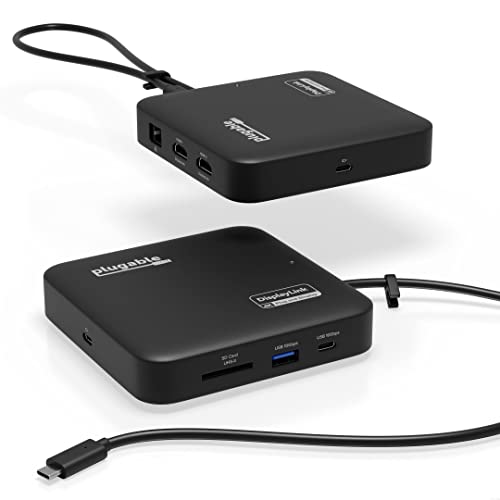
- Two extended 4K 60Hz displays
- USB-A, USB-C, Ethernet, and SD
- Up to 82W pass-through charging
Best For: Compact dual-4K Mac setups with everyday accessories
Best Dual-4K Pick

- Two 4K 60Hz displays
- HDMI or DisplayPort flexibility
- 100W charging and card readers
Best For: A two-monitor Mac workstation
Best Triple-HDMI Pick
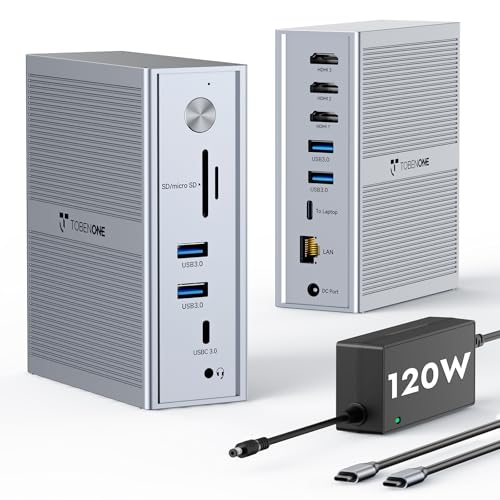
- Three extended HDMI displays
- One 4K 30Hz plus two 1920×1200 60Hz outputs
- Included adapter and up to 100W charging
Best For: Three-screen HDMI productivity setups
Best Port-Rich Pick

- HDMI and DisplayPort connection choices
- Five USB ports plus SD/TF readers
- Up to 100W compatible-laptop charging
Best For: Peripheral-heavy Mac productivity desks
Best for Four-Monitor Desks – TobenONE 20-in-1 DisplayLink Dock
For shoppers comparing displaylink docks for mac, this TobenONE model offers an unusually large port selection and support for up to four external 4K 60Hz displays. Note that M1 MacBooks are limited to three external monitors with this dock.
Best For: Mac users building a peripheral-heavy, multi-monitor workstation.
Pros:
- Supports up to four external 4K 60Hz monitors on compatible Macs.
- 20-port selection includes HDMI, DisplayPort, USB, card readers, Ethernet, and audio.
- Includes a 150W adapter and supports up to 100W laptop charging.
Cons:
- Requires DisplayLink driver installation.
- M1 MacBooks are limited to three external monitors; HDCP content is not supported.
Choose it when display count and connectivity matter most, but check your Mac’s chip before planning a four-screen layout.
Best for USB-A Compatibility – WAVLINK Dual 4K DisplayLink Dock
Among displaylink docks for mac, this WAVLINK is a practical pick if your desk needs two 4K 60Hz monitors and you switch between USB-A and USB-C laptops. Its HDMI and DisplayPort outputs allow several dual-monitor combinations.
Best For: Home-office users who want dual displays and compatibility with different laptop connections.
Pros:
- Supports two external 4K 60Hz displays on compatible systems.
- Connects to laptops through USB-A, USB-C, USB4, or Thunderbolt ports.
- Includes six USB-A ports, Gigabit Ethernet, and a 3.5mm audio jack.
Cons:
- Does not charge the laptop.
- Requires a DisplayLink driver and is not intended for DRM-protected streaming content.
It suits everyday productivity better than a charging-focused setup; keep your laptop’s power adapter at the desk.
Best for Office Deployments – Plugable 13-in-1 Triple Monitor Dock
If you’re comparing displaylink docks for mac for an office rollout, Plugable’s 13-in-1 dock combines three HDMI outputs with up to 100W laptop charging. The displays have different limits: up to 4K 30Hz on HDMI 1 and 1920×1200 60Hz on HDMI 2 and 3.
Best For: Mac-focused office desks that prioritize three extended screens, charging, and standardized connectivity.
Pros:
- Supports three extended HDMI displays, including on supported Apple Silicon Macs.
- Provides up to 100W laptop charging and 20W front USB-C device charging.
- Includes Ethernet, SD, audio, and four 5Gbps USB-A ports; meets the stated TAA, NDAA, and Section 889 requirements.
Cons:
- Second and third HDMI displays require DisplayLink Manager installation on macOS.
- Only HDMI 1 reaches 4K, and it is limited to 30Hz; protected HDCP playback is unsupported.
This is a strong fit for document-heavy triple-screen workflows, not for buyers expecting three 4K 60Hz monitors.
Best for Fast USB Transfers – UGREEN 9-in-1 Dual 4K Dock
The UGREEN 9-in-1 stands out among displaylink docks for mac by pairing two extended 4K 60Hz displays with three USB data ports rated up to 10Gbps. It offers HDMI and DisplayPort connections for flexible monitor hookups.
Best For: Mac users who want dual 4K displays and faster connections for USB storage and accessories.
Pros:
- Supports two extended 4K 60Hz monitors on macOS and Windows.
- Two USB-A ports and one USB-C data port support up to 10Gbps.
- Includes Gigabit Ethernet and a 100W PD charging port.
Cons:
- A power adapter is not included for PD charging.
- Driver installation is required for display and network functions.
Its faster USB ports are useful for a compact dual-monitor desk, but budget for a compatible charger if laptop power delivery is essential.
Best for Hybrid Offices – Plugable Triple HDMI Dock
Among displaylink docks for mac, this Plugable model suits desks that need three HDMI monitors and plenty of wired connections. It combines one USB-C Alt Mode display at up to 4K 30Hz with two DisplayLink displays at up to 1080p 60Hz.
Best For: Shared Mac workstations and mixed-device offices that need three monitors, Ethernet, and multiple USB peripherals.
Pros:
- Supports three extended HDMI displays, including on compatible Apple Silicon MacBooks.
- Provides six USB 3.0 ports, Gigabit Ethernet, audio, and up to 100W USB-C Power Delivery.
- Works with compatible macOS, Windows, and ChromeOS systems.
Cons:
- Only one display reaches 4K, and it is limited to 30Hz; the other two top out at 1080p 60Hz.
- Requires driver installation on macOS; HDCP is not supported.
Choose this dock for connection-heavy office setups rather than an all-4K monitor array. Check that your Mac’s USB-C port supports Alt Mode and Power Delivery for the full feature set.
Best for Triple 4K – WAVLINK USB-C Dock
If screen resolution is the priority when comparing displaylink docks for mac, this WAVLINK dock supports three monitors at up to 4K 60Hz. Its HDMI Alt Mode output requires a laptop USB-C port with video support, while DisplayLink handles the additional displays.
Best For: Mac users who want a triple-4K desk setup and fast USB connections.
Pros:
- Supports up to three 4K 60Hz monitors with a compatible host.
- Includes six 10Gbps USB ports, Gigabit Ethernet, and audio.
- Comes with a 160W power adapter and supplies up to 100W laptop charging when the host supports Power Delivery.
Cons:
- Requires DisplayLink driver installation before use.
- The Alt Mode display needs USB-C video output; charging requires host Power Delivery support.
This is the stronger fit when you need higher-resolution screens and 10Gbps peripherals. Confirm your Mac’s USB-C video and charging capabilities before planning around all three displays.
Best Compact Pick – Plugable 7-in-1 DisplayLink Dock
For buyers looking at displaylink docks for mac without committing to a full-size desktop hub, this compact Plugable dock provides two extended 4K 60Hz HDMI outputs. It also covers everyday accessories with USB-A, USB-C, Gigabit Ethernet, and an SD card slot.
Best For: Portable or space-conscious Mac setups that need two 4K monitors and basic wired connections.
Pros:
- Drives two extended 4K 60Hz HDMI displays using DisplayLink.
- Offers USB-A, USB-C, Gigabit Ethernet, and SD in a compact design.
- Accepts a compatible USB-C power adapter of up to 100W for up to 82W laptop pass-through charging.
Cons:
- Requires manual DisplayLink software installation on macOS.
- Pass-through charging depends on a separate compatible power adapter and tops out at 82W to the laptop.
Pick this one when two high-resolution displays matter more than a large port count. Its pass-through design is convenient if you already have a suitable USB-C charger.
Best Dual-4K Pick – Plugable UD-6950PDH
Among displaylink docks for mac, the Plugable UD-6950PDH is a practical choice for a two-monitor desk. It supports two extended 4K displays at 60Hz through HDMI, DisplayPort, or a mix of both—even on supported Macs that natively allow only one external display.
Best For: Mac users who want two sharp external screens, laptop charging, and everyday desk connections through one dock.
Pros:
- Dual 4K 60Hz output with flexible HDMI and DisplayPort connections.
- Up to 100W laptop charging, Ethernet, USB ports, and SD/microSD readers.
- Supports macOS 11+ and includes lifetime technical support.
Cons:
- DisplayLink software installation is required.
- HDCP is not supported, limiting use with protected video content.
This is the straightforward dual-screen option if display resolution and port variety matter more than a third monitor. Confirm that your Mac meets the stated macOS and USB-C connection requirements before buying.
Best Triple-HDMI Pick – TobenONE 14-in-1 Dock
If you are comparing displaylink docks for mac to run three HDMI monitors, this TobenONE model focuses on screen count. Its stated output is one 4K display at 30Hz plus two 1920×1200 displays at 60Hz, so check those limits against your monitors before committing.
Best For: Spreadsheet, coding, or dashboard setups that benefit from three extended HDMI screens.
Pros:
- Three HDMI display outputs through DisplayLink after driver installation.
- Included 120W adapter provides up to 100W laptop charging.
- Five 5Gbps USB ports and Gigabit Ethernet accommodate common desk peripherals.
Cons:
- Only one of the three stated display outputs reaches 4K, and it is limited to 30Hz.
- Requires the DisplayLink driver rather than working as a driver-free display dock.
Choose this dock for a three-screen workspace, not for three matching 4K panels. Its charging and wired connections make it a convenient single-cable desk hub when the stated display modes fit your needs.
Best Port-Rich Pick – WAVLINK 15-in-1 Dock
For shoppers weighing displaylink docks for mac with lots of peripheral connections, this WAVLINK dock combines HDMI and DisplayPort choices with USB, card readers, Ethernet, and audio. Its DisplayLink-driven outputs are intended for multi-display office work rather than gaming or professional video editing.
Best For: A peripheral-heavy Mac desk used for reports, dashboards, and other everyday productivity tasks.
Pros:
- Three HDMI and two DisplayPort connectors offer display-connection choices.
- Two 10Gbps USB-C ports, three 5Gbps USB-A ports, and SD/TF readers support varied peripherals.
- Included 130W adapter enables up to 100W charging for compatible laptops.
Cons:
- DisplayLink driver installation is required; it is not plug-and-play.
- HDMI and DisplayPort connectors assigned to the same display channel cannot be used simultaneously.
- HDMI Alt Mode requires a USB-C port with video output support.
Do not mistake the five video connectors for five independent display channels: the dock’s stated DisplayLink channels support up to dual 2K at 60Hz, with other display output dependent on the host connection. Check your Mac’s USB-C capabilities and intended monitor layout before purchasing.
How We Picked These Displaylink Docks for Mac
We focused on the differences that matter at a desk: advertised external-display count, stated resolution and refresh rate, video connectors, laptop charging, and the mix of USB, Ethernet, and other ports. The selection includes compact dual-monitor docks and larger triple- and quad-display stations. Product specifications are a starting point, not a guarantee that every Mac and monitor combination will behave identically; check the current manufacturer compatibility list before ordering.
Quick Comparison: Start with Your Monitor Count
For two external monitors, begin with the dual-display options from Plugable, UGREEN, and WAVLINK. If you need three, compare the triple-display Plugable, TobenONE, and WAVLINK configurations by their HDMI and DisplayPort outputs. TobenONE’s four-monitor model is the most relevant option here for a four-screen desk. A larger advertised display count is only useful if the dock has the right physical outputs and supports your intended resolution and refresh rate on each screen.
Key Buying Factors for Displaylink Docks for Mac
Mac Compatibility and Software
DisplayLink requires the DisplayLink Manager app and macOS permissions; it is not the same as a plug-and-play native video output. Confirm support for your exact Mac model, macOS version, and number of external displays. Some docks combine DisplayLink with native USB-C video, so their monitor setup may depend on which outputs you use.
Resolution, Connectors, and Performance
Match the dock’s HDMI or DisplayPort sockets to your monitors, then check the per-display limits rather than relying on a headline such as “dual 4K.” DisplayLink suits typical productivity work, but its USB-based video compression makes a direct monitor connection preferable for latency-sensitive gaming or color-critical work. Protected streaming video may also have limitations on DisplayLink-connected screens.
Charging and Desk Connections
Compare the dock’s stated laptop power delivery with your Mac’s charging needs, especially if you use a larger MacBook Pro under heavy load. Check whether the necessary power adapter is included. Count the USB ports you will actually use, and consider Ethernet, audio, cable length, and desk space before paying for a higher-port-count dock.
Who Should Buy Which Displaylink Docks for Mac?
Choose a compact dual-monitor dock if you mainly want two work screens and laptop charging without a large desktop hub. Step up to a triple-monitor model when you have three displays and need more peripheral connections; choose HDMI or DisplayPort based on the monitors you already own. Consider the quad-monitor option only if you have the desk space and can verify support for your exact four-screen setup. If your Mac already drives all your monitors natively, a conventional USB-C or Thunderbolt dock may be simpler because it avoids DisplayLink software.
