
Adding more screens to a laptop should not mean juggling adapters or guessing which ports will work. DisplayLink docks can help run multiple external monitors over a USB connection, including on some laptops with limited native display support.
These 10 picks cover dual-, triple-, and quad-monitor setups. The right choice depends on your laptop, the resolution and refresh rate you need, and whether the dock must charge your computer as well as connect your accessories.
Best 10 Displaylink Docking Stations for Multiple Monitors Picks for 2026
Most Screens
TobenONE Quad 4K DisplayLink Dock

- Up to four external 4K@60Hz monitors
- 20 ports, including HDMI, DP, USB, and Ethernet
- Up to 100W laptop charging on compatible hosts
Best For: Four-monitor workstations needing extensive connectivity
Triple 4K Pick

- Up to three 4K@60Hz displays on compatible hosts
- Third screen requires USB-C HDMI Alt Mode
- Up to 100W laptop PD plus 10Gbps USB-C ports
Best For: Triple-4K productivity with a video-capable USB-C laptop
Office Triple-Screen

- Three-display setup for compatible laptops
- DisplayLink channels support up to dual 2K@60Hz
- Up to 100W laptop PD and five USB ports
Best For: Spreadsheet and dashboard work across three monitors
USB-A Flexibility
WAVLINK Dual 4K DisplayLink Dock

- Two external 4K@60Hz displays
- Connects to compatible USB-A or USB-C laptops
- Six USB-A ports; no laptop charging
Best For: Dual-monitor desks using USB-A or USB-C laptops
Triple-HDMI Desk Setup
TobenONE 14-in-1 DisplayLink Dock
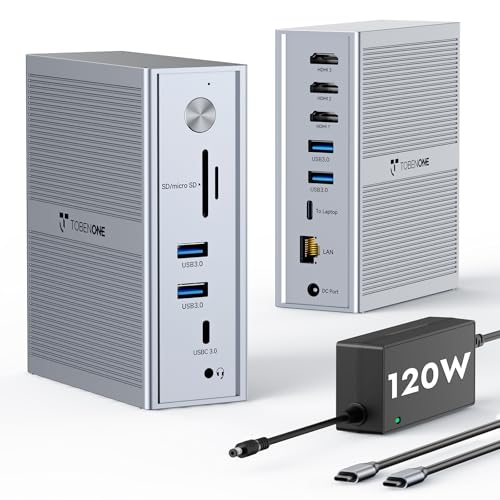
- Three HDMI displays: 4K30 plus two 1920×1200 at 60Hz
- Up to 100W laptop charging with included adapter
- Five 5Gbps USB ports and Gigabit Ethernet
Best For: Three-screen USB-C productivity desks
Dual-4K Flexibility

- Two 4K monitors at 60Hz via HDMI or DisplayPort
- USB-C and USB 3.0 host connection options
- Six USB 3.0 ports; no laptop charging
Best For: Dual-4K office setups with separate laptop power
High-Speed Triple Display

- Up to two 4K60 displays plus one 2K60 display
- 100W laptop charging with included adapter
- Six 10Gbps USB ports and Gigabit Ethernet
Best For: Three-monitor USB-C workstations with fast peripherals
Best for USB-A Laptops
Plugable UD-3900 Dual-HDMI Dock

- Dual HDMI up to 1920x1200 at 60Hz
- USB-A or USB-C host connection
- Ethernet, audio, and six USB ports
Best For: Dual-monitor productivity on laptops with USB-A or USB-C
Best for USB-Heavy Desks
Plugable Triple-HDMI USB-C Dock

- Three extended HDMI displays
- Six USB 3.0 ports plus Ethernet
- Up to 100W laptop charging
Best For: Triple-monitor workstations with many USB peripherals
Best for Charging Accessories
Plugable 13-in-1 Triple-Monitor Dock

- Three HDMI displays; one up to 4K at 30Hz
- Up to 100W laptop and 20W device charging
- SD reader, Ethernet, and four USB-A ports
Best For: Three-monitor desks needing an SD reader and accessory charging
Most Screens – TobenONE Quad 4K DisplayLink Dock
If you need displaylink docking stations for multiple monitors and want the most screen space in this lineup, this TobenONE dock supports up to four external 4K@60Hz displays on compatible systems. Its 20-port layout also accommodates peripherals, cards, wired networking, and audio.
Best For: Desk setups that need four external monitors and laptop charging through one dock.
Pros:
- Supports up to four 4K@60Hz external monitors; M1 MacBooks are limited to three.
- Offers four HDMI and four DisplayPort connections alongside USB, SD/microSD, Ethernet, and audio.
- Included 150W adapter enables up to 100W laptop charging on compatible USB-C PD laptops.
Cons:
- DisplayLink driver installation is required.
- HDCP-protected content is not supported.
The broad display and port selection makes this the choice for a monitor-heavy workstation. Check your laptop’s charging capability and, if you use an M1 MacBook, plan around its three-monitor limit.
Triple 4K Pick – WAVLINK DisplayLink-6950 Dock
Among displaylink docking stations for multiple monitors, this WAVLINK model suits buyers targeting three 4K@60Hz screens. Two display channels use DisplayLink, while the third HDMI connection uses Alt Mode and requires a compatible USB-C video-output port.
Best For: Compatible Mac or Windows laptops powering a triple-4K productivity setup.
Pros:
- Supports up to three 4K@60Hz displays when the host meets the video requirements.
- Provides two 10Gbps USB-C ports, three 5Gbps USB-A ports, Gigabit Ethernet, and SD/TF readers.
- Included 130W adapter supports up to 100W laptop Power Delivery on compatible hosts.
Cons:
- Third display requires USB-C HDMI Alt Mode support; DisplayLink software must also be installed.
- HDMI and DisplayPort connectors assigned to the same display channel cannot be used together.
This is the stronger WAVLINK option here when triple-4K resolution matters. Verify your laptop’s USB-C video output before counting on the third screen.
Office Triple-Screen – WAVLINK DisplayLink-6350 Dock
For shoppers comparing displaylink docking stations for multiple monitors primarily for spreadsheets and dashboards, this WAVLINK dock offers a three-display workspace without positioning itself as a gaming or editing solution. Its DisplayLink channels support up to dual 2K@60Hz; the HDMI Alt Mode connection depends on USB-C video-output support.
Best For: Office multitasking across three displays with wired accessories and laptop charging.
Pros:
- Supports a triple-monitor workspace on compatible Mac and Windows laptops.
- Includes two 10Gbps USB-C ports, three 5Gbps USB-A ports, Gigabit Ethernet, and SD/TF readers.
- Provides up to 100W laptop Power Delivery with a compatible USB-C PD host.
Cons:
- DisplayLink driver installation and a compatible USB-C video-output port for HDMI Alt Mode are required.
- Its DisplayLink channels top out at dual 2K@60Hz, not dual 4K@60Hz.
Choose this model for everyday multi-screen office work rather than the higher-resolution triple-4K WAVLINK alternative. Remember that HDMI and DisplayPort connectors on the same display channel cannot run simultaneously.
USB-A Flexibility – WAVLINK Dual 4K DisplayLink Dock
If you’re browsing displaylink docking stations for multiple monitors but only need two screens, this WAVLINK dock supports dual 4K@60Hz output. Its USB-A and USB-C host compatibility makes it useful when switching between laptops with different ports.
Best For: Two-monitor home-office setups, especially when laptop charging is unnecessary.
Pros:
- Supports two external 4K@60Hz monitors using HDMI, DisplayPort, or one of each.
- Works with compatible USB-A, USB-C, USB4, and Thunderbolt laptops.
- Includes six USB-A 3.0 ports, Gigabit Ethernet, and 3.5mm audio.
Cons:
- Does not charge the connected laptop.
- Requires a DisplayLink driver and does not support Linux.
This is a practical pick for adding two sharp displays and several USB accessories without requiring a video-capable USB-C port. Budget for a separate laptop charger, and note that it is not intended for gaming or DRM-protected streaming.
Triple-HDMI Desk Setup – TobenONE 14-in-1 DisplayLink Dock
Among displaylink docking stations for multiple monitors, this TobenONE dock is a practical choice when you want three HDMI screens, laptop charging, and peripherals connected through one USB-C port. Its stated display configuration is one 4K screen at 30Hz plus two 1920×1200 screens at 60Hz.
Best For: Mac or Windows users building a three-screen productivity desk with USB-C laptop charging.
Pros:
- Supports three extended HDMI displays through DisplayLink after driver installation.
- Includes a 120W power adapter and provides up to 100W laptop charging.
- Offers five 5Gbps USB ports and Gigabit Ethernet.
Cons:
- Requires a DisplayLink driver.
- Only one display reaches 4K, and it is limited to 30Hz.
Choose this dock if screen count and a tidy, powered workspace matter more than running all three monitors at 4K.
Dual-4K Flexibility – Plugable UD-6950Z Dock
If you are comparing displaylink docking stations for multiple monitors, the Plugable UD-6950Z stands out for two 4K displays at 60Hz and a choice of HDMI or DisplayPort connections. It can connect to a host over USB-C or USB 3.0, making it useful when your laptops do not all have the same port.
Best For: Office users who want two sharp 4K monitors and flexible connections without needing laptop charging from the dock.
Pros:
- Supports two 3840×2160 displays at 60Hz via HDMI or DisplayPort.
- Connects to USB-C or USB 3.0 host ports.
- Includes six USB 3.0 ports, Gigabit Ethernet, and audio.
Cons:
- Does not charge the host laptop.
- Mac users must install a driver; gaming and HDCP-protected playback are not supported.
This is a strong fit for a dual-4K work desk, provided you can keep your laptop charger connected separately.
High-Speed Triple Display – WAVLINK WL-UG63PD25 Dock
The WAVLINK is one of the displaylink docking stations for multiple monitors worth considering when you need three external screens alongside faster peripheral ports. Its stated display support reaches two 4K screens at 60Hz plus a third 2K screen at 60Hz, with 100W laptop charging through USB-C.
Best For: USB-C laptop users who want a three-monitor workstation with fast USB connections and laptop power from one dock.
Pros:
- Supports up to two 4K 60Hz displays and one 2K 60Hz display.
- Provides up to 100W laptop charging with an included 130W adapter.
- Has six 10Gbps USB ports and Gigabit Ethernet.
Cons:
- Requires a suitable video-capable USB-C laptop; USB-A hosts are not supported.
- Mac users need a DisplayLink driver, and the dock is not recommended for gaming or HDCP-protected 4K streaming.
Its display and USB specifications make it a capable home-office hub, but check your laptop’s USB-C capabilities and driver requirements before buying.
Best for USB-A Laptops – Plugable UD-3900 Dual-HDMI Dock
Among displaylink docking stations for multiple monitors, the Plugable UD-3900 is a practical choice when your laptop has USB-A rather than a full-featured USB-C port. Its hybrid cable also connects to USB-C laptops, and both HDMI outputs support up to 1920×1200 at 60Hz.
Best For: Everyday productivity setups needing two external monitors, Ethernet, and USB peripherals without USB-C charging.
Pros:
- Connects through USB 3.0 or USB-C with the included hybrid cable.
- Offers two HDMI outputs, Gigabit Ethernet, audio jacks, and six USB ports.
- Supports Windows 10/11, macOS 14+, and ChromeOS 100+ with the applicable driver setup.
Cons:
- Does not charge the host laptop or support 4K displays.
- Not suited to gaming or HDCP-protected streaming; Linux is unsupported.
Choose this dock if broad laptop connectivity matters more than high-resolution video or one-cable charging. macOS users should plan for a manual DisplayLink driver installation.
Best for USB-Heavy Desks – Plugable Triple-HDMI USB-C Dock
For shoppers comparing displaylink docking stations for multiple monitors, this Plugable dock pairs three HDMI outputs with six USB 3.0 ports and up to 100W USB-C laptop charging. One display can run at up to 4K at 30Hz through USB-C Alt Mode, while two DisplayLink outputs support up to 1080p at 60Hz each.
Best For: USB-C laptop workstations that need three extended displays, several USB peripherals, and a single charging connection.
Pros:
- Supports up to three extended HDMI monitors, including on supported Apple Silicon MacBooks.
- Provides six USB 3.0 ports, Gigabit Ethernet, and audio connectivity.
- Delivers up to 100W USB-C Power Delivery to the host laptop.
Cons:
- The two DisplayLink-driven monitors top out at 1080p at 60Hz.
- Requires a compatible full-featured USB-C connection; macOS needs a driver, and Linux and HDCP playback are unsupported.
This is the stronger fit when USB peripheral capacity is as important as monitor count. Check your laptop for USB-C Alt Mode and Power Delivery support before relying on the dock’s full video and charging capabilities.
Best for Charging Accessories – Plugable 13-in-1 Triple-Monitor Dock
This 13-in-1 Plugable model stands out among displaylink docking stations for multiple monitors by combining three HDMI outputs with up to 100W laptop charging and a front USB-C port that can deliver 20W to a phone or accessory. HDMI 1 supports up to 4K at 30Hz; HDMI 2 and 3 support up to 1920×1200 at 60Hz.
Best For: Home or managed-office desks that need three displays, an SD card reader, and separate laptop and device charging.
Pros:
- Runs up to three extended HDMI displays, including on supported Apple Silicon MacBooks.
- Offers up to 100W host charging and 20W front USB-C device charging.
- Includes an SD card reader, four 5Gbps USB-A ports, Gigabit Ethernet, and audio in/out.
Cons:
- HDMI 2 and 3 require DisplayLink Manager installation on macOS.
- Does not support HDCP-protected playback, including services such as Netflix and Hulu.
Pick this dock when the SD reader and dedicated accessory charging will earn their place on your desk. Its 4K output is limited to 30Hz, so consider whether that refresh rate suits your primary monitor.
How We Picked the Best Displaylink Docking Stations for Multiple Monitors
We focused on practical differences across the 10 selected docks: advertised external-monitor count, video outputs, stated resolution and refresh-rate support, laptop charging, USB connectivity, and Mac and Windows compatibility. We also considered whether a dock offers a useful mix of ports rather than simply the largest number of connectors. These are comparison criteria, not a substitute for checking the manufacturer’s specifications for your exact laptop and monitor combination.
Quick Comparison: Match the Dock to Your Desk
Start with screen count. The Plugable USB 3.0 Universal and Plugable Dual DisplayPort & HDMI models suit shoppers looking at dual-display desks, while several WAVLINK, TobenONE, and Plugable options target three external monitors. The TobenONE 20-in-1 is the quad-monitor option in this lineup. Next, narrow the field by connector: some docks emphasize HDMI, while others provide DisplayPort flexibility. If one cable must also power your laptop, compare the stated 100W or 130W USB-C Power Delivery options with your laptop’s charging requirements.
Key Buying Factors for Displaylink Docking Stations for Multiple Monitors
Verify the Full Display Configuration
A claim such as “triple 4K” is a starting point, not a guarantee for every computer. Check how many external screens the dock supports simultaneously, the resolution and refresh rate available on each output, and whether that configuration changes when you mix HDMI and DisplayPort. Count only the outputs you can use at the same time, not every physical video socket.
Check Your Laptop and Software
DisplayLink works through software, so confirm that the dock supports your operating system and that you can install the required driver or DisplayLink Manager. This matters especially on managed work computers where software installation may be restricted. Mac buyers should check compatibility with their specific chip and macOS version rather than relying on a broad “MacBook compatible” label.
Account for Power, Ports, and Workload
USB-C Power Delivery can reduce desk clutter, but compare the dock’s stated laptop-charging wattage with your computer’s adapter. Check USB port speeds for external drives, Ethernet availability for wired networking, and whether your peripherals need additional ports. DisplayLink is well suited to productivity screens; for latency-sensitive gaming, color-critical work, or protected video playback, verify that its software-driven video path meets your needs before buying.
Who Should Buy Which Displaylink Docking Stations for Multiple Monitors?
For a straightforward two-monitor workspace, start with the dual-display Plugable or WAVLINK choices and prioritize the video connectors you already own. For three screens plus laptop charging, compare the triple-monitor WAVLINK, TobenONE, and Plugable USB-C docks by power delivery and port layout. Choose the quad-display TobenONE only if you will use four external screens and your laptop setup supports the configuration. If your employer controls software installs, confirm DisplayLink approval before choosing any of these docks.
