
Compact editing gear can make a big difference when you want faster timeline navigation, fewer missed shortcuts, and better hand control.
Here’s a focused roundup of compact video editing control surfaces for creators who want a more efficient, desk-friendly workflow in 2026.
Best 10 Compact Video Editing Control Surfaces Picks for 2026
DaVinci Resolve Focused Speed Controller
Blackmagic Speed Editor Bundle

- Built-in search dial for timeline control
- 17 shortcut buttons with match edit functions
- Includes DaVinci Resolve Studio activation card
Best For: Resolve editors who want a compact, portable controller
One-Hand Timeline Controller

- Spring-loaded jog wheel for precise scrubbing
- 15 programmable buttons for shortcuts and macros
- Compact ambidextrous layout with smart app detection
Best For: Editors who want a simple jog-and-button controller
Creative Workflow Dial Pad

- Low-friction dial and roller for precise adjustments
- 9 customizable LCD keys with profile support
- Works with Premiere Pro, Final Cut Pro, DaVinci Resolve, and more
Best For: Creators who want a flexible console for multiple creative apps
Wireless Color Grading Console

- All-way joystick and tri-rotary controls
- 19 buttons with 100+ programmable shortcuts
- Tri-mode wireless plus wired USB-C connectivity
Best For: Editors and colorists who want advanced tactile control
Slim transport controller
Korg nanoKONTROL2 Slim-Line USB Control Surface

- Slim, low-profile design for tight desk spaces
- Track select and marker advance support
- USB control surface with eight mixer channels
Best For: Editors who need a simple compact controller for transport and marker tasks
Custom workflow console
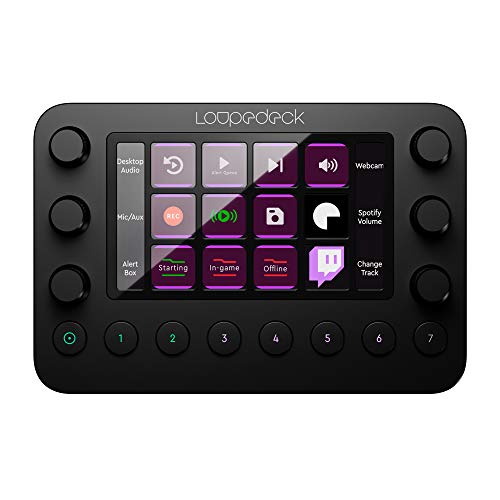
- Buttons, dials, and LED touchscreen in a compact body
- Native integrations for major editing apps
- Unlimited pages and custom macro profiles
Best For: Editors who want deep customization and tactile controls in one console
Wireless shortcut pad
XPPen Mini Keydial ACK05 Wireless Shortcut Keyboard

- Wireless Bluetooth 5.0, dongle, or USB connection
- Ten keys with four customizable shortcut sets
- Lightweight 75 g body with a dial and long battery life
Best For: Creators who want a portable wireless shortcut pad for editing and navigation
Unified Creator Control
TourBox Elite Plus multi-app editing controller

- Works across iPadOS, Android, macOS, and Windows
- Ergonomic shell with refined haptic feedback
- On-screen guidance shows live key mappings
Best For: Editors and creators who switch between apps and devices
All-In-One Deck
ULANZI D200X macro deck with dock and LCD keys

- 14 LCD keys and 3 encoder knobs
- Built-in 8-in-1 dock with 4K HDMI and card readers
- Supports editing, streaming, and smart home workflows
Best For: Power users who want one compact deck for editing and desk connectivity
DaVinci Resolve Focused Speed Controller – Blackmagic Speed Editor Bundle
If you want compact video editing control surfaces that stay tightly focused on DaVinci Resolve, the Blackmagic Design Speed Editor is built for quick, tactile editing. Its built-in search dial, 17 shortcut buttons, and Bluetooth or USB-C connectivity make it a practical desktop tool for editors who prefer hands-on control over mouse-heavy workflows.
Best For: Resolve editors who want a small, portable shortcut controller with a bundled Studio license.
Pros:
- Built-in search dial for faster timeline navigation
- 17 buttons mapped to editing shortcuts and match edit functions
- Bluetooth or USB connectivity for flexible setup
- Includes DaVinci Resolve Studio activation card
Cons:
- Highly specialized for DaVinci Resolve workflows
- Only 17 keys, so it is less broad than larger macro controllers
This is a focused choice rather than a general-purpose console, but that specialization is exactly what makes it useful for Resolve users. If your workflow centers on fast cuts and navigation, it delivers a streamlined control experience in a compact footprint.
One-Hand Timeline Controller – Contour ShuttlePRO v2
The Contour ShuttlePRO v2 is a classic pick among compact video editing control surfaces because it combines a spring-loaded jog wheel with 15 programmable buttons in a small, one-handed layout. It is designed for precise scrubbing and shortcut-heavy work across video, audio, and photo editing apps on Mac or PC.
Best For: Editors who want a simple, ambidextrous jog-and-button controller for timeline work.
Pros:
- Spring-loaded jog wheel and shuttle dial for frame-by-frame scrubbing
- 15 programmable buttons for shortcuts and macros
- Smart app detection switches profiles automatically
- Compact, ambidextrous design with a minimal desk footprint
Cons:
- Wired USB-only connection
- Fewer advanced controls than newer multi-dial consoles
If you want dependable tactile navigation without a steep learning curve, this controller stays straightforward and efficient. Its strength is speed and precision, especially for editors who value a small footprint and a dedicated jog wheel.
Creative Workflow Dial Pad – Logitech MX Creative Console
The Logitech MX Creative Console is a versatile option in compact video editing control surfaces, especially if you move between Premiere Pro, Final Cut Pro, and DaVinci Resolve. Its low-friction control dial, roller, and customizable LCD keypad keys are built for quick app actions, precise adjustments, and profile-based workflows.
Best For: Creators who want a flexible console for editing, design, and other app shortcuts.
Pros:
- Low-friction dial and roller for tactile adjustments
- 9 customizable keys with LCD display support
- App integrations for Premiere Pro, Final Cut Pro, DaVinci Resolve, and more
- Includes stand and 3-month Adobe Creative Cloud membership
Cons:
- Battery-powered rather than fully USB-powered operation
- Best features depend on software profile support
This console is a strong fit if your workflow spans editing and other creative apps, not just one NLE. It offers a more modern, customizable feel than basic shortcut pads while still keeping the layout compact.
Wireless Color Grading Console – XPPen Pilot Pro
The XPPen Pilot Pro pushes compact video editing control surfaces toward more advanced hands-on control, with an all-way joystick, tri-rotary layout, and 19 programmable buttons. It is built for editors and colorists who want one-hand control for timeline moves, precise adjustments, and faster access to complex commands in DaVinci Resolve, Premiere Pro, and creative apps.
Best For: Editors and colorists who want a wireless, highly tactile control console with lots of programmable actions.
Pros:
- All-way joystick plus tri-rotary controls for detailed editing and grading
- 19 buttons mapped to 100+ shortcuts with theme support
- Tri-mode connectivity: Bluetooth 5.3, 2.4G dongle, or wired USB-C
- Built-in rechargeable battery rated for 24 hours of use
Cons:
- More complex than a basic jog/shuttle controller
- Best value depends on how much you use the programmable workflow features
This is the most feature-rich option in the group, so it makes sense for users who want a control surface that can replace a lot of mouse and keyboard movement. Its ergonomic shape and wireless flexibility make it appealing for long editing sessions.
Slim transport controller – Korg nanoKONTROL2 Slim-Line USB Control Surface
If you want compact video editing control surfaces that keep the essentials within easy reach, the Korg nanoKONTROL2 is a simple, low-profile option. It focuses on hands-on transport and mixer-style control rather than extra extras, making it a practical fit for editors who want a small USB controller for a crowded desk or laptop setup.
Best For: Editors and creators who want a slim, straightforward USB control surface for basic timeline and marker control.
Pros:
- Low-profile slim-line design takes up very little desk space.
- Supports track select and marker advance parameters for editing workflows.
- Works with numerous software titles, including Ableton Live and major DAW programs.
- Eight mixer channels provide a compact set of hands-on controls.
Cons:
- Button-based layout is more limited than dial- and touchscreen-heavy consoles.
- Best suited to basic control tasks rather than deep customization.
Overall, this is a good pick if you mainly need a small, dependable control surface for quick edits, transport, and marker navigation. Its simplicity is the main advantage: easy to place, easy to use, and easy to integrate into a compact workstation.
Custom workflow console – Loupedeck Live Custom Console
Among compact video editing control surfaces, the Loupedeck Live stands out for its mix of customizable buttons, dials, and an LED touchscreen. It is built for workflows that benefit from ready-made integrations as well as custom profiles, so you can map editing actions, app shortcuts, and macros into a small console that still feels highly flexible.
Best For: Editors who want a highly customizable compact console with tactile controls and native app integrations.
Pros:
- Native integrations for Premiere Pro, After Effects, Final Cut Pro, and other creative apps.
- Custom profiles, pages, and macros let you build a tailored workflow.
- LED touchscreen, customizable buttons, and haptic analog dials add strong tactile control.
- Can also control OS functions like volume, brightness, and app launching.
Cons:
- Customization depth may be more than casual users need.
- Best value depends on whether you use supported apps or build your own profiles.
This is the most feature-rich option in the group, especially if you want one compact device to handle editing, shortcuts, and broader system control. It makes the most sense for users who will take advantage of its software integrations and extensive customization tools.
Wireless shortcut pad – XPPen Mini Keydial ACK05 Wireless Shortcut Keyboard
If you want compact video editing control surfaces with a wireless setup, the XPPen Mini Keydial ACK05 is designed for flexible placement and quick shortcut access. It combines programmable express keys with a dial, making it useful when you want a lightweight remote for editing tasks, zooming, and other repetitive controls without adding cable clutter.
Best For: Creators who want a lightweight wireless shortcut controller with a dial for programmable editing actions.
Pros:
- Bluetooth 5.0, dongle, and USB connection options give it flexible connectivity.
- Ten keys can be customized into four shortcut sets for up to forty shortcuts.
- Compact 75 g build and 300-hour battery support portable use.
- Dial feedback and anti-ghosting support more precise control.
Cons:
- Customization requires the driver, and iPad/iOS setup needs the Shortcut Remote app.
- Smaller key count may not suit users who want a larger control layout.
For editors who value portability and wireless convenience, this model offers a lot in a small footprint. Its programmable shortcuts and dial make it a practical companion for speeding up repetitive work, especially when desk space is limited.
Unified Creator Control – TourBox Elite Plus multi-app editing controller
For compact video editing control surfaces, the TourBox Elite Plus is built around one consistent control logic across iPadOS, Android, macOS, Windows, and major creative apps. That makes it appealing if you want one controller that can move between editing, color grading, photo work, and illustration without forcing you to relearn shortcuts every time.
Best For: Creators who want a single compact controller that works across multiple devices and creative apps.
Pros:
- Unified control logic across iPadOS, Android, macOS, Windows, and major apps
- Ergonomic design with refined haptic feedback for comfortable long sessions
- Interactive on-screen guidance helps keep live key mappings visible
- Trusted by over 500,000 creators and backed by frequent software updates
Cons:
- Not a dedicated video-only panel, so some buyers may prefer a more specialized layout
- Best value comes from using its software ecosystem and learning its workflow
The Elite Plus stands out if you want a compact, flexible editing controller that is designed to grow with your workflow rather than lock you into one app or platform.
Dial-Based Editing – ULANZI D100H wireless editing keyboard with knob
The ULANZI D100H is a compact video editing control surface built around a tactile knob and seven customizable buttons for one-hand operation. It is aimed at creators who want precise timeline, color, and retouching control in a small wireless device that fits into a Windows or Mac editing setup.
Best For: Editors who want a simple wireless control panel with a precision knob for focused editing tasks.
Pros:
- Premium aluminum alloy knob with anti-slip texture and motor vibration feedback
- Supports CapCut, DaVinci Resolve, Final Cut Pro, Photoshop, and Lightroom Classic
- Bluetooth 5.1 with support for switching between up to 3 devices
- Seven customizable buttons plus knob for shortcut control and blind operation
Cons:
- Only compatible with Windows 10+ and macOS 12+
- Not compatible with iPad/iPhone mobile devices
- USB port is for charging only, not dual-mode connection
If you want a focused compact controller rather than a larger deck, the D100H offers a practical mix of wireless convenience and precise dial-based control.
All-In-One Deck – ULANZI D200X macro deck with dock and LCD keys
The ULANZI D200X goes beyond basic compact video editing control surfaces by combining 14 LCD keys, 3 encoder knobs, and an 8-in-1 dock in a small desktop footprint. It is a good fit if you want a single device that can handle editing shortcuts, streaming controls, and everyday connectivity from one USB-C cable.
Best For: Creators who want a compact macro deck with built-in dock features for editing, streaming, and desk cleanup.
Pros:
- 14 customizable LCD keys and 3 tactile encoder knobs
- Built-in 8-in-1 docking station with 4K/60 HDMI, audio, card readers, USB, and PD passthrough
- Supports major editing apps plus OBS-related streaming tools and smart home platforms
- Auto app switching and drag-and-drop presets through Ulanzi Studio
Cons:
- More complex than a simple knob-and-button controller
- Only listed with a 3-month warranty in the supplied details
- Best suited to users who will use both the deck and the dock functions
For creators who want maximum functionality in a compact form, the D200X is the most feature-packed option here and can replace several separate desktop accessories.
How We Picked These Compact Video Editing Control Surfaces
We prioritized controls that can genuinely improve editing speed: jog wheels, dials, shortcut keys, Bluetooth or USB-C connectivity, and layouts that stay usable on a crowded desk. We also looked for software support, custom mapping, and whether each device is better suited to timeline trimming, effects work, or general shortcut access.
Quick Comparison
In broad terms, some Compact Video Editing Control Surfaces are built for precision trimming and shuttle control, while others focus on macro workflows, shortcut launching, or multi-app creative control. If you spend most of your time in the timeline, a jog wheel or shuttle controller may feel most natural. If you switch between editing, streaming, and post-production tasks, a button-heavy console with LCD keys or a touchscreen layout may be more flexible.
Key Buying Factors for Compact Video Editing Control Surfaces
Controls That Match Your Workflow
Look at the type of input first. Jog wheels and shuttle dials are ideal for scrubbing footage and trimming frames. Programmable buttons are better for marking, cutting, undoing, ripple edits, and app-specific shortcuts. Dials and rotary encoders help with zoom, audio levels, and parameter adjustments.
Software Compatibility and Customization
The best device is only useful if it works well with your editing software. Check support for tools like DaVinci Resolve, Adobe Premiere Pro, Final Cut Pro, or other post-production apps you use regularly. Strong customization matters because the best Compact Video Editing Control Surfaces let you map the functions you actually use every day.
Connection Type and Desk Space
Wireless models offer cleaner setups and more flexibility, but wired USB-C devices can be simpler and more reliable. Also consider footprint: some controllers are slim enough to sit beside a keyboard, while others are better as a primary input device.
Build Quality and Tactile Feel
Editing is repetitive, so the feel of the controls matters. You want buttons with clear feedback, a wheel with enough resistance for precise movement, and hardware that won’t slide around during heavy use.
Who Should Buy Which Compact Video Editing Control Surfaces?
If you mainly edit long-form video and want speed, choose a controller with a strong jog wheel or shuttle wheel. If your workflow depends on shortcuts and macros, a keypad-style console may be the better fit. Creators who also manage livestreams, audio, or photo work may prefer more flexible Compact Video Editing Control Surfaces with customizable keys, dials, and screens. For those seeking the simplest upgrade from mouse-and-keyboard editing, start with a device that matches your most common tasks rather than the one with the most features.
