
The best compact USB video adapters make it easier to connect modern laptops to extra monitors, projectors, TVs, and older displays without carrying a bulky dock. The right choice depends on your computer’s ports, required resolution, operating system, and whether you need display output or video capture.
This roundup compares 10 USB video adapters and compact hubs for common setups, from USB-C to HDMI connections and multi-monitor expansion to VGA conversion and HDMI-to-USB recording.
Best 10 Compact USB Video Adapters Picks for 2026
Best Compact USB-C Pick

- 4K video at 60Hz
- Plug-and-play USB-C to HDMI
- Lightweight aluminum construction
Best For: USB-C laptops with compatible video output
Best for VHS Digitizing

- Captures RCA and S-Video sources
- Supports video up to 720p
- Works with Windows and Mac
Best For: Converting VHS and other analog recordings
Best Windows Workstation Adapter
StarTech USB-A to HDMI Converter

- 1080p at 60Hz output
- Adds an extended HDMI display
- Bus-powered with no extra supply
Best For: Windows office and work-from-home setups
Apple Pick
USB-C Digital AV Multiport Adapter

- HDMI video and audio output
- USB port for peripherals and syncing
- USB-C pass-through charging
Best For: Compatible Mac and iPad users needing HDMI plus essential ports
Productivity Hub
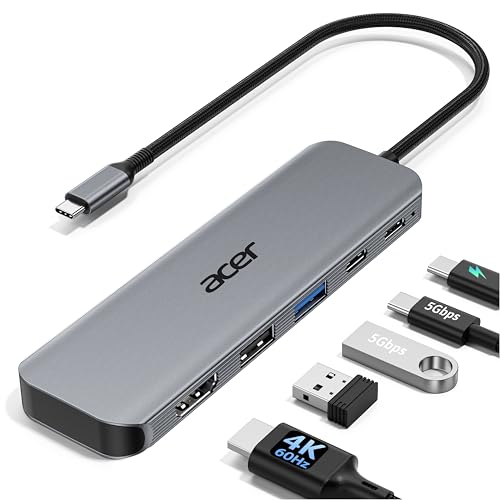
- 4K HDMI output at 60Hz
- USB-C and USB-A 5Gbps data ports
- Up to 90W laptop charging output
Best For: Compatible USB-C laptops needing display, data, and charging expansion
Legacy Display Option
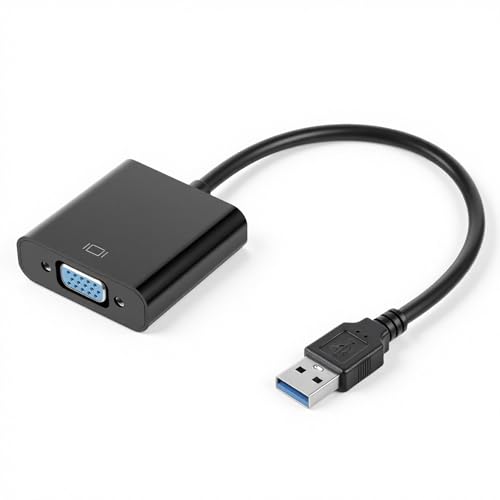
- VGA connection for older displays
- Up to 1920×1080 output
- Supports mirrored or extended desktops
Best For: Windows 7, 8, or Vista computers using VGA monitors or projectors
Best Multiport Pick

- 4K@60Hz HDMI output
- 10Gbps USB-C data ports
- 100W PD and card readers
Best For: USB-C laptop users needing video, data, cards, and charging
Best for Capture
VIXLW 4K HDMI Video Capture Card

- Captures HDMI video and audio
- 4K@60Hz input support
- Works with OBS and streaming software
Best For: Streaming, recording, teaching, and gaming capture
Best Basic Display Adapter

- 1080p@60Hz Full HD output
- Mirror and extended modes
- Compact USB-A design
Best For: Adding a Full HD HDMI display to Windows or macOS computers
Best Compact USB-C Pick – Anker USB-C to HDMI Adapter
For a simple, travel-ready display connection, this Anker adapter is one of the most straightforward compact USB video adapters. It converts a compatible USB-C port to HDMI and supports video up to 4K at 60Hz without requiring software installation.
Best For: USB-C laptops with DP Alt mode, USB4, or Thunderbolt that need a single HDMI display connection.
Pros:
- Supports up to 4K video at 60Hz.
- Plug-and-play operation with no installation required.
- Lightweight aluminum housing and reinforced braided-nylon cable.
- Compact 1.97 x 0.85 x 0.45-inch design with an 18-month warranty.
Cons:
- Does not support charging or Power Delivery.
- Provides one HDMI connection rather than multiple display outputs.
This is a strong choice when portability and uncomplicated 4K output matter most. Confirm that your USB-C port supports DP Alt mode before buying.
Best for VHS Digitizing – USB RCA Video Capture Card
This capture card is a practical option among compact USB video adapters for converting older analog recordings. It accepts RCA or S-Video input from devices such as VCRs, camcorders, and Hi8 players, then sends the captured video and audio to a computer.
Best For: Digitizing VHS, VCR, Hi8, DV, and other analog video collections on Windows or Mac computers.
Pros:
- Converts RCA composite input to USB output at up to 720p.
- Captures audio without requiring a separate sound card.
- Supports NTSC and PAL formats with image-control options.
- No external power is needed, and a two-year manufacturer warranty is included.
Cons:
- Requires separate acquisition software, such as OBS Studio, PotPlayer, or QuickTime Player.
- Designed for analog capture rather than HDMI monitor output.
Choose this model if your goal is preserving tape-based memories rather than connecting a modern laptop to a display. The software setup adds a step, but the hardware is designed for easy plug-and-play use.
Best Budget Multi-Monitor Option – USB 3.0 to HDMI Adapter
This adapter provides a convenient way to add an HDMI display through a standard USB port, making it a useful entry in the compact USB video adapters category. USB 3.0 supports up to 1080p at 60Hz, while USB 2.0 use is recommended at 720p.
Best For: Windows or Mac laptop users who want an extended or mirrored HDMI display for work, presentations, or home entertainment.
Pros:
- Supports up to 1080p at 60Hz through USB 3.0.
- Offers both extended and mirrored display modes.
- Compatible with Windows 7 through Windows 11 and Mac OS.
- Lightweight, portable design for carrying in a laptop bag.
Cons:
- Requires driver installation and a computer restart.
- USB 2.0 use is recommended only up to 720p.
- Linux, Vista, Chrome, and Firestick are not supported.
This is a flexible choice for adding one HDMI monitor when your computer lacks a suitable video port. Use a USB 3.0 connection for the advertised 1080p performance and check operating-system support before purchase.
Best Windows Workstation Adapter – StarTech USB-A to HDMI Converter
For Windows users building a compact workstation, this StarTech converter adds an HDMI monitor through USB-A. It is bus-powered, supports 1920×1200 or 1080p video at 60Hz, and includes audio through HDMI.
Best For: Windows laptops and desktops that need an additional HDMI monitor for office or work-from-home productivity.
Pros:
- Supports 1920×1200 and 1080p video at 60Hz.
- Adds an extended desktop through a USB-A connection.
- USB bus-powered, so no separate power supply is required.
- Compact design with two-channel HDMI audio support.
Cons:
- Compatible only with Windows; macOS, ChromeOS, and Linux are not supported.
- Requires driver installation and administrator rights.
- Uses USB-A rather than USB-C.
This adapter is best suited to a Windows-centered setup where reliability and an extended desktop are more important than universal compatibility. Its platform limitations make checking your operating system essential.
Apple Pick – USB-C Digital AV Multiport Adapter
For Apple users seeking compact USB video adapters, this USB-C multiport model combines HDMI display output with USB connectivity and pass-through charging. It supports video and audio output, though an HDMI cable is required separately.
Best For: Mac and compatible iPad users who need a simple HDMI connection plus USB and charging access.
Pros:
- Mirrors a compatible Mac or iPad display to an HDMI TV, monitor, or projector.
- Supports both video and audio output.
- Includes a standard USB port for peripherals, storage, or iOS syncing.
- USB-C pass-through charging helps keep the connected device powered.
Cons:
- Requires a separate HDMI cable.
- Compatibility is limited to supported USB-C or Thunderbolt 3 devices and listed operating systems.
This is a focused, Apple-oriented option for presentations, home viewing, or basic desk setups where HDMI, one USB device, and charging are enough.
Productivity Hub – 5-in-1 USB-C HDMI Adapter
This Acer hub is a strong choice among compact USB video adapters when you also need data ports and charging. It pairs 4K at 60Hz HDMI output with USB-C and USB-A connectivity in a portable aluminum design.
Best For: USB-C laptops and tablets with DisplayPort Alt Mode that need an HDMI display, fast data transfer, and power delivery.
Pros:
- Supports 4K HDMI output at 60Hz for smoother motion than 30Hz output.
- Offers USB-C and USB-A 3.0 ports with transfer speeds up to 5Gbps.
- Provides up to 100W input and up to 90W laptop output through pass-through charging.
- Compact aluminum construction is suited to travel, office, and remote work.
Cons:
- A 100W power adapter and cable are recommended for optimal 90W charging, but are not included.
- The host USB-C port must support DisplayPort Alt Mode, Power Delivery, and data transfer.
With more expansion than a basic video dongle, this hub makes sense for users building a compact workstation around a compatible USB-C computer.
Legacy Display Option – USB to VGA Adapter
This USB-to-VGA converter is intended for older display equipment, making it a specialized choice among compact USB video adapters. It connects a USB-enabled computer to a VGA monitor, projector, or TV and supports output up to 1920×1080 when used with USB 3.0.
Best For: Windows 7, Windows 8, or Vista systems that need a VGA connection for presentations, classroom displays, or dual-monitor setups.
Pros:
- Connects USB computers to VGA-compatible monitors, projectors, and TVs.
- Supports mirrored or extended desktop configurations.
- Provides output up to 1920×1080 resolution.
- USB 3.0 connectivity is intended to provide faster, steadier signal transmission.
Cons:
- Supplied notes limit operating-system support to Windows 7, Windows 8, and Vista.
- Uses VGA rather than HDMI or another digital display connector.
- No warranty is listed.
This adapter is best treated as a practical legacy-display solution rather than a modern universal dock, particularly when an older VGA projector or monitor is already in use.
Best Multiport Pick – Acer 8-in-1 USB-C Hub
For shoppers comparing compact USB video adapters, the Acer 8-in-1 hub is a versatile choice when HDMI output, fast data transfer, card readers, and charging are needed in one small accessory. It supports up to 4K at 60Hz, but the host USB-C device must support DisplayPort Alt Mode.
Best For: Laptop users who want a compact USB-C video adapter that also handles peripherals, memory cards, and power delivery.
Pros:
- HDMI output supports 4K at 60Hz for compatible devices.
- Includes USB-C and USB-A data ports, SD/microSD readers, and a 100W PD port.
- Supports up to 10Gbps data transfer through its USB-C ports.
- Works with Windows, macOS, Linux, and ChromeOS devices that support the required functions.
Cons:
- Video output requires USB-C DisplayPort Alt Mode.
- The hub is not a standalone video adapter for ordinary USB-A ports.
- Powering the hub is recommended for better performance, especially with an SSD.
This is the most capable option of the three for a compact desk setup, particularly if you need more than display output. Check your laptop or phone’s DP Alt Mode support before buying.
Best for Capture – VIXLW 4K HDMI Video Capture Card
Among compact USB video adapters, the VIXLW capture card is designed for bringing HDMI video and audio into a computer or phone rather than sending a computer display to an HDMI monitor. It accepts 4K at 60Hz input and outputs capture video at up to 1080p at 30Hz.
Best For: Streaming, online teaching, video conferences, gaming capture, and recording HDMI sources with software such as OBS.
Pros:
- Captures HDMI video and audio simultaneously.
- Supports 4K at 60Hz input and up to 1080p at 30Hz output.
- Plug-and-play design requires no external power or complicated driver installation.
- Compatible with Windows, macOS, Linux, and Android according to the supplied specifications.
Cons:
- It is an HDMI-to-USB capture device, not a USB-to-HDMI display adapter.
- Maximum listed capture output is 1080p at 30Hz.
- The product details identify Windows as the platform, so verify compatibility for your setup.
Choose this model when your goal is recording or streaming an HDMI source. It is a poor fit for adding a second monitor, but a practical fit for cameras, consoles, and other HDMI equipment.
Best Basic Display Adapter – Reborn USB to HDMI Adapter
The Reborn adapter is a straightforward option for shoppers seeking compact USB video adapters for a Windows or macOS computer. It converts USB-A to HDMI for mirroring or extending a display at up to 1080p at 60Hz, with a required driver installation.
Best For: Adding an HDMI monitor to a compatible desktop or laptop when basic Full HD display expansion is sufficient.
Pros:
- Supports 1920×1080 output at 60Hz with compatible USB 3.0 equipment.
- Offers both mirror and extended display modes.
- Compact, lightweight design is convenient for travel and frequent use.
- Includes a two-year warranty and listed after-sales support.
Cons:
- Driver installation is required before use.
- It cannot be used in BIOS mode.
- USB 2.0 or unsupported receiving devices may reduce output to 800×600 or fail to work.
This is the simplest display-focused choice in the group, provided your computer has a compatible USB-A port and can install the driver. It is better suited to Full HD productivity than high-resolution or plug-and-play setups.
How We Picked These Compact USB Video Adapters
We focused on adapters that solve practical video-connection problems while remaining easy to carry and set up. The selection covers USB-C to HDMI adapters, USB-A display converters, USB-to-VGA models, multiport hubs, and capture cards. We considered supported resolution and refresh rate, connector compatibility, operating-system requirements, portability, extra ports, and the type of signal each product handles.
It is important to distinguish between a display adapter and a capture device. Display adapters send your computer’s image to a monitor or TV. Capture cards receive HDMI or analog video and pass it to a computer for recording, streaming, teaching, or archiving.
Quick Comparison
- Best for straightforward USB-C display output: Anker USB-C to HDMI Adapter.
- Best for Apple devices and presentations: Apple USB-C Digital AV Multiport Adapter.
- Best for extra connectivity: Acer 5-in-1 or 8-in-1 USB-C hubs.
- Best for USB-A to HDMI expansion: StarTech or Reborn USB-to-HDMI adapters.
- Best for older VGA monitors: A USB-to-VGA adapter.
- Best for recording HDMI sources: VIXLW 4K HDMI capture card.
- Best for digitizing analog media: An RCA-to-USB video capture device.
Key Buying Factors for Compact USB Video Adapters
Connector and Host Compatibility
Check whether your computer has USB-C, USB-A, or both. A USB-C port may support video through DisplayPort Alt Mode, but not every USB-C port does. USB-A display adapters generally require drivers, while simple USB-C-to-HDMI adapters often work through native video output.
Resolution and Refresh Rate
For office work, 1080p is usually sufficient. Choose a 4K-capable adapter if you use a high-resolution monitor, large TV, or detailed creative-work display. A stated 4K@60Hz specification is more useful for smooth cursor movement and scrolling than 4K at 30Hz, but the laptop, cable, and monitor must also support it.
Drivers and Operating Systems
USB-A video converters commonly rely on DisplayLink or another driver-based technology. Confirm support for your version of Windows or macOS before buying, and check whether administrative access is needed for installation. Driver-based adapters can be useful for multiple monitors but may not be ideal for gaming or color-critical work.
Power, Ports, and Use Case
Compact hubs can add HDMI alongside USB data, charging, card readers, or other ports, but they may draw power from the laptop. If you need sustained peripherals or charging while connected, consider a hub with pass-through power. For video capture, verify the input format, audio handling, USB speed, and intended recording resolution.
Who Should Buy Which Compact USB Video Adapters?
Choose a simple USB-C-to-HDMI adapter for presentations, home-office monitors, and occasional TV connections. Pick a USB-C hub when you want display output plus USB accessories or charging. A USB-A-to-HDMI model makes sense for computers without video-capable USB-C, provided its drivers are supported. Use a USB-to-VGA adapter only when your display requires VGA.
For streaming or recording a camera, console, or other HDMI source, select a capture card rather than a display adapter. If your goal is to preserve footage from VHS, MiniDV, VCR, Hi8, or DVD equipment, use an analog video capture device with the appropriate RCA or composite connections.
