
A good docking station can turn a laptop into a more capable desktop without the cost or complexity of a premium business dock. The best budget USB docking stations add monitor outputs, USB ports, Ethernet, card readers, and power delivery in one compact connection.
This roundup compares 10 affordable options for home offices, study spaces, and flexible workstations. Focus on the ports, display support, charging limits, and operating-system compatibility you actually need before buying.
Best 10 Budget USB Docking Stations Picks for 2026
Best Compact Dual-Display Pick

- Dual HDMI with up to 4K output
- 1Gbps Ethernet and SD/microSD readers
- Up to 85W pass-through charging
Best For: Compact Windows dual-monitor setups
Best Triple-Monitor Value
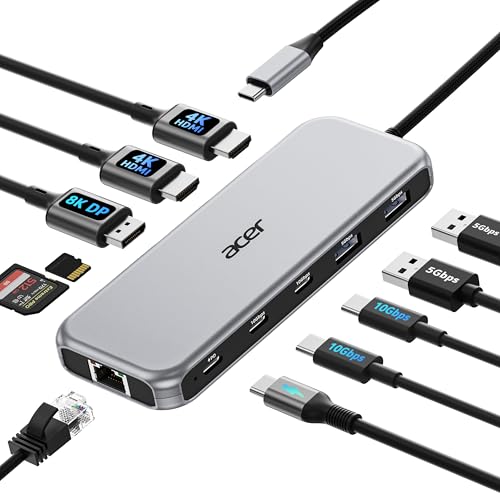
- Supports up to three external displays
- 8K DP and dual 4K HDMI outputs
- 10Gbps USB-C and 100W input support
Best For: Multi-monitor workstations with high-speed peripherals
Best Legacy-Display Option

- Dual 4K DisplayPort outputs plus HDMI and VGA
- 100W USB-C PD charging input
- Broad Dell, HP, and Lenovo compatibility
Best For: Mixed DisplayPort, HDMI, and VGA monitor setups
Best Port-Heavy Workstation Pick

- 14 ports including HDMI, DP, Ethernet, and audio
- Dual- or triple-monitor support on Windows
- 5Gbps USB and up to 100W charging
Best For: Windows workstations with many connected peripherals
Best Multi-Display Budget Pick

- Includes dual HDMI, DisplayPort, and VGA outputs
- Supports dual- or triple-display setups on compatible systems
- Provides up to 87W safe laptop charging output
Best For: Windows users prioritizing multiple external monitors
Best Flexible USB Dock

- Dual HDMI supports two HD monitors
- Gigabit Ethernet plus six USB ports
- Two-year coverage and lifetime support
Best For: Productivity setups needing many ports and dual HD displays
Best Compact USB-C Dock

- Dual HDMI supports 4K at 60Hz
- Includes SD and microSD card slots
- Up to 90W laptop power delivery
Best For: USB-C workstations with dual 4K monitors and media cards
Best Port-Rich USB-C Dock
MOKiN 13-in-1 Dual Monitor Dock

- 13-in-1 design with Ethernet and dual HDMI
- Dual 4K at 60Hz with DP 1.4 support
- 100W charging and multiple USB ports
Best For: Full-function USB-C workstations with many peripherals
Best Compact Dual-Display Pick – Anker 8-in-1 USB-C Dock
For shoppers comparing budget USB docking stations, Anker’s 8-in-1 hub offers a compact way to add dual HDMI displays, wired networking, card readers, and USB connectivity through one USB-C port.
Best For: Windows users who want a small dual-monitor dock with 4K video support and up to 85W pass-through charging.
Pros:
- Two HDMI ports support up to 4K at 30Hz when both are used.
- Includes 1Gbps Ethernet, SD and microSD readers, and two USB-A data ports.
- Supports USB-C, USB4, and Thunderbolt connections, with an 18-month warranty.
Cons:
- Displays mirror one another on macOS.
- Not compatible with Linux.
- Wall charger and USB-C cable are required for pass-through charging but are not included.
This is a practical, lightweight choice when desk space and price matter more than a large port selection. Check your laptop’s DP Alt Mode and Power Delivery support before buying.
Best Triple-Monitor Value – Acer 11-in-1 USB-C Dock
Acer’s 11-in-1 model stands out among budget USB docking stations for its broad port selection and triple-display support, combining high-speed USB, Ethernet, card readers, and laptop charging in one dock.
Best For: Windows, macOS, ChromeOS, or Linux users with a full-featured USB-C port who need three external displays and fast peripheral connectivity.
Pros:
- Supports triple display configurations up to 4K at 60Hz, 4K at 60Hz, and 1080p at 60Hz.
- Provides an 8K DisplayPort output, two 4K HDMI outputs, and 1Gbps Ethernet.
- Offers 10Gbps USB-C ports, 5Gbps USB-A ports, card readers, and up to 85W laptop delivery from a 100W input.
Cons:
- Requires a compatible full-featured USB-C port with display, charging, and data support.
- A 100W power adapter is needed for stable charging performance.
- HDMI performance depends on the laptop’s HDMI version, with HDMI 2.0 or higher recommended.
With the most expansive feature set here, this Acer dock is a strong value for a multi-monitor workstation. Its specifications are appealing for demanding file transfers, but compatibility should be verified before purchase.
Best Legacy-Display Option – MOKiN 8-in-1 Dual-DP Dock
This MOKiN model is one of the more flexible budget USB docking stations for mixed-display setups, pairing dual DisplayPort outputs with HDMI, VGA, basic USB ports, and a 100W PD charging input.
Best For: Laptop users with multiple DisplayPort, HDMI, or VGA monitors who mainly need everyday keyboard, mouse, and storage connectivity.
Pros:
- Includes two DisplayPort outputs and HDMI supporting up to 4K at 60Hz, plus VGA up to 1080p at 60Hz.
- Offers a 100W USB-C PD charging port.
- Works with many full-featured USB-C Dell, HP, and Lenovo laptops and includes an 18-month MOKiN warranty.
Cons:
- USB-C and USB-A data ports are limited to USB 2.0 speeds of up to 480Mbps.
- MacBook use is limited to mirror mode rather than extended mode.
- Requires a full-featured USB-C port supporting display, charging, and data protocols.
The standout feature is its assortment of video outputs, especially for older monitors. It is less suitable for fast external storage, but it can be a cost-conscious fit for basic office peripherals and mixed-display compatibility.
Best Port-Heavy Workstation Pick – 14-in-1 USB-C Dock
For buyers who need more than basic expansion, this 14-in-1 dock packs dual HDMI, DisplayPort, Ethernet, audio, card readers, multiple USB ports, and charging into a single USB-C connection.
Best For: Windows laptop users building a busy dual- or triple-monitor workstation with storage, wired networking, audio, and several USB accessories.
Pros:
- Combines dual 4K HDMI, DisplayPort, Gigabit Ethernet, audio/mic, SD and microSD readers, and multiple USB ports.
- Supports dual-monitor and triple-monitor configurations on compatible Windows systems.
- Provides 5Gbps USB 3.0 and USB-C data ports plus up to 100W pass-through charging.
Cons:
- On macOS, external screens display the same content rather than providing independent output.
- Only one HDD or SSD can be connected at a time.
- Power adapter and power cord are not included.
This is a compelling choice when port count is the priority and the laptop runs Windows. Its display features depend on a fully functional USB-C or Thunderbolt port, so confirm that requirement before ordering.
Best Value Connectivity – 11-in-1 USB-C Docking Station
If you want broad connectivity without spending much, this budget USB docking station turns one full-featured USB-C port into an 11-port workstation hub. It combines HDMI, VGA, USB, Ethernet, card readers, audio, and 100W pass-through charging in a compact aluminum design.
Best For: Remote workers, travelers, and laptop users who need varied legacy and modern connections in one affordable hub.
Pros:
- Offers HDMI 4K@30Hz and VGA 1080p outputs, with support for simultaneous HDMI and VGA displays.
- Includes SD and MicroSD readers, 100Mbps Ethernet, 3.5mm audio, and four USB ports.
- Supports up to 100W USB-C PD pass-through charging and plug-and-play use.
- Compact 80-gram aluminum enclosure is easy to carry.
Cons:
- Ethernet is limited to 100Mbps.
- Only one USB port supports USB 3.0 speeds; the other three are USB 2.0.
- 4K HDMI output is limited to 30Hz.
This is a practical budget USB docking station for mixed peripherals and presentation setups. Its wide port selection is the main attraction, though users needing faster Ethernet, multiple high-speed USB ports, or 4K at 60Hz should consider a more specialized dock.
Best Multi-Display Budget Pick – 8-in-1 Triple-Monitor Dock
This budget USB docking station is aimed at Windows users who want several monitor outputs at a relatively accessible price. It provides two HDMI ports, DisplayPort, VGA, three USB 2.0 ports, and up to 100W USB-C PD input for a flexible desk setup.
Best For: Windows laptop users building dual- or triple-monitor workstations with HDMI, DisplayPort, or VGA displays.
Pros:
- Provides four video outputs: two HDMI, DisplayPort, and VGA.
- Can support dual- or triple-display video, with resolutions depending on the laptop and connected outputs.
- Offers up to 100W input and up to 87W safe output for compatible laptops.
- USB-C design is compatible with supported Thunderbolt and full-featured USB-C systems.
Cons:
- All three USB ports are USB 2.0 with transfer speeds up to 480Mbps.
- Connecting VGA can limit all displays to 1080p.
- Power adapter and power cord are not included.
Choose this dock when monitor expansion matters more than fast peripheral transfers. Before buying, confirm that the laptop supports video output over USB-C and that its graphics hardware can handle the intended display arrangement; macOS mirrors external screens rather than providing independent extended displays.
Best High-Speed Budget Option – Anker Nano Dual-Monitor Dock
For shoppers seeking a faster budget USB docking station, the Anker Nano emphasizes 10Gbps data across its USB-A and USB-C data ports. It also adds dual HDMI outputs, SD and TF card slots, and up to 85W laptop charging when paired with a suitable 100W charger and cable.
Best For: Windows users who need fast file transfers, dual 4K monitor support, and memory-card connectivity in a compact dock.
Pros:
- Provides 10Gbps USB-C and USB-A data connections across four data ports.
- Supports up to dual 4K@60Hz displays on compatible Windows systems with DP 1.4 and DSC 3:1.
- Includes SD and TF 3.0 card slots with transfer speeds up to 104MB/s.
- Supports up to 85W laptop charging through a 100W PD input.
Cons:
- Charger and cable are not included.
- macOS mirrors the external displays instead of extending them independently.
- Not compatible with Linux.
This is the strongest choice here for users who value transfer speed and modern Windows display support. Its capabilities depend on the host laptop’s USB-C features, and the macOS and Linux limitations make compatibility checking especially important.
Best Flexible USB Dock – Dual HDMI Laptop Dock
The Plugable UD-3900 is a practical choice among budget USB docking stations when you need broad connectivity for a Windows laptop, Mac, or compatible Chromebook. It adds dual HDMI, Gigabit Ethernet, six USB ports, and audio through one USB 3.0 or USB-C connection, though it requires drivers for some systems and does not charge the host laptop.
Best For: Home-office and productivity users who need two HD monitors and plenty of USB peripherals.
Pros:
- Supports two HDMI displays up to 1920×1200 at 60Hz.
- Includes Gigabit Ethernet, audio jacks, and six USB ports.
- Works with Windows, macOS, and ChromeOS under the stated requirements.
- Includes two-year coverage and lifetime support.
Cons:
- Does not charge the connected laptop.
- Requires DisplayLink installation on macOS and driver installation for display output.
- Not suitable for gaming, 4K displays, DisplayPort connections, or HDCP-protected streaming.
This dock prioritizes port variety and dependable office functionality over high-resolution video or laptop charging. It is a strong budget fit if your setup centers on web work, documents, peripherals, and dual HD screens.
Best Compact USB-C Dock – Acer 9-in-1 4K Dock
The Acer 9-in-1 is one of the more capable budget USB docking stations for laptops with a full-featured USB-C port. It combines dual 4K HDMI output, USB-A and USB-C data ports, SD and microSD readers, and up to 90W laptop power delivery in a compact aluminum body.
Best For: USB-C laptop users who want dual 4K displays, memory-card access, and charging from one dock.
Pros:
- Offers dual HDMI output at up to 4K and 60Hz.
- Provides three USB-A and one USB-C 5Gbps data ports.
- Includes SD and microSD slots rated up to 104Mbps.
- Supports up to 90W delivery to the laptop with a compatible 100W input.
Cons:
- Requires a full-featured USB-C port with display, charging, and data support.
- Mac systems can only mirror the same content across external monitors.
- It has a one-year manufacturer warranty.
This Acer dock is a well-rounded option for modern USB-C workstations, especially those that use cameras, removable storage, or two high-resolution monitors. Confirm your laptop’s USB-C capabilities before buying.
Best Port-Rich USB-C Dock – MOKiN 13-in-1 Dual Monitor Dock
The MOKiN 13-in-1 is a port-heavy choice among budget USB docking stations, with dual HDMI, wired Ethernet, multiple USB-C and USB-A ports, and a dedicated 100W USB-C charging input. It is designed for full-function USB-C or Thunderbolt 3/4 laptops and can support dual 4K displays when the host laptop uses the required DP 1.4 protocol.
Best For: Users building a busy dual-monitor workstation with many USB devices, wired networking, and laptop charging.
Pros:
- Provides 13-in-1 connectivity, including dual HDMI and RJ45 Ethernet.
- Supports dual 4K displays at 60Hz with compatible DP 1.4 systems.
- Offers multiple 5Gbps USB ports plus a 1000Mbps wired network connection.
- Includes up to 100W USB-C Power Delivery and a screen-lock button.
Cons:
- Dual 4K output depends on a compatible full-function USB-C or Thunderbolt host.
- The 100W charging figure is the dock’s maximum input and may vary by laptop and charger.
- It lacks dedicated video outputs beyond HDMI.
With its unusually broad port selection, this MOKiN model suits a permanent desk setup better than a minimalist travel kit. Check your laptop’s USB-C video capabilities and use an appropriate power adapter to take advantage of its charging and display features.
How We Picked These Budget USB Docking Stations
We focused on practical features that matter in an affordable dock: display-output options, useful USB port counts, charging support, network connectivity, portability, and compatibility with common Windows laptops. The selection includes USB-C hubs, universal USB 3.0 docks, and models with HDMI, DisplayPort, or VGA outputs.
Because specifications can vary by computer, we also considered whether a dock’s design clearly communicates its limits. A dock may advertise multiple monitors, for example, but your laptop must support the required video mode, DisplayPort Alt Mode, Thunderbolt, or DisplayLink software.
Quick Comparison
| Best for | Look for | Important check |
|---|---|---|
| Everyday home office | HDMI, USB-A, USB-C, and Ethernet | Monitor resolution and refresh rate |
| Two monitors | Two independent video outputs | Laptop and operating-system support |
| Three displays | 11-in-1 design or universal graphics support | Whether all outputs work simultaneously |
| Travel | Compact 8-in-1 hub | External power and cable length |
| Peripherals and storage | USB 3.0, SD, TF, and Ethernet | Shared bandwidth across ports |
Key Buying Factors for Budget USB Docking Stations
Display Compatibility
Count the exact outputs you need, not just the advertised number of screens. HDMI is common, while DisplayPort can be preferable for compatible monitors. VGA is useful for older displays but usually supports lower image quality. Confirm resolution and refresh-rate limits before purchase.
USB Ports and Speed
USB 3.0 ports are better for external drives and fast peripherals than USB 2.0 ports. However, several ports may share one upstream connection, so simultaneous transfers can reduce speed. Check whether the dock includes USB-C data, USB-A, or both.
Power Delivery
Power Delivery lets a compatible charger pass power through the dock to the laptop. A 100W rating does not always mean the computer receives 100W, since the dock itself consumes some power. Verify your laptop’s charging requirement and whether a charger is included.
Operating-System and Driver Support
USB-C video hubs generally depend on the laptop’s built-in display support. Universal USB 3.0 docks may use DisplayLink software, which can be useful for additional displays but may require drivers and affect performance. Check Windows, macOS, ChromeOS, and Linux support as applicable.
Network and Card-Reader Features
Gigabit Ethernet is valuable for stable video calls and downloads. SD and TF readers are convenient for photographers and creators, but they may share bandwidth with other ports. If these features are occasional needs, a smaller hub may offer better value.
Who Should Buy Which Budget USB Docking Stations?
Choose a compact 8-in-1 model if you mainly need one external display, several accessories, and easy travel. Pick a 9-in-1 or 11-in-1 dock when you need more USB ports, card readers, Ethernet, or extra video outputs. Models advertising dual or triple displays are better for fixed workstations, provided your laptop supports the required setup.
For older laptops or systems without suitable USB-C video support, a universal USB 3.0 dock may be the safer choice, especially when DisplayLink drivers are supported. Before ordering, match the dock’s connector, monitor outputs, charging method, and operating-system requirements to your equipment. That compatibility check is the best way to get reliable value from Budget USB Docking Stations.
