
Budget pen display monitors can make digital art feel far more natural without pushing your setup into premium-pricing territory. The best models balance pen responsiveness, screen quality, and comfort for long creative sessions.
Whether you are a beginner, a student, or an artist looking for a capable secondary display, this roundup focuses on practical value and the features that matter most.
Best 10 Budget Pen Display Monitors Picks for 2026
Compact Starter Pick
XP-PEN Artist12 11.6" FHD Drawing Monitor

- 11.6-inch full HD IPS screen
- Battery-free pen with eraser end
- 6 shortcut keys and touch bar
Best For: beginners and students wanting a small, affordable pen display
Color-Accurate Midrange Pick
HUION Kamvas 13 (Gen 3) 13.3" Pen Display

- Laminated 13.3-inch screen with anti-glare glass
- 16384 pressure levels with PenTech 4.0
- 99% sRGB plus factory calibration report
Best For: artists who want a portable, color-accurate pen display
DIY Utility Pick
10.1" Touchscreen HDMI Monitor with Enclosure
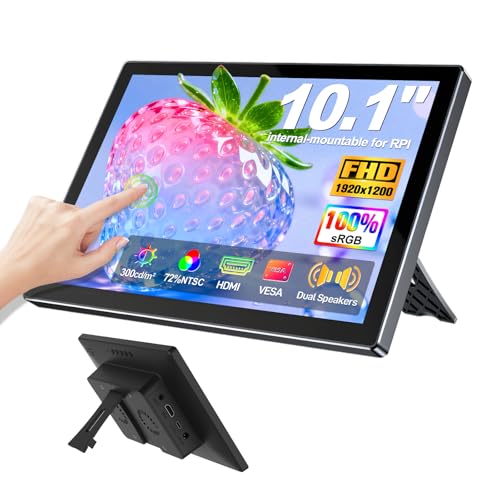
- 1920x1200 IPS display with 10-point touch
- Built-in enclosure with VESA mounting
- Works with Raspberry Pi, PCs, and consoles
Best For: DIY and Raspberry Pi users needing a compact touchscreen display
Large-Canvas Value Pick
XPPen Artist 24 Pro 23.8" 2.5K QHD Display

- 23.8-inch 2.5K QHD screen
- 20 shortcut keys plus dual dials
- Two battery-free styluses included
Best For: creators who want a large, color-rich pen display with more workspace
Portable Touch Pick
InnoView 15.6" 1080P Touch Monitor

- 10-point touch on compatible USB-C devices
- 15.6-inch 1080p IPS panel with HDR
- Includes sleeve and built-in stand
Best For: Portable touchscreen use for laptops, travel, and everyday work
Artist Value Pick
XPPen Artist 15.6 Pro Drawing Tablet

- 8192 pressure levels with battery-free stylus
- Full-laminated 15.6-inch 1080p display
- 8 shortcut keys and red dial for workflow
Best For: Artists who want an affordable pen display for drawing and editing
Workstation Touch Choice

- 23.8-inch 1080p IPS panel with 75Hz refresh
- 10-point touch with driver-free use
- HDMI, VGA, USB and VESA mount support
Best For: Desk and office setups needing a larger touchscreen monitor
Entry-Level Compact Pen Display

- 13.3-inch fully laminated FHD screen
- 16,384-pressure battery-free stylus
- 8 shortcut keys and a red dial
Best For: compact creative setups on a budget
Mid-Size Feature-Rich Pen Display

- 15.6-inch full-laminated 1080p display
- 8,192-pressure battery-free stylus
- 14 shortcut keys plus a dial
Best For: artists needing a bigger budget-friendly canvas
Premium Budget-Adjacent OLED Pen Display

- 15.6-inch 4K OLED panel
- 99% Adobe RGB and touch gestures
- Dual 16K-pressure styluses plus remote
Best For: detail-focused creators wanting premium visuals
Compact Starter Pick – XP-PEN Artist12 11.6" FHD Drawing Monitor
If you’re shopping for budget pen display monitors, the XP-PEN Artist12 is a compact entry-level choice with a full HD IPS screen, customizable shortcuts, and a battery-free pen. It needs to stay connected to a computer, but it gives beginners and students a practical screen-based drawing setup without a large desk footprint.
Best For: Beginners, students, and home users who want a small pen display for drawing, note-taking, or remote work.
Pros:
- 11.6-inch 1920×1080 IPS display with 72% NTSC / 100% sRGB color gamut
- Battery-free P06 pen with eraser end and 8 replacement nibs included
- 6 customizable shortcut keys plus a programmable touch bar
- Compatible with Windows, Mac, and Linux, plus major creative apps
Cons:
- Must be connected to a computer to work
- Requires HDMI and USB-A ports, or an adapter depending on your device
- Small 11.6-inch screen may feel cramped for detailed work
The Artist12 is a straightforward way to get pen-on-screen control at a lower entry point. It focuses on core features that matter most for first-time buyers rather than advanced workstation extras.
Color-Accurate Midrange Pick – HUION Kamvas 13 (Gen 3) 13.3" Pen Display
The HUION Kamvas 13 (Gen 3) is a strong fit for budget pen display monitors if you want better color accuracy and a more refined drawing feel. It combines a laminated 13.3-inch screen, 16384 pressure levels, and a USB-C single-cable workflow for a cleaner desktop setup.
Best For: Artists and illustrators who want a portable 13-inch pen display with improved accuracy and workflow tools.
Pros:
- Fully laminated 13.3-inch display with anti-sparkle Canvas Glass 2.0
- PenTech 4.0 with 16384 pressure levels and 2g initial activation force
- 99% sRGB coverage, Rec.709 support, and factory color calibration report
- Five programmable keys plus dual dial buttons and USB-C single-cable connection
Cons:
- Not a standalone device; it must be connected to a computer or compatible device
- USB-C full-featured cable is sold separately if you want that connection type
- Smaller screen may be limiting for users who prefer larger canvases
For buyers who care about accurate color and smoother pen response, the Kamvas 13 (Gen 3) stands out in the budget category. It offers a more polished creative experience without jumping to a large, expensive display.
DIY Utility Pick – 10.1" Touchscreen HDMI Monitor with Enclosure
This 10.1-inch HDMI touchscreen is a practical option if you’re comparing budget pen display monitors for more than just art. It is built more like a versatile utility display, with 10-point touch, a 1920×1200 IPS panel, and a rear enclosure designed for Raspberry Pi and other DIY setups.
Best For: DIY users, Raspberry Pi builders, and anyone who wants a compact touch display for general-purpose use.
Pros:
- 10.1-inch IPS screen with 1920×1200 resolution and 72% NTSC color
- 10-point touch with driver-free plug-and-play operation
- Integrated enclosure and 75mm VESA mounting points for projects
- Compatible with Raspberry Pi, PCs, game consoles, and other HDMI devices
Cons:
- Touch function requires USB connection
- Touch is not enabled on some devices with strict security protocols, including MacBook and Switch
- Not a dedicated pen display for drawing with stylus input
While it is not a traditional art monitor, it can be a smart low-cost pick for users who need a touchscreen display with flexible mounting and broad device support. Its strengths are practicality and integration, not stylus-driven creative features.
Large-Canvas Value Pick – XPPen Artist 24 Pro 23.8" 2.5K QHD Display
If you want a bigger canvas while shopping budget pen display monitors, the XPPen Artist 24 Pro brings a 23.8-inch 2.5K QHD screen, dual dial wheels, and a battery-free tilt stylus. It is built for creators who want more workspace and richer detail without moving into a premium studio display class.
Best For: Artists, designers, animators, and video editors who want a large pen display with strong color support.
Pros:
- 23.8-inch 2560 x 1440 QHD display with anti-glare film and 178° viewing angle
- 118% sRGB, 84% NTSC, and 90% Adobe RGB color gamut
- 20 customizable shortcut keys plus dual red dial wheels
- Two battery-free styluses with 8192 pressure levels and 60° tilt support
Cons:
- Larger size needs more desk space than smaller pen displays
- Designed to work with a computer, not as a standalone tablet
- May be more display than casual users need for simple sketching
The Artist 24 Pro is the most workspace-focused option in this group, making it a solid value for users who want room to draw and edit comfortably. Its larger panel and strong shortcut layout make it especially appealing for longer creative sessions.
Portable Touch Pick – InnoView 15.6" 1080P Touch Monitor
If you want budget pen display monitors for travel or a second screen, this InnoView 15.6-inch portable monitor leans more toward versatility than pure art use. It gives you a 10-point touchscreen, 1080p IPS image quality, and a built-in stand, making it a practical pick for laptops, phones, tablets, and game consoles when you need a compact, touch-enabled display.
Best For: Laptop users who want an affordable portable touchscreen monitor for work, travel, and light touch interaction.
Pros:
- 10-point touch support over USB-C on compatible devices
- 15.6-inch 1080p IPS panel with 1200:1 contrast and HDR
- Lightweight design with protective sleeve and built-in adjustable stand
- Dual Type-C ports plus HDMI for broad device compatibility
Cons:
- Touch does not work with every device, including some consoles and Apple devices
- May need a 15W+ power adapter for best brightness and volume
- Not a pen-based drawing display
This is a strong value choice if your budget pen display monitors search is really about an inexpensive portable touchscreen. It’s better suited to general productivity and casual interaction than professional pen input, but the slim build and easy carry setup make it useful in everyday mobile workflows.
Artist Value Pick – XPPen Artist 15.6 Pro Drawing Tablet
For shoppers comparing budget pen display monitors for drawing, the XPPen Artist 15.6 Pro is the most clearly art-focused option here. It connects to a computer and pairs a full-laminated 15.6-inch 1080p display with 8192 pressure levels, tilt support, and shortcut controls, giving beginner and intermediate artists a capable pen display without stepping into a standalone device.
Best For: Digital artists, students, and remote workers who want an affordable pen display with real drawing controls.
Pros:
- 8192 levels of pressure sensitivity with battery-free stylus
- Full-laminated 15.6-inch IPS display with 120% sRGB color
- 8 customizable shortcut keys plus red dial for workflow control
- Works with major creative apps and several operating systems
Cons:
- Must be connected to a computer; not a standalone tablet
- Requires setup with compatible drivers and devices
- Smaller than some desk-focused drawing displays
If you specifically want pen input, this is the most relevant budget-friendly display in the group. The mix of pressure sensitivity, laminated glass, and hardware shortcuts makes it a practical tool for drawing, sketching, and note-taking without paying for a premium model.
Workstation Touch Choice – CUNPU 24" FHD Touch Monitor
The CUNPU 24-inch touchscreen monitor fits budget pen display monitors searches when the goal is a larger touch-capable workspace rather than a true pen tablet. It offers a 23.8-inch IPS panel, 10-point capacitive touch, and 1080p resolution, which can be useful for business setups, kiosks, or a desk where you want a bigger interactive screen.
Best For: Office users and workstation setups that want a larger touchscreen display for navigation, notes, and productivity.
Pros:
- Large 23.8-inch 1080p IPS screen with 75Hz refresh rate
- 10-point capacitive touch with driver-free use
- HDMI, VGA, and USB connectivity for flexible setups
- VESA mount support and tilt adjustment for desk positioning
Cons:
- MacOS touch support is not available
- Requires USB-B plus HDMI connection to enable touch
- Not designed as a stylus-first drawing display
This is the best option here if screen size matters more than pen features. It works well as a touch-enabled second monitor for productivity, but buyers looking for true pen display behavior should treat it as a general touchscreen monitor instead.
Entry-Level Compact Pen Display – XPPen Artist 13.3 Pro
If you want budget pen display monitors with a compact footprint, the XPPen Artist 13.3 Pro is a practical place to start. Its 13.3-inch full-laminated FHD screen, 88% NTSC color coverage, and 60-degree tilt support make it a solid fit for everyday drawing, photo edits, and beginner-to-intermediate creative work on a connected computer.
Best For: Artists, students, and remote creators who want a small, fully-laminated pen display with shortcut controls.
Pros:
- 13.3-inch fully laminated display helps reduce parallax for cleaner pen placement.
- Battery-free stylus includes 16,384 pressure levels and 60-degree tilt support.
- Red dial plus 8 customizable shortcut keys can speed up common creative tasks.
- Includes a portable stand, pen holder, replacement nibs, and both USB-C and 3-in-1 cable options.
Cons:
- Must be connected to a computer or laptop to use.
- Smaller screen size may feel tight for users who prefer more workspace.
Overall, this model focuses on useful core features rather than premium extras, which makes it appealing if you want an affordable pen display monitor with good color and a streamlined control layout.
Mid-Size Feature-Rich Pen Display – Artisul SP1603 15.6"
Among budget pen display monitors, the Artisul SP1603 stands out for packing a larger 15.6-inch workspace with strong color specs and plenty of controls. It uses a full-laminated tempered glass screen, 90% NTSC color coverage, and a slim 9mm aluminum body, making it a practical option for drawing, animation, design, and online teaching on a connected PC, Mac, or Android device.
Best For: Creators who want a larger budget pen display with extra shortcut controls and broad platform support.
Pros:
- 15.6-inch full-laminated display with 1920×1080 resolution and anti-glare film.
- Battery-free stylus offers 8,192 pressure levels and ±60-degree tilt support.
- 14 customizable shortcut keys plus a dial can improve workflow efficiency.
- Compatible with Windows, macOS, and Android systems.
Cons:
- Not a standalone tablet and must be connected to a computer or laptop.
- Full-featured USB-C cable is not included, so some setups may need extra cable planning.
The SP1603 is a strong pick if you want more screen space and more direct controls without moving into a premium price tier.
Premium Budget-Adjacent OLED Pen Display – XPPen Artist Ultra 16
If you are comparing budget pen display monitors but want the highest-end screen in this group, the XPPen Artist Ultra 16 brings a 15.6-inch 4K OLED panel with advanced touch controls. It is designed for use with a computer or laptop and adds professional color coverage, dual stylus options, and a shortcut remote, making it a strong fit for detailed illustration, retouching, and animation.
Best For: Professional-minded creators who want OLED visuals, touch interaction, and strong color accuracy.
Pros:
- 15.6-inch 4K OLED display with 3840 x 2160 resolution and anti-glare etched glass.
- Calman-verified color performance with 99% Adobe RGB, 99% sRGB, and 98% Display P3 coverage.
- X-Touch support enables multi-point gestures like slide, zoom, and rotate.
- Includes dual 16,384-pressure styluses and an ACK05 shortcut remote with 40 customizable keys.
Cons:
- Needs to connect to a computer to function.
- More advanced features may be more than casual users need.
This model is the most feature-packed option here, so it makes sense if you want premium display quality and workflow tools while still staying in the pen-display category.
How We Picked These Budget Pen Display Monitors
We focused on displays that offer a strong mix of pen performance, screen size, color quality, and everyday usability. Priority went to models with laminated screens, reliable pressure sensitivity, tilt support, and low-latency input where available. We also considered portability, included accessories, and whether each option fits a real budget-minded buyer.
Quick Comparison: What Matters Most
When comparing Budget Pen Display Monitors, look first at screen size and resolution. Smaller 13-inch models are easier to fit on crowded desks, while 15.6-inch options give more room to draw. If you need extra workspace for detailed illustration or multitasking, larger screens can be worth it, but they usually cost more and take up more space.
Color coverage, brightness, and panel quality also matter. For art, stronger sRGB coverage and a laminated display can improve the experience by reducing parallax and making lines feel more direct. If you plan to sketch, paint, or annotate frequently, pen feel and shortcut controls should rank high on your list too.
Key Buying Factors for Budget Pen Display Monitors
Pen technology: Look for battery-free pens, good pressure levels, and tilt support for a more natural drawing feel.
Display quality: Full HD is fine for many buyers, but higher-resolution panels offer sharper details. Color accuracy matters if you create art for clients or print.
Connectivity: Check whether you need USB-C, HDMI, or a three-in-one cable setup. Compatibility can affect setup simplicity more than many buyers expect.
Size and portability: A compact monitor is easier to move, while larger models are better for studio work. Consider your desk space and whether you travel with your gear.
Controls and ergonomics: Shortcut dials, express keys, and adjustable stands can improve workflow and comfort during long sessions.
Who Should Buy Which Budget Pen Display Monitors?
If you are just starting out, compact Budget Pen Display Monitors are usually the safest choice because they are easier to learn on and less expensive to replace or upgrade later. If you already draw regularly, a mid-size laminated display with better color and shortcut controls will likely feel more productive.
For users who need a larger canvas, prioritize screen size and color performance over extra accessories. If your work includes editing, illustration, or casual color-sensitive projects, choose the best color-accurate model you can comfortably afford. In short, match the display to your desk, your workflow, and how seriously you plan to use it.
