
If you want one keyboard, mouse, and monitor setup to control multiple computers, the right switch can make your desk far more efficient.
This guide highlights the best usb c kvm switches with displayport for 2026, with picks for simple single-screen setups, dual-monitor workflows, and more demanding multi-PC stations.
Best 10 USB C Kvm Switches with Displayport Picks for 2026
Best for High-Refresh 8K
OREI 8K USB-C DisplayPort KVM Switch

- 8K@60Hz and 4K@144Hz-ready output
- USB-C and DisplayPort computer support
- USB 3.0 sharing with remote switching
Best For: Gamers and power users who want a DisplayPort KVM with USB-C support and high-refresh performance.
Best for Dual-Display Laptops
USB C HDMI KVM Switch for 1 Desktop+1 Laptop

- Dual-monitor sharing for one laptop and one desktop
- 4K@60Hz with 3 USB-A + 1 USB-C peripheral support
- Button or wired-remote switching with plug-and-play setup
Best For: Users who want a simple dual-monitor KVM for a laptop-and-desktop workstation.
Best 8K Pick
UGREEN 8K DisplayPort KVM Switch

- 8K@60Hz and 4K@240Hz DisplayPort 1.4 support
- 4 USB 3.0 ports for peripherals and storage
- Includes DP cables and USB-A to USB-C cables
Best For: Users who want a high-resolution DisplayPort KVM for two computers and shared USB devices.
Best for Dual-Laptop Dual-Monitor Setups

- Shares 2 monitors and 4 USB devices between 2 computers
- 4K@60Hz support with a single USB-C laptop connection
- 87W PD charging plus wired remote for easy switching
Best For: People who want a dual-monitor USB-C KVM for a laptop-and-desktop workstation.
Best for Dual-Display Workstations

- Two-monitor support with extend and mirror modes
- 4 USB 3.0 ports for shared peripherals and storage
- 8K@60Hz DisplayPort 1.4 capability
Best For: Dual-monitor professionals who need a DisplayPort KVM for two computers and shared USB devices.
Best for Dual-Display Docks

- Two computers share two monitors and peripherals
- HDMI + DisplayPort outputs with 4K support
- 100W laptop charging plus 13-in-1 dock ports
Best For: Hybrid work setups that need dual monitors, charging, and dock-style expansion.
Best for Triple-Monitor Power Users

- Shares 3 monitors across 3 computers
- 8K@60Hz / 4K@120Hz support
- Includes USB 3.0 ports, cables, and wired remote
Best For: People building a high-performance multi-monitor workstation with three PCs.
Best for Triple-Monitor Setups
UGREEN 8K KVM Switch for 3 Monitors

- Shares 3 monitors between 2 computers
- Up to 8K@60Hz / 4K@240Hz support
- Includes 4 USB 3.0 ports and controller
Best For: Power users who need a high-bandwidth KVM for two PCs and three displays.
Best Heavy-Duty Pick
3 Monitor 2 PC HDMI KVM Switch

- Shares 3 monitors between 2 computers
- Up to 8K@60Hz / 4K@120Hz support
- USB 3.0-A and USB-C peripheral ports
Best For: Dual-PC users building a triple-monitor desk and sharing peripherals.
Best for Triple-Monitor Desk Setups
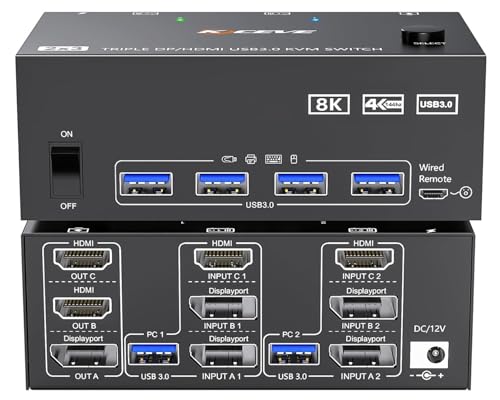
- Shares 3 monitors between 2 computers
- Supports USB 3.0 peripherals and wired remote control
- High-resolution output up to 8K/60Hz and 4K/144Hz
Best For: Users with dual-PC, triple-monitor workstations who have the required DisplayPort and HDMI outputs.
Best for High-Refresh 8K – OREI 8K USB-C DisplayPort KVM Switch
If you need usb c kvm switches with displayport for a gaming desk or a high-end productivity setup, this OREI model stands out for its 8K/4K high-refresh support and broad laptop-to-desktop compatibility. It works as a 2-computer, 1-monitor switch with USB 3.0 peripheral sharing, so you can keep your keyboard, mouse, and storage devices on one hub.
Best For: Users who want a DisplayPort KVM with USB-C support, high refresh-rate output, and simple two-PC sharing.
Pros:
- Supports up to 8K@60Hz and 4K@120/144/240Hz for demanding displays
- Works with both USB-C laptops and DisplayPort desktops
- Includes USB 3.0 sharing for keyboard, mouse, and other peripherals
- Manual button and wired remote make switching easy
Cons:
- Only handles two computers and one monitor
- DisplayPort-focused design may not suit HDMI-only setups
- Best performance depends on compatible cables and hardware
This is a strong pick if your priority is high-resolution, high-refresh switching rather than a basic office KVM. Among usb c kvm switches with displayport, it is especially appealing for mixed laptop/desktop setups that need smooth performance and peripheral sharing.
Best for Dual-Display Laptops – USB C HDMI KVM Switch for 1 Desktop+1 Laptop
If you need one of the more practical usb c kvm switches with displayport-style multi-screen handling, this HDMI-based option is built for a 1 desktop + 1 laptop setup with dual 4K monitor sharing. It lets you keep a mouse, keyboard, printer, scanner, and webcam connected while switching between systems with minimal desk clutter.
Best For: Office users and home workstations that need a simple way to share two monitors and USB peripherals between a laptop and a desktop.
Pros:
- Supports dual-monitor switching for one laptop and one desktop
- Includes 3 USB-A ports plus 1 USB-C for shared peripherals
- Offers 4K@60Hz support for sharper desktop output
- Two switching methods: front button or wired remote
Cons:
- Requires a laptop with MST/display expansion support for dual screens
- Uses HDMI instead of native DisplayPort connections
- Needs included power and PD connections for proper operation
Overall, this is a strong pick for buyers who want a straightforward dual-monitor KVM and are comfortable with HDMI instead of native DisplayPort. For usb c kvm switches with displayport-like workflow needs, it stands out most when laptop expansion and clean peripheral sharing matter more than advanced video routing.
Best 8K Pick – UGREEN 8K DisplayPort KVM Switch
If you want one of the higher-spec usb c kvm switches with displayport for a dual-PC setup, this UGREEN model stands out for its 8K@60Hz DisplayPort 1.4 support, built-in USB 3.0 sharing, and included cables. It’s a practical fit for users who need to toggle one monitor, keyboard, mouse, and peripherals between two computers without adding a docking station.
Best For: Gamers, creators, and power users who want a DisplayPort KVM with top-end resolution support and USB peripheral sharing.
Pros:
- Supports up to 8K@60Hz and 4K@240Hz over DisplayPort 1.4
- Shares 4 USB 3.0 devices, including flash drives, printers, and storage
- Includes both DP cables and USB-A to USB-C cables for setup
- Offers button and desktop controller switching
Cons:
- Not a USB-C KVM switch, despite the USB-C port on the unit
- Requires both USB-A to C cables connected for power and data
- No hotkey switching, and docking stations are not recommended
For buyers comparing usb c kvm switches with displayport, this is a strong option if your priority is high-resolution DisplayPort performance rather than full USB-C video input. It’s especially appealing when you want a simple two-computer switch with included accessories and fast USB 3.0 peripheral sharing.
Best for Dual-Laptop Dual-Monitor Setups – USB C Dual Monitor KVM Switch
If you need one of the more flexible usb c kvm switches with displayport-style workstation support, this dual-monitor USB-C KVM is built for sharing two displays, four USB devices, and a single laptop cable across two computers. It’s a practical fit for mixed laptop-and-desktop desks where you want cleaner cable management, 4K@60Hz output, and quick switching without a driver install.
Best For: Users who want a dual-monitor USB-C KVM for sharing a laptop and desktop at the same desk.
Pros:
- Supports 2 computers on 2 monitors with 4 USB 3.0 peripheral ports
- Up to 4K@60Hz output with a single USB-C connection for compatible laptops
- 87W PD charging helps power a laptop while it’s connected
- Wired remote makes switching more convenient on a busy desk
Cons:
- Requires USB-C Alt Mode/DP-capable cables for laptop video output
- Some setups may need cable re-plugging if flicker or switching delay occurs
- Resolution and stability depend on the laptop, monitors, and cable quality
For buyers comparing usb c kvm switches with displayport, this model stands out for its dual-monitor focus and built-in charging, but it works best when paired with high-quality USB-C and HDMI cables and compatible laptop video output.
Best for Dual-Display Workstations – UGREEN 8K DP KVM Switch
If you need usb c kvm switches with displayport support for a dual-monitor desk, this UGREEN switch is built for sharing two screens, one keyboard/mouse set, and up to four USB devices between two computers. It’s a practical fit for mixed Windows, macOS, and Linux workstations, but it does require DP-based systems and a separate USB connection for each computer.
Best For: Dual-monitor users who want a DisplayPort KVM for two computers, fast USB 3.0 peripheral sharing, and clean desktop switching.
Pros:
- Supports two monitors with extend and mirror modes
- 8K@60Hz DP 1.4 support with backward compatibility for lower resolutions
- Includes 4 USB 3.0 ports for keyboard, mouse, storage, and printer sharing
- Desktop controller plus button switching keeps the setup convenient
Cons:
- Not an HDMI model, so it only works for DisplayPort-based setups
- No hotkey switching support
- Requires dual DP outputs plus USB-A on each computer and external power
Overall, this is a strong pick for buyers comparing usb c kvm switches with displayport who care more about dual-monitor productivity than single-cable convenience. Just make sure your devices can meet the DP and USB requirements before buying.
Best for Dual-Display Docks – USB-C KVM Switch 2 Monitors
If you want one switch that can handle two computers, two monitors, and a full peripheral setup, this is a practical pick among usb c kvm switches with displayport. It combines USB-C, HDMI, and DisplayPort inputs with 4K support, so it fits mixed laptop-and-desktop desks where cable clutter and constant swapping are a problem.
Best For: Users who want a dual-monitor KVM dock with both USB-C and DisplayPort flexibility for a tidy home office or hybrid workstation.
Pros:
- Supports two computers sharing two monitors plus keyboard, mouse, and other peripherals
- Includes HDMI and DisplayPort outputs, with up to 4K60 on HDMI and 4K120 on DisplayPort
- 100W pass-through charging helps keep a laptop powered while docked
- 13-in-1 hub adds USB 3.0, 10Gbps USB, SD, and microSD connectivity
Cons:
- MacBook and macOS are limited to mirror mode only
- Requires compatible Thunderbolt USB-C input and matching 4K-capable cables/displays
- More advanced setup than a basic single-monitor KVM
This is a strong fit if you need usb c kvm switches with displayport support and want docking-station convenience in one unit. The mix of dual video outputs, charging, and extra ports makes it especially useful for anyone building a clean, multi-device workspace.
Best for Triple-Monitor Power Users – 3-Monitor 3-PC 8K KVM Switch
If you need usb c kvm switches with displayport support for a high-end multi-monitor desk, this KVM is built around triple-screen sharing, 8K-ready output, and fast USB 3.0 peripheral switching. It’s a practical fit for mixed HDMI/DisplayPort setups, but it does require the right graphics-card port layout to work correctly.
Best For: Users who want to share three monitors and a full USB peripheral set across up to three computers.
Pros:
- Supports 3 computers and 3 monitors with extended or mirrored display modes
- 8K@60Hz and 4K@120Hz support for sharp, high-refresh visuals
- Includes 4 USB 3.0 ports plus cables, power adapter, and wired remote
- Useful for complex workstation setups that need flexible monitor sharing
Cons:
- Requires a specific GPU output mix: 2 DP ports and 1 HDMI port
- Setup is less plug-and-play than simpler dual-monitor KVMs
- Full 8K performance depends on compatible cables and source devices
For buyers comparing usb c kvm switches with displayport, this model stands out more for raw multi-monitor capability than for simplicity. If your PC hardware matches the required ports, it offers a strong feature set for demanding shared-workstation use.
Best for Triple-Monitor Setups – UGREEN 8K KVM Switch for 3 Monitors
If you need usb c kvm switches with displayport for a more advanced workstation, this UGREEN model is built for dual-computer, triple-monitor sharing with high-end bandwidth. It’s a strong fit for users who want one switch to handle multiple displays, USB peripherals, and high refresh-rate output without constantly replugging cables.
Best For: Users with two fully equipped PCs that each support three displays, plus creators or power users who want a single switch for a complex multi-monitor desk.
Pros:
- Supports 3 monitors across 2 computers with 2 DisplayPort and 1 HDMI outputs
- High refresh-rate support up to 8K@60Hz and 4K@240Hz on compatible gear
- Includes 4 USB 3.0 ports for keyboard, mouse, webcam, and other peripherals
- Comes with cables, power adapter, and desktop controller for a complete setup
Cons:
- Both computers must support triple-monitor output to use all three screens
- No hotkey switching support, so you’ll rely on the button or controller
- USB-C-only laptops need an OTG adapter to connect properly
This is a niche but capable option among usb c kvm switches with displayport if your setup is already built around multiple external displays. Just make sure your PCs, monitors, and cables all meet the bandwidth and port requirements before buying.
Best Heavy-Duty Pick – 3 Monitor 2 PC HDMI KVM Switch
If you need one switch to run two computers across three displays, this triple-monitor KVM is a strong fit for shoppers comparing usb c kvm switches with displayport alternatives. It supports extended and mirrored modes, offers up to 8K@60Hz or 4K@120Hz depending on your gear, and includes USB 3.0 and USB-C peripheral ports for shared accessories.
Best For: Dual-PC users who want to share three monitors, a keyboard, a mouse, and USB devices from one desk setup.
Pros:
- Supports 3 monitors for each of 2 connected computers
- High-resolution output up to 8K@60Hz / 4K@120Hz
- Includes USB 3.0-A and USB-C ports for shared peripherals
- Comes with wired controller and USB cables for setup
Cons:
- Despite the keyword fit, this is an HDMI model rather than a true DisplayPort KVM
- Final refresh/resolution depends on your GPUs, monitors, cables, and adapters
- Requires the USB input connection to each computer for keyboard and mouse recognition
This is a practical choice if your priority is triple-monitor sharing and fast peripheral switching, but buyers specifically shopping usb c kvm switches with displayport should verify port type compatibility before committing. The value here is in the included cables, simple switching, and broad workstation support.
Best for Triple-Monitor Desk Setups – 3-Monitor 2-PC 8K KVM Switch
If you’re comparing usb c kvm switches with displayport for a workstation that needs three displays, this KVM is built for high-end multi-monitor sharing rather than simple laptop docking. It supports two computers, three monitors, USB 3.0 peripherals, and very high resolutions, making it a strong fit for users who already have the right video outputs and want one-switch convenience.
Best For: Dual-PC setups with three monitors each, especially for users who need extended or mirrored display modes and have DisplayPort plus HDMI outputs available.
Pros:
- Supports 2 computers sharing 3 monitors with extended and copy display modes
- High-resolution support up to 8K/60Hz and 4K/144Hz depending on port and cable setup
- Includes USB 3.0 device sharing plus power adapter, remote, and cables
Cons:
- Requires very specific video outputs on each PC, including DisplayPort and HDMI ports
- Not a plug-and-play solution for USB-C-only laptops or single-display systems
For buyers with compatible hardware, this is a powerful way to centralize a triple-monitor desk without constantly swapping cables. Just make sure your GPUs, monitors, and cables can all handle the resolution you want, since usb c kvm switches with displayport only work as well as the rest of the signal chain.
How We Picked the Best USB C Kvm Switches with Displayport
We focused on switching reliability, display support, USB peripheral sharing, power delivery, and real-world compatibility. For USB C Kvm Switches with Displayport, the most important factor is matching the switch to your actual monitor count and resolution needs before looking at extra features.
We also favored models with clearer input/output labeling, modern USB 3.0 expansion, and useful desktop controls such as wired remotes or button switching.
Quick Comparison
Use a single-monitor KVM if you only need one display shared between two computers. Choose a dual-monitor model if you run productivity apps, coding, trading, or creative work and need more screen space. Triple-monitor switches are best for advanced workstations, but they require more careful compatibility checks.
If your setup includes a laptop, look for USB-C input or docking-style support. If you use a desktop, confirm that the video outputs match your GPU and monitor connections.
Key Buying Factors for USB-C KVM Switches with DisplayPort
Display Count and Resolution
First, verify whether the switch supports one, two, or three monitors. Then check the maximum refresh rate at your target resolution. A switch that says 8K support may still have different limits on dual- or triple-display output, so read the full spec sheet carefully.
USB-C, DP, and Input Compatibility
Some USB C Kvm Switches with Displayport are designed for a USB-C laptop plus a desktop, while others are pure multi-PC switches that rely on DisplayPort or HDMI inputs. Make sure the ports line up with your devices, adapters, and monitor inputs before buying.
USB Peripheral Sharing
Look at how many USB ports are included and whether they support keyboards, mice, webcams, storage drives, or audio gear. A few extra USB 3.0 ports can make the switch much more useful as a daily hub.
Power Delivery and Docking Features
If you want to charge a laptop through the switch, check wattage carefully. PD ratings vary widely, and higher wattage is especially helpful for larger laptops and workstation-class machines.
Who Should Buy Which USB C Kvm Switches with Displayport?
Buy a single-monitor USB-C or DisplayPort KVM if you want the simplest setup and the lowest cost. Choose a dual-monitor option if you split work across multiple windows and want better multitasking. Go with a triple-monitor model only if your workflow truly needs it, because these setups are more demanding and less forgiving with cable quality, GPU support, and firmware quirks.
If your desk changes often between a laptop and a desktop, prioritize docking-style flexibility and one-button switching. If your setup is mostly stationary, focus on resolution, refresh rate, and stable peripheral support first.
