
The best drawing display tablets make digital art feel more direct by letting you draw on the screen with a pressure-sensitive stylus. The right model depends on your workspace, preferred screen size, software, and how much color accuracy and shortcut control you need.
This roundup compares 10 drawing displays ranging from compact 11.6-inch options to spacious 22-inch monitors, including budget-friendly picks and higher-resolution professional models.
Best 10 Drawing Display Tablets Picks for 2026
Workflow Powerhouse

- 21.5-inch FHD screen with up to 120% sRGB coverage
- 20 shortcut keys and dual red dial wheels
- Battery-free pen with 8192 pressure levels and 60° tilt
Best For: Desktop creators who prioritize workspace, color, and shortcut controls
Portable Precision
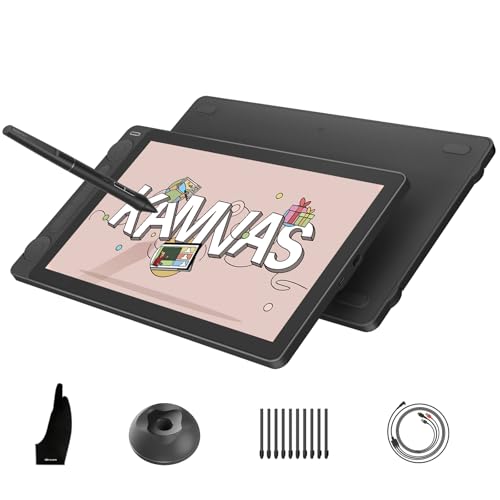
- Lightweight 13.3-inch full-laminated pen display
- 16,384-pressure-level PenTech 4.0 stylus
- Factory-calibrated color with ΔE<1.5 accuracy
Best For: Portable creators who want advanced pen performance and calibrated color
Compact Starter Display

- 11.6-inch 1920×1080 IPS display
- Six shortcut keys plus programmable touch bar
- Battery-free 8192-level pen with digital eraser
Best For: Students, teachers, beginners, and space-conscious creators
Color-Focused Workhorse
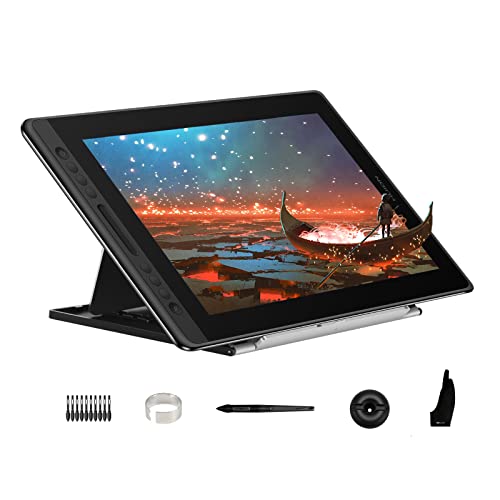
- 15.6-inch full-laminated anti-glare screen
- 120% sRGB and 92% AdobeRGB color coverage
- Six express keys, touch bar, and adjustable stand
Best For: Desktop artists who want vivid color and ergonomic controls
Affordable Starter Pick
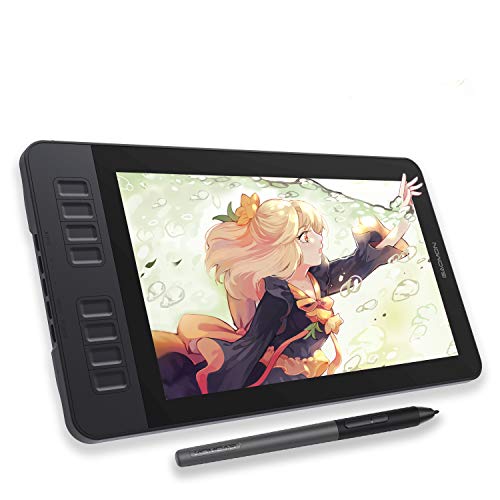
- 11.6-inch Full HD matte display
- Battery-free pen with 8,192 pressure levels
- Eight customizable shortcut keys
Best For: Beginners and students needing a compact computer-connected pen display
Feature-Rich Portable Choice

- 16K pressure-sensitive battery-free stylus
- Fully laminated 13.3-inch FHD display
- Dial, shortcut keys, and dual operating modes
Best For: Creators wanting precise portable drawing with flexible computer connectivity
Large-Screen Workspace

- 21.5-inch Full HD drawing display
- 122% sRGB color gamut and tilt support
- Adjustable 16-to-90-degree stand
Best For: Desk-based artists, teachers, and remote workers needing generous screen space
Balanced Creative Workhorse
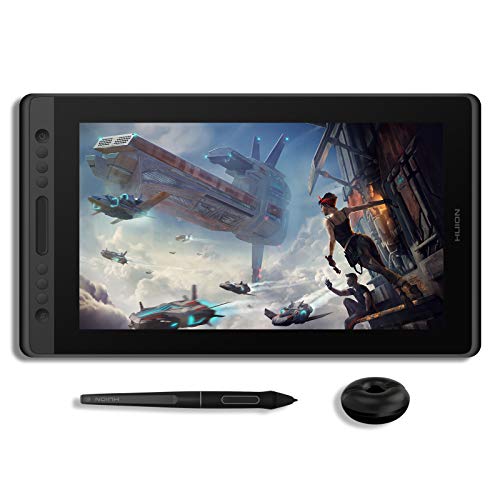
- 15.6-inch full-laminated 1080p screen
- 8,192-pressure battery-free stylus
- Six keys plus programmable touch bar
Best For: Artists and students wanting a versatile computer-connected pen display
Color-Focused Value Pick

- 143% sRGB with four color-space modes
- 16K pressure-sensitive battery-free stylus
- Eight keys and multifunction scroll wheel
Best For: Creators prioritizing vivid color and flexible device compatibility
High-Resolution Pro Choice

- 16-inch 2.5K QHD laminated display
- 16K-pressure X3 Pro battery-free stylus
- Includes stand, remote, and wrist rest
Best For: Detail-focused digital art and 3D work at a desktop
Workflow Powerhouse – XP-Pen Artist 22R Pro
For artists who want expansive workspace and quick access to controls, the XP-Pen Artist 22R Pro is a feature-rich choice among drawing display tablets. Its large Full HD screen, dual dial wheels, and 20 customizable shortcut keys are well suited to detailed creative work.
Best For: Graphic designers, illustrators, animators, photographers, and video editors who want a large, color-focused pen display.
Pros:
- Large 21.5-inch FHD display with up to 120% sRGB coverage.
- 20 customizable shortcut keys and two red dial wheels support efficient workflows.
- Battery-free pen offers 8192 pressure levels, 60° tilt, and a 220 RPS report rate.
- Adjustable 16°–90° stand, VESA support, and left- or right-handed usability add flexibility.
Cons:
- Its large footprint is less convenient for portable setups.
- It must be connected to a compatible computer to use its display and pen functions.
- Full-featured connectivity and compatibility may require checking available ports and operating systems.
The Artist 22R Pro stands out when screen size, color coverage, and physical controls matter more than portability. It is a strong desktop option for creators managing complex projects and frequent tool changes.
Portable Precision – HUION Kamvas 13 Gen 3
The HUION Kamvas 13 Gen 3 is a compact drawing display tablet for creators who need a portable setup without giving up advanced pen performance. Its full-laminated Canvas Glass 2.0, calibrated color, and dual dials make it practical for focused digital art and design work.
Best For: Mobile artists, designers, editors, students, and anyone seeking a lightweight pen display for computer or compatible Android use.
Pros:
- Thin 11.7mm profile and 865g weight make it convenient to carry.
- PenTech 4.0 provides 16,384 pressure levels, low initial activation force, and tilt auto-alignment.
- Factory-calibrated color accuracy of ΔE<1.5 with 99% sRGB/Rec.709 coverage.
- Two dials and five press keys provide configurable workflow controls.
Cons:
- It is not standalone and must connect to a computer or compatible device.
- The 13.3-inch screen offers less workspace than larger desktop pen displays.
- USB-C and Android connectivity depend on compatible ports and device specifications.
With its low weight, paper-textured drawing surface, and professional color claims, the Kamvas 13 Gen 3 is a balanced choice for creators who move between workspaces. Confirm your computer or Android device supports the required connection before buying.
Compact Starter Display – XP-Pen Artist12
The XP-Pen Artist12 is a compact, approachable option among drawing display tablets. Its 11.6-inch Full HD screen, customizable shortcut keys, touch bar, and battery-free pen make it useful for drawing, photo editing, online teaching, and everyday creative tasks.
Best For: Students, teachers, beginners, and creators who want a smaller pen display for drawing, animation, remote work, or photo editing.
Pros:
- 1920×1080 IPS display with 100% sRGB color coverage claim.
- Six customizable shortcut keys and a programmable touch bar help reduce repetitive controls.
- Battery-free pen includes a digital eraser and supports 8192 pressure levels.
- Works with Windows, Mac, Linux, and popular creative and video-conferencing software.
Cons:
- It must be connected to a computer and requires available HDMI and USB-A ports or suitable adapters.
- The 11.6-inch display provides less drawing area than larger models.
- Its 72% NTSC color-gamut specification may be less appealing to users seeking broader color coverage.
The Artist12 keeps the core pen-display experience compact and relatively straightforward, with useful controls for both creative work and online instruction. It is especially practical when desk space, portability, or budget-conscious sizing matters.
Color-Focused Workhorse – HUION Kamvas Pro 16
The HUION Kamvas Pro 16 combines a medium-sized Full HD canvas with broad color coverage and practical desk controls. For shoppers comparing drawing display tablets, its full-laminated anti-glare screen, touch bar, six express keys, and included adjustable stand create a comfortable desktop-oriented setup.
Best For: Illustrators, designers, painters, and photo editors who want vivid color, a textured drawing surface, and an adjustable working angle.
Pros:
- 15.6-inch full-laminated anti-glare display with 120% sRGB and 92% AdobeRGB coverage.
- Six programmable express keys and a touch bar support common shortcuts and zoom controls.
- Battery-free pen offers 8192 pressure levels, 60° tilt recognition, and two programmable side buttons.
- Included ST200 stand adjusts from 20° to 60° for improved positioning.
Cons:
- It is not standalone and requires connection to a computer or laptop.
- The 1920×1080 resolution is less detailed than higher-resolution displays of similar size.
- Its 3-in-1 cable setup may be less convenient for users with limited compatible ports.
The Kamvas Pro 16 is a sensible middle ground for creators who want more room than a compact display without moving to a very large monitor. Its color coverage and included stand are particularly useful for longer desktop sessions.
Affordable Starter Pick – GAOMON PD1161
The GAOMON PD1161 is a practical entry point for anyone comparing drawing display tablets. Its 11.6-inch Full HD screen lets you draw directly on the display, while the matte film helps reduce glare and adds a paper-like feel. Keep in mind that it requires a Windows or Mac computer and available HDMI and USB ports.
Best For: Beginners, students, and artists who want an affordable on-screen drawing setup for illustration, note-taking, photo editing, and online collaboration.
Pros:
- Full HD IPS screen with 72% NTSC/100% sRGB color coverage and 16.7 million colors.
- Battery-free AP50 stylus with 8,192 pressure levels and tilt support.
- Eight customizable shortcut keys plus two programmable pen buttons.
- Includes replacement nibs, drawing glove, pen holder, cable, and power adapter.
Cons:
- Not a standalone tablet; it must be connected to a compatible computer.
- Connection may require an extra converter if the computer lacks HDMI or USB ports.
- The 11.6-inch screen offers less workspace than larger pen displays.
For shoppers seeking straightforward drawing display tablets without paying for advanced extras, the PD1161 delivers the essential on-screen workflow, useful controls, and a battery-free pen in a compact format.
Feature-Rich Portable Choice – XP-PEN Artist 13.3 Pro V2
The XP-PEN Artist 13.3 Pro V2 stands out among drawing display tablets for its fully laminated 13.3-inch screen, high pressure sensitivity, and flexible connectivity. A compatible full-featured USB-C connection can provide a cleaner setup with supported computers, Chromebooks, or Android devices, while the included stand helps position the display comfortably.
Best For: Digital art students, illustrators, animators, and creators who want a portable display with precise pen response, strong color coverage, and customizable controls.
Pros:
- 16,384 pressure levels, low initial activation force, tilt support, and a built-in pen eraser.
- Fully laminated 1920×1080 display helps reduce parallax, with 99% sRGB, 89% Adobe RGB, and 95% P3 coverage.
- Red dial roller and eight customizable shortcut keys support efficient editing workflows.
- Can operate in pen display or screen-off pen tablet mode and includes a foldable stand.
Cons:
- It is not standalone and must be used with a compatible computer or laptop.
- USB-C direct connection requires a device with USB 3.1 DisplayPort 1.2 support.
- A 3-in-1 cable is sold separately for traditional HDMI setups.
This model is a strong fit when precise pen input, reduced parallax, and adaptable connection options matter more than having the smallest possible setup. Verify your device’s port and display-output compatibility before buying.
Large-Screen Workspace – XP-PEN Artist 22 2nd
The XP-PEN Artist 22 2nd is one of the larger drawing display tablets in this roundup, giving artists a 21.5-inch Full HD workspace for detailed illustration, photo editing, and teaching. Its adjustable stand supports viewing angles from 16 to 90 degrees, and the display works with Windows, Mac, and Linux systems.
Best For: Artists, teachers, and remote workers who prefer a spacious screen for drawing, presentations, handwritten notes, and digital demonstrations.
Pros:
- Large 21.5-inch 1920×1080 display with 122% sRGB and 90% or higher Adobe RGB coverage.
- Battery-free stylus offers 8,192 pressure levels and up to 60 degrees of tilt support.
- Adjustable stand provides a broad 16-to-90-degree range for flexible positioning.
- Supports popular creative software plus Microsoft Office, OneNote, Zoom, and other remote-work tools.
Cons:
- It requires connection to a compatible computer rather than operating independently.
- A USB-C-to-USB-C cable is sold separately for compatible direct USB-C connections.
- The large footprint is less convenient for users who need a highly portable tablet.
If workspace is the priority, the Artist 22 2nd offers a comfortable large-format canvas and useful positioning flexibility. It is particularly appealing for desk-based creators and educators who want to display artwork or notes at a generous size.
Balanced Creative Workhorse – HUION KAMVAS Pro 16
The HUION KAMVAS Pro 16 is a practical choice among drawing display tablets for artists, students, designers, and remote workers who want a full-laminated 15.6-inch screen. Its 1920×1080 display, anti-glare glass, battery-free pen, and customizable controls support accurate drawing without requiring a separate pen battery.
Best For: Artists, students, designers, and teachers seeking a versatile 15.6-inch pen display for PC, Mac, or Linux.
Pros:
- Full-laminated anti-glare screen helps reduce parallax and glare.
- Battery-free stylus offers 8,192 pressure levels and 60-degree tilt support.
- Six express keys and a touch bar provide convenient shortcuts.
- Supports Windows, macOS, Linux Ubuntu, and mainstream drawing software.
Cons:
- It is not standalone and must connect to a computer.
- Its resolution is limited to 1920×1080.
The KAMVAS Pro 16 combines useful controls, a comfortable drawing surface, and broad operating-system support. It is a well-rounded option for creators who prioritize a familiar 15.6-inch workspace over higher-resolution output.
Color-Focused Value Pick – UGEE UE16
The UGEE UE16 stands out among drawing display tablets with a 15.4-inch full-laminated screen, 143% sRGB gamut, and four selectable color spaces. Its 16K pressure-sensitive battery-free stylus and physical shortcut controls make it suited to detailed drawing, design, and painting workflows.
Best For: Artists and students who want wide color-gamut coverage, flexible color modes, and compatibility with computers, tablets, or smartphones.
Pros:
- 143% sRGB color gamut supports vivid color reproduction.
- Offers sRGB, Adobe RGB, DCI-P3, and black-and-white modes.
- 16,384 pressure levels and 60-degree tilt support enable nuanced strokes.
- Eight shortcut keys and a multifunction scroll wheel streamline controls.
Cons:
- The supplied native resolution is 1920×1080.
- The 3-in-1 cable is packed separately and requires careful package checking.
With strong color specifications and adaptable connectivity, the UE16 is appealing for creators who move between illustration, design, and visual editing. Its shortcut wheel adds hands-on control without relying entirely on keyboard commands.
High-Resolution Pro Choice – XPPen Artist Pro 16 Gen2
The XPPen Artist Pro 16 Gen2 is a premium-minded option among drawing display tablets, pairing a 16-inch 2.5K QHD screen with full lamination, etched anti-glare glass, and a 16K-pressure X3 Pro stylus. Its foldable stand, wireless shortcut remote, and wrist rest are designed for extended creative sessions.
Best For: Digital artists, illustrators, and 3D creators who want a higher-resolution display and dedicated ergonomic accessories.
Pros:
- 2560×1600 QHD resolution provides a detailed 16-inch workspace.
- 16,384 pressure levels support precise, nuanced strokes.
- 99% sRGB coverage and stated ΔE below 2.2 support color-accurate work.
- Includes a foldable stand, wireless shortcut remote, and wrist rest.
Cons:
- It must connect to a computer or compatible device and is not standalone.
- The listed weight is 3.88 kg, making it less portable than lighter displays.
The Artist Pro 16 Gen2 is the strongest fit here for detail-focused work because of its QHD resolution and color specifications. The added stand, remote, and wrist rest further support a more complete desktop studio setup.
How We Picked These Drawing Display Tablets
We focused on the features that most affect everyday drawing: screen size and resolution, pen pressure sensitivity, color coverage, display lamination, shortcut controls, tilt support, connectivity, and compatibility with common creative software. We also included several form factors so beginners, students, mobile creators, and professional artists can find a suitable fit.
Specifications can vary by configuration and operating system, so check the manufacturer’s current compatibility information before ordering. A drawing display tablet generally requires a separate computer unless the listing specifically identifies it as a standalone device.
Quick Comparison
| Best For | Recommended Type | What to Prioritize |
|---|---|---|
| Beginners and students | 11.6-inch display | Affordable price, simple setup, shortcut keys |
| Illustration on a smaller desk | 13.3-inch display | Portable size, laminated screen, tilt support |
| Balanced everyday use | 15.6-inch display | FHD or better resolution, color accuracy, ergonomic stand |
| Professional illustration | 16-inch QHD display | High pixel density, wide color gamut, responsive pen |
| Large-canvas workflows | 21.5- or 22-inch display | Workspace, viewing angles, stable stand, desk space |
Key Buying Factors for Drawing Display Tablets
Screen Size and Resolution
Smaller displays are easier to transport and often cost less, while 15.6-inch and larger models provide more room for full-screen canvases and tool panels. Full HD is adequate for many users, but QHD produces sharper details on larger screens and benefits precision work.
Pen Performance
Pressure sensitivity affects line weight and brush control. Higher ratings can provide more input granularity, but calibration, driver quality, and pen tracking matter just as much. Look for a battery-free stylus if you want to avoid charging or replacing batteries. Tilt support is useful for shading and natural brush angles.
Color and Screen Construction
A wide-gamut display can show more saturated colors, which is valuable for illustration, design, and image editing. A fully laminated screen reduces the gap between the pen tip and cursor, while an anti-glare surface can make long sessions more comfortable. Compare color claims carefully because coverage percentages may use different standards.
Controls, Connections, and Compatibility
Shortcut keys and touch bars can speed up zooming, undoing, brush adjustment, and canvas rotation. Confirm that the tablet includes the cables and ports your computer supports, and verify compatibility with Windows, macOS, ChromeOS, Android, or your preferred art applications.
Who Should Buy Which Drawing Display Tablets?
Choose an 11.6-inch model if you are learning digital art, have limited desk space, or want a lower-cost entry point. A 13.3-inch tablet is a strong compromise for students and creators who occasionally work away from home. Most illustrators will find a 15.6-inch display comfortable for daily use, while a 16-inch QHD model is better suited to detail-focused professional work.
Buy a 21.5- or 22-inch display if you prefer a broad canvas and have a permanent workstation. These larger Drawing Display Tablets are especially useful when you keep reference images, palettes, and panels visible beside the artwork. Before choosing, measure your desk, check stand adjustability, and confirm that your computer can support the tablet’s required display connection.
