
The best compact ultrawide productivity monitors give you more horizontal workspace without requiring two separate displays. They can simplify multitasking, reduce bezel clutter, and make side-by-side documents, timelines, and browser windows easier to manage.
This roundup compares 10 options across practical priorities, including resolution, connectivity, refresh rate, panel type, ergonomics, screen size, and desk footprint. Whether you need a flexible home-office display or a wider professional workstation, the guide below can help narrow the field.
Best 10 Compact Ultrawide Productivity Monitors Picks for 2026
Best Balanced Workspace
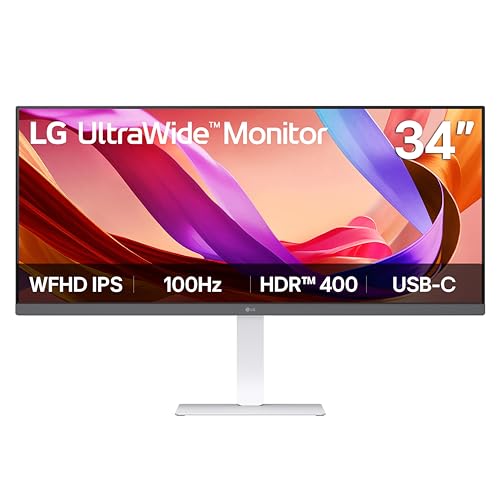
- 34-inch 21:9 IPS workspace
- USB-C, DisplayPort, and HDMI connectivity
- Adjustable stand with built-in speakers
Best For: Everyday multitasking and laptop-based home offices
Best High-Resolution Workhorse

- 3440 × 1440 QHD ultrawide resolution
- USB-C with up to 65W power delivery
- 120Hz refresh and ComfortView Plus
Best For: Detailed multitasking and USB-C laptop workstations
Best Smart Monitor

- 3440 × 1440 curved QHD display
- Built-in webOS streaming platform
- AirPlay 2, HomeKit, and built-in speakers
Best For: Workspaces that also serve as streaming and casting stations
Best Value QHD Option

- 3440 × 1440 QHD ultrawide resolution
- Up to 115Hz with HDMI and DisplayPort inputs
- 103% sRGB and Blue-Light Shift
Best For: Budget-conscious QHD multitasking and mixed work/play setups
Best Balanced Productivity Pick
LG 34-inch UltraWide WQHD Monitor

- 3440x1440 WQHD workspace
- 120Hz refresh with HDR10
- Adjustable, space-saving stand
Best For: Multitasking, office work, and mixed entertainment
Best Super-Ultrawide Workspace

- 49-inch 32:9 multitasking canvas
- USB-C with 65W power delivery
- PIP/PBP and 144Hz refresh rate
Best For: Maximum screen width and multi-input setups
Best Eye-Care Features
Samsung 34-inch ViewFinity S50GC

- 3440x1440 Ultra-WQHD resolution
- Ambient brightness and Eye Saver Mode
- PIP/PBP for two sources
Best For: Long work sessions and dual-source productivity
Best Docking-Station Ultrawide
Samsung 49-inch Dual QHD Business Monitor

- 49-inch 32:9 Dual QHD workspace
- USB-C with 90W charging and hub features
- 120Hz refresh rate with built-in speakers
Best For: Maximum multitasking and a consolidated laptop workstation
Best High-Refresh Value
Sceptre 34-inch WQHD Curved Monitor
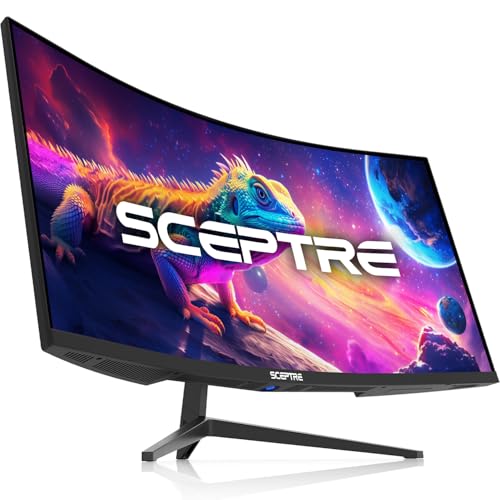
- 34-inch 3440 x 1440 WQHD display
- Up to 180Hz refresh rate and 1ms MPRT
- PBP/PIP modes with built-in speakers
Best For: Mixed productivity, gaming, and visual-content use
Best Balanced Workspace – LG 34U530A-W
For shoppers comparing compact ultrawide productivity monitors, the LG 34U530A-W combines a 34-inch 21:9 workspace with a space-saving stand and flexible laptop connectivity. Its 2560 × 1080 IPS panel, 100Hz refresh rate, USB-C support, and built-in speakers make it a practical choice for everyday multitasking.
Best For: Home offices and general multitasking where a wide workspace, USB-C connectivity, and adjustable ergonomics matter.
Pros:
- 21:9 IPS display provides room for multiple windows side by side.
- USB-C supports display output and data transfer for a cleaner laptop setup.
- Height, tilt, and swivel adjustments improve positioning flexibility.
- Built-in speakers, HDR400, and 99% sRGB coverage add versatility.
Cons:
- 2560 × 1080 resolution provides less vertical detail than QHD ultrawide models.
- Only one HDMI port is listed.
The LG is a well-rounded productivity monitor for users who value a tidy desk and convenient USB-C operation. Its lower ultrawide resolution is best suited to office work, browsing, calls, and everyday media rather than detail-heavy creative workflows.
Best High-Resolution Workhorse – Dell S3425DW
The Dell S3425DW is a strong option among compact ultrawide productivity monitors when you want sharper QHD detail and a single-cable laptop connection. Its 3440 × 1440 VA panel, 120Hz refresh rate, USB-C power delivery, and eye-comfort features support long work sessions without giving up smooth motion.
Best For: Productivity users who want high-resolution multitasking, strong contrast, and USB-C charging for compatible laptops.
Pros:
- 3440 × 1440 resolution offers detailed text and generous workspace.
- USB-C provides connectivity with up to 65W power delivery.
- 120Hz refresh rate and FreeSync Premium support smooth motion.
- 99% sRGB, 95% DCI-P3, and ComfortView Plus suit extended use.
Cons:
- VA technology may not provide the same viewing consistency as an IPS panel.
- The 34-inch curved design takes up more desk width than smaller monitors.
With its higher resolution, broad color coverage, and convenient USB-C connection, the Dell is especially compelling for document-heavy workflows, editing, and multitasking. Its 3000:1 contrast ratio also gives images more depth than typical low-contrast office displays.
Best Smart Monitor – LG 34SR60QC-W Smart Monitor
The LG 34SR60QC-W stands out among compact ultrawide productivity monitors by combining a 34-inch QHD curved display with built-in webOS streaming. It can handle laptop and desktop work while also serving as a standalone entertainment screen, with AirPlay 2, screen sharing, HDR10, and built-in speakers.
Best For: Users who want one ultrawide display for work, streaming, wireless casting, and general multimedia.
Pros:
- 3440 × 1440 resolution and a 21:9 curved layout support immersive multitasking.
- webOS provides access to streaming apps and LG Channels without a separate PC.
- AirPlay 2 and HomeKit support convenient Apple device casting and control.
- Two HDMI ports, three USB ports, and built-in speakers improve flexibility.
Cons:
- It does not list USB-C connectivity or laptop power delivery.
- The 100Hz refresh rate is lower than the fastest model in this roundup.
- Its smart features are more relevant to multimedia users than strictly office-focused buyers.
This LG is a versatile choice for a desk that doubles as a media center. Its QHD resolution is well suited to side-by-side work, while webOS and wireless casting let it function independently from a connected computer.
Best Value QHD Option – Sceptre E345W-QU120
The Sceptre E345W-QU120 delivers a large QHD workspace at a straightforward price-oriented feature set, making it worth considering among compact ultrawide productivity monitors. Its 3440 × 1440 VA display, up-to-115Hz refresh rate, broad connectivity, and eye-care mode support both office multitasking and casual entertainment.
Best For: Budget-conscious users who want QHD ultrawide space, multiple video inputs, and built-in audio.
Pros:
- 3440 × 1440 resolution provides ample space for spreadsheets, timelines, and multiple windows.
- Two HDMI ports and two DisplayPort inputs offer flexible device connectivity.
- Up to 115Hz refresh rate and FreeSync support smooth everyday motion.
- 103% sRGB coverage, Blue-Light Shift, and built-in speakers add practical value.
Cons:
- The VA panel and 2000:1 contrast specification may be less consistent for viewing angles than IPS.
- The supplied details list wall mounting but do not specify height, swivel, or tilt adjustments.
- No USB-C connectivity is listed.
The Sceptre focuses on core ultrawide essentials: high resolution, broad input selection, smooth refresh, and integrated audio. It is a practical fit for buyers who do not need USB-C docking or a feature-rich smart-monitor platform.
Best Balanced Productivity Pick – LG 34-inch UltraWide WQHD Monitor
For shoppers comparing compact ultrawide productivity monitors, the LG 34U60ZB-B offers a practical balance of workspace, resolution, and smooth performance. Its 34-inch 21:9 WQHD panel provides room for multiple applications while the 1800R curve, matte finish, and adjustable stand support comfortable daily use.
Best For: Multitasking, office work, reading, streaming, and occasional gaming in a space-conscious setup.
Pros:
- 3440×1440 WQHD resolution gives documents and side-by-side apps more usable space.
- 120Hz refresh rate and 5ms response time keep motion smooth for video, calls, and gaming.
- Up to 99% sRGB coverage, HDR10, Reader Mode, and LG Switch add useful everyday controls.
- Tilt and height adjustment plus a space-saving stand help keep the desk organized.
Cons:
- Brightness is rated at 250 cd/m², which may be less suitable for very bright rooms.
- Connectivity is limited to one HDMI port and one DisplayPort connection.
- It does not list USB-C charging or built-in speakers.
The LG is a strong all-around choice when you want high-resolution ultrawide multitasking without moving to an exceptionally wide 49-inch format. Its software controls and comfort features make it especially practical for mixed work and entertainment.
Best Super-Ultrawide Workspace – INNOCN 49-inch Curved Monitor
The INNOCN 49C1G expands the compact ultrawide productivity monitors category into a super-ultrawide format. Its 32:9 screen can replace a two-monitor arrangement for users who need extensive horizontal space, while USB-C connectivity, split-screen modes, and an adjustable stand support flexible desk setups.
Best For: Users who prioritize maximum screen width, multiple input sources, USB-C laptop connectivity, and gaming performance.
Pros:
- 49-inch 32:9 display provides a very wide workspace for multitasking.
- USB-C supports up to 65W power delivery, with DisplayPort, HDMI, USB-A, USB-B, RJ45, and audio connections.
- PIP/PBP lets you view content from two sources at once.
- 144Hz refresh rate, 1ms response time, Adaptive-Sync, and HDR400 suit fast-moving content.
Cons:
- The 3840×1080 resolution is lower vertically than the 3440×1440 panels in the other monitors here.
- Its 49-inch width requires substantial desk space despite the ultrawide design.
- The product is positioned primarily for gaming, which may be more capability than basic office work requires.
This INNOCN is the productivity pick for people who want one expansive canvas instead of two separate displays. Confirm your desk width and computer output support before buying, but the port selection and PIP/PBP features make it unusually flexible.
Best Eye-Care Features – Samsung 34-inch ViewFinity S50GC
The Samsung ViewFinity S50GC is a sensible option among compact ultrawide productivity monitors for users who spend long hours reading, researching, or managing multiple windows. Its 34-inch 3440×1440 display combines a 21:9 workspace with ambient brightness adjustment, Eye Saver Mode, and a virtually borderless design.
Best For: Office productivity, research, photo and video editing, and dual-source workflows that benefit from eye-care features.
Pros:
- Ultra-WQHD 3440×1440 resolution provides detailed side-by-side workspace.
- Ambient light sensing, Eye Saver Mode, and Flicker Free features support extended viewing.
- PBP and PIP allow two input sources to appear simultaneously.
- 100Hz refresh rate, HDR10, and AMD FreeSync provide smoother general use and entertainment.
Cons:
- Its 100Hz refresh rate is lower than the 120Hz and 144Hz alternatives.
- The listed 72 color-gamut rating is less compelling for color-critical work than a monitor with stated wide-gamut coverage.
- Connectivity is centered on HDMI and DisplayPort, without listed USB-C connectivity.
Choose the Samsung when comfortable long-session viewing and source management matter more than maximum refresh rate. The high-resolution 21:9 layout and eye-care tools make it well suited to a focused home-office or creative workspace.
Best Docking-Station Ultrawide – Samsung 49-inch Dual QHD Business Monitor
For shoppers comparing compact ultrawide productivity monitors, this Samsung is a wide, all-in-one workstation built around a 49-inch 32:9 Dual QHD display. Its USB-C hub, 90W charging, built-in speakers, and height-adjustable stand can help consolidate a laptop-focused desk setup.
Best For: Users who want maximum workspace and integrated docking features for business, multitasking, editing, or occasional gaming.
Pros:
- 5120 x 1440 Dual QHD resolution provides expansive workspace.
- USB-C supports up to 90W charging, with DisplayPort, HDMI, USB, and Ethernet connectivity.
- 120Hz refresh rate, FreeSync, and 5ms response time support smoother motion.
- Built-in speakers, HDR400 support, and a height-adjustable stand add convenience.
Cons:
- The 49-inch, 45.18-inch-wide chassis requires substantial desk space.
- Its 32:9 format may be more screen than some users need for ordinary office work.
This is the most capable choice here for replacing multiple monitors and simplifying connections, but its large footprint makes it less compact in physical desk terms despite the single-screen setup.
Best High-Refresh Value – Sceptre 34-inch WQHD Curved Monitor
This Sceptre gives compact ultrawide productivity monitors shoppers a more manageable 34-inch option with a 21:9 layout and 3440 x 1440 WQHD resolution. Its high refresh rate, 100% sRGB claim, and picture-by-picture and picture-in-picture features suit workspaces that also handle gaming or visual content.
Best For: Buyers seeking a 34-inch ultrawide for multitasking, gaming, and photo or video work without moving to a 49-inch display.
Pros:
- 3440 x 1440 WQHD resolution offers more detail and workspace than 1080p.
- Up to 180Hz refresh rate and 1ms MPRT support smooth, responsive motion.
- Picture-by-picture and picture-in-picture modes support multitasking.
- Built-in speakers, FreeSync Premium, blue-light filtering, and a matte finish add practical features.
Cons:
- Connectivity is centered on HDMI and DisplayPort rather than USB-C docking.
- The supplied notes specify a limited one-year manufacturer warranty.
Choose this model when refresh rate and flexible screen modes matter as much as office productivity. It is a balanced 34-inch format, though laptop users will need separate charging and hub solutions.
Best Eye-Care Work Monitor – Samsung Viewfinity S65UA 34-inch
For compact ultrawide productivity monitors aimed primarily at desk work, Samsung’s Viewfinity S65UA combines a 34-inch 3440 x 1440 screen with a 1000R curve, USB-C connectivity, and 90W charging. Its TUV-certified intelligent eye-care features and height-adjustable stand make it particularly suited to long work sessions.
Best For: Office users and creators who want a comfortable single-screen workspace with USB-C laptop charging and strong eye-care features.
Pros:
- Ultra WQHD resolution and a 21:9 aspect ratio support side-by-side multitasking.
- USB-C provides 90W charging and data transmission through one cable.
- TUV-certified intelligent eye care includes automatic brightness and color-temperature adjustments, eye-saver mode, and flicker-free operation.
- HDR10, one-billion-color support, FreeSync, and a 100Hz refresh rate broaden its use beyond office work.
Cons:
- It offers a 100Hz refresh rate rather than the higher rates found on gaming-oriented alternatives.
- The strongly curved 1000R screen may not suit users who prefer a flat display.
This is the most work-focused 34-inch option in the group, especially for users who value one-cable laptop connectivity and reduced visual fatigue over maximum gaming speed.
How We Picked the Best Compact Ultrawide Productivity Monitors
We focused on displays that provide meaningful horizontal workspace while remaining practical for home offices, shared desks, and professional workstations. The selection includes 34-inch 21:9 monitors as well as larger 49-inch super ultrawide models for buyers who want a dual-monitor-style layout from one screen.
Our comparison emphasizes resolution, text clarity, refresh rate, connectivity, ergonomic adjustability, built-in speakers, HDR support, and useful multitasking features such as picture-by-picture or picture-in-picture modes. We also considered whether each monitor is better suited to office work, creative tasks, entertainment, or a combination of uses.
Quick Comparison
- Best everyday size: A 34-inch 21:9 monitor balances workspace and desk compatibility.
- Best for sharper productivity work: WQHD or Ultra-WQHD models provide more pixels than 2560 x 1080 displays.
- Best for laptop users: Look for USB-C connectivity, especially models that support convenient single-cable setups.
- Best for multi-window workflows: A 49-inch 32:9 monitor can replace two conventional displays, but it needs substantially more desk width.
- Best for mixed work and play: Higher refresh rates, Adaptive-Sync, and faster response times make scrolling and gaming feel smoother.
Key Buying Factors for Compact Ultrawide Productivity Monitors
Resolution and Screen Size
For a 34-inch ultrawide, 3440 x 1440 is generally preferable for crisp text and spacious application layouts. A 2560 x 1080 model can cost less and demand less from a computer, but text and fine interface elements may look less detailed. Larger 49-inch displays offer expansive work areas, though their 3840 x 1080 resolution is not as vertically dense as dual-QHD alternatives.
Panel Type, Refresh Rate, and Comfort
IPS panels typically offer consistent viewing angles and reliable color, while VA panels often provide deeper contrast. A refresh rate of 100Hz or higher makes cursor movement, scrolling, and window dragging feel smoother than standard 60Hz. For long work sessions, prioritize flicker-reduction features, low-blue-light modes, a matte surface, and a stand with height and tilt adjustment.
Ports and Workflow Features
Check the exact connection mix before buying. USB-C can simplify laptop setups, but not every USB-C port supplies power or video, so verify the specifications. DisplayPort and HDMI support desktop systems and accessories, while built-in speakers, KVM-style features, PBP, and PIP can reduce desktop clutter.
Who Should Buy Which Compact Ultrawide Productivity Monitors?
Choose a 34-inch WQHD model if you want the best balance of clarity, multitasking space, and desk compatibility. A 34-inch 2560 x 1080 display is a sensible budget choice for email, documents, browsing, and general office work. Buyers who connect a modern laptop should prioritize USB-C and a height-adjustable stand.
For design, data, or finance workflows that demand several full-size windows, a 49-inch super ultrawide can provide the most seamless single-screen workspace. Choose a faster 144Hz- or 180Hz-capable model if productivity is paired with gaming. Finally, consider a smart monitor when built-in streaming and webOS-style features are useful, but avoid paying for them if the display will be connected only to a computer.
