
The best commercial-grade drawing display tablets combine accurate pen input, responsive screens, reliable construction, and features that hold up through demanding creative work. The right choice depends on your workflow, workspace, software, and whether you need a portable or standalone device.
We compare 10 professional-focused options across large-format pen displays, compact models, mobile tablets, and value-oriented setups so you can narrow the field with confidence.
Best 10 Commercial-Grade Drawing Display Tablets Picks for 2026
Premium 4K Workstation

- 27-inch 4K display with 120Hz refresh
- Calman-verified color with 99% Adobe RGB
- 16,384-level pen, touch, and shortcut keyboard
Best For: Professional desktop creative studios and color-sensitive work
Portable All-in-One

- Standalone Android 15 creative tablet
- 14-inch 3K OLED display with wide color gamut
- 12GB RAM, 256GB storage, and battery-free pen
Best For: Mobile artists who want a computer-free drawing setup
Large-Canvas Value

- 22-inch full-laminated drawing display
- 130% sRGB with three color-space modes
- 16,384-level X3 Pro stylus
Best For: Large-screen drawing, design, study, and general creative work
Control-Focused QHD Display

- 15.8-inch 2.5K QHD display
- 16,384-level PenTech 4.0 stylus
- Dual dials and six customizable keys
Best For: Connected creative work with tactile shortcut control
Portable Pro Power

- 3K 120Hz display with professional color coverage
- 16K X4 stylus with tilt support and precise tracking
- Standalone Android tablet plus one-cable computer display
Best For: Portable illustration, comics, and studio workflows
Reliable Entry Point
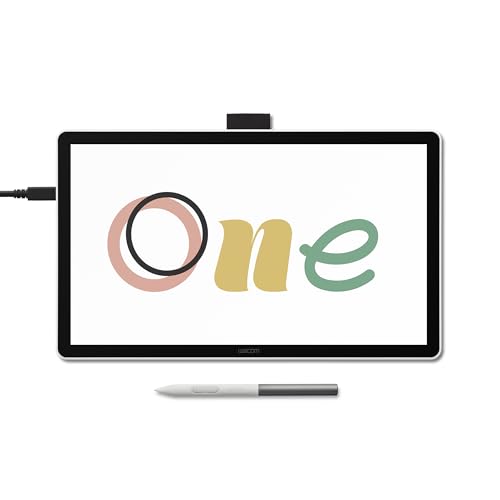
- 14-inch laminated Full HD IPS display with 98% sRGB
- Battery-free pen with pressure sensitivity and tilt support
- Works with Windows, Mac, and Chromebook computers
Best For: Students and beginners learning digital art
Color-Critical Studio Choice
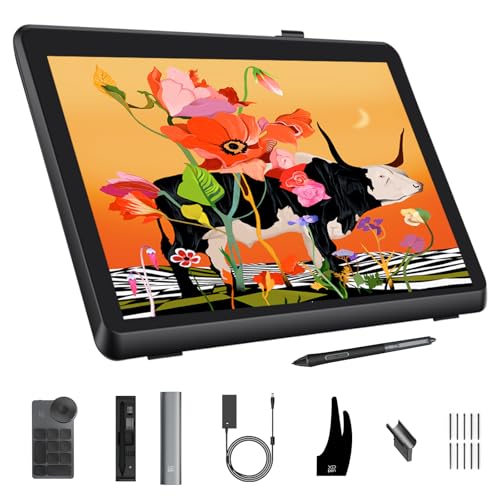
- Calman Verified 2.5K display with Delta E<1
- Wide Adobe RGB, sRGB, and Display P3 coverage
- 16K stylus, wireless keydial, and adjustable stand
Best For: Professional color-critical illustration and design
Wide-Gamut Value
UGEE UE16 15.4-inch Drawing Display

- 143% sRGB with four color-space modes
- 16K pressure sensitivity and tilt support
- Eight keys, scroll wheel, and broad OS compatibility
Best For: Color-conscious artists and students needing flexible device support
Dial-Controlled Workflow

- 16K X3 Pro stylus for precise pressure control
- Red dial and eight customizable shortcut keys
- Full-laminated anti-glare display with included stand
Best For: Computer-based illustrators and designers seeking fast physical controls
Precision Pro Workflow
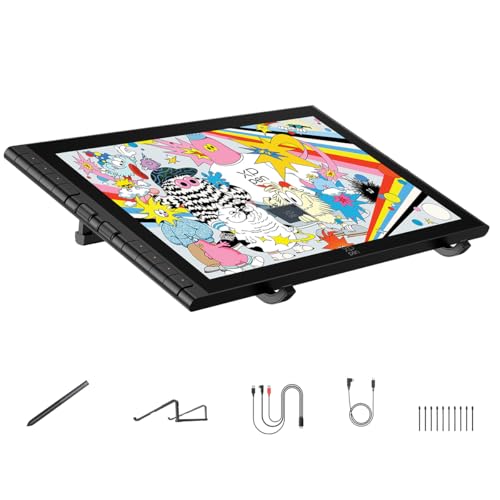
- X4 magnetic 16K stylus with low activation force
- Etched glass, full lamination, and minimal parallax
- Two scroll wheels, eight keys, and included stand
Best For: Detailed illustration, animation, and 3D workflows
Premium 4K Workstation – XPPen Artist Pro 27 (Gen 2)
For professionals comparing commercial-grade drawing display tablets, the XPPen Artist Pro 27 (Gen 2) stands out with a large 27-inch 4K canvas, 120Hz refresh rate, and Calman-verified color accuracy. Its multi-touch controls, dual styluses, shortcut keyboard, and broad operating-system compatibility make it well suited to demanding creative workflows.
Best For: Professional illustrators, animators, graphic designers, photographers, and 3D artists who want a large, color-focused desktop display.
Pros:
- 27-inch 4K display with 99% Adobe RGB coverage and Delta E below 1.
- 120Hz refresh rate, full lamination, and AG+AF coating help support smooth, low-glare work.
- X3 Pro stylus offers 16,384 pressure levels, tilt support, and 0.4mm precision.
- Includes multi-touch, wireless shortcut keyboard, adjustable stand, and two pens.
Cons:
- Its large desktop footprint may not suit compact workspaces.
- It is a feature-rich professional setup rather than a highly portable option.
The Artist Pro 27 (Gen 2) is the strongest choice here for creators who prioritize screen size, resolution, color consistency, and workflow controls over portability.
Portable All-in-One – Wacom MovinkPad Pro 14
The Wacom MovinkPad Pro 14 takes a different approach to commercial-grade drawing display tablets by combining the display, Android 15 operating system, storage, and creative hardware in one portable unit. Its 14-inch 3K OLED screen and included Pro Pen 3 make it useful for artists who need a self-contained mobile workspace.
Best For: Artists, designers, and photographers who need professional-grade drawing capabilities without carrying a separate computer.
Pros:
- Standalone Android 15 tablet with 12GB RAM, 256GB storage, and microSD expansion.
- 14-inch 3K OLED display covers 100% sRGB and DCI-P3 color spaces.
- Premium textured glass provides an anti-glare, paper-like drawing surface.
- Battery-free Pro Pen 3 provides 8,192 pressure levels and includes replacement nibs.
Cons:
- Its 14-inch canvas is smaller than the desktop displays in this roundup.
- Windows compatibility excludes ARM-based systems, while Intel Macs are unsupported.
Choose the MovinkPad Pro 14 if mobility and independence from a computer matter more than having a large desktop canvas. It is the most self-contained option in this selection.
Large-Canvas Value – XPPen Artist 22 Plus
For shoppers seeking commercial-grade drawing display tablets with a roomy working area, the XPPen Artist 22 Plus offers a 22-inch full-laminated display and a 16,384-pressure-level stylus. Its 130% sRGB gamut and multiple color spaces give creators flexibility for illustration, design, entertainment, and other screen-based tasks.
Best For: Digital artists, designers, students, and creators who want a spacious pen display with broad software and operating-system support.
Pros:
- Large 22-inch screen provides an immersive drawing and viewing workspace.
- 130% sRGB gamut, 16.7 million colors, and switchable sRGB, Adobe RGB, and DCI-P3 modes.
- X3 Pro stylus delivers 16,384 pressure levels for nuanced line control.
- Supports Windows, macOS, ChromeOS, Android, Linux, and many major creative applications.
Cons:
- The 1920×1080 resolution is lower than the QHD and 4K displays in this roundup.
- At 17.8 pounds, it is better suited to a fixed workspace than frequent travel.
The Artist 22 Plus is a practical pick when screen area and color flexibility are more important than ultra-high resolution. Its broad compatibility also makes it adaptable for classrooms and mixed-device studios.
Control-Focused QHD Display – HUION Kamvas 16 (Gen 3)
The HUION Kamvas 16 (Gen 3) is a compact option among commercial-grade drawing display tablets, pairing a 15.8-inch 2.5K QHD screen with a PenTech 4.0 stylus and built-in workflow controls. Its nano-etched glass, dual dials, and six customizable keys are especially useful for creators who want tactile adjustments while drawing.
Best For: Artists, designers, and animators who need a sharp, portable pen display with physical controls and computer or Android connectivity.
Pros:
- 2.5K resolution on a 15.8-inch screen delivers 186 PPI for detailed work.
- Color coverage reaches 99% sRGB, 99% Rec.709, and 90% Adobe RGB with Delta E below 1.5.
- PenTech 4.0 provides 16,384 pressure levels, 2g initial activation force, and tilt support.
- Dual dials and six silent keys offer customizable controls for creative software.
Cons:
- It is not standalone and must connect to a computer, laptop, or compatible Android device.
- Connection requires a 3-in-1 cable or a full-featured USB-C setup meeting the stated specifications.
The Kamvas 16 (Gen 3) balances resolution, color accuracy, portability, and hands-on controls. It is a strong fit for users who already have a host device and value customizable shortcuts.
Portable Pro Power – XPPen Magic Pro 13
The XPPen Magic Pro 13 is a versatile option for creators seeking commercial-grade drawing display tablets that can work independently or connect to a computer. Its 3K 120Hz screen, 16K stylus, and portable standalone design suit both studio production and work away from the desk.
Best For: Illustrators, comic artists, and designers who want a portable standalone tablet with professional display and stylus features.
Pros:
- 3K 120Hz display with AG+AF nano-etched glass, 650-nit peak brightness, and 100% sRGB coverage.
- X4 stylus provides 16,384 pressure levels, 60-degree tilt support, and 0.2 mm center accuracy.
- Works independently on Android 16 or as a one-cable drawing display for a computer.
- 8GB RAM, 256GB storage, and microSD expansion up to 2TB accommodate larger project files.
Cons:
- The supplied notes do not specify the full processor, battery, or software compatibility details.
- Its broader standalone features may be unnecessary for buyers who only need a basic computer-connected display.
The Magic Pro 13 stands out when portability and flexibility matter as much as drawing precision. It is a particularly capable choice for creators who want to sketch independently and later transition to desktop refinement without changing devices.
Reliable Entry Point – Wacom One 14
The Wacom One 14 is a straightforward choice among commercial-grade drawing display tablets for students and beginners who value dependable computer connectivity. Its laminated Full HD IPS screen, battery-free pen, and broad Windows, Mac, and Chromebook support keep the setup simple.
Best For: Students, teachers, and new digital artists working on illustration, animation, graphic design, or remote projects.
Pros:
- 14-inch laminated IPS Full HD display offers 98% sRGB coverage and an anti-glare, paper-like surface.
- Battery-free pen supports responsive pressure sensitivity and 60-degree tilt.
- Single USB-C connection works with compatible Windows, Mac, and Chromebook systems.
- Includes trials for Clip Studio Paint Pro, Magma, Concepts, Foxit, and Skillshare training.
Cons:
- Its 4,096 pressure levels and Full HD resolution are less advanced than the higher-spec options here.
- Some HDMI or USB-C systems require a separately sold converter, cables, and power adapter kit.
- It is a computer-connected pen display rather than a standalone tablet.
The Wacom One 14 prioritizes approachable operation and established driver reliability over cutting-edge specifications. It is a sensible pick for learning and everyday creative work, provided your computer supports the required display connection.
Color-Critical Studio Choice – XPPen Artist Pro 22 Gen 2
The XPPen Artist Pro 22 Gen 2 is built for professionals who need a large, color-accurate workspace from commercial-grade drawing display tablets. Its Calman Verified 2.5K panel, 16K stylus, wireless keydial, and adjustable stand support detailed illustration, photography, and graphic design work.
Best For: Professional artists, photographers, and graphic designers who need a large screen and dependable color reproduction.
Pros:
- Calman Verified display delivers Delta E<1, with 99% Adobe RGB, 99% sRGB, and 94% Display P3 coverage.
- 21.5-inch 2.5K screen provides 137 PPI, a 178-degree viewing angle, and a comfortable 16:9 workspace.
- X3 Pro stylus offers 16K pressure levels, 60-degree tilt, felt nibs, and a digital eraser.
- Includes a 40-key Bluetooth keydial and an ergonomic stand adjustable from 15 to 88 degrees.
Cons:
- The 250 cd/m² peak brightness is more suited to controlled indoor studio environments than bright outdoor work.
- The optional height-adjustable ACS15 stand is not included.
- It requires a connected compatible computer rather than operating as a standalone tablet.
For color-sensitive production, the Artist Pro 22 Gen 2 offers the strongest professional specification set of these three models. Its large panel and workflow controls are especially useful when precision, screen area, and long-session ergonomics take priority.
Wide-Gamut Value – UGEE UE16 15.4-inch Drawing Display
The UGEE UE16 is a practical choice among commercial-grade drawing display tablets for artists who want a large, color-focused workspace without giving up tactile controls. Its 15.4-inch full-laminated 1080p screen, 16K pressure sensitivity, and broad device compatibility support detailed illustration, design, and general digital art workflows.
Best For: Artists and students who prioritize wide color coverage, customizable controls, and compatibility across computers, tablets, and smartphones.
Pros:
- 143% sRGB coverage with sRGB, Adobe RGB, DCI-P3, and black-and-white modes.
- 16,384 pressure levels, 60-degree tilt support, and a battery-free stylus.
- Eight shortcut keys plus a multifunction scroll wheel for hands-on control.
- Supports Windows, macOS, ChromeOS, Android, and Linux.
Cons:
- The 1920×1080 resolution is less detailed than higher-resolution professional displays.
- It requires a wired HDMI or USB connection for use.
- The 3-in-1 cable is packed separately and should be checked for in the parcel.
With its unusually wide stated color gamut and flexible color-space options, the UE16 is well suited to color-conscious creators. Its shortcut wheel and broad OS support add convenience, though the FHD resolution may be a consideration for highly detailed professional work.
Dial-Controlled Workflow – XPPen Artist 15.6 Pro V2
The XPPen Artist 15.6 Pro V2 is a strong option among commercial-grade drawing display tablets for creators who want precise pen input and efficient on-device controls. Its X3 Pro stylus, full-laminated anti-glare display, red dial, and customizable keys are designed to streamline extended illustration and design sessions.
Best For: Illustrators and designers who want a dedicated control dial, strong color coverage, and an included adjustable stand for computer-based work.
Pros:
- X3 Pro stylus provides 16,384 pressure levels for nuanced line control.
- Full-laminated anti-glare glass and 178-degree viewing angle help reduce parallax and glare.
- Red dial and eight customizable shortcut keys support efficient brush, zoom, and navigation control.
- Includes a foldable stand and supports major Windows, macOS, and ChromeOS graphics workflows.
Cons:
- It must be connected to a computer or laptop to operate.
- The display is rated at 250 cd/m² brightness, which may be modest for very bright workspaces.
- Its 15.4-inch screen uses 1920×1080 resolution.
The Artist 15.6 Pro V2 emphasizes workflow efficiency, combining a comfortable dial with eight programmable keys and a stand. Its 99% sRGB, 96% Adobe RGB, and 96% Display P3 coverage is useful for color-focused work, while its computer-dependent design makes it less suitable as a standalone mobile device.
Precision Pro Workflow – XPPen Artist 16 3rd Gen
The XPPen Artist 16 3rd Gen is built for demanding commercial-grade drawing display tablet workflows, pairing a 16K X4 magnetic stylus with a paper-like etched-glass surface. Its dual scroll wheels, eight hotkeys, color-space controls, and included stand make it suited to detailed illustration, animation, and 3D applications.
Best For: Professional-minded artists, animators, and 3D creators who want precise pen response, extensive workflow controls, and strong color coverage.
Pros:
- X4 stylus offers 16,384 pressure levels, 2g initial activation force, and 0.3mm retraction.
- AG+AF etched glass and full lamination provide reduced glare, low parallax, and paper-like friction.
- Two scroll wheels and eight customizable keys support brush, zoom, layer, and navigation adjustments.
- Includes a foldable stand and supports Windows, macOS, Android, ChromeOS, and Linux.
Cons:
- The 15.4-inch display has 1920×1080 resolution.
- Some setups may require the included 3-in-1 cable rather than a single USB-C connection.
- Its advanced controls may be more than casual users need.
The Artist 16 3rd Gen stands out for its low-activation-force stylus, near-parallax-free surface, and professional color coverage of 99% sRGB, 98% Adobe RGB, and 97% Display P3. It is a compelling control-heavy option for creators who value precision and ergonomic workflow support.
How We Picked These Commercial-Grade Drawing Display Tablets
We focused on specifications that directly affect professional drawing, illustration, animation, photo editing, and design workflows. Our comparison considers display size and resolution, color coverage, lamination, refresh rate, pressure sensitivity, pen technology, shortcut controls, connectivity, compatibility, ergonomics, and overall practicality. Standalone models are evaluated differently from computer-connected displays because portability, battery life, and operating-system support become more important.
Marketing claims are not the only consideration. A tablet must offer a balanced combination of screen quality, low-latency pen performance, useful controls, comfortable viewing, and dependable day-to-day operation to justify a place in a professional setup.
Quick Comparison
- Best for large canvases: 27-inch and 22-inch displays provide more room for detailed illustration, animation timelines, and multitasking.
- Best for portability: The Wacom MovinkPad Pro 14 and XPPen Magic Pro 13 offer more flexible, mobile-oriented workflows.
- Best for high-resolution work: 2.5K, 3K, and 4K models deliver sharper linework and interface detail than standard Full HD screens.
- Best for control: Models with wheels, dials, and programmable keys can reduce keyboard and menu switching.
- Best for value: Full HD and mid-size displays can provide a capable professional experience without the cost or footprint of flagship models.
Key Buying Factors
Screen Size and Resolution
Larger screens are useful for detailed work and complex interfaces, but they require more desk space. A 2.5K or higher panel is especially helpful on 22-inch and larger displays, while Full HD can remain practical on compact models.
Color and Surface Quality
Look for broad color coverage, factory calibration, and a laminated display when color accuracy and precise cursor placement matter. Matte or etched surfaces can reduce reflections and provide a paper-like feel, though they may slightly affect perceived clarity.
Pen Performance
Pressure sensitivity alone does not determine drawing quality. Pen latency, tilt recognition, initial activation force, nib stability, and comfortable grip all affect control. Confirm whether the included stylus needs charging and whether replacement nibs are readily available.
Connectivity and Compatibility
Most pen displays connect to Windows or macOS, often through USB-C, HDMI, or a combination of cables. Check the required ports, driver support, power requirements, and compatibility with your preferred creative applications before buying. Standalone tablets should also be checked for operating-system limits and app availability.
Ergonomics and Controls
A stable stand, adjustable viewing angle, shortcut keys, and a comfortable working height can matter more than small specification differences. If you already use a keyboard or control surface, a model with fewer built-in controls may be perfectly suitable.
Who Should Buy Which Commercial-Grade Drawing Display Tablets?
Choose a large 22- or 27-inch model if you work at a fixed desk and want maximum canvas space for professional illustration, animation, or design. A 15- or 16-inch display is a strong middle ground for creators who need portability without sacrificing a direct-on-screen workflow. Compact standalone models suit artists who sketch away from a workstation or want an all-in-one creative device.
Prioritize high resolution and color coverage for detailed illustration, concept art, and color-sensitive design. Choose strong shortcut controls if you work with long timelines or frequently switch tools. For occasional creative work, teaching, or a secondary workstation, a Full HD model with a laminated screen may deliver the best balance of cost, size, and capability.
